Aiphone NI-SOFT Operation Manual
Open the original PDF document
View PDFNI-SOFT
OPERATION MANUAL
Thank you for selecting Aiphone for your communication needs. Please read this manual carefully before using this product.
Please note that images and illustrations depicted in this manual may differ from the actual product.
* Please make sure to read this manual for safe and correct use of the product, and keep it in a safe place for future reference.
Contents
| Introduction | 3 |
|---|---|
| Notices | 3 |
| Unpacking | 3 |
| Connections | 3 |
| GETTING STARTED | 4 |
| Installing the NI-SOFT | 4 |
| System requirements for PC | 4 |
| Installing | 5 |
| Starting up the NI-SOFT | 7 |
| Exiting the NI-SOFT | 8 |
| Configuring the initial setup of the NI-SOFT | 9 |
| USING THE NI-SOFT | 10 |
| Displaying the call history by specifying search criteria | |
| 10 | |
| criteria | 10 |
| criteria Displaying the call history Displaying the call history list | 10 |
| criteria Displaying the call history Displaying the call history list \nin graph form |
10
10 13 |
Introduction
This product is application software that can be used by installing it on a PC connected with the master station. With this software, you can check the history of calls/answers in a table or graph format.
Notices
- Depending on the computer, it may not be useable.
- We will under no conditions be liable for any damages or losses resulting from this product's contents or specifi cations.
- This manual was created by Aiphone Co., Ltd., all rights reserved. Copying a part of or this entire manual without prior permission from Aiphone Co., Ltd. is strictly forbidden.
- Please note that this manual may be revised or changed without prior notice.
- Please note that product specifi cations may be changed for the sake of improvement without prior notice.
- Please be aware that it is the customer's responsibility to ensure that their computer is secure. We will under no conditions be liable for security failures.
Unpacking
After unpacking, check that the following are included.
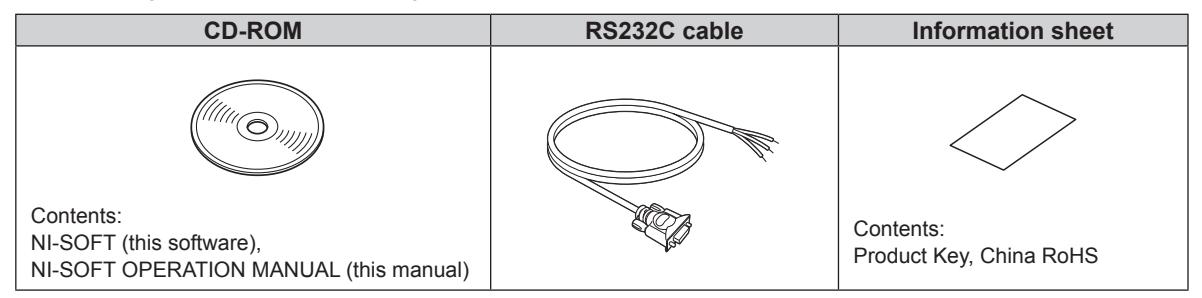
* Please keep these items in a safe place for future use.
Connections
Connect a PC on which you will install the NI-SOFT to the master station with the included RS232C cable.
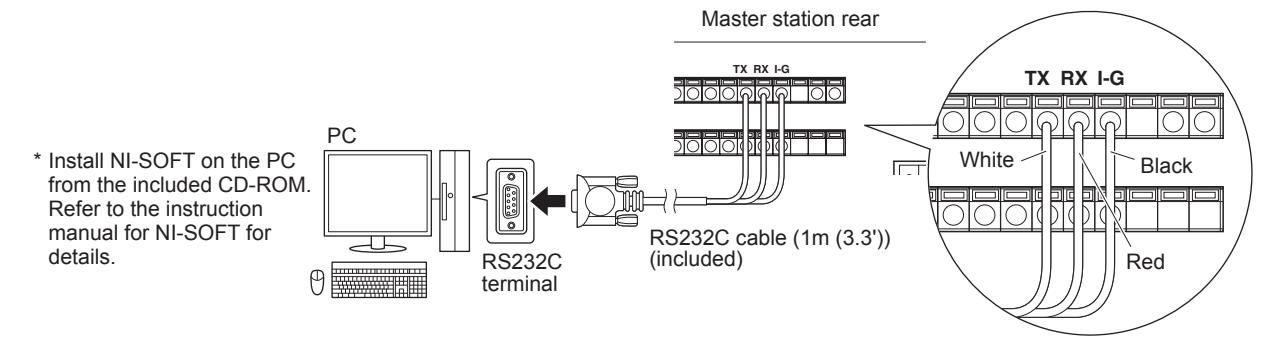
* When extending the RS232C cable, the distance between the master station and the PC should be 15m (50') or less.
Installing the NI-SOFT
Install the NI-SOFT on your PC from the CD-ROM.
NOTES:
- The PC should be operable 24 hours a day. Call history is obtained only while the NI-SOFT is running.
- Call history is not obtained in the following cases:
- When the NI-SOFT is not running
- When the PC is in the standby or sleep mode, or the system is logged off
- When the PC cannot communicate with the master station for any cause
System requirements for PC
Your PC must meet the following system requirements to use the NI-SOFT. Also refer to the instruction manual supplied with your PC.
|
OS
(English ver. only) |
Windows 7 Home Premium/Professional/Ultimate (Service Pack 1, 32/64bit)
Windows 8.1/Pro (32/64bit) |
|
|---|---|---|
| Processor | 2.7 GHz or higher | |
|
System memory
(RAM) |
2 GB RAM or higher | |
| Hard disk | Total 100 MB or higher (*1) | |
| Run-time | Microsoft® .NET Framework 4.5 (*2) | |
| Display | 1024 (W) x 768 (H) or higher, 16-bit or more | |
| Serial port | RS-232C, D-sub 9-pin | |
| Fonts | Arial | |
- (*1): If the software is to be installed onto a drive other than C: drive, both the C: drive and the installation drive each require 50 MB or more of memory.
- (*2): If the specifi ed Run-time is not installed on the PC, it will be installed automatically when installing the NI-SOFT.

- The NI-SOFT may not run, or may not operate correctly (such as freezes occurring) on a PC with specifi cations below the necessary requirements.
- We recommend using a PC and CD-ROM/DVD-ROM drive that exceed the basic system requirements.
- The NI-SOFT is registered to the start-up for the user designated when it was installed. (The NI-SOFT starts up automatically when logged in to the Windows.)
- When the system memory of the PC is running out, the NI-SOFT reboots the Windows to prevent the PC from being frozen. If there is concern of the occurrence of Windows reboot, confi gure the Windows so that login is performed automatically with the user's account with suffi cient attention given to security.
- It is recommended to install a PC exclusive for the NI-SOFT and acquire a dedicated account to obtain a complete call history.
Microsoft and Windows are either registered trademarks or trademarks of Microsoft Corporation in the United States and/or other countries.
Installing
Insert the CD-ROM into your PC. 1
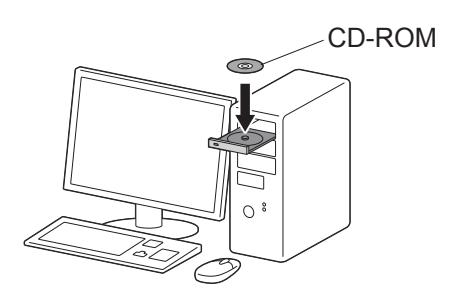
- Run "Setup.exe" in the CD-ROM by double-clicking it. 2
- Start the installation by following the on-screen 3 instructions.
Read "Software License Agreement" carefully, and then select I Agree .
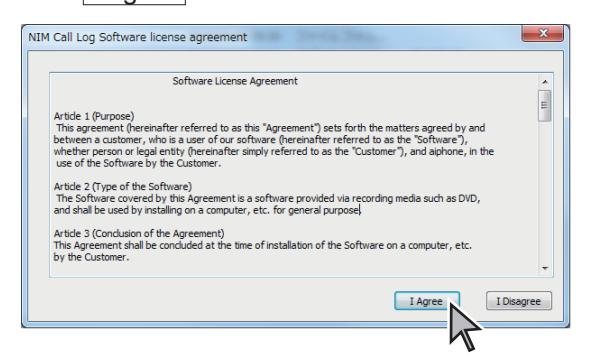
-
4
Input the Product Key, and click OK .
- * The Product Key can be found on the information sheet, "Product Key for NI-SOFT".
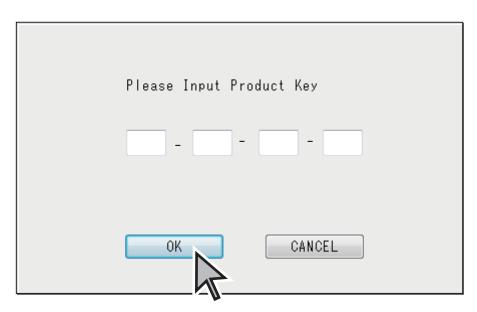
NOTE:
If ".NET Framework 4.5" is not already installed, the .NET Framework installation window is displayed. Follow the onscreen instructions to install. (It might be nothing displayed for a while to install.)
Read the description in the [Welcome to the NIM Call 5 Log Software Setup Wizard] window, and then click Next .
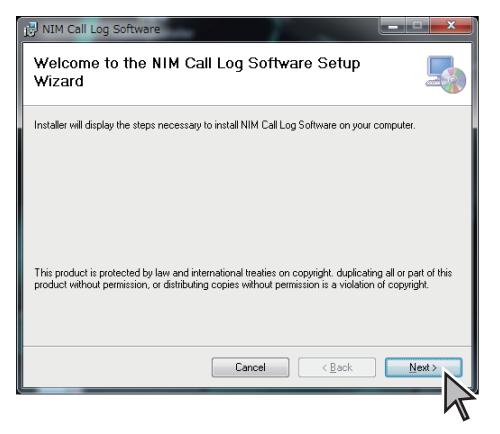
Select the folder and the PC in which the NI-SOFT is 6 to be installed.
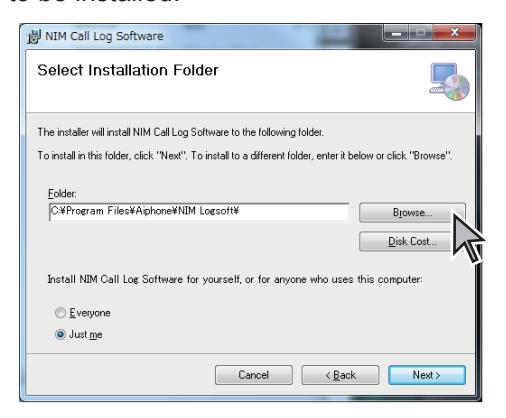
-
7
Click Next to continue the installation.
- Dialogs are displayed to confi rm whether or not you want to place a shortcut for the NI-SOFT in the Start Menu and on the desktop. Click YES or NO .
- When the [Installation Complete] window appears, 8 click Close to fi nish the installation.
- * After the installation has fi nished, restart the PC.
- When starting up the NI-SOFT, if a security or virus check warning is displayed, please allow the NI-SOFT to continue.
- When the [User Account Control Settings] window appears, click OK to continue the installation.
- Depending on the OS of a PC, different screens may be displayed. Follow the on-screen instructions to install.
■ Uninstalling
When you need to uninstall the NI-SOFT, follow the procedure below.
- * The uninstallation procedure differs depending on the Windows OS version. Confi rm the procedure for the Windows OS on your PC.
- Click the Windows' "Start" button, and then click 1 "Control panel". The control panel opens.
- Click "Programs and Features". 2
- Select "NIM Call Log Software", and then click 3 "Uninstall".
A dialogs is displayed to confi rm whether or not you want to keep log data and program settings. Click YES or NO .
When uninstalling has been fi nished successfully, the message "The program was successfully uninstalled" appears.
Starting up the NI-SOFT
Read the instruction below while viewing the actual display of the PC.
Start up the PC. 1
The following login window is displayed automatically after starting or restarting the PC.
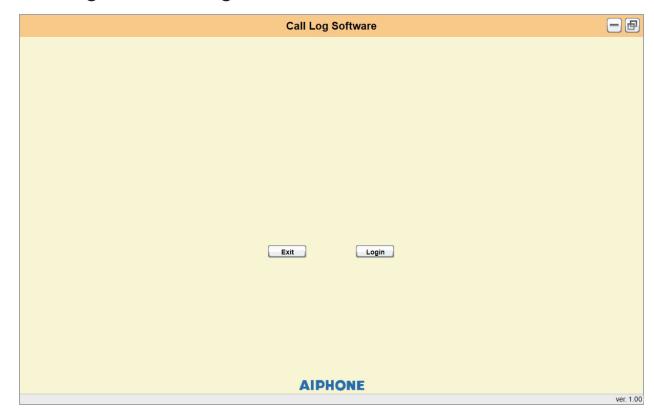
* When you fi rst start up the NI-SOFT after it has been installed, a dialog box is displayed saying that COM port setting has not been made. Click OK and proceed to the next step. After the initial setup (→ P.9 1), the dialog box will not be displayed again.
Click "Login". 2
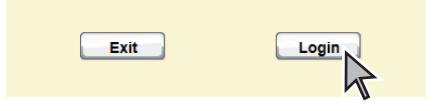
- * When the password entry box is displayed, enter the password, and then click "Login".
- When you start up the NI-SOFT for the fi rst time, entering password is not needed. You can set up a password for security purposes if needed. (→ P. 9)
- * If you do not want to log into the NI-SOFT, click Exit .

The [Call log] window is displayed.
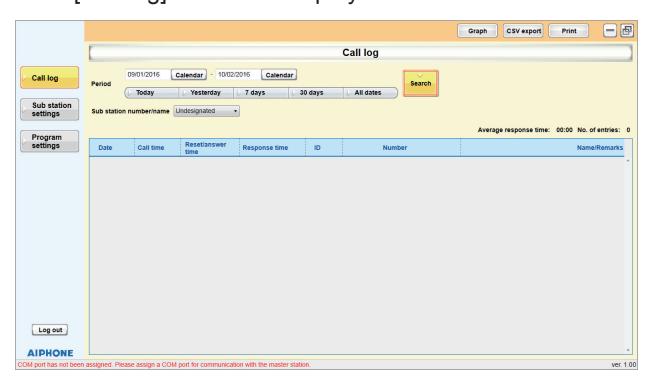
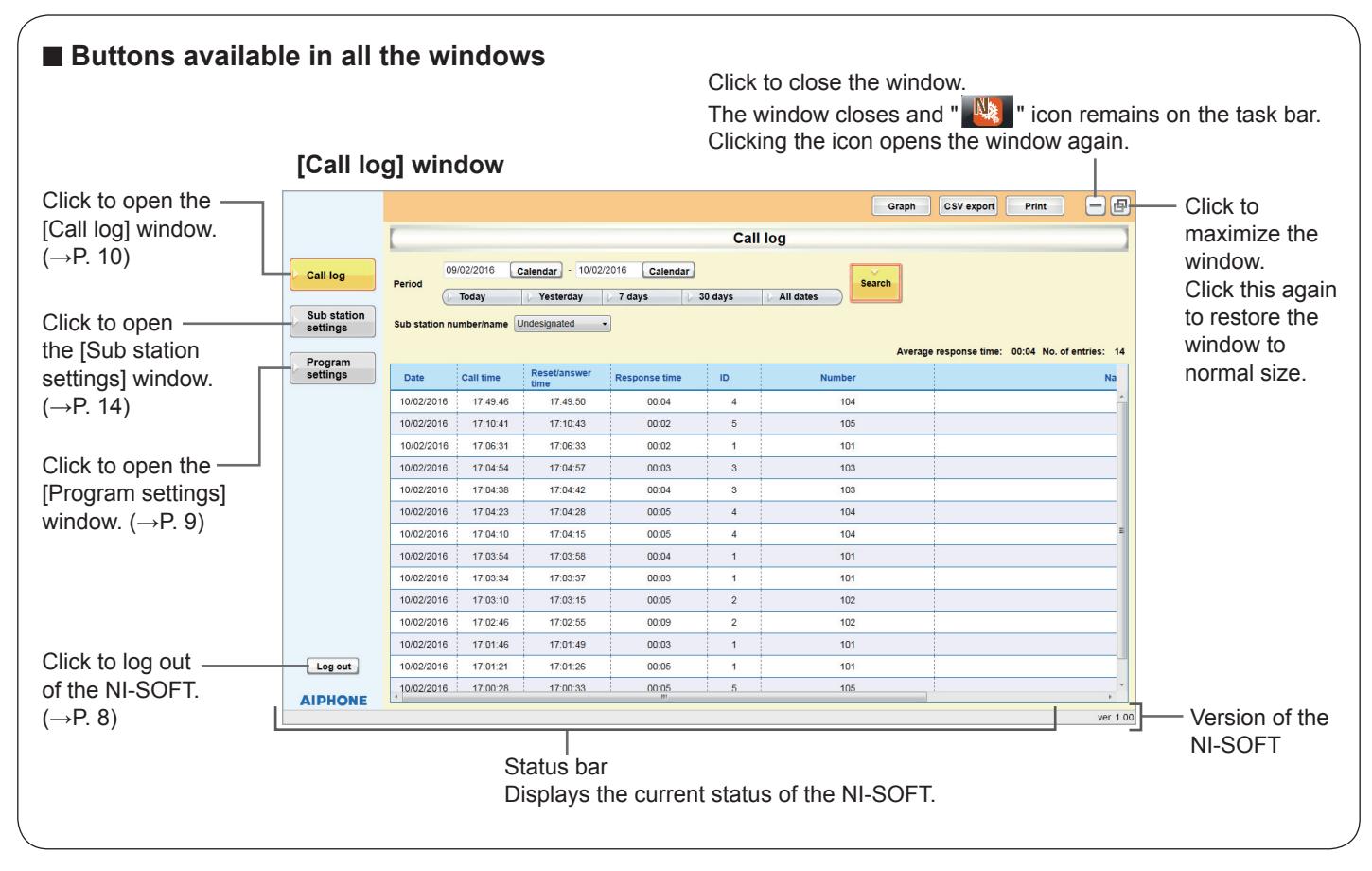
Exiting the NI-SOFT
NOTE:
When Exit is clicked, the NI-SOFT stops running. While the NI-SOFT is not running, call history logs cannot be obtained, so the call history in that period is not displayed.
1 Click Log out .
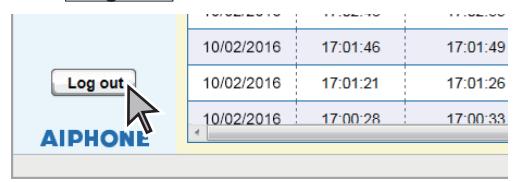
A confi rmation message is displayed.
- 2 Click OK to continue the exit operation.
- 3 Click Exit . A confi rmation message is displayed.
- 4 Click OK to exit the NI-SOFT.
When you start the NI-SOFT again;
Double-click the " NIM Call Log Software " icon on the desktop.
* If another location is specifi ed for installing the NI-SOFT during installation, run "NIMlog.exe" from the location where it is installed.
Confi guring the initial setup of the NI-SOFT
Confi gure the initial setup before using the NI-SOFT.
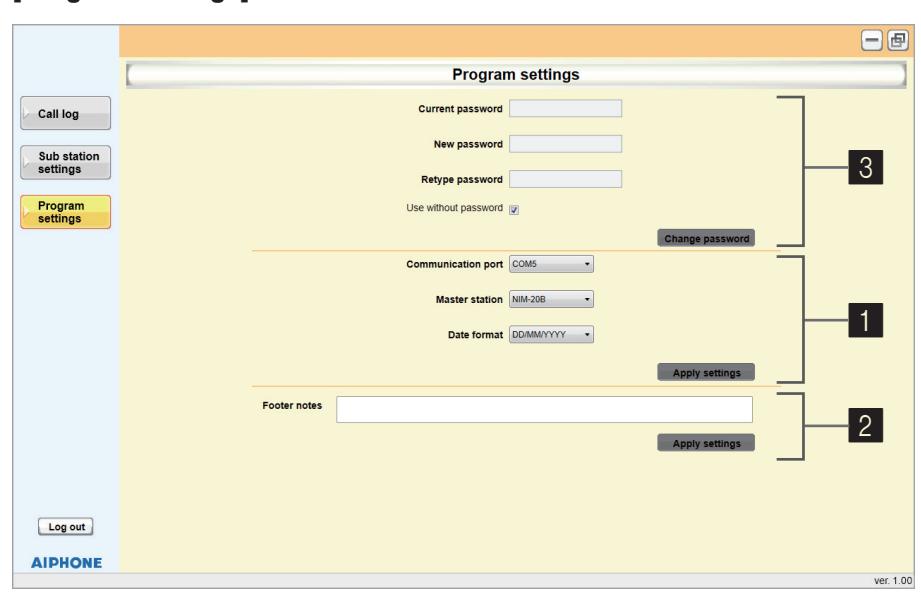
First click Program settings to display the [Program settings] window.
Then set up the items of 1, 2, 3 below.
(1 : Required, 2, 3: As needed)
[Program settings] window
1 Confi guring the initial setup (Required)
Set up the following items. 1
[Communication port]:
Select the communication port to be used from the dropdown list.
[Master station]:
Select the master station model connected with this PC from the drop-down list.
[Date format]:
Select the year-month-day format to be used in the window from the drop-down list.
DD: day MM: month YYYY: year
2 Click Apply settings to save the setting changes of these items.
NOTES:
- The items that cannot be changed or selected are grayed out.
- If you change the window or click Log out without saving the setting changes, a notice dialog box appears saying that "Exit without saving? (Changes to settings will not be saved)". To save the changes, Click Cancel , and then click Apply settings .
2 Registering a note in the footer area
When printing out a call history list etc., the registered note is printed in the footer area of a print sheet.
- * Only English one-byte alphanumeric characters can be used for a note. Up to 80 characters can be inputted.
- Enter a note in the text box of [Footer notes]. 1
- 2 Click Apply settings to save the note.
3 Setting up a login password
You can set up a password for security purposes if needed.
* Only English one-byte alphanumeric characters can be used for a password. Up to 32 characters can be inputted.
Setting up a password for the fi rst time
-
Uncheck the check box of [Use without password].
1
- * Unless this check box is unchecked, a password cannot be entered.
- Enter a new password in the [New password] box. 2
- Enter the same new password in the [Retype 3 password] box again.
- 4 Click Change password to save the password.
- * Inputting the set password is required when logging into the NI-SOFT the next time.
Changing the password
- Enter the current password in the [Current password] box 1 .
- Enter the new password in the [New password] box. 2
- Enter the new password in the [Retype password] 3 box again.
- 4 Click Change password to save the new password.
- If you will not use a password for login, check the check box of [Use without password] and then click Change password .
- The items that cannot be changed or selected are grayed out.
- If you have forgotten the password, you need to re-install the NI-SOFT.
Displaying the call history by specifying search criteria
The call history is displayed in the [Call log] window.
NOTES:
- Call history logs are not obtained in the following period of time, so the call history in such a period of time cannot be displayed.
- When the NI-SOFT is not running

- When the PC is in the standby or sleep mode, or the system is logged off
- When the PC cannot communicate with the master station for any cause
- Call history does not updated on a real-time basis. Call history logs can be obtained only while the NI-SOFT is running.
Displaying the call history
Click Call log to display the [Call log] window.
Specify search criteria by following the procedure below to limit the scope of target calls.
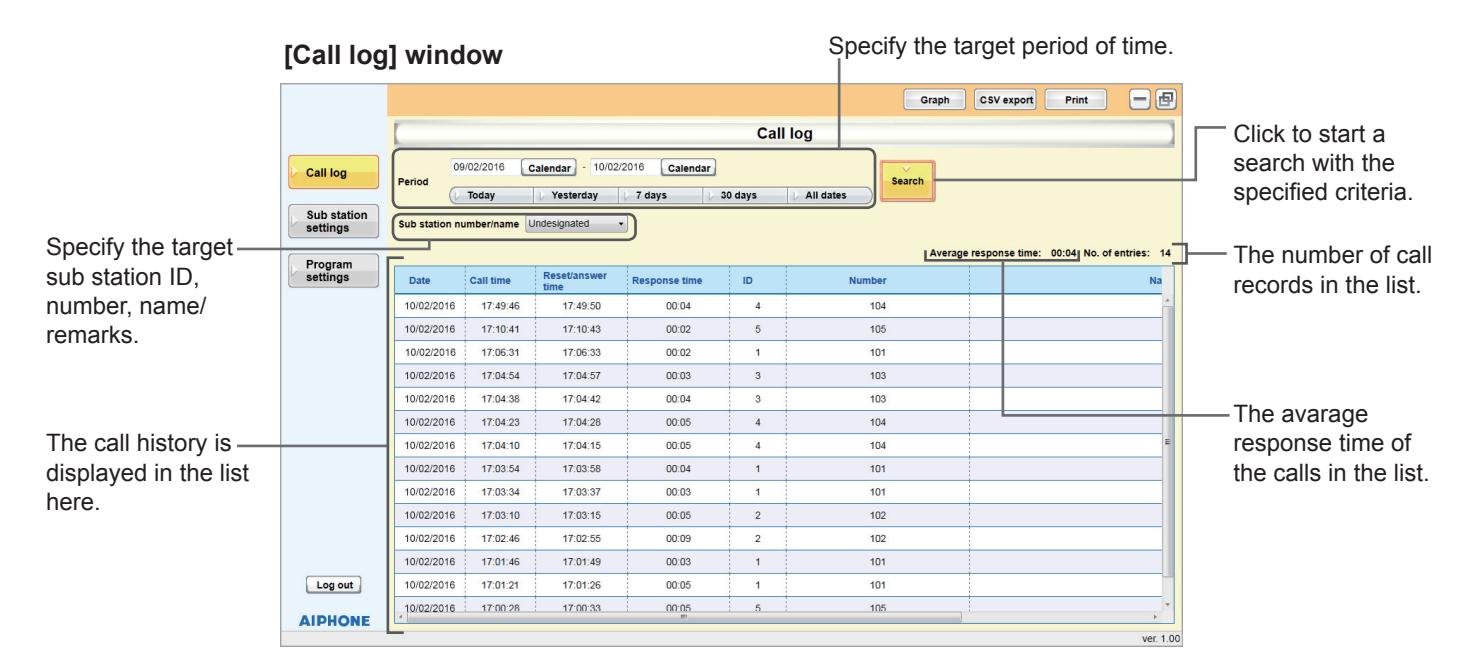
Select the target period of time from the following. 1

[Today]
[Yesterday]
[7 days]: 7 days including the current day
[30 days]: 30 days including the current day
[All dates]: No limitation of term
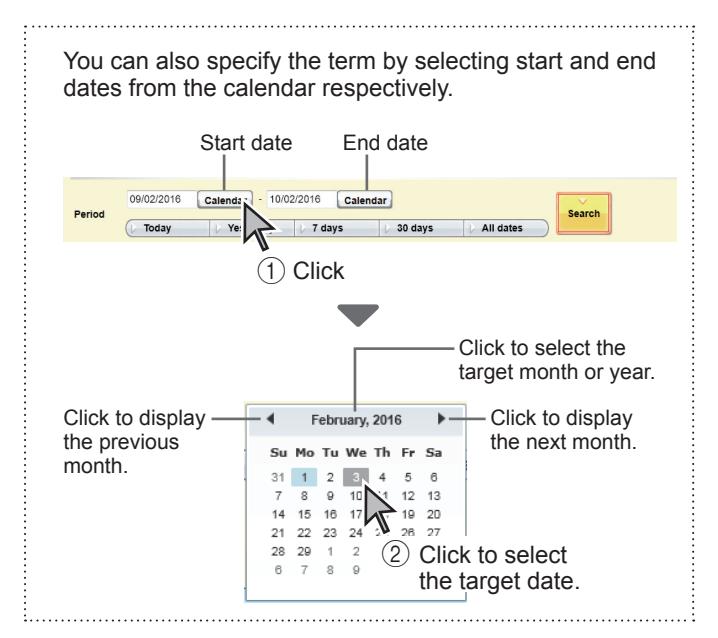
NOTE:
The specifi ed dates are not updated automatically. Specify the target dates and conduct a search again to update the call history data.
If needed, specify the sub station ID, number or 2 name/remarks by selecting the search item from the drop-down list.
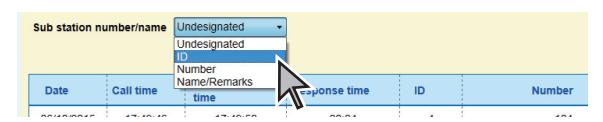
[Undesignated]: none specifi ed
[ID]:
When this is selected, a drop-down list is displayed. Select the target ID from the list.
* All the IDs recorded in the call history are displayed in the list.
[Number]:
1 After selecting this, click Select on the right hand of the window.
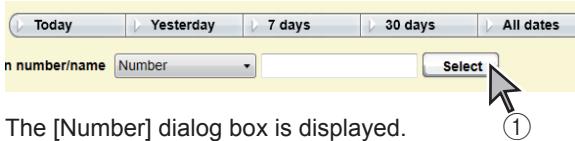
The [Number] dialog box is displayed.
- 2 Select the target sub station name, bed number, etc. within the dialog box.
- 3 Click Select .
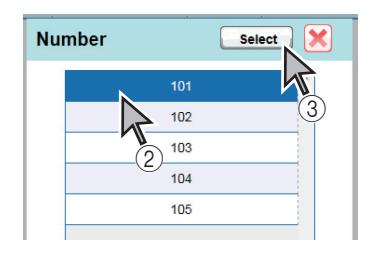
The selected name or number is displayed in the input box.
* The names or numbers displayed in the dialog box are those recorded in the call history list. When a new name or number is registered in the [Sub station setting] window (→P. 14), it will be displayed in this dialog box after it has been recorded and displayed in the call history list.
[Name/Remarks]:
1 After selecting this, click Select on the right hand of the window.
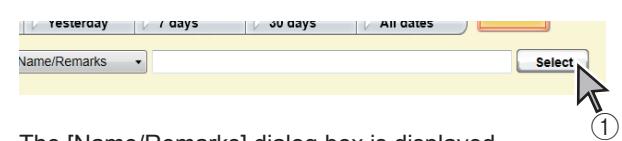
The [Name/Remarks] dialog box is displayed.
- 2 Select the target name, remark, etc. within the dialog box.
- 3 Click Select .
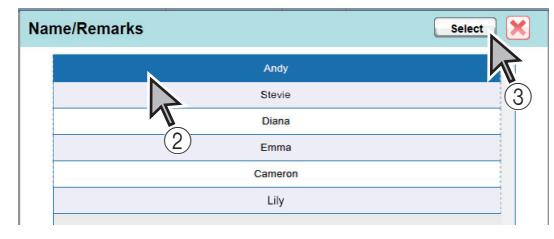
The selected name, remark, etc. is displayed in the input box.
* The names, remarks, etc. displayed in the dialog box are those recorded in the call history list. When a new name or remark is registered in the [Sub station setting] window (→P. 14), it will be displayed in this dialog box after it has been recorded and displayed in the call history list.
3 Click Search .
The history of calls that meet the specifi ed criteria is displayed in the list.
| Date | Call time | Reset/answer time | Response time | ID | Number | |
|---|---|---|---|---|---|---|
| 10/02/2016 | 17:49:46 | 17:49:50 | 00:04 | 4 | 104 | |
| 10/02/2016 | 17:10:41 | 17:10:43 | 00:02 | 5 | 105 |
< Table column headings >
Date: The date when the call was received by the master station.
Call time: The time when the call was received by the master station.
Reset/answer time: The time when the call was answered or reset.
Response time: The length of time from when the call was received to answered or reset.
ID: The ID of the target sub station.
Number: The target sub station name, bed number, etc.
Name/Remarks: The target sub station name, remarks, etc.
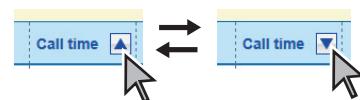
* The history is displayed in ascending or descending order. The order changes each time an item name on the table head is clicked. ex.)
* When call records are not all displayed, scroll the window up or down by using the vertical scroll bar.
- A maximum of 100,000 call records can be stored. When the number of call records exceed 100,000, the old ones are overwritten.
- When the response time of a call is more than 59 minutes and 59 seconds, it is displayed as 59 minutes and 59 seconds.
- The NI-SOFT does not support displaying summer time.
■ Printing out the displayed call history list
1 Click Print on the [Call log] window.
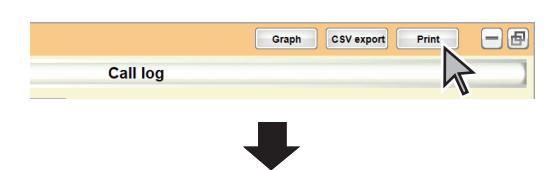
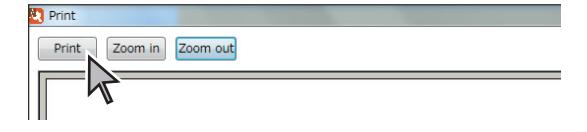
The print preview window is displayed.
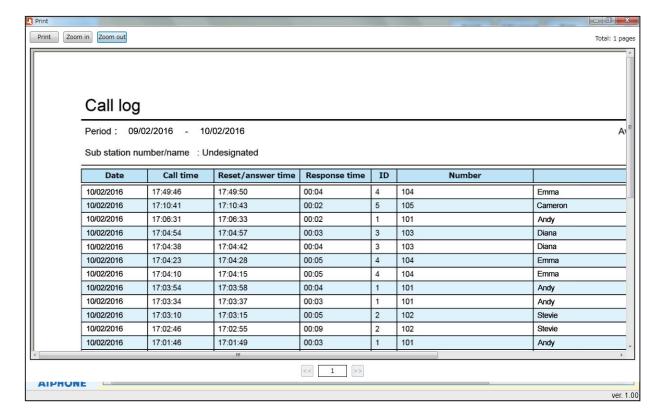
Zoom in : Click to enlarge the preview.
Zoom out : Click to reduce the preview.
- * When the preview is not fully displayed, scroll the window by using the scroll bar.
- * When the call history list is to be printed in two or more sheets, you can display other pages by clicking << (previous page) or >> (next page). You can also designate the page number you wish to preview by entering the number.
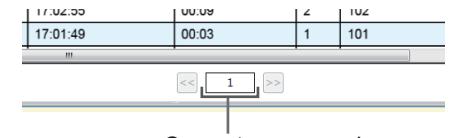
Current page number * You can enter the desired page number in this box.
2 Click Print to print out the current preview window.
NOTES:
- A maximum of 3,000 call records (100 pages) can be printed out at one time.
- Do not quit the NI-SOFT until the printing is completed. The printing may not fi nish completely.
■ Exporting the displayed call history list in CSV format
1 Click CSV export .

The "Save as" window is displayed.
- If needed, change the fi le name and the destination 2 to save.
- 3 Click Save to save the fi le.
Displaying the call history list in graph form
1 Click Graph on the [Call log] window.
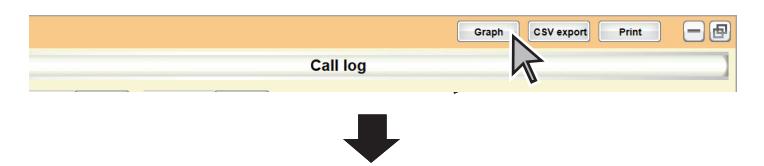
The [Graph] window is displayed, and the current call history list is displayed in bar graph sorted by response time.
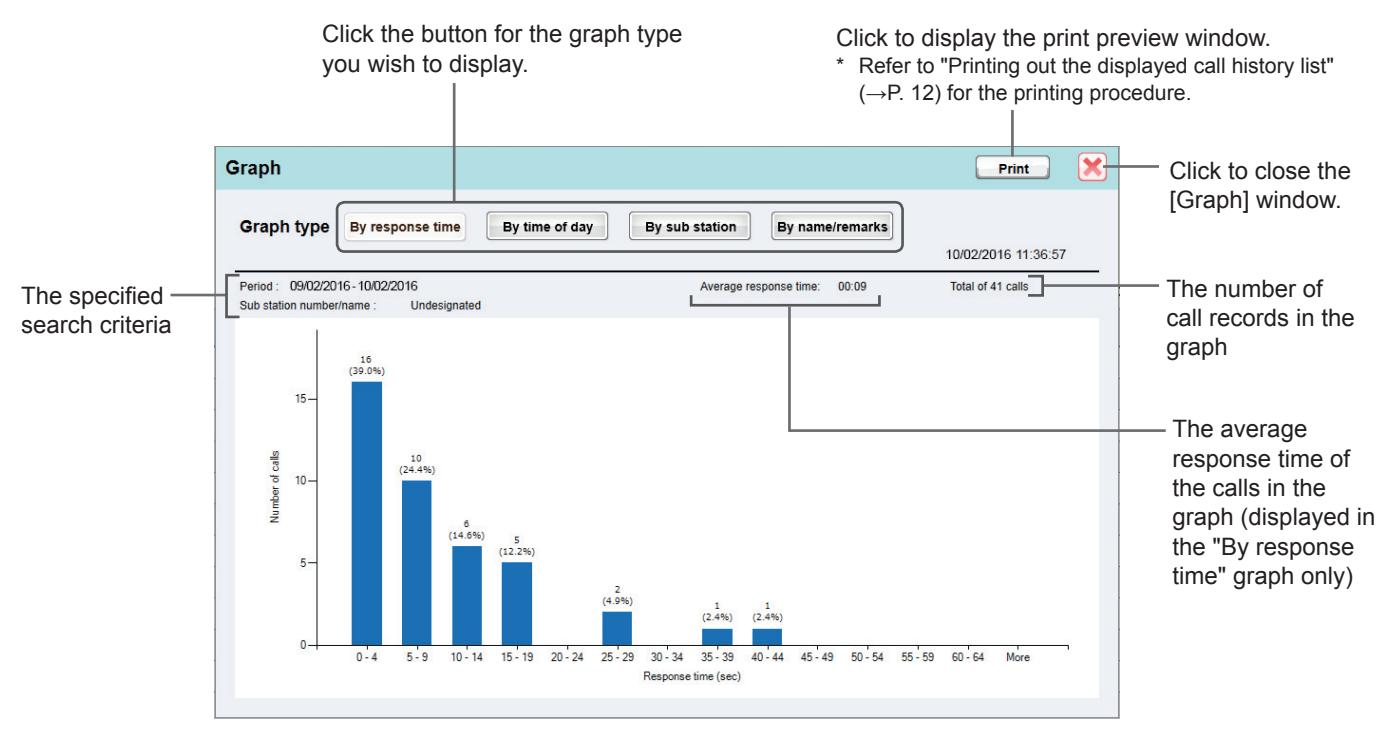
- * The screen image shows a bar graph sorted "By response time".
- If needed, change the graph type by clicking the corresponding button. 2
By response time (default): Click to display a call history list in bar graph sorted by response time.
By time of day : Click to display a call history list in bar graph sorted by time of day.
By sub station : Click to display a call history list in bar graph sorted by sub station ID. Up to 20 sub station IDs are displayed in descending order when more than 20 sub stations are connected to the master station.
By name/remarks : Click to display a call history list in bar graph sorted by name/remarks.
Confi guring the sub station settings
Confi gure the settings for the sub stations connected to the master station.
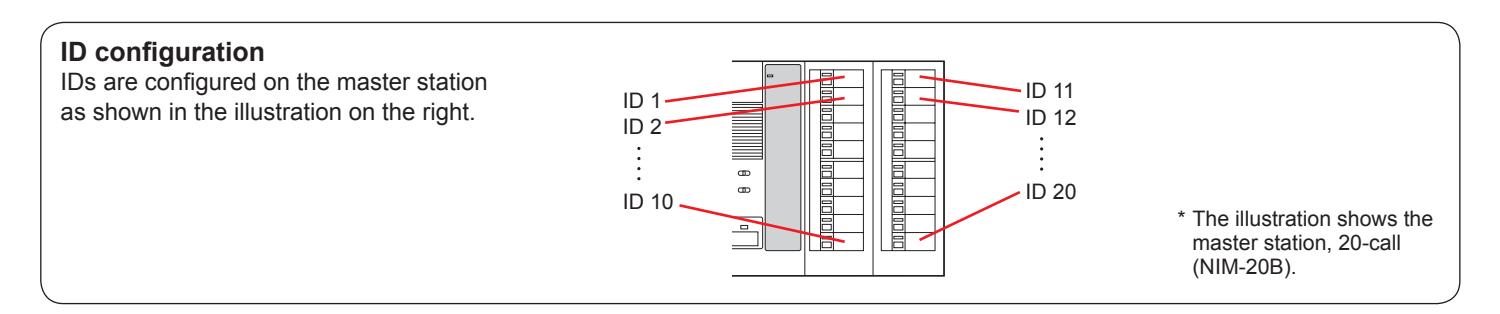
Set number (station name, bed number, etc.) and name/remarks etc. for each of the sub stations.
The number, names, remarks, etc. registered in this window are used as the search criteria for calls in the [Call log] window.
1 Click Sub station setting to display the [Sub station settings] window.
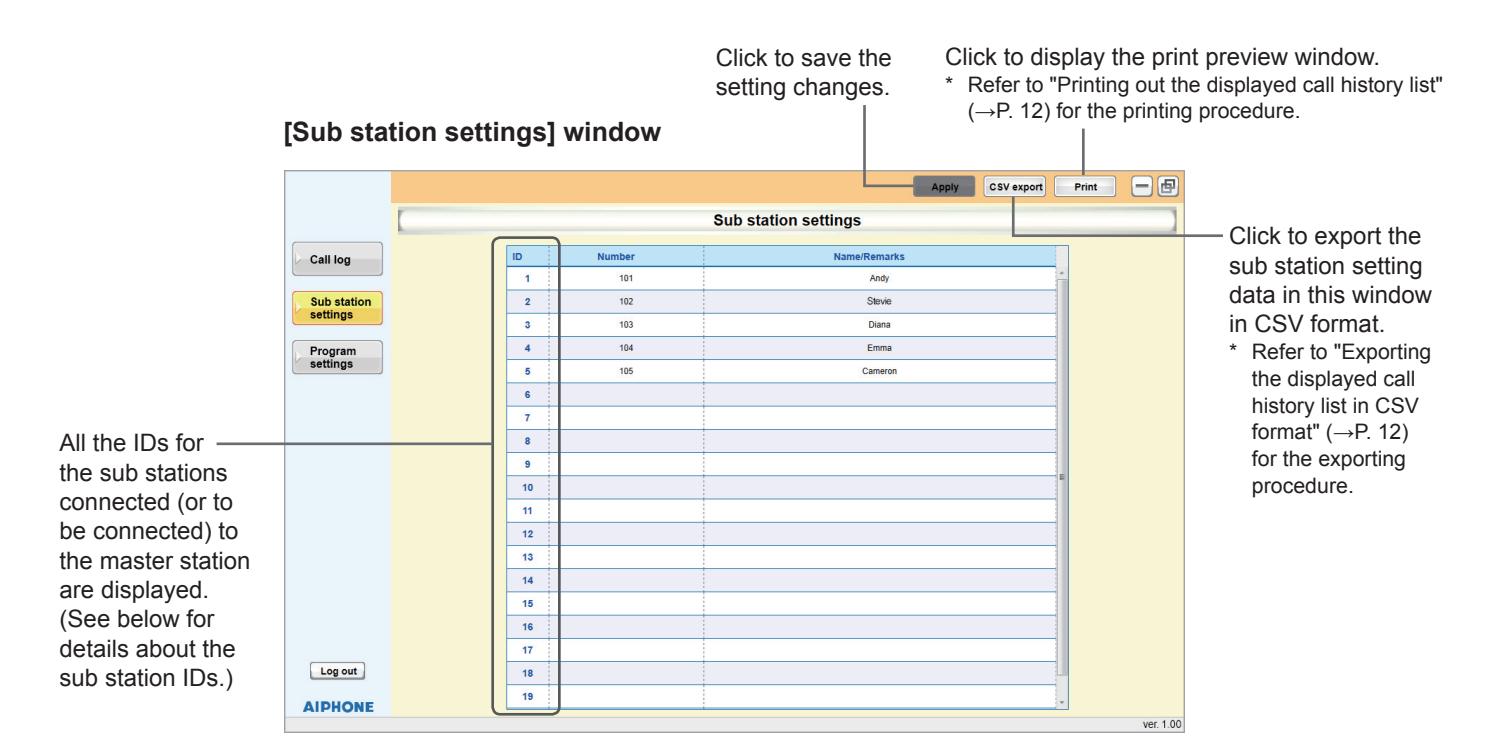
Enter a station name, bed number, etc. in the "Number" column, and enter remarks or other information in the "Name/ 2 Remarks" column for each ID.
| Item | Max number of characters in a cell | ||
|---|---|---|---|
| Number | 16 | ||
| Name/Remarks | 40 | ||
- * Double quotation mark (") and backslash mark (\) are disabled.
- 3 Click Apply to save the settings.
- Usable font is "Arial" only.
- If you try to change the window without clicking Apply , the pop-up, "Exit without saving?" is displayed. Click either OK or Cancel .
Troubleshooting
If the software fails to operate normally, check the following points to determine whether the fault can be corrected by the simple measures suggested. If it cannot be corrected, or if the fault is not listed in the "Symptom" column, contact the system supplier or service center for help.
| Symptom | Cause | Remedy |
|---|---|---|
|
NI-SOFT software is not found or no
display on the computer monitor |
The software is not installd
successfully. |
Install the software again. |
| installed with the NI-SOFT software. |
The short-cut of NI-SOFT software
disappeared. |
Search the installed NI-SOFT software fi les. |
| Product Key code is not found. | - |
Confi rm the attached information sheet that
contains the Product Key code of NI-SOFT. |
|
NI-SOFT software does not show
history. |
Improper RS-232C connection | Verify wiring type and distance. |
|
Error message, "Communication with
master station cannot be established. Please check the cable" is displayed. |
Improper RS-232C connection |
Verify the connection of RS-232C cable. The
error message will be remained on the screen until corrected. |

FK2246 A P0216 SZ 57290