Aiphone IX System Operation Manual
Open the original PDF document
View PDFIX System
Video Door Station (IX-DA) Audio Only Door Station (IX-BA) Operation Manual Software version 2.00 or later
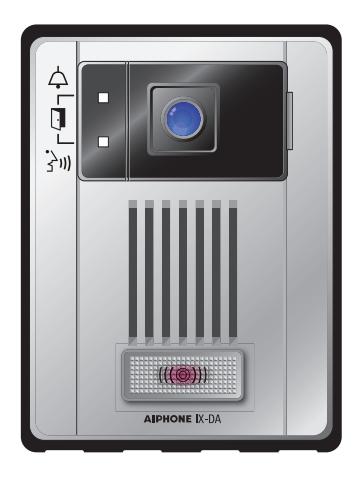
Video Door Station Model: IX-DA
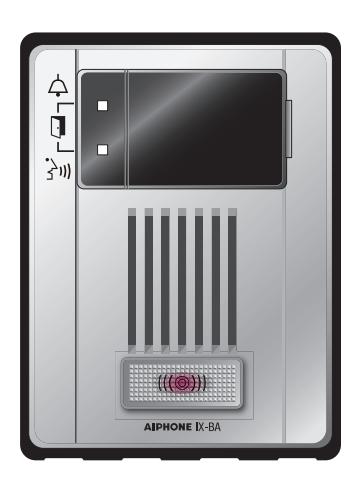
Audio Only Door Station Model: IX-BA
- ●Read this "Operation Manual" prior to usage to ensure safe and correct operation.
- ●Keep this in a safe place for future reference.
1 Precautions
Precautions

This symbol is intended to alert the user to cautions (including warnings and cautions).

This symbol is intended to alert the user to prohibited actions.

This symbol is intended to alert the user to actions that are forced or instructed.

Warning Negligence could result in death or serious injury.
alteration
1. Do not dismantle or alter the unit.
Fire or electric shock could result.

4. Do not put any metal or flammable material into the unit through the openings.
Fire, electric shock, or unit trouble could result.

2. Keep the unit away from water or any other liquid.
Fire or electric shock could result.

5. Do not install or use near gases or flammable materials.
The unit is not explosion-proof. Fire or explosion could result.

3. High voltage is present internally. Do not open the case.
Electric shock could result.

Caution Negligence could result in injury to people or damage to property.

1. Do not put anything on the unit or cover the unit with cloth, etc.
Fire or unit trouble could result.

2. Do not use the handset when you perform a call test or check the chime volume.
It may cause damage to your ear. Be sure to use the built-in speaker.

3. Do not install the unit in the following locations.
Fire, electric shock, or unit trouble could result.
- • Places under direct sunlight or places near heating equipment that varies in temperature.
- • Places subject to dust, oil, chemicals, hydrogen sulfide (hot spring).
- • Places subject to moisture and humidity extremes, such as bathrooms, cellars, greenhouses, etc.
- • Places where the temperature is quite low, such as inside a refrigerated area or in front of an air conditioner.
- • Places subject to steam or smoke (near heating or cooking surfaces).
- • Where noise generating devices such as dimmer switches or inverter electrical appliances are close by.
- • Locations subject to frequent vibration or impact.
- • Locations subject to extremely powerful electric fields.
Operation precautions
General considerations
- 1. Keep the unit more than 1m (3.3') away from radio or TV set.
- 2. If the unit is down or does not operate properly, unplug the power supply or turn off the POWER switches.
- 3. The unit case may become a warm with use, but this is not a unit malfunction.
- 4. If you enable "Second Video Encoder" (→ page 18), the unit will continue to output video. When this happens, the unit case may become warm but this is not a unit malfunction.
- 5. If it is used close to a cellular phone, the unit may malfunction.
- 6. The unit turns inoperative during power failure.
- 7. In areas where broadcasting station antennas are close by, the intercom system may be affected by radio frequency interference.
- 8. During communication, If you stand too far away, it may be difficult for the other person to hear the communication.
- 9. If there are loud noises around the unit (such as music playing or children crying), the sound may break up and be difficult to hear.
- 10. During communication, if you speak before the other person has finished talking, your voice may not come through clearly. Communication will proceed smoothly if you wait until the other person has finished before speaking.
- 11. During monitoring, the noise cut function does not work for making outside sounds easy to hear, so the noise may be heard louder than during communication.
- 12. This product, being a control unit of door release, should not be used as a crime prevention device.
- 13. The discrimination between day and night is performed automatically by the door station. Though the discrimination result may vary depending on the installation environment, it is not a malfunction.
- 14. Due to the environmental sound around the unit, it may hinder smooth communication, but this is not a malfunction.
- 15. At night, due to reduced lighting on the object, the monitor sees more noise and the face becomes more difficult to see, but this is not malfunction.
- 16. At a gate or porch illuminated by a fluorescent lamp, the picture may vary, but this is not a malfunction.
- 17. The outline of video images displayed by video door station may differ from that of the actual person(s) or background, but this is not a malfunction.
- 18. If the surface of a video door station freezes during wintertime, the picture may become difficult to see or the call button (including the call button of audio door station) may not move, but this is not a malfunction.
- 19. Warm-color lighting shining on the video door station may change the tint of the picture on the monitor.
- 20. When using fluorescent lights to illuminate the screen its colors may periodically change (color rolling), but this is not a malfunction.
- 21. When outside temperature lowers sharply after rainfall, etc., the inside of the camera may fog up slightly, causing a blurry picture, but this is not a malfunction. Normal operation will be restored when moisture evaporates.
- 22. When the unit's screen is illuminated with strong light, the image looks white or silhouetted. But this is not a unit trouble.
- 23. Aiphone assumes no responsibility for corruption of saved information (such as changes to or deletion of saved information). Please be aware of this in advance.
1 Precautions
Notes on using this system
- 1. Depending on the network environment and computer, it may not be useable.
- 2. You need to set the ID/password to access the web server when changing the system settings or doing the system maintenance. The system administrator must keep the ID/password without fail.
- 3. The ID/Password to access the web server for setting the system is the customer's responsibility. Make sure you set a password that cannot be easily guessed by a third party. We recommend that you change the ID/Password on a regular basis.
- 4. You may not be able to operate stations while updating the System settings by using a PC.
- 5. Video images and/or sounds may be interrupted depending on the communication status.
- 6. If there is an error in the setting of the corresponding station, calls will not work properly.
- 7. If you are experiencing difficulties in the use of the system, please check our website at http://www.aiphone.net/.
Notice
- 1. Aiphone assume no responsibility for damages as a result of delayed or unusable services, which were due to failures in network equipment, communication services by Internet and cellular phone companies, line interruptions, communication failures, or inaccuracies or omissions in the transmission unit.
- 2. If personal information is leaked by eavesdropping or unauthorized access in the communication paths over the Internet, please be aware that Aiphone assume no responsibility for the damages.
- 3. We will under no conditions be liable for damage that occurs due to the inability to communicate due to malfunctions, problems, or operational errors in this product.
- 4. We will under no conditions be liable for any damages or losses resulting from this product's contents or specifications.
- 5. This manual was created by Aiphone Co., Ltd., all rights reserved. Copying a part of or this entire manual without prior permission from Aiphone Co., Ltd. is strictly forbidden.
- 6. Please note that images and illustrations depicted in this manual may differ from the actual ones.
- 7. Please note that this manual may be revised or changed without prior notice.
- 8. Please note that product specifications may be changed for the sake of improvement without prior notice.
- 9. Please be aware that it is the customer's responsibility to ensure that their computer is secure. We will under no conditions be liable for security failures.
- 10. This system is not intended for life support or crime prevention. It is just a supplementary means of conveying information. Aiphone will under no conditions be liable for loss of life or property which occurs while the system is being operated.
- 11. This system is not intended for preventing physical injury, accidents caused by disasters and property damage.
- 12. Please receive and retain all configuration data from the supplier. If you lose the configuration data, there are cases where maintenance and after-sales service calls may incur additional setup fees.
1 Contents
Contents
|
1
Precautions |
|
|---|---|
|
Precautions
Operation precautions |
2
3 |
|
2
Before Using |
|
|
Part Names
Indicators |
6
7 |
|
3
How to Use |
|
|
Place a call
Place a call Use an external device to place a call Paging Receive a page Other functions Send an e-mail |
8
8 9 10 10 11 11 |
|
4
Settings and Adjustments |
|
|
Set using a PC
Station Information Network settings (Video Door Station only) System Information Call Settings Function Settings Station Hardware Settings |
12
15 17 19 20 22 27 |
|
5
Other |
|
|
Specifications
Maintenance Technical Support Notice regarding software Warranty |
29
29 29 30 32 |
Part Names
Video Door Station IX-DA
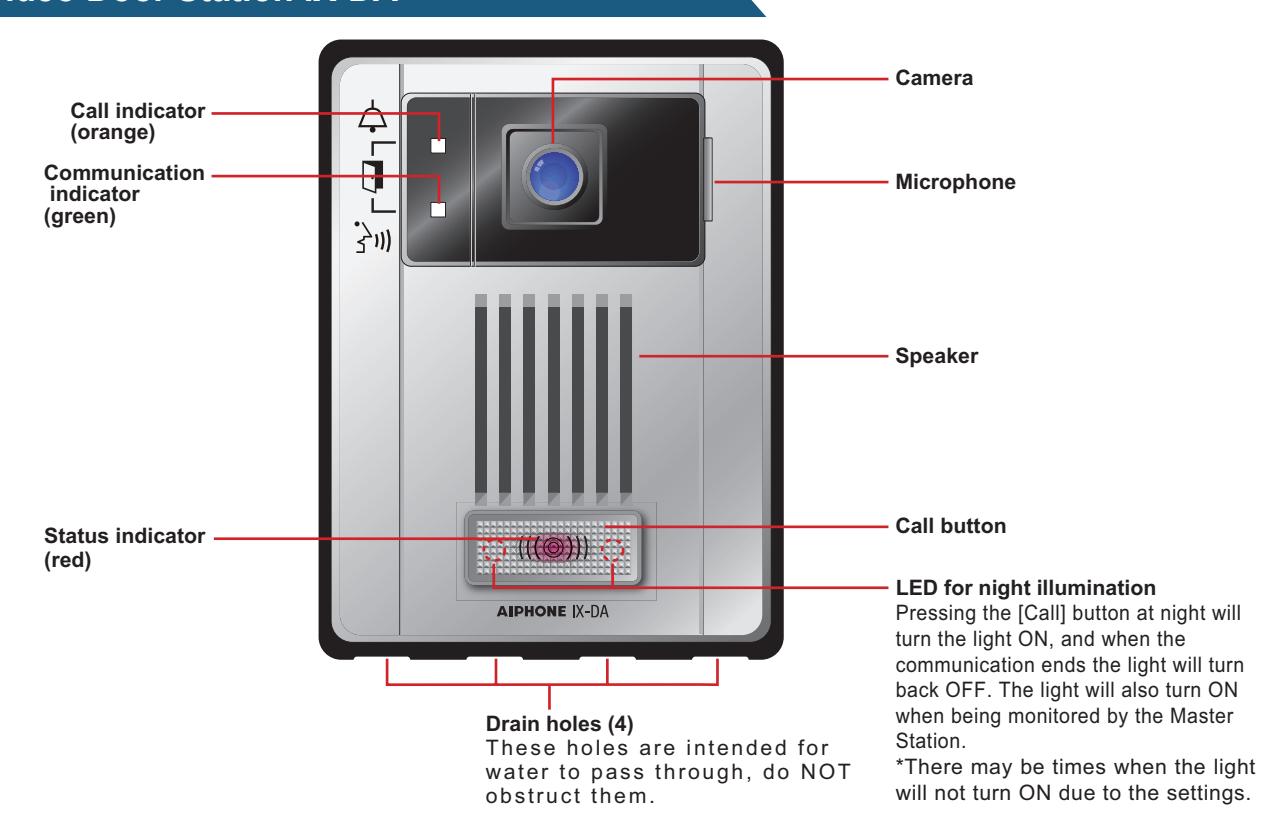
Audio Only Door Station IX-BA
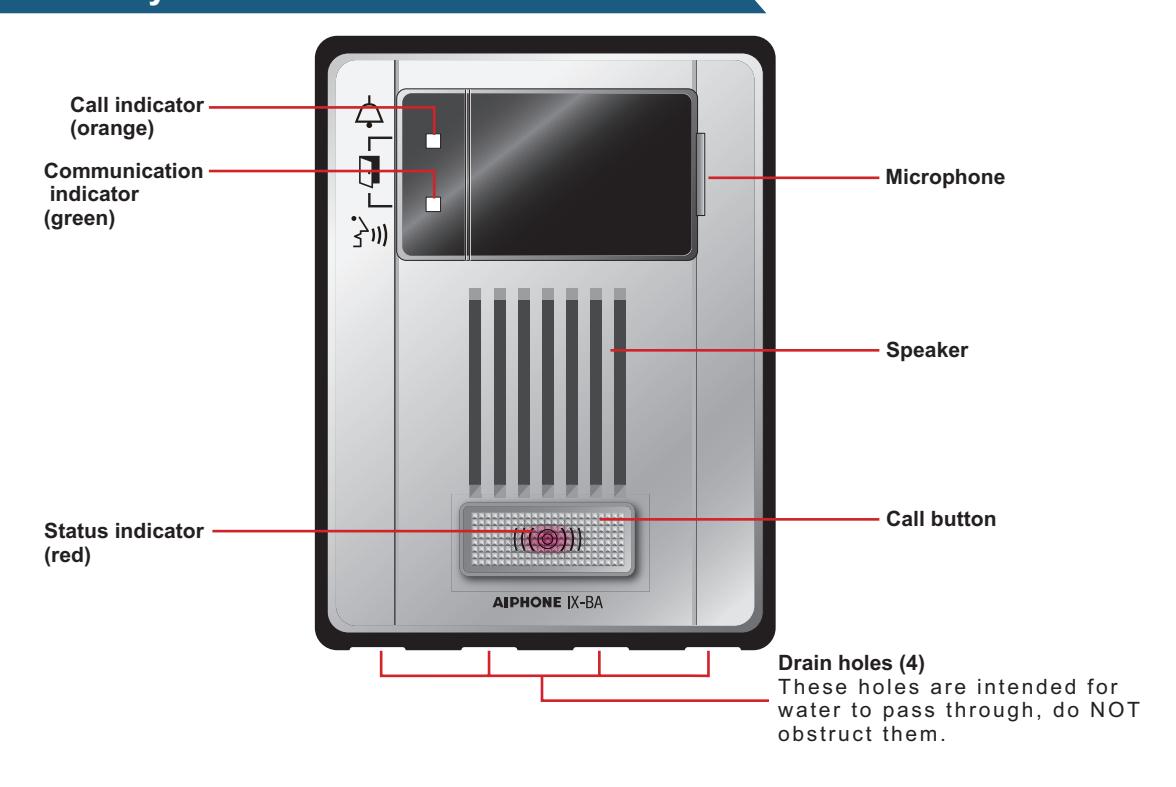
In this document, the Video Door Station (IX-DA) and the Audio Only Door Station (IX-BA) are referred to collectively as the "Door Station." When describing the operation and explanation of the Video Door Station (IX-DA), it will be referred to as the "Video Door Station."
Indicators
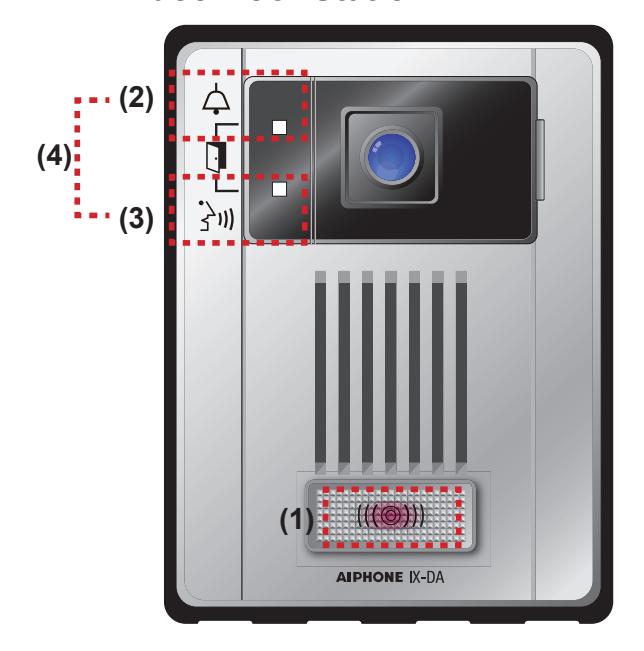
Video Door Station IX-DA Audio Only Door Station IX-BA
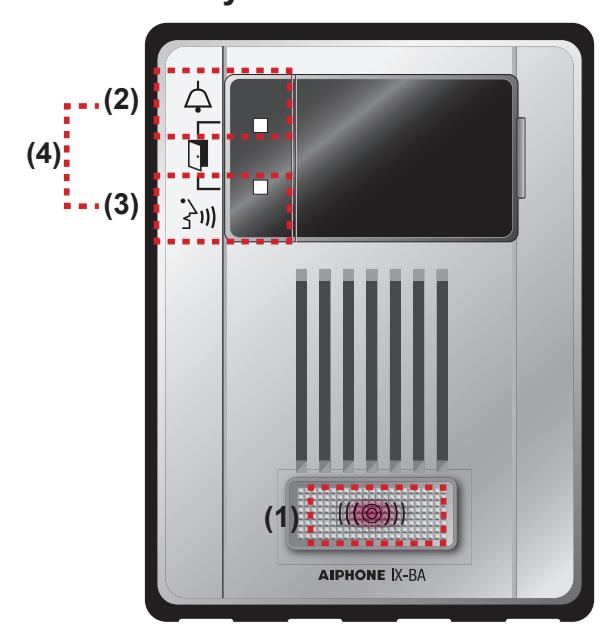

| Number Name | Status (Pattern) | Description | ||
|---|---|---|---|---|
| (1) | Status indicator |
Red
flashing |
Normal flashing
0.75 sec 0.75 sec |
Booting |
|
Fast flashing
0.25 sec 0.25 sec |
Device error | |||
|
Long interval flashing
0.5 sec 4 sec |
Communication
failure |
|||
|
Long irregular flashing
1 sec 0.25 sec 0.25 sec 0.25 sec 0.25 sec 0.25 sec |
Firmware
version upgrading |
|||
|
Short irregular flashing
1 sec 0.25 sec 0.25 sec 0.25 sec |
Initializing | |||
| Red light | Standby | |||
|
Red
flashing |
Slow flashing
1 sec 1 sec Repeat 3 times, then Light ON |
Calling destination
busy |
||
| (2) | Call indicator |
Orange
flashing |
Fast flashing
0.25 sec 0.25 sec |
Outgoing calling |
| (3) |
Communication
indicator |
Green
light |
In communication | |
| (4) |
Call indicator
+ Communication indicator |
Orange
flashing + Green flashing |
Normal flashing
0.5 sec 0.5 sec |
Door releasing |
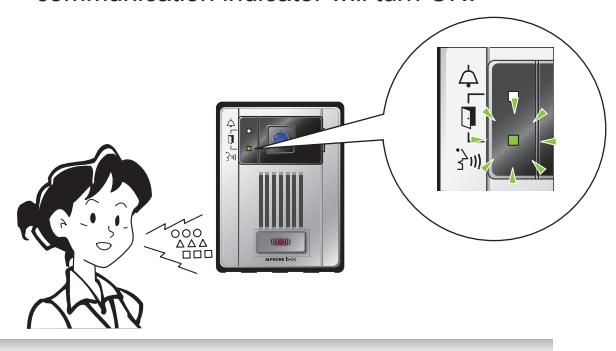
Place a call
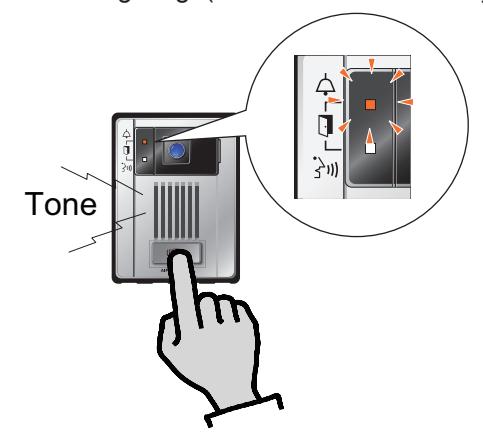
1 Press the [Call] button
- The ringback tone will play from the speaker.
- The call indicator will flash.
- Video from the camera is displayed at the call destination. (Video Door Station only)
- The LED illumination will turn ON in low ambient lighting. (Video Door Station only)
2 Speak when the other party answers
• The call indicator will turn OFF, and the communication indicator will turn ON.

Notice
- The call is placed using the priority that was set during programming.
- If the line is busy or there is no answer, try call again.
- The call ring timer and the ringback tone count may vary depending on the settings.
- Depending on the settings, communication sounds may play from separately installed speakers.
- Depending on the settings, the electric locks and auto doors may cause sounds when unlocking.
Use an external device to place a call
Use an external device (sensor, call button, etc.) to place a call to a pre-determined location.
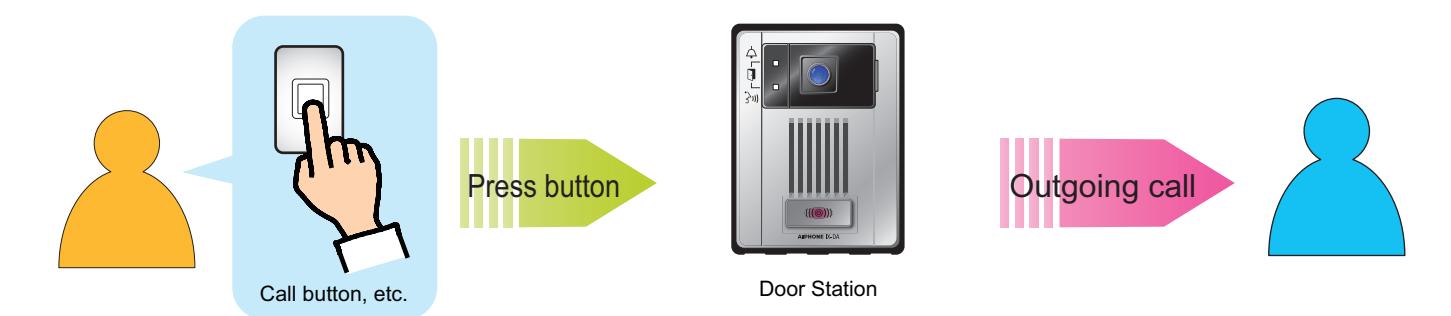
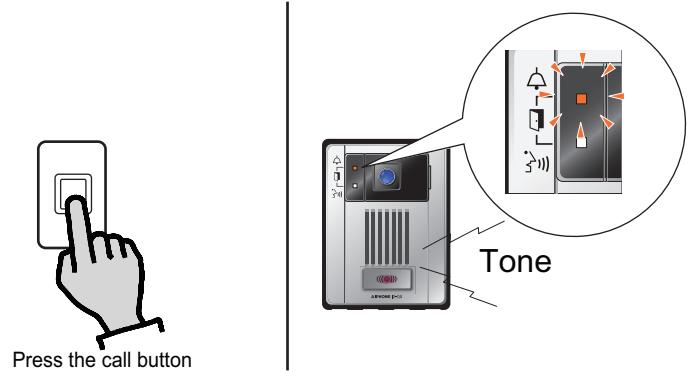
1 Control the external device
- The ringback tone will play from the device speaker.
- The call indicator on this device will flash.
- Video from the camera is displayed to the call destination. (Video Door Station only)
- The LED illumination will turn ON when in low ambient lighting. (Video Door Station only)

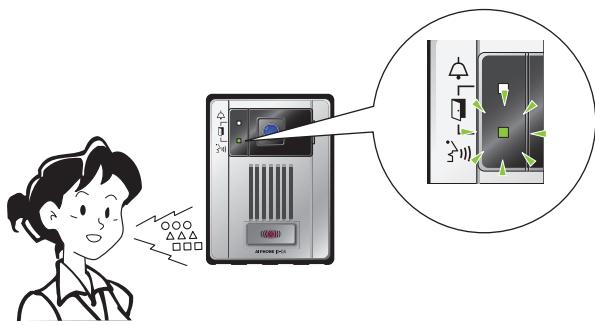
2 Speak when the other party answers
- The call indicator on the device will turn OFF, and the communication indicator will turn ON.
- Communication on this device is performed using the speaker and microphone.

Notice
- The call is placed using the priority that was set during programming.
- If the line is busy or there is no answer, try call again.
- The call ring timer, the ringback tone, and ringback tone count may vary depending on the settings.
- Depending on the settings, communication sounds may play from separately installed speakers.
- Depending on the settings, the electric locks and auto doors may cause sounds when unlocking.
Receive a page
Paging will be heard after the paging pretone.
1 The paging pretone will ring, then paging will begin Tone
2 Paging complete

- If the [Call] button is pressed while receiving a page, the page may be canceled and the call placed (depends on settings).
- The paging pretone ring is dependent on the settings of the system.
- Depending on the settings, the paging pretone and the paging audio may play from separately installed speakers.
Send an e-mail
An e-mail can be sent to pre-registered e-mail addresses.
Refer to "E-Mail Settings" (→ page 25) for settings related to e-mail.
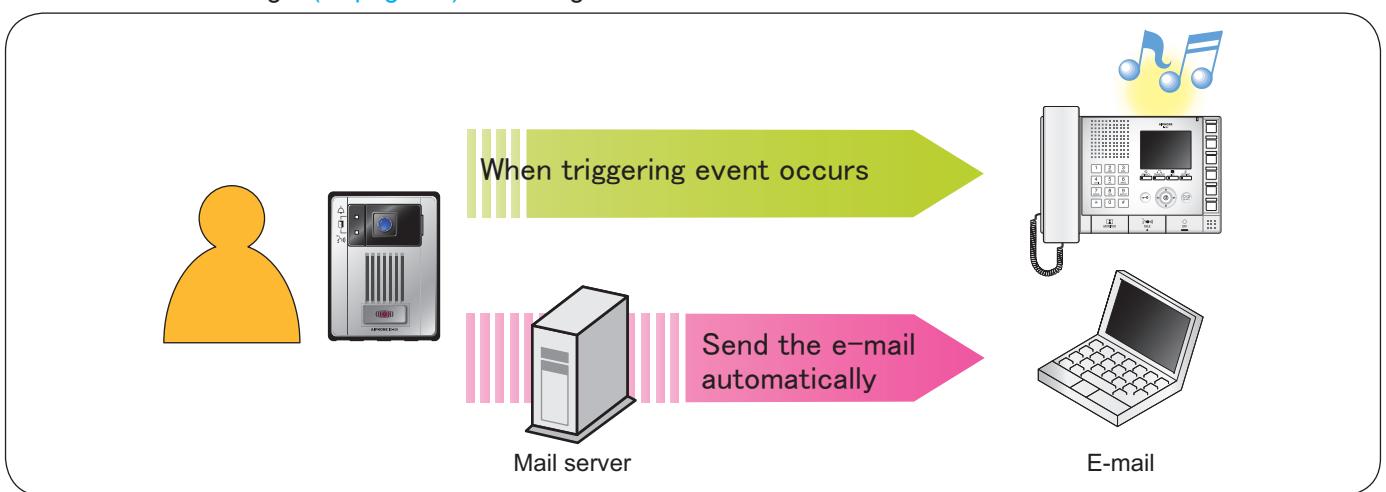
Example of sending e-mail:
When performing an outgoing call from this device (Station Number: 003, Station Name: Audio Only Door Station 3, Location: Receptionist) using the priority "Urgent."
| Source | xxxx@xxxxx.com |
|---|---|
|
Time and
date sent |
11/20/2014 7:22 |
| Recipient | xxxx@xxxxx.com |
| CC | |
| Subject | An outgoing call was made using the priority "Urgent." |
| Call Placed [20141120 07:21:40]. | |
| Source Station Number: [003] | |
| Source Station Name: [Door Station 3] | |
| Source Station Location: [Receptionist] | |
| Call Priority: [Urgent] | |
| Destination group number: [ ] | |
| Destination Group Name: [Call Button] |

- "UTF-8" encoding is used. Characters may display incorrectly depending on the e-mail client.
- If the call is placed from a Video Door Station, the e-mail will include an image (JPEG).
Connect to the same network as the device and manage the settings from PC web browser.
System requirements
The PC should meet the following requirements to be capable of configuring the system.
| Network | Ethernet (10 BASE-T, 100 BASE-TX) |
|---|---|
| Web browser | Internet Explorer 7.0, 8.0, or 9.0 (SSI 3.0 or TLS 1.0 or later) |
Connecting to a PC
Connect the station with a PC using PoE compatible switch.
• Use CAT5e/6 straight cable to connect the devices through LAN port.
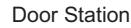

Login to this device
- 1 Start the PC and open a web browser (Internet Explorer)
- 2 Enter the address below into the web browser address bar
https://(IP Address of this device)/webset.cgi?login
When the IP address is IPv6, put brackets ([ ]) around it.
Display the login screen.
3 Select the language
Language for displaying contents on the Web settings is changed.
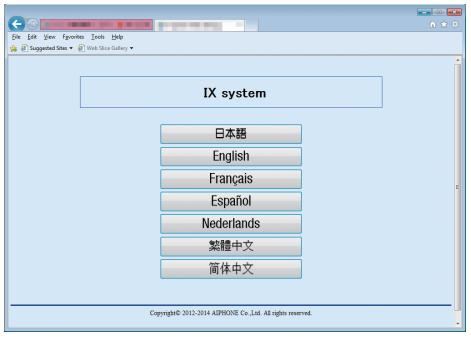
Display the login screen of the selected language.
4 Enter the ID and password, and
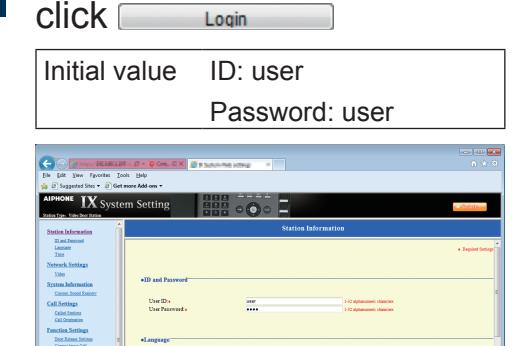
Display the setting screen.

- • Be sure to type in "https://" to login.
- • Do not login multiple times using multiple browsers at one time on the same PC.
- • If a security warning screen appears, disregard the warning and continue.
- • The initial IP address and Subnet mask values are below.
IP address: 192.168.1.160 Subnet mask: 255.255.255.0
• Contact the system administrator if the IP address or subnet mask for the device is not known.
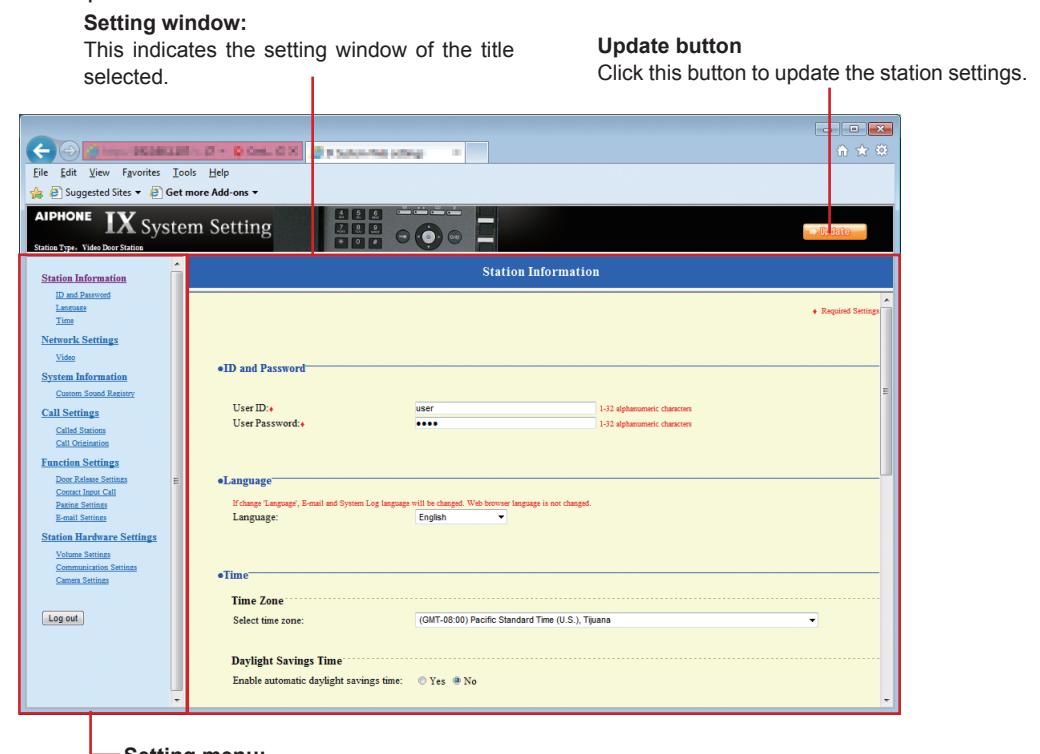
Setting window
When accessing the web server of the station, the following setting window will appear. The station can be configured in this window.
- Video Door Station screen shots are shown in this manual.
- Depending on the PC and OS being used, the window may be slightly different.
- After configuring the station, confirm its operation by referring to the "Operation Manual."
- <Setting window sample>
Setting menu:
Shows all items that can be configured. Click the title to be configured and appropriate setting window will display.
How to configure
1 Click the title to configure in the settings menu
The setting window for that particular title will be shown.
2 Configure each setting item
3 When done making changes, click to update the
settings
- When the settings are updated, "Setting Updated." will be shown at the top left corner in the window. If this fails, an error message will be shown.
- To cancel the changes, click another title in the setting menu.
4 Repeat steps 1 to 3 for other titles
To log out of the Web server of this station, click in the settings menu.

- To end the setting session, do not use . Use to end.
- If the setting window switch to another without clicking , the settings will not be saved.
- When no activity is detected for one hour, the connection will be automatically terminated.
List of settings
| Entry | Reference |
|---|---|
| Station Information | page |
| ID and Password | |
| User ID ♦ | page 15 |
| User Password ♦ | page 15 |
| Language | |
| Language | page 15 |
| Time | |
| Time Zone | |
| Select time zone | page 16 |
| Daylight Savings Time | |
| Enable automatic daylight savings time | page 16 |
| NTP | |
| Enable NTP | page 16 |
| Date and Time | |
| Time | page 16 |
| Network settings (Video Door Station only) | |
| Video | |
| Video Encoder 1 | |
| Coding System | page 17 |
| Resolution | page 17 |
| Frame Rate [fps] | page 17 |
| Select Profile | page 17 |
| [H.264 / AVC] | |
|
I-picture interval
[H.264 / AVC] ♦ |
page 17 |
| Bit rate [kbps] | page 17 |
| [H.264 / AVC] | |
| Select Quality | page 17 |
| [Motion-JPEG] | |
| Video Encoder 2 | |
| Second Video Encoder | page 18 |
| Coding System | page 18 |
| Resolution | page 18 |
| Frame Rate [fps] | page 18 |
| Select Profile | page 18 |
| [H.264 / AVC] | |
| I-picture interval | page 18 |
| [H.264 / AVC] ♦ | |
| Bit rate [kbps] | page 18 |
| [H.264 / AVC] | |
|
Select Quality
[Motion-JPEG] |
page 18 |
| System Information | |
| Custom Sound Registry | page 19 |
| Call Settings | |
| Called Stations | |
| Priority Setting | |
| Priority | page 20 |
| Call Origination | |
| Call Acknowledged Settings | |
| Ringback Tone | page 20 |
| Call Timeout [sec] ♦ | page 20 |
| Ringback Tone Count [time(s)] | page 21 |
| Busy Tone | page 21 |
| Error Tone (Call failed) | page 21 |
| Reference | |
|---|---|
| Entry | page |
| Function Settings | |
| Door Release Settings | |
| Door Release Tone | |
| Door Release Operating Tone | page 22 |
| Door Release Authorization | |
| Authentication Key | page 22 |
| Contact Input Call | |
| Door Station Call Group Assignment | |
| Group Number | page 23 |
| Priority | page 23 |
| Call Acknowledged Settings | |
| Ringback Tone | page 23 |
| Call Timeout [sec] ♦ | page 23 |
| Ringback Tone Count [time(s)] | page 23 |
| Paging Settings | |
| Paging Pretone Setting | |
| Pretone | page 24 |
| E-Mail Settings | |
| E-mail Addresses | |
| Destination 1 to 3 | page 26 |
| E-mail Event Trigger | |
| Normal call | page 26 |
| Priority call | page 26 |
| Urgent call | page 26 |
| Call Failed | page 26 |
| Error Occurred | page 26 |
| Station Restart | page 26 |
| Periodic Log Transmission | page 26 |
| Periodic Log Transmit Time | page 26 |
| Periodic Log Transmit Interval | page 26 |
| Subject Text | page 26 |
| Additional Settings (Video Door Station only) | |
| Attach Image | page 26 |
| Attachment Image Filename | page 26 |
| Station Hardware Settings | |
| Volume Settings | |
| Volume Settings | |
| Transmit Volume | page 27 |
| Receive Volume | page 27 |
| Ringtone Volume | page 27 |
| Communication Settings | |
| Talk Timeout [sec] ♦ | page 27 |
| Camera Settings (Video Door Station only) | |
| Environmental Settings | |
| Backlight Compensation Adjustment | page 28 |
| Low Light Sensitivity Adjustment | page 28 |
| Color Settings | |
| Brightness ♦ | page 28 |
| Contrast ♦ | page 28 |
| Color ♦ | page 28 |
| LED Illumination Control | |
| During Call / Communication | page 28 |
| While Monitored | page 28 |
Station Information
ID and Password
♦ This is a required setting.
| Entry | Description | Settings |
Default
values |
|---|---|---|---|
| User ID ♦ | Set the ID for login to this device. | 1-32 alphanumeric characters | user |
| User Password ♦ | Set the password for login to this device. | 1-32 alphanumeric characters | user |
Language

| Entry | Description | Settings |
Default
values |
|---|---|---|---|
| • Japanese | |||
| • English | |||
| Select the language for e-mail and system log | • French | ||
| Language | language. | • Spanish | English |
| (Web browser language are not changed.) | • Dutch | ||
| • Traditional Chinese | |||
| • Simplified Chinese |
Time
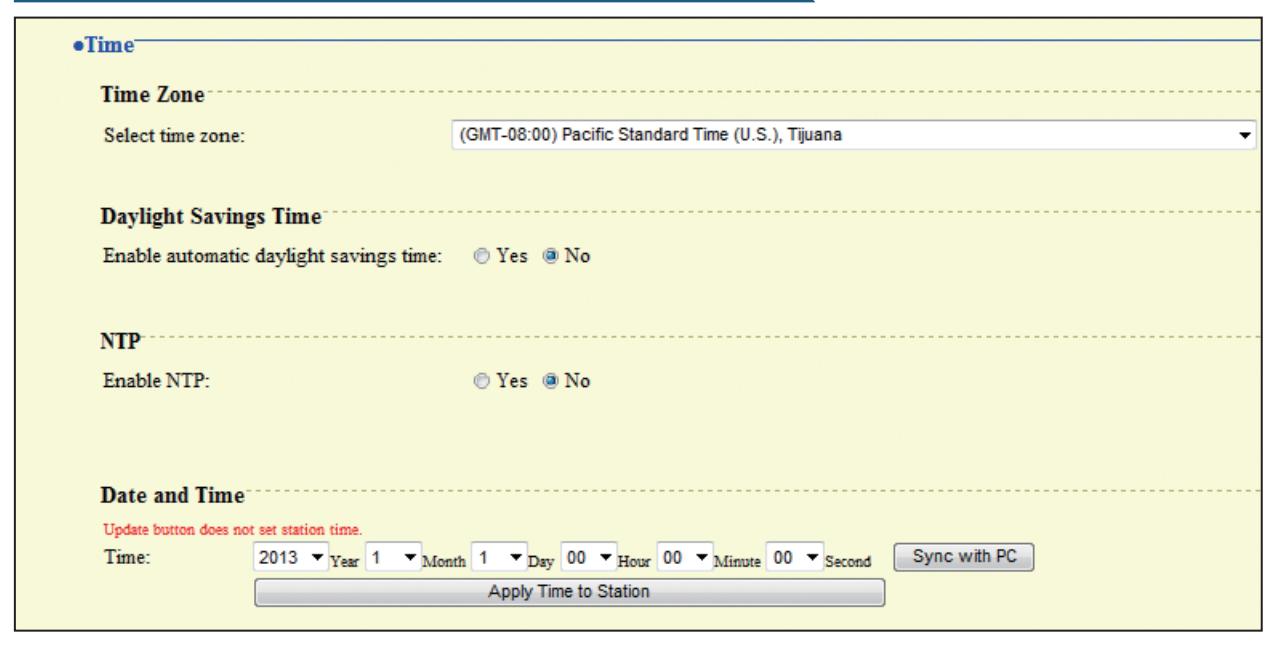
Time Zone
| Entry | Description | Settings |
Default
values |
|---|---|---|---|
| Select time zone | Select the time zone to be used. | Select from 99 regions |
GMT-08:00
Pacific Standard Time (U.S.), Tijuana |
Daylight Savings Time
| Entry | Description | Settings |
Default
values |
|---|---|---|---|
| Enable automatic daylight | Adjust the daylight saving time automatically to | • Yes | No |
| savings time | fit the region selected in "■ Select time zone." | • No |
NTP
| Entry | Description | Settings |
Default
values |
|---|---|---|---|
| Enable NTP |
Enable NTP server to retrieve the time.
Configuring NTP server is required separately if using an NTP server. Contact your system administrator. |
• Yes
• No |
No |
Date and Time
Pressing will not show date and time settings on this device.
Click to show it.
| Entry | Description | Settings |
Default
values |
|---|---|---|---|
| Time | Set the current time for the station. |
2012/1/1/00:00:00 -
2037/12/31/23:59:59 : Synchronized with the current time setting of the PC. |
2013/1/1/
00:00:00 |

Attention
If the power is turned off for at least 30 minutes, the time and date will revert back to the default setting. If this happens, set the time and date again.For this reason, it is recommended to use NTP. (Only applicable if NTP is connected and set-up with IX system.)
Network settings (Video Door Station only)■
Video
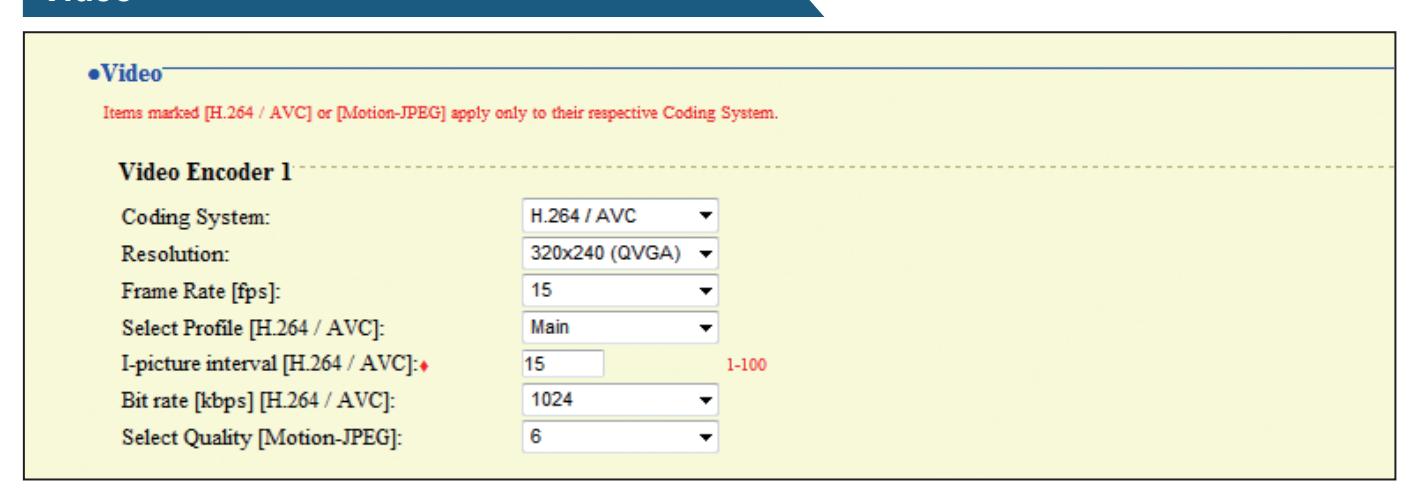
■ Video Encoder 1
Configure the video encoder for transmission between IX stations.
♦ This is a required setting.
| 1 0 | |||
|---|---|---|---|
| Entry | Description | Settings | Default values |
| Coding System | Select the coding system for the video. | H.264 / AVC Motion-JPEG | H.264 / AVC |
| Resolution | Select the resolution for the video. |
• 640x480 (VGA)
• 320x240 (QVGA) |
320x240
(QVGA) |
| Frame Rate [fps] | Select the frame rate. | 1, 3, 5, 7.5, 10. 15, 20, 30 | 15 |
|
Select Profile
[H.264 / AVC] |
Select the profile for H.264/AVC. | Baseline Main High | Main |
|
I-picture interval
[H.264 / AVC] ♦ |
Set the interval for transmitting pictures with H.264/AVC. | 1-100 | 15 |
|
Bit rate [kbps]
[H.264 / AVC] |
Select the bit rate for H.264/AVC. | 64, 128, 256, 384, 512. 768, 1024, 2048 | 1024 |
|
Select Quality
[Motion-JPEG] |
Select the image quality of Motion-JPEG. | 1 (low) through 10 (high) | 6 |

Attention
After approximately 10 minutes following the start of an outgoing call, the frame Rate (fps) will automatically reduce to "5".
| S | Second Video Encoder: | Enable | Disable | |
|---|---|---|---|---|
| ( | Coding System: | H.264 / AVC | • | |
| F | Resolution: | 320x240 (QVGA) | • | |
| F | Frame Rate [fps]: | 15 | • | |
| S | Select Profile [H.264 / AVC]: | Main | • | |
| I | -picture interval [H.264 / AVC]:◆ | 15 | 1-100 | |
| E | Bit rate [kbps] [H.264 / AVC]: | 1024 | • | |
| S | Select Quality [Motion-JPEG]: | 6 | • |
■ Video Encoder 2
Set when transmitting video using ONVIF.
These settings may be changed by ONVIF-compliant 3rd party products, if utilized. Refer to the manual of the 3rd party product to be used.
♦ This is a required setting.
| Entry | Description | Settings | Default values |
|---|---|---|---|
| Second Video Encoder | Enable / Disable the dual stream function. | • Enable | Enable |
| Second video Encoder | Set to "Enable" when transmitting video through ONVIF. | Disable | Lilabic |
| Coding System | Select the coding system for the video. | H.264 / AVC Motion-JPEG | H.264 / AVC |
| D 1 " | • 640x480 (VGA) | 320x240 | |
| Resolution | Select the resolution for the video. | • 320x240 (QVGA) | (QVGA) |
| Frame Rate [fps] | Select the frame rate. | 1, 3, 5, 7.5, 10. 15, 20, 30 | 15 |
|
|
| Select Profile |
Baseline | ||
| [H.264 / AVC] | Select the profile for H.264/AVC. | • Main | Main |
| • High | |||
|
I-picture interval
[H.264 / AVC] ◆ |
Set the interval for transmitting pictures with H.264/AVC. | 1-100 | 15 |
|
Bit rate [kbps]
[H.264 / AVC] |
Select the bit rate for H.264/AVC. |
64, 128, 256, 384, 512. 768,
1024, 2048 |
1024 |
|
Select Quality
[Motion-JPEG] |
Select the image quality of Motion-JPEG. | 1 (low) through 10 (high) | 6 |
System Information
Custom Sound Registry
Register a maximum of 100 audio files to be used for call acknowledged tones (total length should not exceed approximately 200 seconds / approximately 3.2 MB).
●Supported file format
• File format: .wav
• Audio sample size: 16 bits • Audio sample rate: 8 kHz
• Number of channels: One (mono)
| # | Sound Name |
Browse for .wav file
(Less than 200 sec, cumulative) |
Delete |
|---|---|---|---|
| 1 | Browse | ||
| 2 | Browse | ||
| 3 | Browse | ||
| 4 | Browse | ||
| 5 | Browse | ||
| 6 | Browse | ||
| 7 | Browse | ||
| 8 | Browse | ||
| 9 | Browse | ||
| 10 | Browse | ||
| 11 | Browse | ||
| 12 | Browse | ||
| 13 | Browse | ||
| 14 | Browse | ||
| 15 | Browse |
How to upload
1) Click .
2) Select the audio file, click .
3) Click .
Notice
- The file name is automatically entered when the file is uploaded.
- If you are using the acknowledged tone, provide a silence period for the sound source.
- A DVD-ROM with sample files of custom tones is included with the Master Station. Use the files in it as audio source.
How to delete
- 1) Check the "Delete" box on the audio file to delete.
- 2) To delete click .
Call Settings
Called Stations

Priority Setting
| Entry | Description | Settings |
Default
values |
|---|---|---|---|
| • Normal | |||
| Priority | Set the priority of the call when the Call button | • Priority | Normal |
| is pressed. | • Urgent |
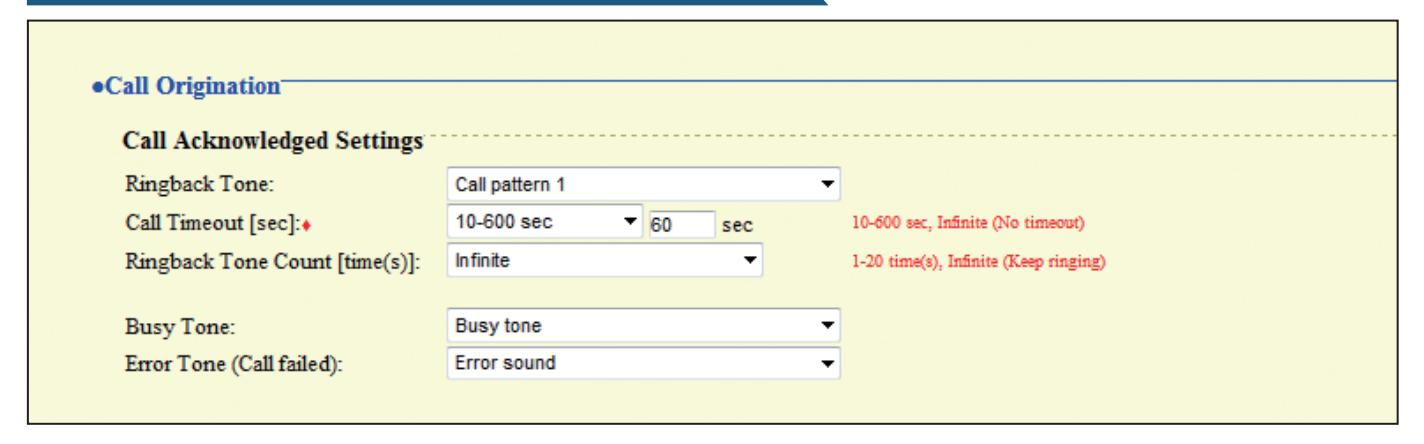
Call Origination
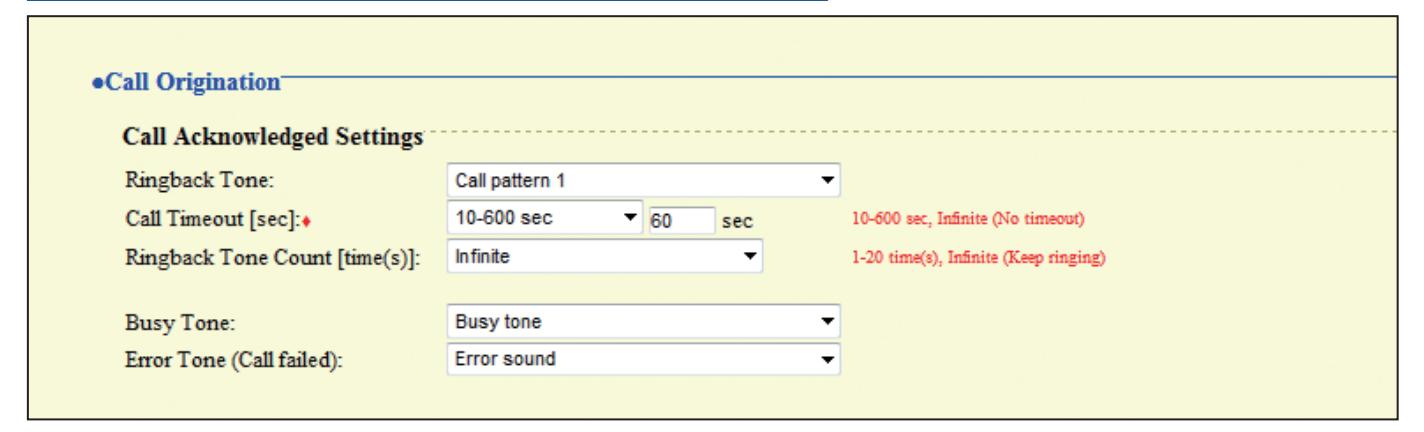
Call Acknowledged Settings
♦This is a required setting.
| Entry | Description | Settings |
Default
values |
|---|---|---|---|
| Ringback Tone |
Select the ringback tone (tone heard at calling
station when a call is placed). |
• Call pattern 1
• Call pattern 2 • Call pattern 3 • Call pattern 4 • Call pattern 5 • Call pattern 6 • Tremolo sound • Busy tone • On-hold tone • Operation sound • Error sound • Select from the sound source registered in "Custom Sound Registry." |
Call pattern 1 |
| Call Timeout [sec] ♦ | Set the call ring timer. |
• 10-600 sec (by 1 sec)
• Infinite: Ringing continues until the recipient responds |
10-600 sec
(60 sec) |
Call Origination (continued)
Call Acknowledged Settings
| Entry | Description | Settings |
Default
values |
|---|---|---|---|
|
Ringback Tone Count
[time(s)] |
Set the count of ringback tone. |
• 1-20 times
• Infinite: Ringback tone continues until the recipient responds. |
Infinite |
| Busy Tone |
Select the tone that will be heard at the calling
station when the called station is busy. |
• Call pattern 1
• Call pattern 2 • Call pattern 3 • Call pattern 4 • Call pattern 5 • Call pattern 6 • Tremolo sound • Busy tone • On-hold tone • Operation sound • Error sound • Select from the sound source registered in "Custom Sound Registry." |
Busy tone |
| Error Tone (Call failed) |
Select the tone that will be heard when a call
fails. |
• Call pattern 1
• Call pattern 2 • Call pattern 3 • Call pattern 4 • Call pattern 5 • Call pattern 6 • Tremolo sound • Busy tone • On-hold tone • Operation sound • Error sound • Select from the sound source registered in "Custom Sound Registry." |
Error sound |
Function Settings
Door Release Settings

Attention
If the door release settings are changed, the release feature may no longer work. If the settings are changed, contact the system administrator.
| Door Release Settings | |
|---|---|
| Door Release Tone | |
| Door Release Operating Tone: | Operation sound ▼ |
| Door Release Authorization | |
| Authentication Key: | 1-4 digits |
Door Release Tone
| Entry | Description | Settings |
Default
values |
|---|---|---|---|
|
Door Release Operating
Tone |
Set the tone that will be heard when the door is
released. |
• None
• Call pattern 1 • Call pattern 2 • Call pattern 3 • Call pattern 4 • Call pattern 5 • Call pattern 6 • Tremolo sound • Busy tone • On-hold tone • Operation sound • Error sound • Select from the sound source registered in "Custom Sound Registry." |
Operation
sound |
Door Release Authorization
| Entry | Description | Settings |
Default
values |
|---|---|---|---|
|
Set the authentication key to allow control of
the master station's door release output. |
|||
| Authentication Key |
Authentication key: When this matches the
key of the other master station, control will be permitted. |
1-4 digits | - |
Contact Input Call
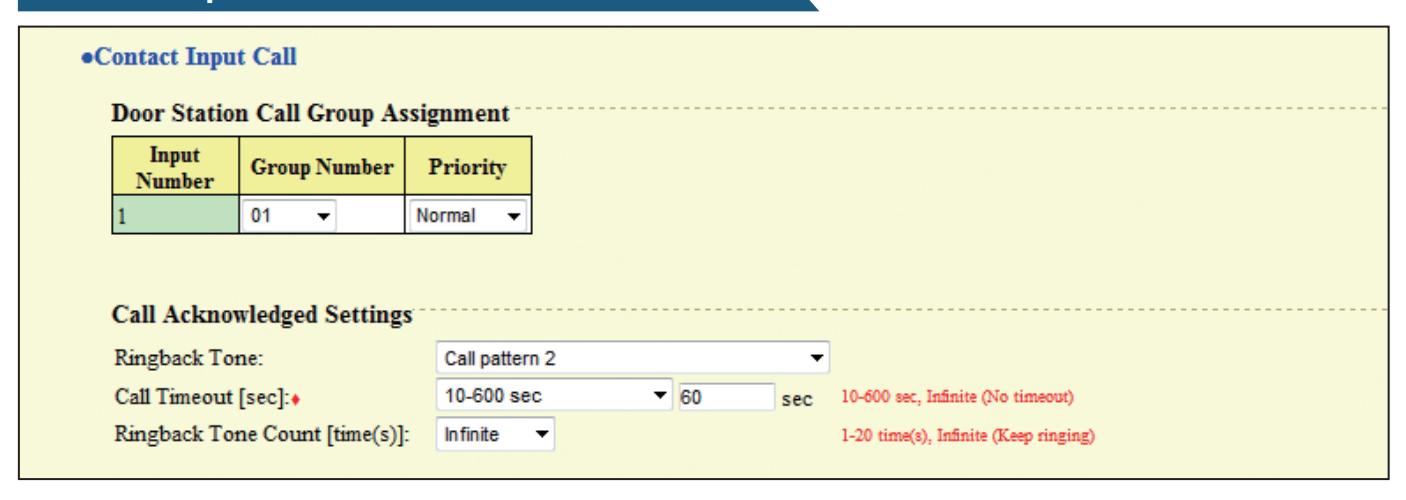
Door Station Call Group Assignment
| Entry | Description | Settings |
Default
values |
|---|---|---|---|
| Group Number |
Set the group number to be called when the
contact input is triggered. Contact your system administrator regarding groups. |
01 to 09 | 01 |
| Priority |
Set the priority of the call when the contact
input is triggered. |
• Normal
• Priority • Urgent |
Normal |
Call Acknowledged Settings
♦ This is a required setting.
| Entry | Description | Settings |
Default
values |
|---|---|---|---|
| Ringback Tone |
Select the ringback tone when the contact input
is triggered. |
• Call pattern 1
• Call pattern 2 • Call pattern 3 • Call pattern 4 • Call pattern 5 • Call pattern 6 • Tremolo sound • Busy tone • On-hold tone • Operation sound • Error sound • Select from the sound source registered in "Custom Sound Registry." |
Call pattern 2 |
| Call Timeout [sec] ♦ |
Set the call ring timer when the contact input is
triggered. |
• 10-600 sec (by 1 sec)
• Infinite: Ringing continues until the recipient responds |
10-600 sec
(60 sec) |
|
Ringback Tone Count
[time(s)] |
Set the count of ringback tone. |
• 1-20 times
• Infinite: Ringing continues until the recipient responds |
Infinite |
Paging Settings
Paging Pretone Setting
| Entry | Description | Settings |
Default
values |
|---|---|---|---|
| Pretone | Choose to enable the pretone function when | • ON | ON |
| the station is paged. | • OFF |

E-Mail Settings

Attention
The server must be set up to allow e-mail notifications to be sent.
If e-mail is not being received, contact network administrator to review the settings and confirm that e-mail is being sent.
| Destination 1: Destination 2: Destination 3: | 1-64 alphanumeric | characters | |||
|---|---|---|---|---|---|
| Destination 3: | 1-64 alphanumeric | ||||
| 1-64 alphanumeric | |||||
| E-mail Event Trigger | B (1 (1 41) | ||||
| Event | (1) | Destination Address (2) | (3) | ||
| Normal call | Dis | able ▼ | Disable ▼ | Disable | — |
| Priority call | Dis | able 🔻 | Disable ▼ | Disable | |
| Urgent call | Dis | able 🔻 | Disable ▼ | Disable | _ |
| Call Failed | Dis | able ▼ | Disable ▼ | Disable | - |
| Error Occurred | Dis | able ▼ | Disable ▼ | Disable | - |
| Station Restart | Dis | able ▼ | Disable ▼ | Disable | - |
| Periodic Log Transmission | n Dis | able ▼ | Disable ▼ | Disable | - |
| Periodic Log Transmit Tin | 1e 00 | ▼ Hour 00 ▼ Minute | 00 ▼ Hour 00 ▼ Minute | 00 ▼ Hour 00 ▼ Mis | inute |
| Periodic Log Transmit Inte | erval 1 d | lay 🔻 | 1 day ▼ | 1 day | - |
| [UTF-8] used for 'Subject' encoding; | the enhiert man | he mobiled depending on m | ail same | ||
| Event | the subject may | be gardled depending on ma | Subject Text | ||
| 1 | -64 alphanumeric characters | ||||
| Normal call Priority call | _ | ||||
| Urgent call | |||||
| Call Failed | |||||
| Error Occurred | |||||
| Station Restart | |||||
| Periodic Log Transmission | ı | ||||
| . 11111 1.0 111 | |||||
| Additional Settings | T. | 44.44 | |||
| TITTO 01 4 C- 14 4 7 | |||||
|
[UTF-8] used for 'Attachment Image
Attach Image: |
Priename enco | © Enable ® Disab | If not to IT no | ble], an image will be attach | ed when sending "Norn |

E-mail Addresses
| Entry | Description | Settings |
Default
values |
|---|---|---|---|
| Destination 1 to 3 | Set the e-mail address. | 1-64 alphanumeric characters | - |
E-mail Event Trigger
Set up which event triggers will send an e-mail message for each address.
| Entry | Description | Settings |
Default
values |
|
|---|---|---|---|---|
| Normal call |
An e-mail message will be sent when a normal
call is made. |
• Enable | ||
| • Disable | Disable | |||
| Priority call | An e-mail message will be sent when a priority | • Enable | Disable | |
| call is made. | • Disable | |||
| An e-mail message will be sent when an urgent | • Enable | |||
| Urgent call | call is made. | • Disable | Disable | |
|
An e-mail message will be sent when a call
fails. |
• Enable | Disable | ||
| Call Failed | • Disable | |||
| Error Occurred |
An e-mail message will be sent when a data
communication error occurs. |
• Enable | Disable | |
| • Disable | ||||
|
An e-mail message will be sent when the
station is restarted. |
• Enable | |||
| Station Restart | • Disable | Disable | ||
| • Enable | ||||
| Periodic Log Transmission | Periodic Log will be sent via e-mail. | • Disable | Disable | |
| Periodic Log Transmit Time | Set time of day to send the log via e-mail. | From 00:00 to 23:59 | 00:00 | |
|
Periodic Log Transmit
Interval |
Set how often the log will be sent via e‑mail. | Every 1-7 days | 1 day | |
Configure the subject of the e-mail message for each e-mail event trigger.
| Entry | Description | Settings |
Default
values |
|---|---|---|---|
| Subject Text |
Set the subject text of e-mail message for each
trigger. |
1-64 alphanumeric characters | - |
Additional Settings (Video Door Station only)
| Entry | Description | Settings |
Default
values |
|---|---|---|---|
| Attach Image |
Using the "E-mail Event Trigger," configure the
settings for attaching a still image taken by the Video Door Station camera to an e-mail, sent when making a normal call, priority call, or urgent call. |
• Enable
• Disable |
Disable |
| Attachment Image Filename |
Set the name of the image file that was
attached. |
1-64 alphanumeric characters | - |

Attention
UTF-8 encoding is used for the "Subject Text" and "Attachment Image Filename." Depending on the e-mail client, the characters may appear incorrectly.

Station Hardware Settings
Volume Settings
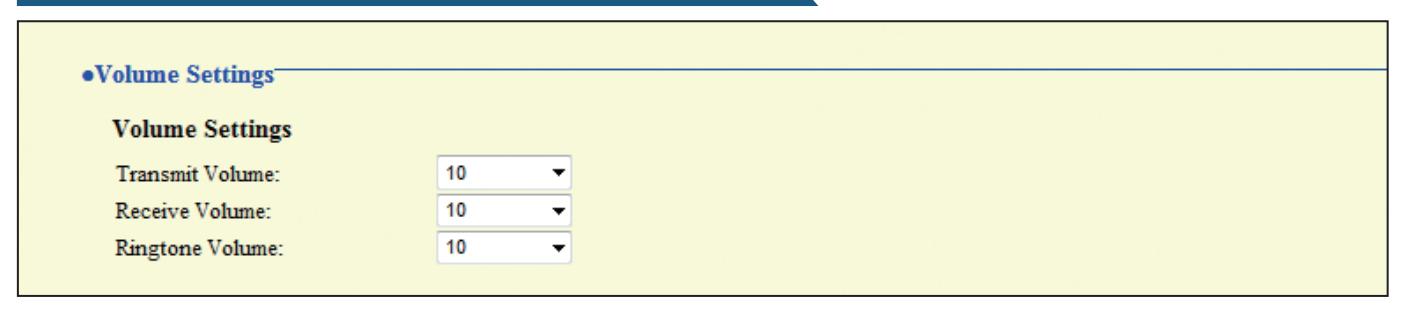
Volume Settings
| Entry | Description | Settings |
Default
values |
|---|---|---|---|
| Transmit Volume |
Set the transmit volume during communication
or monitoring. |
1-10 | 10 |
| Receive Volume |
Set the receive volume during communication
or paging. The volume for ringback tone will be changed as well |
1-10 | 10 |
| Ringtone Volume | Set the tone volume (ringtone, pretone, etc.) | 0: Mute, 1-10 | 10 |
Communication Settings

♦ This is a required setting.
| Entry | Description | Settings |
Default
values |
|---|---|---|---|
| Talk Timeout [sec] ♦ | Set the talk timeout. |
• 30-600 sec (by 1 sec)
• Infinite: Communication continues until the communication is terminated. |
60 sec |
Camera Settings (Video Door Station only)
| Environmental Settings | ||
|---|---|---|
| Backlight Compensation Adjus | tment: | © Enable Disable |
| Low Light Sensitivity Adjustme | ent: | © Enable @ Disable |
| Color Settings | ||
| Brightness: | 50 | 1-100 |
| Contrast: | 50 | 1-100 |
| 50 | 1-100 | |
| Color: • | ||
| Color:• | ||
| Color:• LED Illumination Control | ||
| @ Enabl | le 🕝 Disable |
Environmental Settings
| Entry | Description | Settings |
Default
values |
|---|---|---|---|
|
Backlight Compensation
Adjustment |
Enable the backlight compensation adjustment.
When the "ADJUST" button of Master Station is pressed during a call or while monitoring, the setting will be changed. |
• Enable
• Disable |
Disable |
|
Low Light Sensitivity
Adjustment |
Enable the automatic low light sensitivity
adjustment function when the ambient lighting is dark. When the "ADJUST" button of Master Station is pressed during a call or while monitoring, the setting will be changed. |
• Enable
• Disable |
Disable |
Color Settings

Attention
If these settings are changed while video is displayed, the changes will not be reflected until the video is accessed again.
♦ This is a required setting.
| Entry | Description | Settings |
Default
values |
|---|---|---|---|
| Brightness ♦ | Set the brightness of the picture. | 1 (dark) to 100 (bright) | 50 |
| Contrast ♦ | Set the contrast of the picture. | 1 (dull) to 100 (vivid) | 50 |
| Color ♦ | Set the color of the picture. | 1 (weak) to 100 (strong) | 50 |
LED Illumination Control
| Entry | Description | Settings |
Default
values |
|---|---|---|---|
|
During Call /
Communication |
Activate LED illumination during communication
when the ambient lighting is dark. |
• Enable
• Disable |
Enable |
| While Monitored |
Activate LED illumination while being monitored
when the ambient lighting is dark. |
• Enable
• Disable |
Disable |
Specifications
| Power | Power-over-Ethernet (IEEE 802.3af Class 0) |
|---|---|
| Consumption current | Video Door Station: Standby 35mA, maximum 110mA, |
| Audio Only Door Station: Standby 35mA, maximum 70mA | |
| Communication | Hands-free |
| Camera (Video Door Station only) | 1/4" Color CCD |
|
Minimum illumination
(Video Door Station only) |
5 lux |
| LAN | Ethernet (10BASE-T, 100BASE-TX) |
| Audio codec | G.711 |
|
Video codec
(Video Door Station only) |
H.264 / AVC, Motion-JPEG |
| Protocol |
IPv4, IPv6, TCP, UDP, SIP, HTTP, HTTPS, RTSP, RTP, RTCP, IGMP, MLD, SMTP, FTP,
DHCP, NTP, DNS |
| Number of called stations | 20 stations (only Master Stations can be registered) |
| Operating temperature | -10 °C to +60 °C (+14 °F to +140°F) |
| Materials | Fire-retardant resin |
| Color | Hardware: flat black, Panel: silver |
| Size | H: 130 mm (5-1/8") , W: 97 mm (3-13/16") , D: 42 mm (1-11/16") |
| Mass | Video Door Station: Approx. 280 g (0.62 lbs.), |
| Audio Only Door Station: Approx. 270 g (0.60 lbs.) |
Maintenance
Clean the unit gently with a soft, dry cloth. If difficult to clean, dip a soft cloth in neutral detergent diluted with water, wring it out well, and then clean unit.

Attention
Do not use chemicals such as benzene or paint thinner. You may damage the surface of the device, or cause discoloration.
Technical Support
If problems occur during the use of the system, please visit our website http://www.aiphone.net/.
Notice regarding software
Use of the software installed on this product has received direct or indirect authorization from third parties.
(1)GPL/LGPL
This product includes software components subject to the GPL/LGPL.
Customers can obtain, modify, and re-distribute the source code of the software components according to the GPL/ LGPL.
Please see the website below for how to obtain sequence GPL/LGPL of this source code.
http://www.aiphone.co.jp/data/software/source/gpl/download/ix/
Hereafter referred to as the link
Open source code
This product includes software components subject to the GPL/LGPL, and customers can obtain, modify, and re‑distribute the source code of the software components according to the GPL/LGPL. In addition, you can find details on the GPL/LGPL through the following links.
http://www.gnu.org/licenses/old-licenses/gpl-2.0.html
http://www.gnu.org/licenses/old-licenses/lgpl-2.1.html
Please confirm the following contents when downloading.
<<Please confirm>>
- ■According to GPL/LGPL, the source code of the software components is not guaranteed, including warranty on "merchantability" or "suitability for a particular purpose."
- ■The source code of the software components are according to the "status quo," and are provided based on the GPL/LGPL.
- ■Please understand that we cannot answer questions regarding the content of the source code of the software components.
(2)OpenSSL License
Copyright (c) 1998-2011 The OpenSSL Project. All rights reserved.
Redistribution and use in source and binary forms, with or without modification, are permitted provided that the following conditions are met:
- 1. Redistributions of source code must retain the above copyright notice, this list of conditions and the following disclaimer.
- 2. Redistributions in binary form must reproduce the above copyright notice, this list of conditions and the following disclaimer in the documentation and/or other materials provided with the distribution.
- 3. All advertising materials mentioning features or use of this software must display the following acknowledgment: "This product includes software developed by the OpenSSL Project for use in the OpenSSL Toolkit. (http://www.openssl.org/)"
- 4. The names "OpenSSL Toolkit" and "OpenSSL Project" must not be used to endorse or promote products derived from this software without prior written permission. For written permission, please contact openssl-core@openssl.org.
- 5. Products derived from this software may not be called "OpenSSL" nor may "OpenSSL" appear in their names without prior written permission of the OpenSSL Project.
- 6. Redistributions of any form whatsoever must retain the following acknowledgment: "This product includes software developed by the OpenSSL Project for use in the OpenSSL Toolkit (http://www.openssl.org/)"
THIS SOFTWARE IS PROVIDED BY THE OpenSSL PROJECT "AS IS'' AND ANY EXPRESSED OR IMPLIED WARRANTIES, INCLUDING, BUT NOT LIMITED TO, THE IMPLIED WARRANTIES OF MERCHANTABILITY AND FITNESS FOR A PARTICULAR PURPOSE ARE DISCLAIMED. IN NO EVENT SHALL THE OpenSSL PROJECT OR ITS CONTRIBUTORS BE LIABLE FOR ANY DIRECT, INDIRECT, INCIDENTAL, SPECIAL, EXEMPLARY, OR CONSEQUENTIAL DAMAGES (INCLUDING, BUT NOT LIMITED TO, PROCUREMENT OF SUBSTITUTE GOODS
5 Other
OR SERVICES; LOSS OF USE, DATA, OR PROFITS; OR BUSINESS INTERRUPTION) HOWEVER CAUSED AND ON ANY THEORY OF LIABILITY, WHETHER IN CONTRACT, STRICT LIABILITY, OR TORT (INCLUDING NEGLIGENCE OR OTHERWISE) ARISING IN ANY WAY OUT OF THE USE OF THIS SOFTWARE, EVEN IF ADVISED OF THE POSSIBILITY OF SUCH DAMAGE.
(3)Original SSLeay License
Redistribution and use in source and binary forms, with or without modification, are permitted provided that the following conditions are met:
- 1. Redistributions of source code must retain the copyright notice, this list of conditions and the following disclaimer.
- 2. Redistributions in binary form must reproduce the above copyright notice, this list of conditions and the following disclaimer in the documentation and/or other materials provided with the distribution.
-
3. All advertising materials mentioning features or use of this software must display the following acknowledgement: "This product includes cryptographic software written by Eric Young (eay@cryptsoft.com)"
- The word 'cryptographic' can be left out if the rouines from the library being used are not cryptographic related :-).
-
4. If you include any Windows specific code (or a derivative thereof) from the apps directory (application code) you must include an acknowledgement:
- "This product includes software written by Tim Hudson (tjh@cryptsoft.com)"
THIS SOFTWARE IS PROVIDED BY ERIC YOUNG "AS IS'' AND ANY EXPRESS OR IMPLIED WARRANTIES, INCLUDING, BUT NOT LIMITED TO, THE IMPLIED WARRANTIES OF MERCHANTABILITY AND FITNESS FOR A PARTICULAR PURPOSE ARE DISCLAIMED. IN NO EVENT SHALL THE AUTHOR OR CONTRIBUTORS BE LIABLE FOR ANY DIRECT, INDIRECT, INCIDENTAL, SPECIAL, EXEMPLARY, OR CONSEQUENTIAL DAMAGES (INCLUDING, BUT NOT LIMITED TO, PROCUREMENT OF SUBSTITUTE GOODS OR SERVICES; LOSS OF USE, DATA, OR PROFITS; OR BUSINESS INTERRUPTION)
HOWEVER CAUSED AND ON ANY THEORY OF LIABILITY, WHETHER IN CONTRACT, STRICT LIABILITY, OR TORT (INCLUDING NEGLIGENCE OR OTHERWISE) ARISING IN ANY WAY OUT OF THE USE OF THIS SOFTWARE, EVEN IF ADVISED OF THE POSSIBILITY OF SUCH DAMAGE.
- (4)this software is based in part on the work of the Independent JPEG Group.
- (5)this software is based in part on the work of the FreeType Team.

Warranty
Aiphone warrants its products to be free from defects of material and workmanship under normal use and service for a period of two years after delivery to the ultimate user and will repair free of charge or replace at no charge, should it become defective upon which examination shall disclose to be defective and under warranty. Aiphone reserves unto itself the sole right to make the final decision whether there is a defect in materials and/or workmanship; and whether or not the product is within the warranty. This warranty shall not apply to any Aiphone product which has been subject to misuse, neglect, accident, power surge, or to use in violation of instructions furnished, nor extended to units which have been repaired or altered outside of the factory. This warranty does not cover batteries or damage caused by batteries used in connection with the unit. This warranty covers bench repairs only, and any repairs must be made at the shop or place designated in writing by Aiphone. This warranty is limited to the standard specifications listed in the operation manual. This warranty does not cover any supplementary function of a third party product that is added by users or suppliers. Please note that any damage or other issues caused by failure of function or interconnection with Aiphone products is also not covered by this warranty. Aiphone will not be responsible for any costs incurred involving on site service calls. Aiphone will not provide compensation for any loss or damage incurred by the breakdown or malfunction of its products during use, or for any consequent inconvenience or losses that may result.
The object area of is the EU.
FCC
This device complies with Part 15 of the FCC Rules. Operation is subject to the following two conditions: (1) this device may not cause harmful interference, and (2) this device must accept any interference received, including interference that may cause undesired operation.
Note: This equipment has been tested and found to comply with the limits for a Class B digital device, pursuant to Part 15 of the FCC Rules.
These limits are designed to provide reasonable protection against harmful interference in a residential installation. This equipment generates, uses, and can radiate radio frequency energy, and if not installed and used in accordance with the instructions, may cause harmful interference to radio communications. However, there is no guarantee that interference will not occur in a particular installation. If this equipment does cause harmful interference to radio or television reception, which can be determined by turning the equipment off and on, the user is encouraged to try to correct the interference by one or more of the following measures:
- Reorient or relocate the receiving antenna
- Increase the separation between the equipment and receiver.
- Connect the equipment to an outlet on a circuit different from that to which the receiver is connected.
- Consult the dealer or an experienced radio/TV technician for help.

AIPHONE CO., LTD., NAGOYA, JAPAN
Issue Date : Nov. 2014 FK2127 A P1114 SQ 56140