Aiphone IS-MV Series Operation Guide
Open the original PDF document
View PDFThis operation guide describes the basic functions of your IS Series Master Station
For a complete operation manual (1.6 MB), scan QR code or use link to download it from the manufacturer's website: www.aiphone.com/is-mv_op-man
AIPHONE® IS-MV Master Station
Operation Buttons
There are three privacy settings: OFF, 1, and 2. If set to OFF, a call from another master station can be answered by a voice response. If set to 1, a call from another master station can be answered by pushing the TALK button or picking up the handset. If set to 2, a call from another master station will provide a sound notification to you and the caller, indicating the station is in "do not disturb" mode. Push the PRIVACY button to activate the selected setting (a red LED on the button remains lit when the feature is activated).
To manually send an answered call to another master station within the system, push the TRANSFER button and select a destination (a red LED on the button blinks when transferring). To automatically send incoming calls to another master station within the system (CALL TRANSFER), push the TRANSFER button to select your transfer options (a red LED on the button remains lit when the feature is activated).
Push the LIST button to view stations and zones within the system. Use the camera/cursor control and ZOOM/WIDE buttons to make selections.
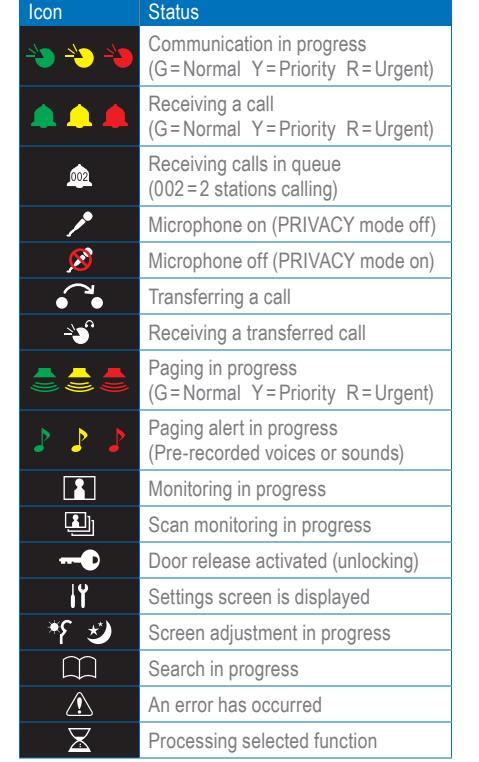
Push the SETTING button to view all setting options for your specific master station. Use the camera/cursor control and ZOOM/WIDE buttons to make selections. A status icon appears on screen when a function is in operation (see chart below).
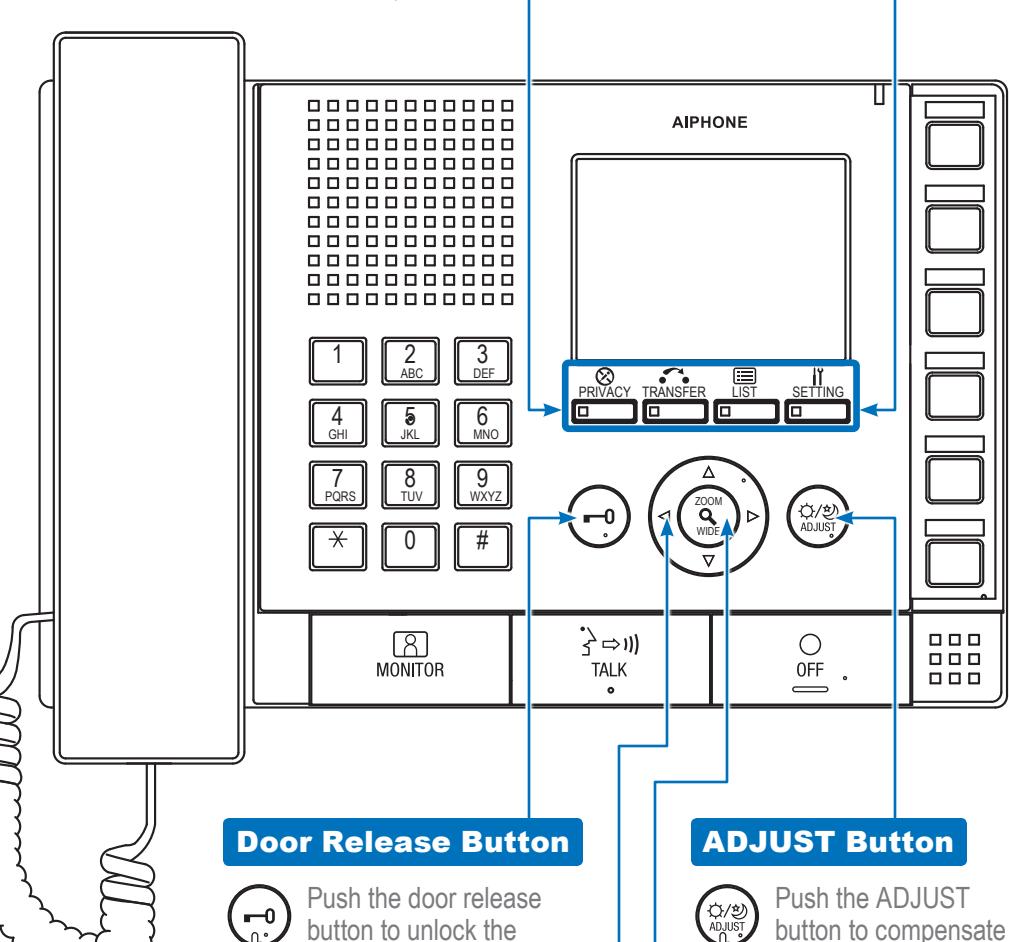
entrance during a call.
Camera/Cursor Control Button

Push , , , or to change the camera view (zoom-view only) or to scroll the cursor through the menu.
ZOOM/WIDE Button

Push the ZOOM/WIDE button to change the screen view during a video call or while monitoring video. When scrolling through a menu, push the ZOOM/WIDE button to make a selection.
for low or bright
backlight conditions
when viewing video
from a door station.
This operation guide describes the basic functions of your IS Series Master Station
For a complete operation manual (1.6 MB), scan QR code or use link to download it from the manufacturer's website: www.aiphone.com/is-mv_op-man
IS-MV Master Station
AIPHONE®
Camera/Cursor Control and ZOOM/WIDE Buttons
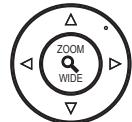
See IS-MV Operation Guide | 1 of 2 to read how the camera/cursor control and ZOOM/WIDE buttons operate.
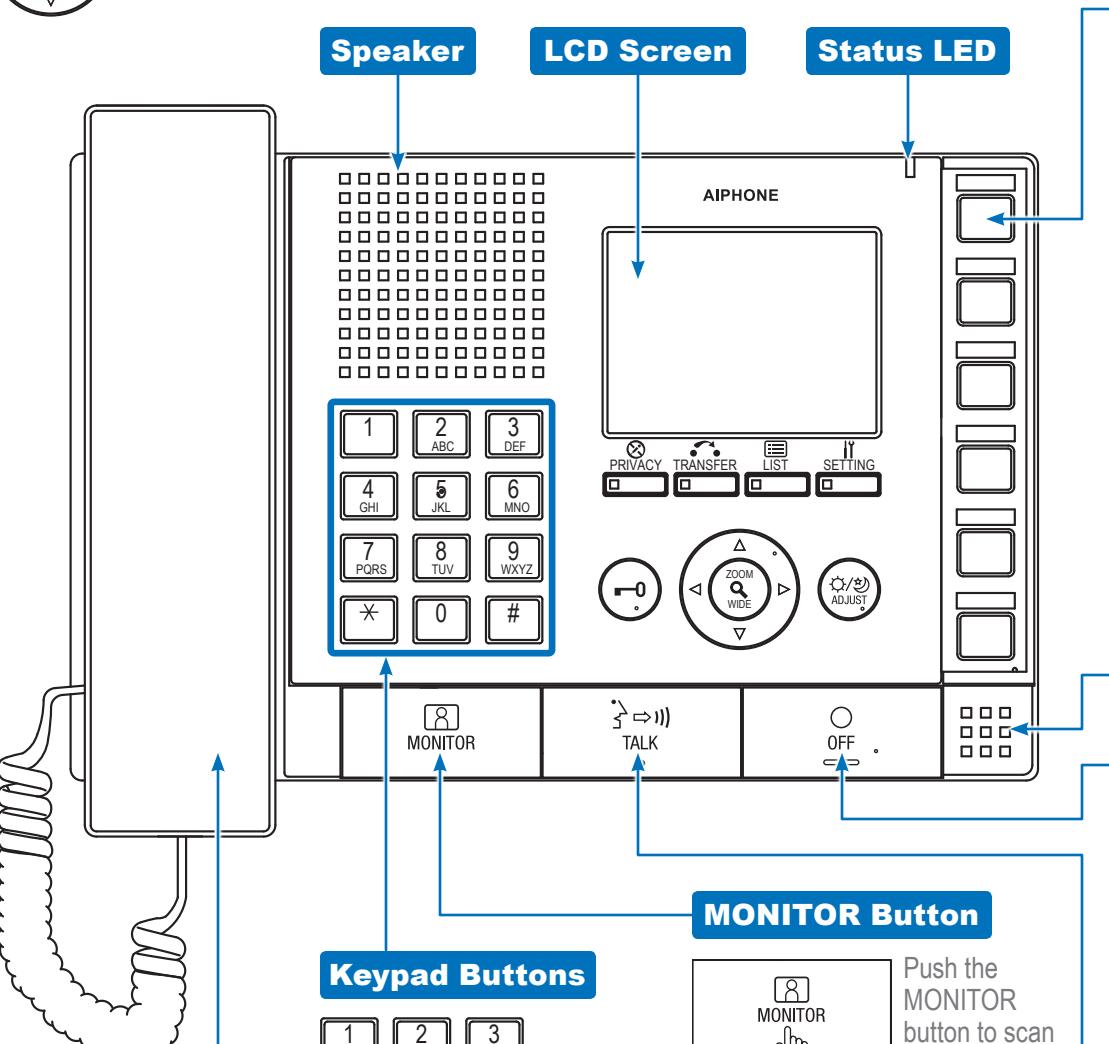
Use the keypad buttons to
search for a station or zone
by number. To search by name,
push the LIST button and use
the camera / cursor control and
ZOOM/WIDE buttons to select
name search. Once selected,
use the keypad buttons to type
the name of the station or zone.
Pick up the handset to answer an incoming call or respond to an incoming page* Hang up the handset to end a call. To make a call. search for the station or zone using the keypad buttons or the LIST button. Once selected, push the TALK button to establish the call. Pick up the handset for
private communication.
Handset
through all
connected stations (if enabled). To pause, push the MONITOR button again. Door release is not available while scanning. To monitor a specific station, push the LIST button and use the camera/cursor control and ZOOM/WIDE buttons to select a desired station. Once selected, push the MONITOR button to begin monitoring activity where the station is located.
*Responding to a page while in broadcast mode is not an option.
Speed Dial Buttons
Speed dial buttons can be programmed to quickly select a station for calling and monitoring. They can also be programmed to quickly select a zone for paging. To program, use the SETTING button. When programmed, push a speed dial button to display the assigned station. To call/page the selected station at a normal priority level, push the TALK button or lift the handset. To call/page the selected station at a different priority level, push the ZOOM/WIDE button to select the level before pushing the TALK button. To monitor the selected station, push the MONITOR button.
Microphone
OFF Button
Push the OFF button to end a call (this does not turn off the
station). If in MONITOR mode, push the OFF button to stop monitoring. If receiving a page, push the OFF button to stop the page from going to your specific master station.
TALK Button
Push the TALK button to answer an incoming call or respond to an
incoming page* Once answered, the conversation becomes hands-free. To make a call, search for the station or zone using the keypad buttons or the LIST button. Once selected, push the TALK button to establish the call.