Aiphone IPW-1A Communi Center Operation Manual
Open the original PDF document
View PDF

Software for IPW-1A Intercom-Over-IP Adaptor
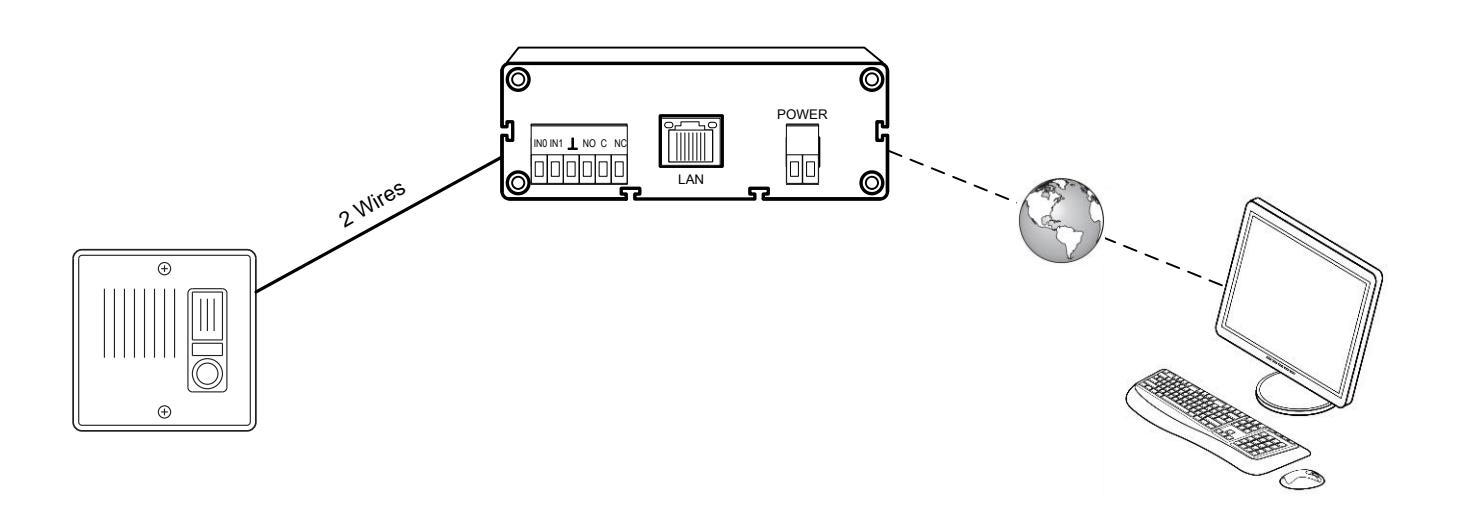
TABLE OF CONTENTS
|
GENERAL
DESCRIPTION |
1 |
|---|---|
| FEATURES | 2 |
| SPECIFICATIONS | 3 |
|
SOFTWARE
INSTALLATION |
4 |
|
WIRING
& TERMINAL DEFINITIONS |
5 |
|
SYSTEM
FUNCTION TABLE |
6 |
|
SCREEN
LAYOUT |
7 |
|
Expanded
Mode View |
7.1 |
|
Collapsed
Mode View |
7.2 |
|
SOFTWARE
CONFIGURATION WINDOW |
8 |
|
General
tab |
8.1 |
|
Paging
Groups |
8.2 |
|
Paging
Messages |
8.3 |
|
Ignore
List |
8.4 |
| Passwords | 8.5 |
| Scheduling | 8.6 |
|
Archival
Settings |
8.7 |
|
Audio
Settings |
8.8 |
| Information | 8.9 |
|
PRIOIRTY
LEVEL |
9 |
| OPERATIONS | 10 |
|
Sub
station calling in |
10.1 |
|
Answering
a call from sub station |
10.2 |
|
Monitoring
the sub station |
10.3 |
|
Talking
to a sub station |
10.4 |
|
Activating
the dry contacts |
10.5 |
|
ALL
CALL / GROUP PAGING |
10.6 |
|
All
Call |
10.6.1 |
|
Group
Paging |
10.6.2 |
| Messages | 10.7 |
|
ICON
DESCRIPTIONS |
11 |
|
HARDWARE
CONFIGURATION |
12 |
|
Accessing
from CommuniCenter |
12.1 |
|
Adaptor
Configuration via software |
12.2 |
|
Adaptor
Configuration via browser |
12.3 |
|
BROADCAST
AND DIRECT MODE |
Appendix
A |
|
Broadcast
Mode Direct Mode |
A.1
A.2 |
|
What
network administrator needs to know |
A.3 |
|
What
functions are available in each mode |
A.4 |
| TROUBLESHOOTING |
Appendix
B |
|
Bandwidth
Settings |
B.1 |
1. General Description
The IPW-1A and CommuniCenter software combine to create a network door entry intercom system. The IPW-1A is compatible with any of the Aiphone IE/IF door stations. The system allows for call-in to the PC via the CommuniCenter software, general communication between the PC and the door station, as well as the ability to activate the electric door release.
2. Features
- o The IPW-1A can be distributed over a data communication network.
- o The IPW-1A can be connected to an existing local area network (LAN) or wide-area network (WAN). The system will operate over wired, wireless, and fiber-optic TCP/IP networks.
- o The CommuniCenter software allows for standard operation and maintenance of the system.
- o Digital audio recording and playback capability.
- o The CommuniCenter software allows for control of electric locks via the "Form C" dry contact on the IPW-1A.
3. Specifications
Input Voltage: Use Aiphone PT-1211C (included); 15-24V AC/DC Network Interface: 10/100 Base-T Ethernet (Auto detection) RJ-45
IP Assignment: Static or Dynamic
Hardware Protocols: TCP/IP, UDP, DHCP, SNMP, AutoIP, SonicIP, Ipzator
Contact Aiphone for additional supported protocols
Transport Bandwidth: ≈128Kbps per active session (normal mode)
≈64Kbps per active session (low bandwidth mode)
Audio Encoding: PCM (raw), G.7II ( Law) Audio Sampling: 16bit at 8kHz (normal mode)
8bit at 8kHz (low bandwidth mode)
Output Level: Determined by sub station Relay Contact Rating: 30V AC/DC 1.0A (resistive) Operating temperature: 32°F to 104°F (0°C to 40°C) Dimensions: 1-1/2″H x 4-1/4″W x 4-15/16″D
Software System Requirements:
For optimum performance of the CommuniCenter program, we recommend the following minimum requirements:
Operating System: Microsoft Windows XP (SP2), Windows Vista ® ®
Processor: 1 GHz or faster Memory: 256MB of RAM
Hard drive: 50MB of available disk space
Sound Card: Windows supported sound card (w/ speaker & microphone)
Note:
Windows is the registered trademark of Microsoft Corporation in the United Sates and other countries.
4. Software Installation
- 1. Load the software onto the PC to be used as a master station. Insert CD (included with IPW-1A) or download the latest version from the Aiphone website (www.aiphone.com).
- 2. Install the CommuniCenter software by following the on-screen prompts, or by executing " setup.exe " to begin the installation process.
- 3. Any IPW-1A adaptors within the broadcast domain should automatically appear on the sub station list on the right. Refer to Section 8 of this user guide for software functionality and configuration information. Refer to Section 12 of this user guide for hardware configuration.
5. Wiring & Terminal Definitions
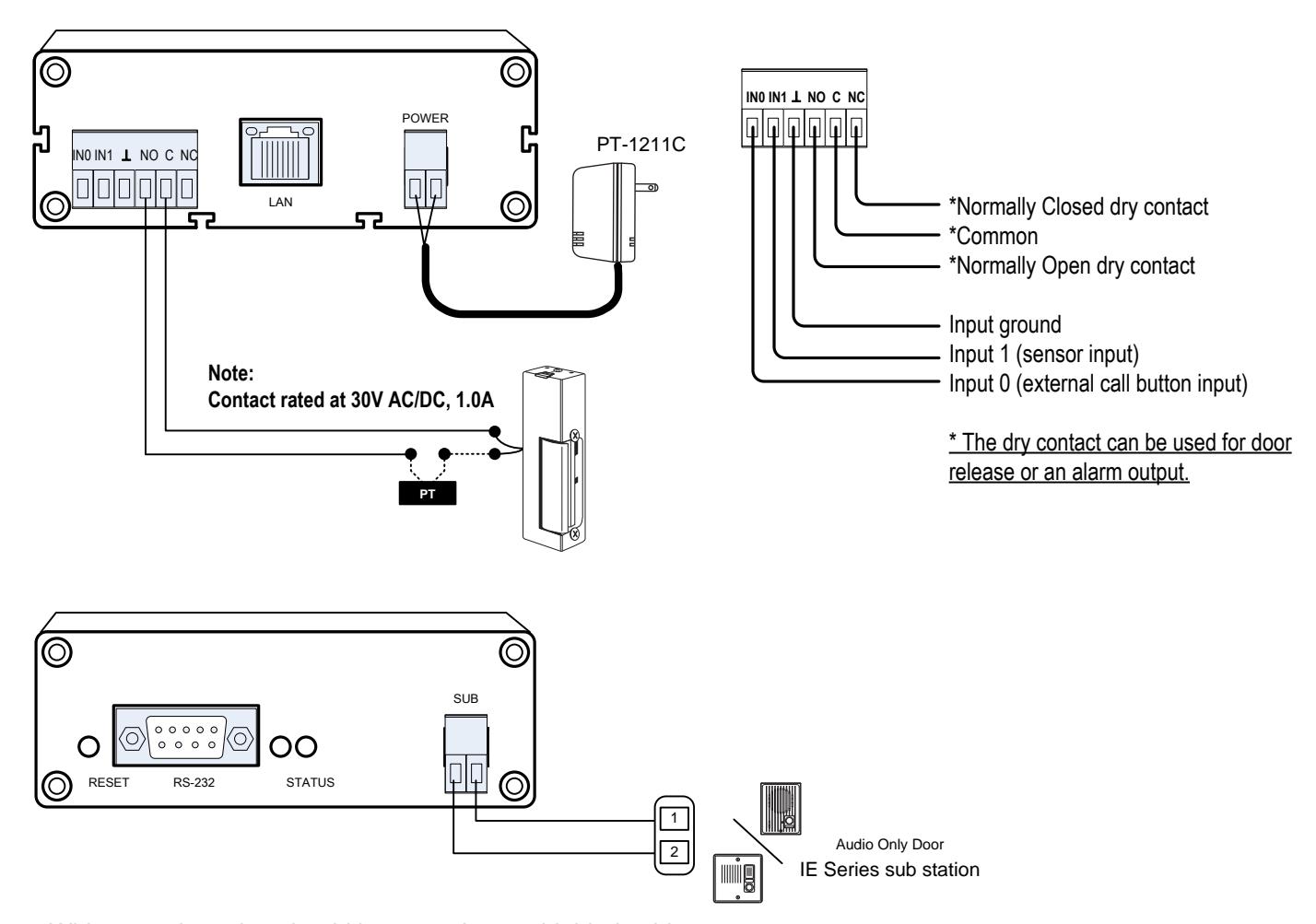
Wiring to sub station should be 2-conductor shielded cable. Wire distance from IPW-1A to IE series sub station: 22AWG = 387 feet, 18AWG = 980 feet *
6. System Function Table
| Feature/Function | Description |
Reference
section |
|
|---|---|---|---|
|
Talking
to Sub Monitoring Sub |
Direct
audio communication between the IPW-1A and the CommuniCenter software |
10.2
& 10.4 |
|
|
Direct
audio communication between the IPW-1A and the CommuniCenter software, one-way only |
10.3 | ||
| Communication |
Group
Call |
Broadcast
audio transmission from the CommuniCenter software to selected adaptors, one-way only |
10.6.2 |
|
All
Call |
Broadcast
audio transmission from the CommuniCenter software to all visible adaptors, one-way only |
10.6.1 | |
| Message |
Direct
or broadcast transmission of a pre-recorded message from the CommuniCenter software to selected station(s) / group(s) |
10.7 | |
|
Contact
Input and |
Sensor
Input |
Contact
input is equivalent to call button from IE series sub Sensor input will create a sensor input event in the software |
5,
7, 11 |
|
Device
Reset |
Device
reset function will cause the IPW-1A adaptor to cease all function and reboot, as if power had been cycled |
12.1 | |
|
Screen
Layout |
Describes
what each button and window in the CommuniCenter software is used for |
7.1
& 7.2 |
|
| Software | Configuration |
Allows
you to configure passwords, paging groups, messages, etc |
8 |
|
Paging
Groups |
Create
paging groups and select the stations you wish to be part of the group |
8.2 | |
|
Paging
Messages |
Set
up pre-recorded paging messages that you can send to groups or specific subs |
8.3 | |
|
Ignore
List |
Block
devices from being recognized from your PC |
8.4 | |
| Passwords |
Create
a password to gain access to the software configuration |
8.5 | |
| Scheduling |
Set
specific times during the day/week to put the program in and out of unavailable mode |
8.6 | |
|
Archival
Settings |
Enable
audio archiving and/or data-log archiving |
8.7 | |
|
Audio
Settings |
Allows
you to choose input and output device for the speaker and mic as well as the quality level of the audio |
8.8 | |
|
Priority
Level |
Lists
priority level for calls (highest to lowest) |
9 | |
|
Call
Placement |
Placing
a call to the PC from the IE series sub station |
10.1 | |
|
Answering
a call |
Procedure
used to answer call from a sub station or to select a sub station to talk to |
||
|
Door
Release |
Activating
the dry contacts on the IPW-1A |
10.5 | |
|
All
Call |
Place
an all call announcement to all subs in your software |
10.6.1 | |
|
Group
Paging |
Page
to pre-selected groups of sub stations |
10.6.2 | |
| Messages |
Sending
a pre-recorded message to a sub station or group of sub stations |
10.7 | |
| Hardware | Configuration |
Accessing
hardware configuration from within CommuniCenter |
12.1 |
|
Adaptor
Configuration |
Accessing
the adaptor settings via the CommuniCenter software or via the web browser |
||
7. Screen Layout:
7.1 Expanded Mode View
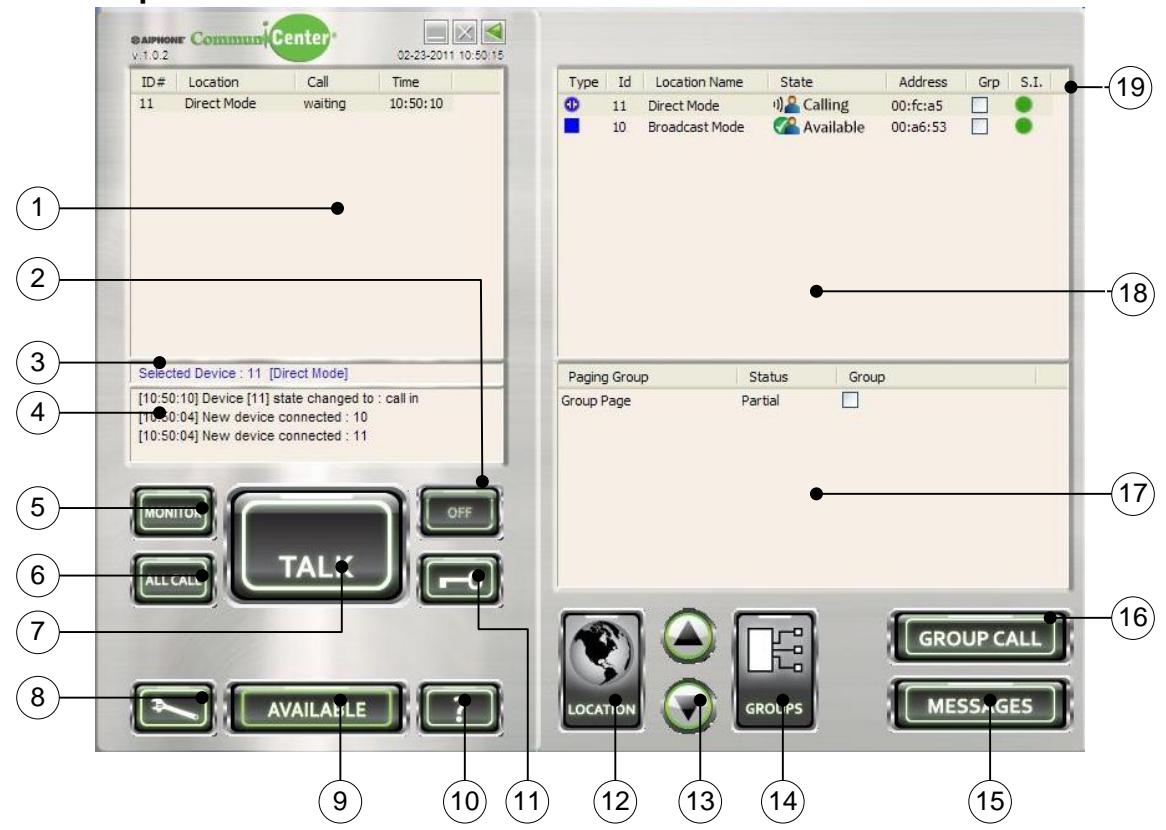
1- Call Waiting List
Displays calls placed, showing time placed and status
2- Off Button
Terminates communication with the connected sub
3- Selected Device Text Box
Displays the station or group that has been selected
4- Activity Log Text Box
Shows most recent system activity
5- Monitor Button
Allows the selected station to be monitored
6- All Call Button
Makes a broadcast announcement to all stations visible within CommuniCenter
7- Talk Button
Engages transmit communication when the button is activated (PTT)
8- Tool Button
Opens the software configuration window
9- Available/Unavailable Button
Allows the user to switch to and from away status
10- Help Button
Opens the help window
11- Door Release Button
Activates the dry contact on IPW-1A
12- Location Button
Turns on/off the sub station location list
13- Arrow Buttons
Allows user to move sub stations up and down the list
14- Groups Button
Turns on/off the paging group list
15- Messages Button
Allows a user to open the prerecorded message selection window
16- Group Call Button
Pages to selected stations or paging groups
17- Paging Group List
Displays the preconfigured paging groups
18- Sub Station Location List
Displays a sub station"s location, name, and status
19- Sensor Input Status
Displays an icon when the Sensor Input Pg. 6 (In 1) detects a closure
7.2 Collapsed Mode View
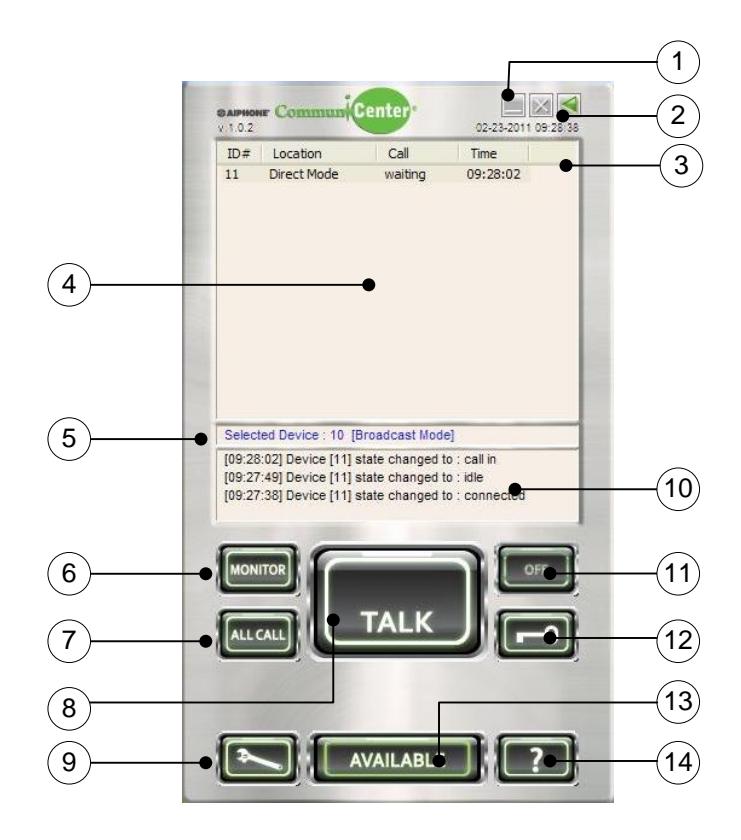
1- Minimize, and Terminate buttons Minimizes or terminates the program
2- Expand/Collapse Button
Toggles between the expanded and collapsed versions
3- Sensor Input Status
Displays an icon when the Sensor Input (In 1) detects a closure
4- Call Waiting List
Displays calls placed, showing time placed and status
5- Selected Device Text Box
Displays the station or group that has been selected
6- Monitor Button
Allows the selected station to be monitored
7- All Call Button
Makes a broadcast announcement to all stations visible within CommuniCenter
8- Talk Button
Engages transmit communication when the button is activated (PTT)
9- Tool Button
Opens the software configuration window
10- Activity Log Text Box
Shows most recent system activity
11- Off Button
Terminates communication with the connected sub
12- Door Release Button
Activates the dry contact on IPW-1A
13- Available/Unavailable Button
Allows the user to switch to and from away status
14- Help Button
Opens the help window
8. Software Configuration Window
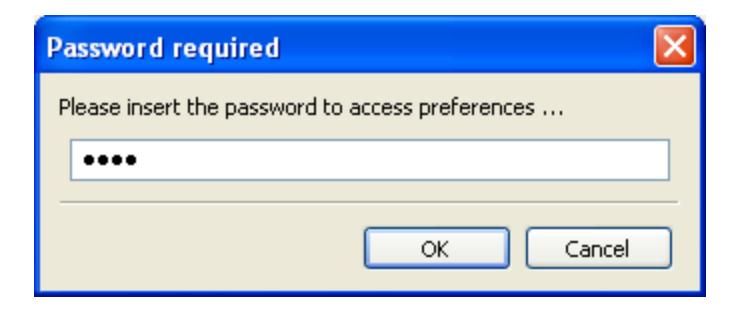
o Open the Software Configuration Window by clicking on the Tool Button. If a password has been set you will be prompted by the Password Required dialog. By default the password is not set. When using a password, make sure it is something you will be able to recall or write it down in secure location.
8.1 General Tab
-
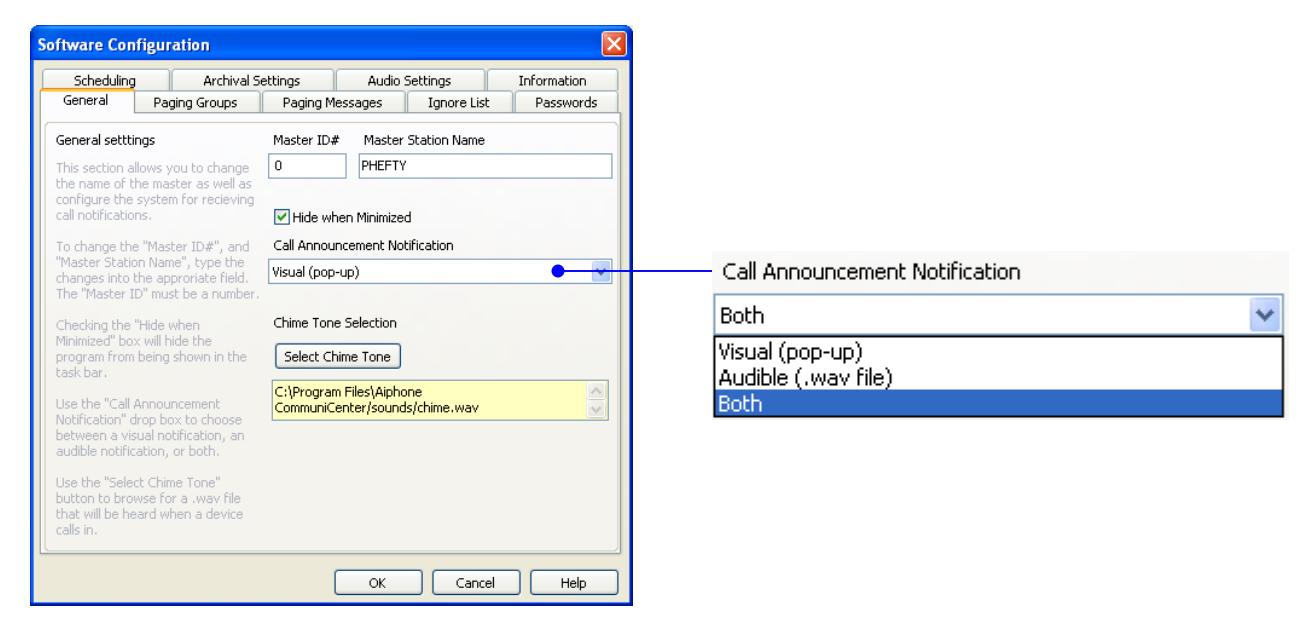
o Under the General Tab you will have the option of selecting how you receive call notifications. You can select the following from the drop down box:
- " Visual (pop up) " will display the " Incoming Call " pop up
- " Audible (.wav file) " will play a preselected .wav file
- " Both " will enable both the Visual and Audible notifications
- o If you are using the Audible (.wav file) option click on the Select Chime Tone button to select a suitable file from your PC. For "Normal" bandwidth mode your file must be 16-bit, 8kHz, PCM (uncompressed), for "Low" bandwidth mode your file must be 8-bit, 8kHz uLaw (compressed).
- o When minimized, the program can be hidden from the task bar by clicking on the "Hide when Minimized" check box. The program will always be visible in the system tray.
8.2 Paging Groups
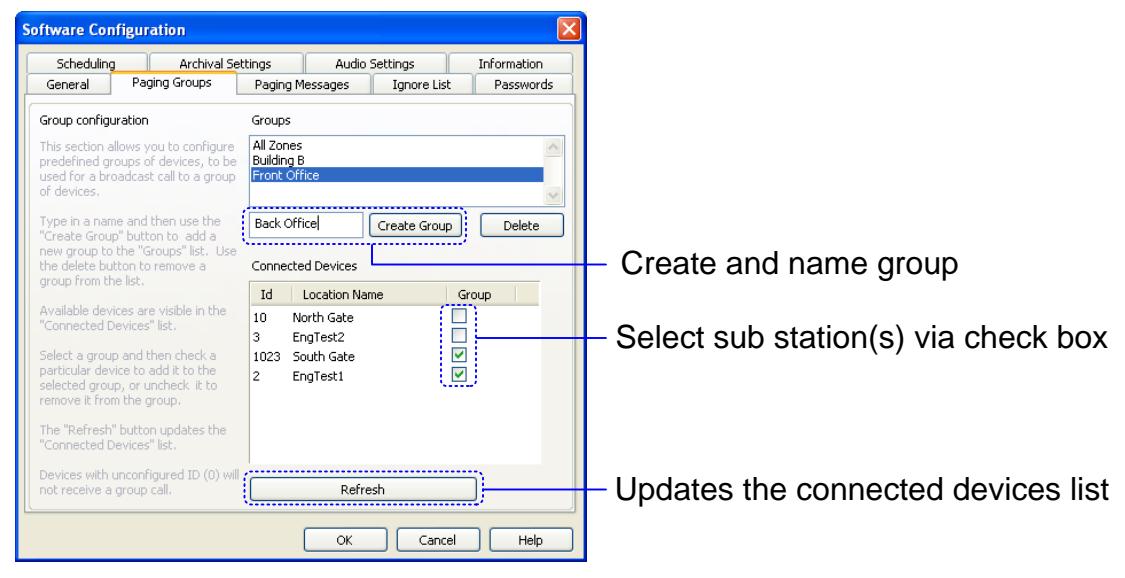
o Under the Paging Groups tab you will have the option to create different paging groups. Type in a group name in the box to the left of the Create Group button. Next click on the Create Group button. You will now see the name in the Groups list. To delete the group from the Groups list, select the group and then click the Delete button. The final step is to select which sub stations you want in your group. Select the group from the Groups list, then in the Connected Device list, use the check box under the Group column to add the desired sub stations to your group. Clicking on the Refresh button will update the list with the latest devices available.
8.3 Paging Messages
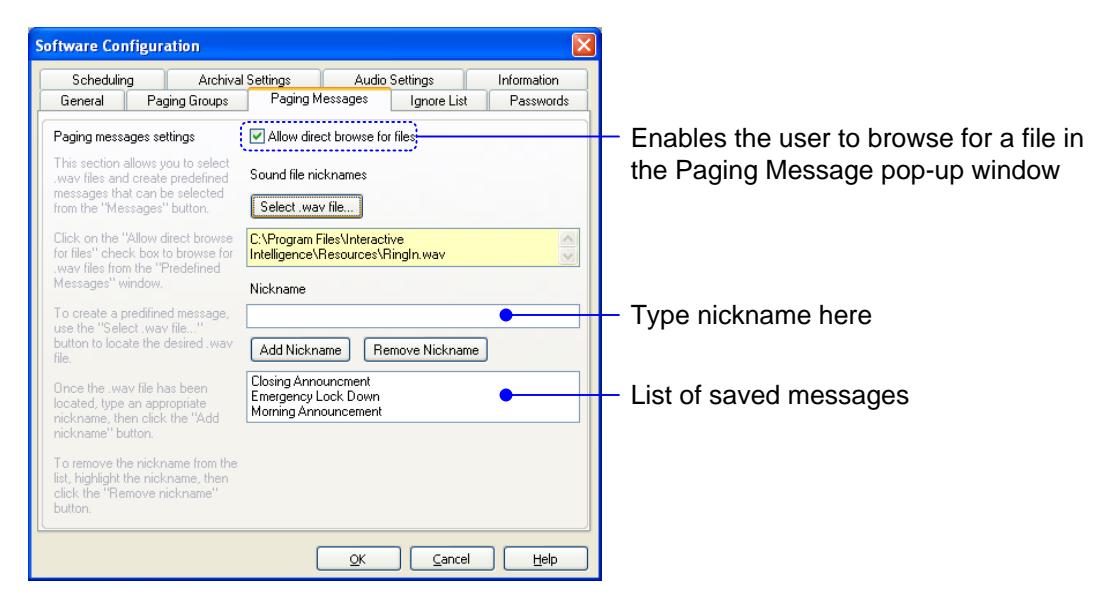
o Under the Paging Messages tab you can create messages from .wav files on your PC. To enable the user to browse for a file in the Paging Message pop-up window, the "Allow direct browse for files" box must be checked. Otherwise, only the pre-configured messages will be selectable. Use the Select .wav file… button to browse your PC for a .wav file. Files must match your Audio Settings. If you"re setup for "Normal" bandwidth then your file must be 16-bit, 8kHz, PCM (uncompressed), if you"re in "Low" bandwidth mode then your file must be 8-bit, 8kHz uLaw (compressed). Next, create a Nickname in the space provided, then click on the Add Nickname button. Your saved messages will be shown in the lower list view window. To remove a message from the list, select the message and then click on the Remove Nickname button.
Pg. 9
8.4 Ignore List
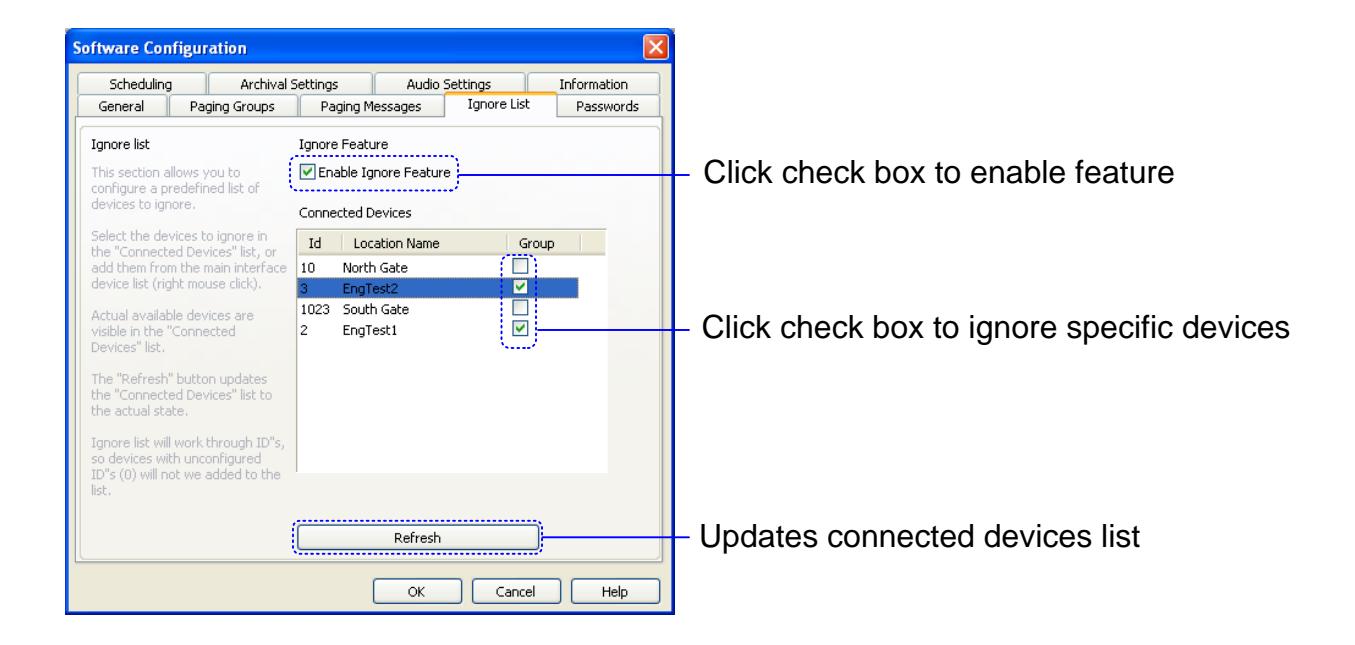
o Under the Ignore List tab you will have the option to block specific devices from being recognized at this PC. To view the list of devices available on the network, check the Enable Ignore Feature check box. This will display the Connected Devices list. From the list, check the devices you want to ignore. Devices that are ignored will display a green check mark. Clicking on the Refresh button will update the list with the latest devices available.
8.5 Passwords
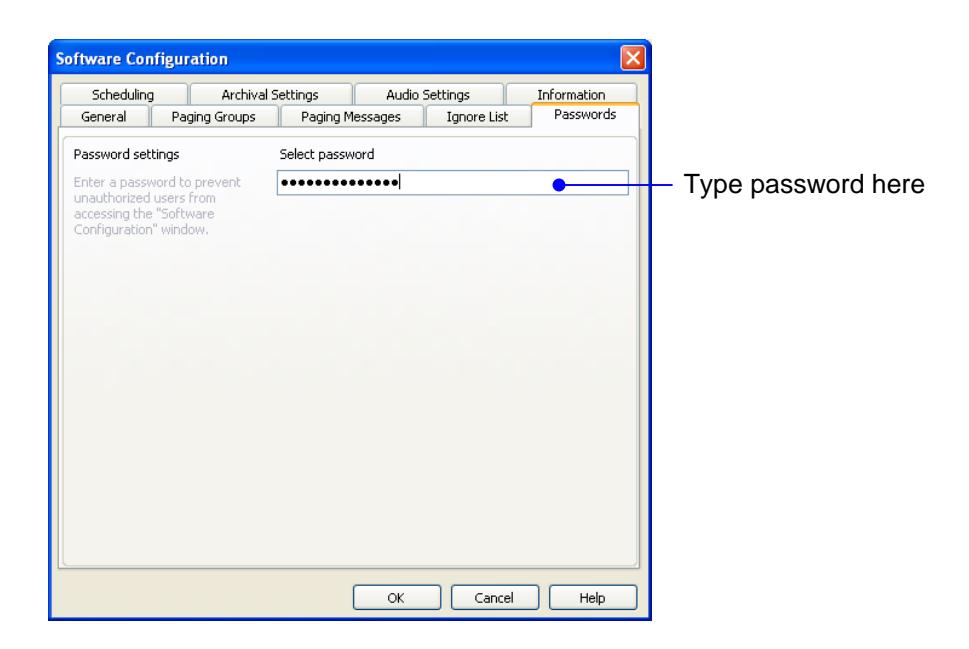
o The Passwords tab allows you to create a password to gain access to the Software Configuration window. You are limited to 16 alpha-numeric characters. Be sure to write it down or use a password that can be recalled. When configured, you will be prompted with a Password Required pop up when accessing the software configuration window.
8.6 Scheduling
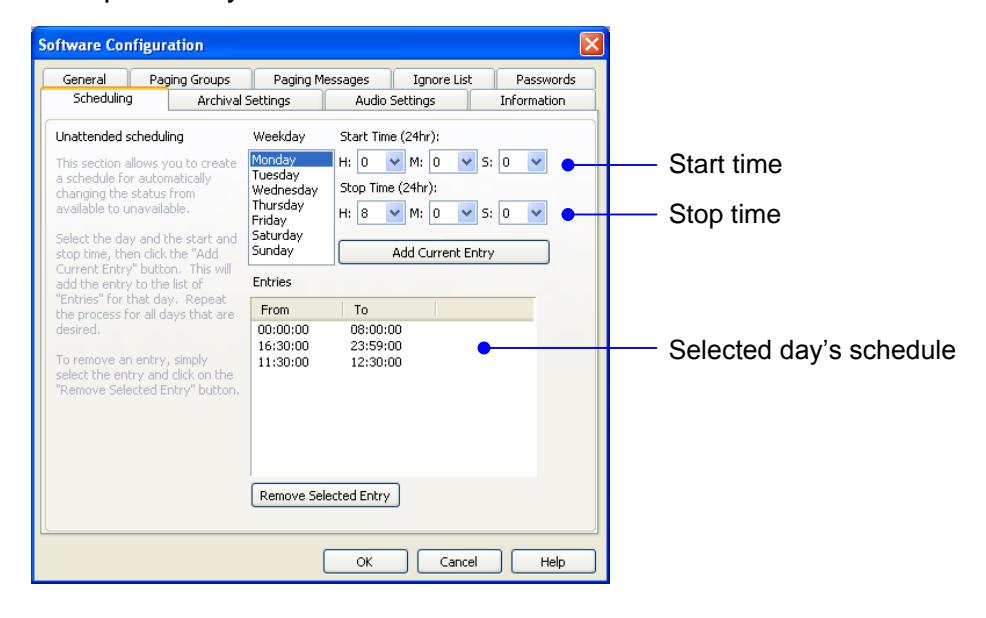
o The Scheduling tab allows the user to set specific times during the day/week to put the program in and out of unavailable mode. Select the day of the week and then set the starting time and ending time. To save, click on the Add current entry button. Use the drop downs to change the hour (24 hr.), minutes, and seconds for the start/stop time. Each day must be set independently.
8.7 Archival Settings
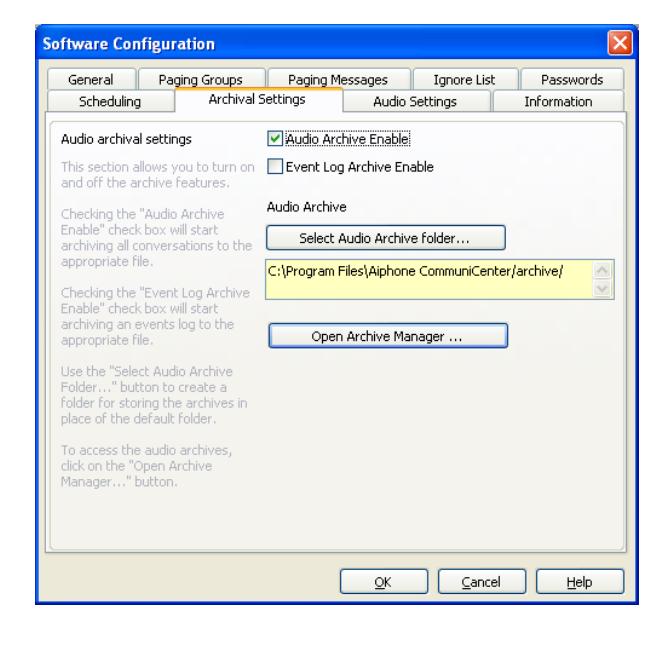
- o The Archival Settings tab allows you to enable or disable the audio archiving and data-log archiving features. Click on the Audio Archive Enable check box to enable this feature. From the Select audio archive folder… button you can create your own folder or use the default folder. Windows Vista users are encouraged to create a specific folder for the archived audio. When audio archiving is enabled, the system will record both sides of any conversation. This also includes group paging and all call announcements.
- o To enable the event log data, click on the Event Log Archive Enable check box. When event log archiving is enabled, all activity on the system will be recorded to the archive folder.
8.7 Archival Settings cont.
o To listen to the archived recordings, click on the Open Archive Manager… button. From there you will be able to open the individual recording and play it by first selecting the recording and then clicking on the play button in the Archive Manager window . Once you have listened to the recording, you have the option of deleting the file by clicking on the Delete selected button.
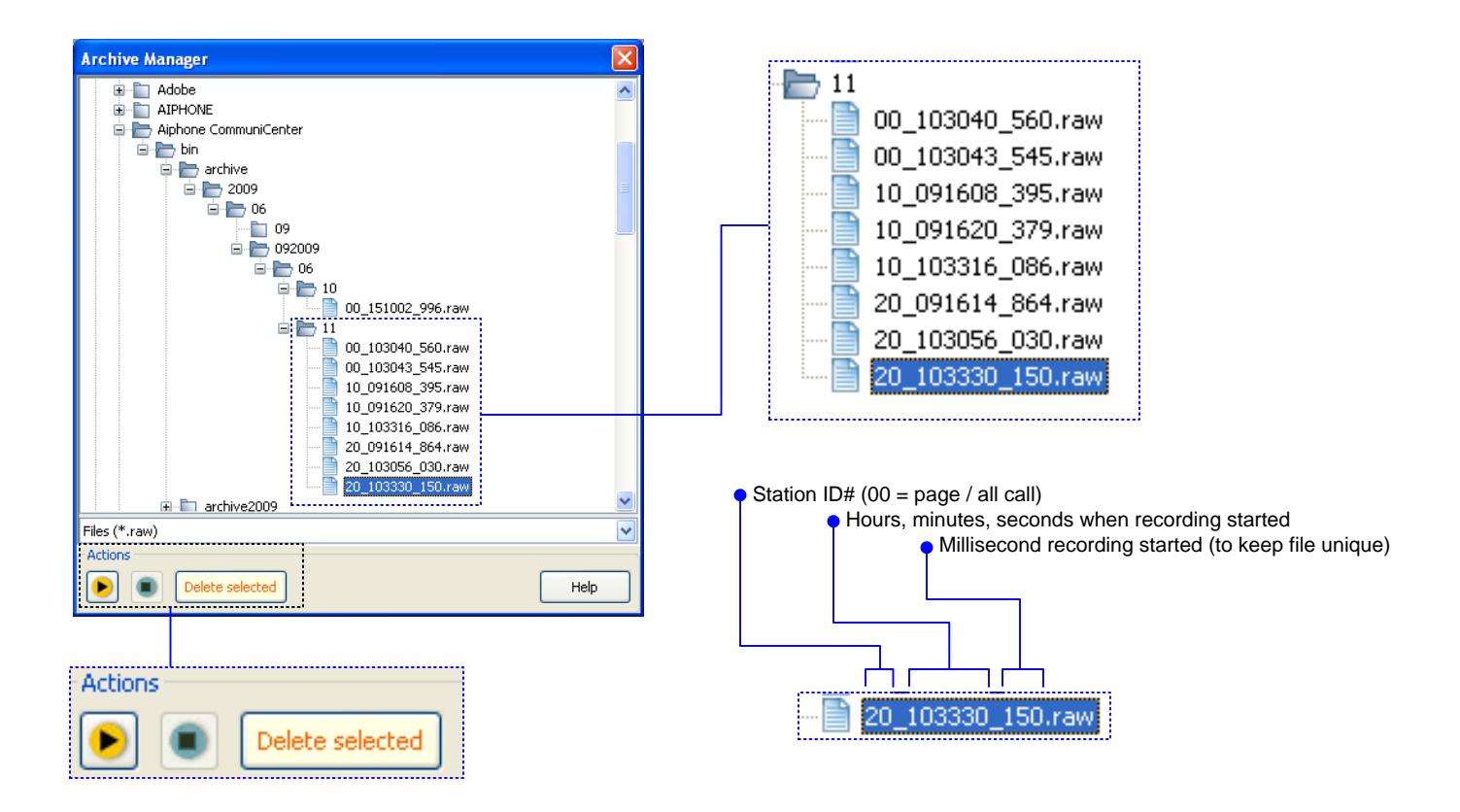
o To access the log data file, use Windows Explorer to navigate to the folder that you had selected in the set up process. If using the default settings, the Logs folder will be a sub folder within the Archive folder. The log is a text document and will list the date, time, and event that occurred in the program.
8.8 Audio Settings
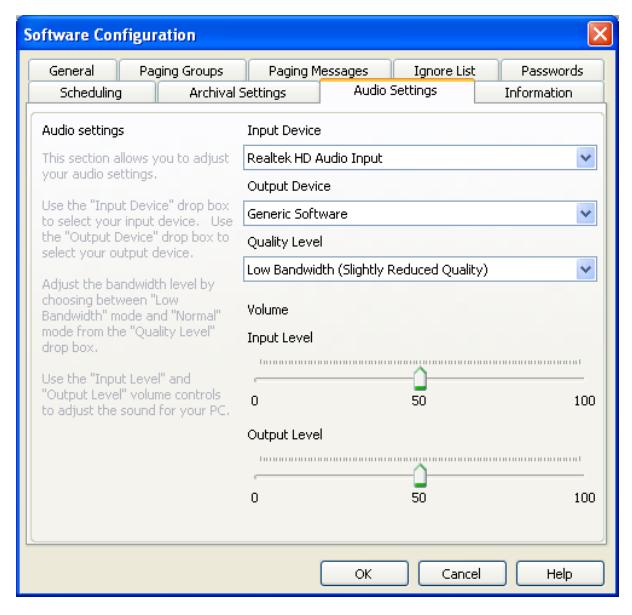
- o The Audio Settings tab will display and allow you to choose the Input Device and Output Device for the speaker and microphone.
- o The Quality level drop down box allows you to choose between Normal bandwidth mode and Low bandwidth mode. By default, the system will be in Normal mode. This setting must match the bandwidth setting you have for the devices, otherwise an error status will occur.
- o Any changes made to the Input Device , Output Device, or Quality Level will require a restart of the software.
- o Both input and output volume levels can be adjusted. The Input Level adjusts the volume being transmitted to the sub station, while the Output Level adjusts the volume that is heard at the PC.
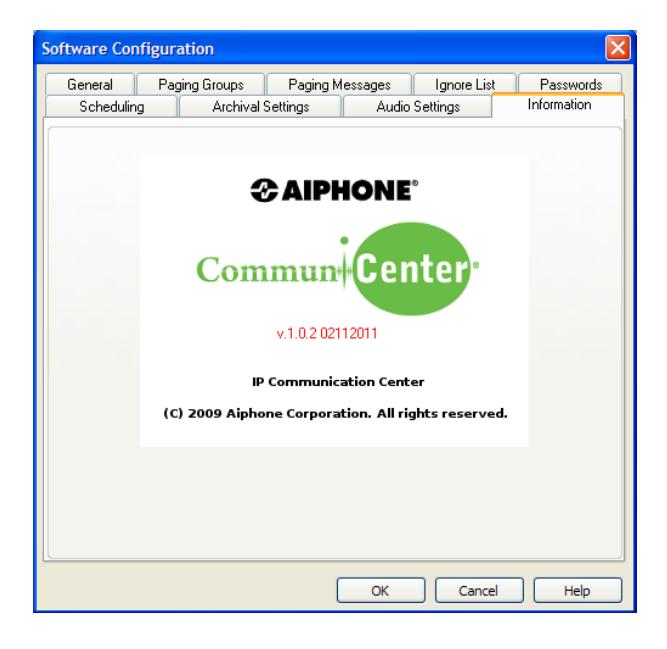
8.9 Information
o The information tab will show the version number of the CommuniCenter software.
9. Priority level (highest to lowest)
| o |
All
Call |
(1
- highest) |
|---|---|---|
| o |
Group
Call |
(1
- highest) |
| o |
Broadcast
Messages |
(1
- highest) |
| o |
Direct
Messages |
(2
- middle) |
| o |
Direct
Communication |
(2
- middle) |
| o | Monitoring |
(3
- lowest) |
All call, group call, and broadcast messages have the highest priority level. If a PC is in direct communication with a sub or is monitoring a sub when a high priority call is placed, the communication will be interrupted and the sub will receive the call. The unit will revert back to its previous communication state once the priority call is completed.
10. Operations
10.1 Sub station calling in
o Pressing the call button on the substation will trigger a call tone to be heard at the substation. Pressing the call button additional times will cause the tone to repeat.
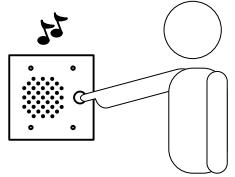
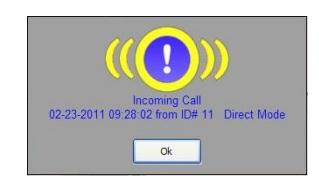
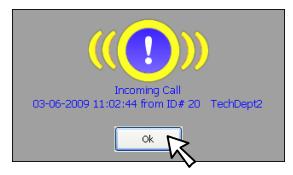
o When the call button on a substation is pressed the CommuniCenter will either display a pop up visual notification, emit a predetermined sound or both, depending on how it was configured.
o During call in, the Call Waiting List will display the unit calling in, showing status of unit and time that the call was received.
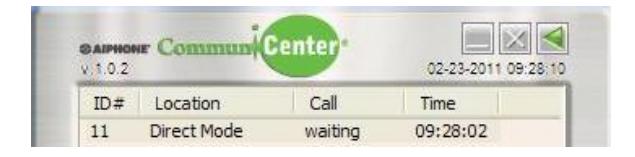
o During call in, the Sub Station Location List will change the device State from "Available" to "Calling".

10.2 Answering a call from a sub station
o To remove the pop up notification, simply click "OK" on the pop-up or press the space bar on your keyboard. If you receive multiple calls at the same time, you will receive only one pop-up. Any calls after the pop-up was removed will generate a new pop-up notification.
o Answer the calling station by selecting the station and double clicking in either the Sub Station Location List , or in the Call Waiting List . You can also select the station and then click on the "Talk" button or press the space bar on your keyboard. Click the OFF button or press Esc to end the conversation.
o A second method of answering the calling station is to simply press on your space bar or click on the "Talk" button. Pressing the space bar can always be used instead of clicking on the "Talk" button. Click the OFF button or press Esc to end the conversation.
10.3 Monitoring the sub station.
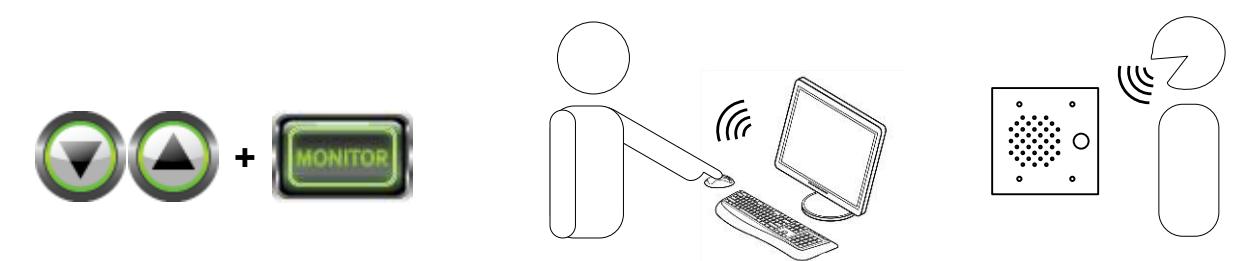
- o Monitoring a sub station is the lowest priority of communication. Only one CommuniCenter can monitor a sub station at any given time. If more than one CommuniCenter selects the same station, it will be the CommuniCenter that has selected last that will be able to monitor. When monitoring a sub station, no pretone will be heard at that sub station, regardless of configuration. In addition, the sub station will not change state in the Sub Station List .
- o To monitor a sub station select the station by either double-clicking on the unit in the Sub Station Location List or use the Arrow Buttons to select the station, then click the Monitor Button . The Monitor Button will turn green indicating that you are monitoring the selected substation. To stop monitoring, click on the Off Button or select another station.
10.4 Talking to a sub station when it has not called in.
- o To talk with a sub station, first select the station. This can be done by using the Arrow Buttons , or by clicking on the sub station in the Sub Station Location List . Then click on the Talk Button or use the space bar on your keyboard.
- o Another method is to monitor (double click on) the sub station in the Sub Station Location List then click on the Talk Button , or use the space bar on your keyboard.

o When talking to a sub station, you must either press the space bar on your keyboard or have the Talk Button engaged for as long as you are talking (PTT).
- o Unlike monitor mode, when a sub station is selected for two way communication, the status shown in the Sub Station Location List will change from available to connected.
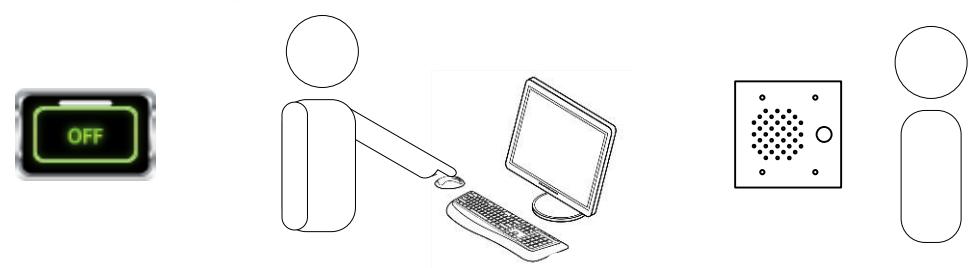
- o To terminate communication, click on the Off Button or select another station. You can also terminate the call by pressing the Esc key on your keyboard.
10.5 Activating the dry contacts on the IPW-1A.
o To activate the door release on the IPW-1A that you have selected, click on the Door Release Button . This will allow you to activate the "Form C" dry contact on the IPW-1A associated with the sub station. Note: If the IPW-1A is not configured for Door Release, an error pop-up will occur.

10.6 All Call / Group Paging – Limited to 1 PC at a time on the network.
10.6.1 All Call – Calls to stations that are on the Sub Station Location List.
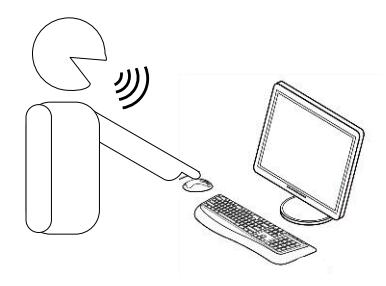
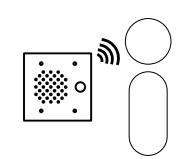
o To make an all call announcement to all sub stations in your list, click on the All Call Button and make your announcement after the pre-tone. Stations that are in communication with another CommuniCenter user will hear the announcement and when the announcement is over, will resume normal communication. During the announcement the Sub Station Location List will show that the sub stations are in use. Units on the ignore list will not receive all call announcements.

10.6.2 Group Paging
o To make a group paging announcement to preselected groups, open the Paging Group List . You can open the Paging Group List by clicking on the Groups Button . Group calling to an ignored station is possible if you set the sub as part of a group before you ignore it.
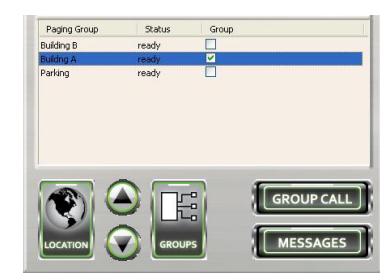
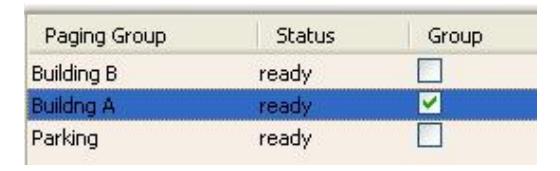
o From the Paging Group List, select the group or groups that you want to page by clicking the check box next to the desired group.
o Once a group is selected, click on the Group Call button or press the space bar and make your announcement following the pre-tone. The announcement will be heard at all sub stations within the selected group(s).
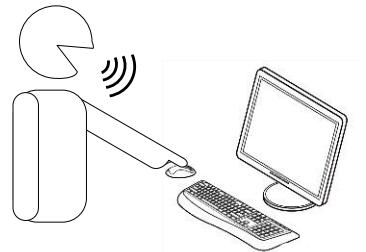
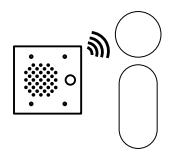
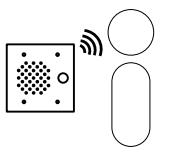
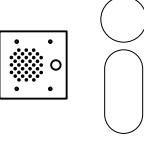
o To make a group paging announcement to manually selected groups, open the Sub Station Location List . You can open the Sub Station List by clicking on the Location Button .

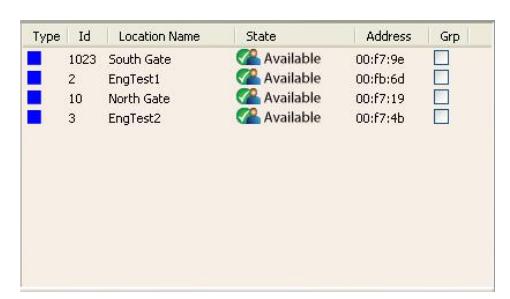
o From the Sub Station Location List, select the sub stations that you want to page by clicking the check box next to the desired station.
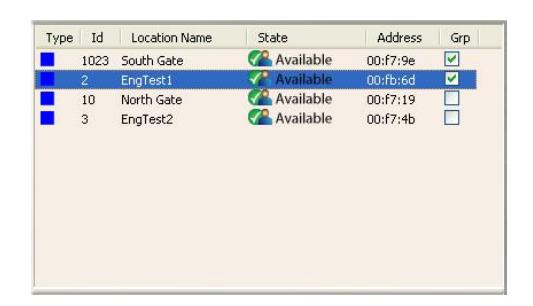
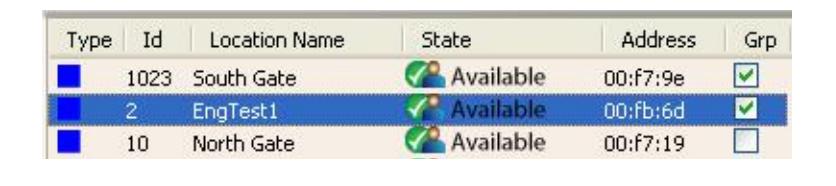
o Once a group of stations is selected, click on the Group Call button or press the space bar to make your announcement following the pre-tone. The announcement will be heard at all the selected sub stations.
Note: Manual group selection can be cleared by pressing the Esc key.
10.7 Messages
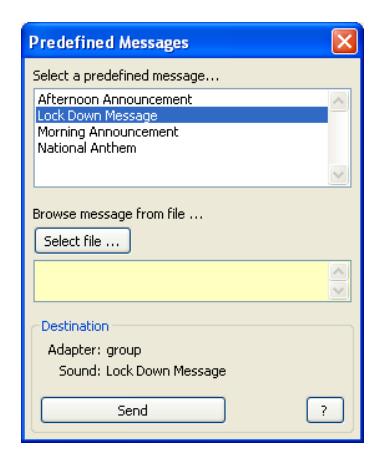
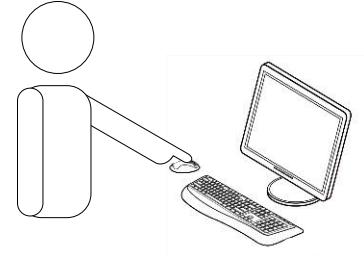
o To send a message to one sub station, select the desired sub station and click on the Messages Button . You will have the option of selecting a predefined message from the Predefined Messages pop-up window or browsing your files for a message (if allowed). Select the message then click on the Send Button . Your message will be heard at the selected station.
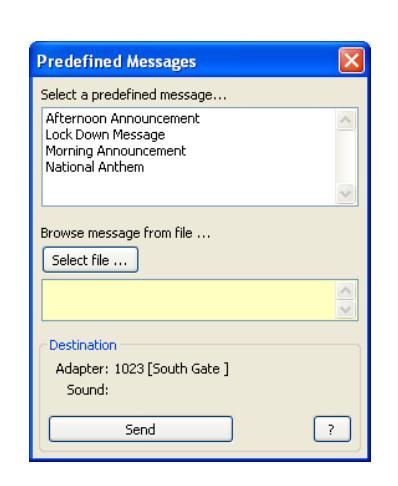
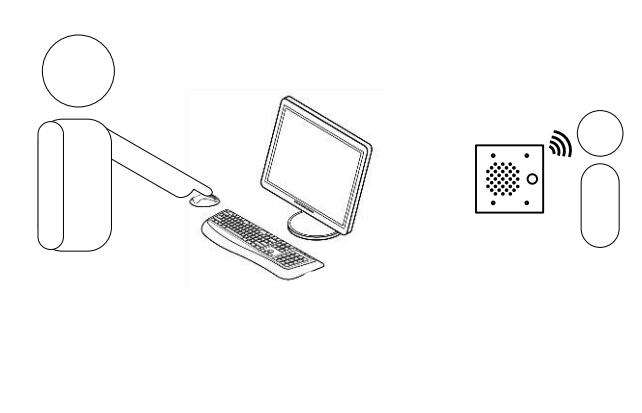
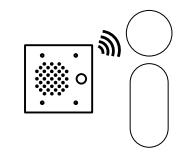
o To send a message to a group of sub stations, select either a group of units from the Sub Station Location List or a predetermined group from the Paging Group List, then click on the Messages Button . You will have the option of selecting a predefined message from the Predefined Messages pop-up window or browsing your files for a message (if allowed). Select the message then click on the Send Button . Following the pre-tone, your message will be heard at the selected group(s) of stations.

11. Icon Descriptions
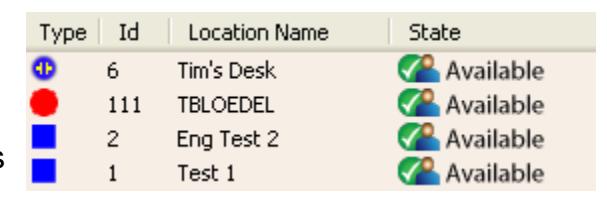
Under Type are icons that indicate what each item is:
- Blue square is for a Broadcast Mode intercom
- Red circle is for another PC running CommuniCenter
- Blue circle with symbol is for Direct Mode intercoms Note: See page 23 A.2 for Direct Mode configuration.
Under S.I. are icons showing the status of each Sensor Input:
- Sensor Input normal
- Sensor Input closure detected

12. Hardware Configuration
12.1 Accessing the hardware configuration from within CommuniCenter
o Right click the desired sub station in the Sub Station Location List . This will give you the option to reset the IPW-1A, or access the settings via the program or through the browser.
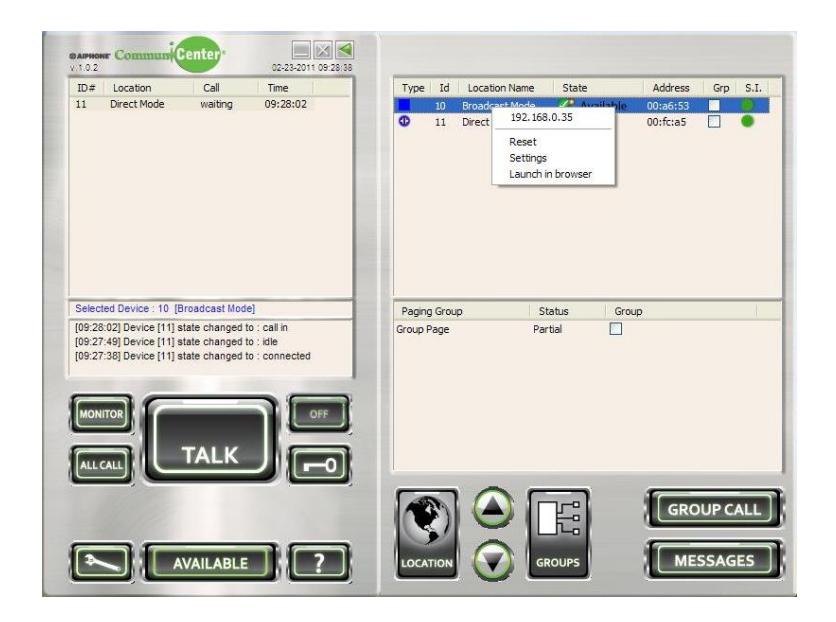
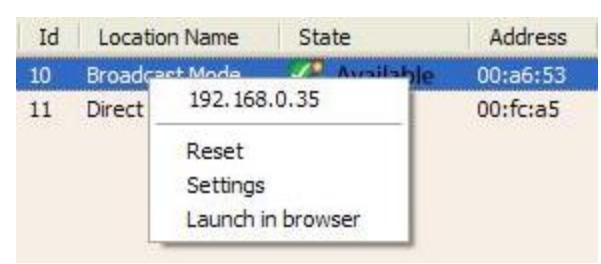
- o To reset the unit, click on Reset or press the R key. This will cause the sub station to temporarily disappear from the Sub Station Location List . At the sub station, you will hear the unit"s IP address. Note: if the device is "In Use", the reset command will be ignored. Once reset, the unit will once again appear in the Sub Station Location List .
- o To access the settings via the program, click on Settings or press the S key. This will open the Hardware Configuration Window and allow you to configure the IPW-1A.
- o To access the settings via the web browser, click on Launch in browser or type the L key. This will allow you to access the settings for the IPW-1A via the browser. You will also be able to assign a password for the adaptor in the browser setting mode.
12.2 Adaptor Configuration via the program
| ⊟ A | ☐ Adapter Configuration | ||
|---|---|---|---|
| ⊟ | ⊟ General | ||
| MAC 00:08:e1:00:f7:23 | |||
| ID# 6 | |||
| Location Name | Tim's Desk | ||
| Show Offline | True | ||
Expand the General section to see the MAC address for the IPW-1A adaptor. You will also be able to assign the ID number and Location Name for each adaptor here. Show offline determines whether the IPW-1A should remain in the CommuniCenter intercom list, even if it becomes disconnected or unreachable.
| ⊟ | Network | |
|---|---|---|
| Automatic IP Discovery | True | |
| Enable AutoIP | True | |
| Enable DHCP | True | |
| Enable BootP | True | |
| Enable IPZator | True | |
| IP Address | (auto) 192.0.0.153 | |
| Subnet mask | 0.0.0.0 | |
| Gateway | 192.0.1.2 | |
| DNS | 192.0.1.3 | |
| UDP Message Port | 1724 | |
| Enable SonicIP | True |
Expand the Network section to set the network settings for each IPW-1A. You can enable or disable different IP address grabbing protocols, change the UDP port the system uses, and enable SonicIP which announces the IP address upon "power on".
| | | | ⊟ Audio | |
|---|---|---|
| Quality | Low Bandwidth (Slightly Reduced Quali | |
| Speaker Level | 17 | |
| Mic Sensitivity | 7 | |
| Pretone | False |
Expand the Audio section to adjust the quality (bandwidth settings) of the audio as well as the speaker volume and microphone gain, and to enable or disable the pre-tone at the substation.
| ☐ Relay Control | ||
|---|---|---|
| Functionality | Door Release (by Release Button) | |
| Release Duration | 1 seconds | |
Expand the Relay Control section to set the functionality of the relay and the release duration of the relay. The release duration will only be selectable if the relay functionality is set to "Door Release".
| ⊟ | Relay Control | |
|---|---|---|
| Functionality | Door Release (by Release Bu 💌 | |
| Release Duration | Door Release (by Release Button) | |
| ⊕ Fa | actory Defaults | Release on Talking |
| Release on Connected | ||
| Release on Calling |
The relay function of the IPW-1A can also be configured to release on talking, release on connected, or release on calling. Configuring the relay for any of these functions will disable the "key" (door release) option from the software for that particular adaptor.
| ☐ Factory | Defaults | ||
|---|---|---|---|
| Reset T | o Factory Defaults | False |
Expand the Factory Defaults section if the need arises to reset the IPW-1A adaptor to factory default settings.
12.3 Adaptor Configuration via the browser
o The adaptor settings can also be configured using a web browser. Open the browser and enter the IP address of the adaptor, or right-click launch in browser from within CommuniCenter. Enter the password (if set) and leave the User Name blank. In addition to the settings accessible from the CommuniCenter program, the web browser has expanded options under Network and Security.
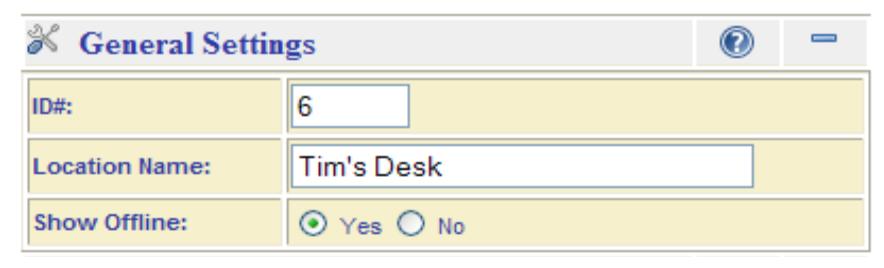
Note: If the ID# is left unconfigured, Group Call and All Call will not function properly.
General Settings
- o ID#: Sets the unique ID for the identification of the IPW-1A for the purpose of Group Call and All Call (1 to 2048;
- default = "0" ). o Location Name: Sets the descriptive name for the IPW-1A. A name should be chosen which is both unique and
- applicable to the installed location / application. o Show Offline: Determines whether the IPW-1A should remain in the CommuniCenter intercom list, even if it becomes disconnected or unreachable.
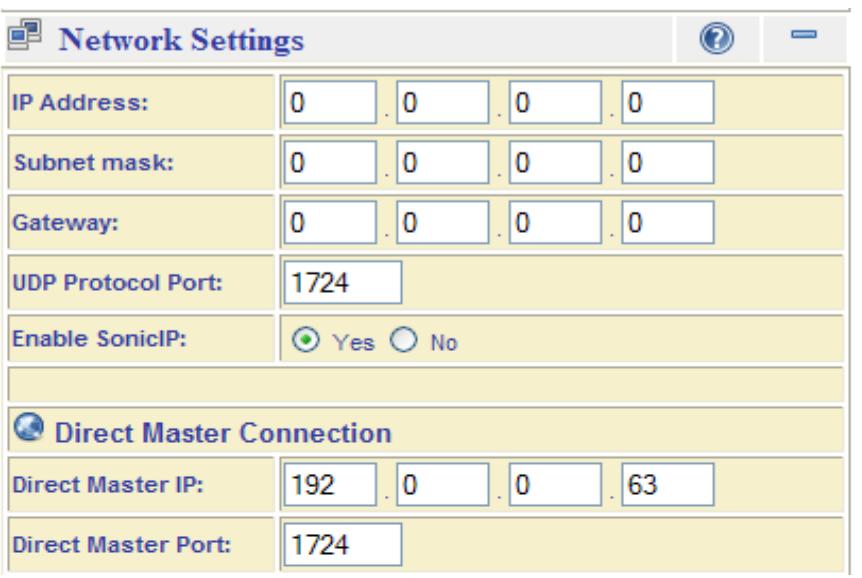
Note: A gateway setting is only necessary when connecting directly to a PC master station outside of the LAN (utilizing direct-mode; see Appendix A)
Note: See Page 23 A.2 for configuration instructions for Direct Master Connection.
Network (Interface) Settings
o IP Address: Used to configure the IP address settings for the IPW-1A. For automatic IP assignment, the following settings are utilized:
IP Discovery Enabled: (0.0.0.0) -- Factory Default; all protocols enabled. Disable AutoIP: (0.0.1.0)
Disable BOOTP: ( 0.0.2.0) Disable DHCP: (0.0.4.0) Disable IPZator: (0.0.8.0)
Note: These settings can be used together as a binary bitmask to enable / disable any specific combination of
- discovery protocols. o Subnet mask: Used to assign a Subnet mask when a Static IP is assigned (default = "0.0.0.0" , when automatic IP
- discovery is used). o Gateway: Sets the default Gateway IP address when a Static IP is assigned (default = "0.0.0.0" , when automatic IP
- discovery is used). o UDP Protocol Port: Assigns the UDP port to be utilized for communication with the PC master station
- (default = "1724" ). o Enable SonicIP: If set to "Yes", the IPW-1A will verbally announce its IP address over the attached substation whenever initialized (default = Yes ).
12.3 Adaptor Configuration via the browser (continued)
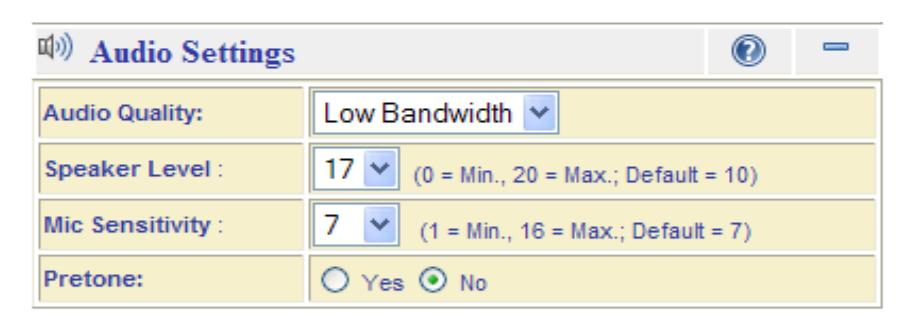
Note: The Audio Quality setting must match the Audio Quality setting of every Master which will communicate with the IPW-1A, otherwise Audio will not work properly.
Note: The pretone setting has no effect on Group-Call or All-Call type communication (which are always preceded by an audible pretone).
Audio Settings
- Audio Quality: Sets the audio quality level for the IPW-1A to either 'Normal' (default) or 'Low Bandwidth'.
- O Speaker Level: Sets the IPW-1A's output level, on a scale of 0 to 20 (default = "10"). If the output level at the substation is too low (or high), increase (or decrease) this setting accordingly.
- Mic Sensitivity: Determines the sensitivity of the IPW-1A's substation input, on a scale of 1 to 16 (default = "7"). If the microphone sensitivity is too low (or high), increase (or decrease) this setting accordingly..
- o Pretone: Determines whether an audible pretone will precede two-way communication with the substation (default = "Off").
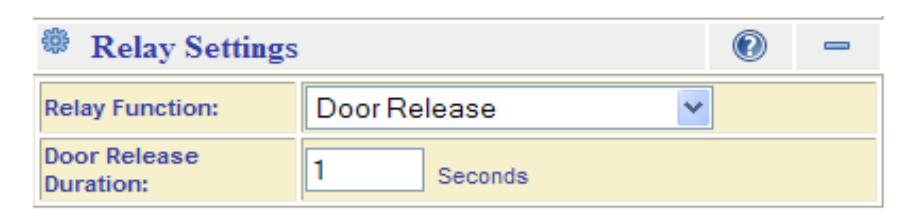
Note: The master station ' Key ' button will only be functional if 'Door Release' is selected.
Note: The Door Release Duration field is only visible if the Relay Function is configured for 'Door Release'
Relay Settings
- o Relay Function: Determines the function of the IPW-1A relay output from the following setting options:
- Door Release: Relay will be triggered for the programmed duration by the Master station pressing the 'Key' button (Factory Default).
- Release on Incoming Audio: When audio is being directly transmitted to the IPW-1A, the relay output will be active (excludes Broadcast audio).
- Release on Connection: Relay output will be active during any direct audio connection from a Master station (excludes Broadcast audio).
- Release on Calling: Relay output will be active from the moment the call button is pressed until the Master station answers.
- Release Duration: Sets the duration for the door release function (1 to 600 sec.; default = "1 sec.").
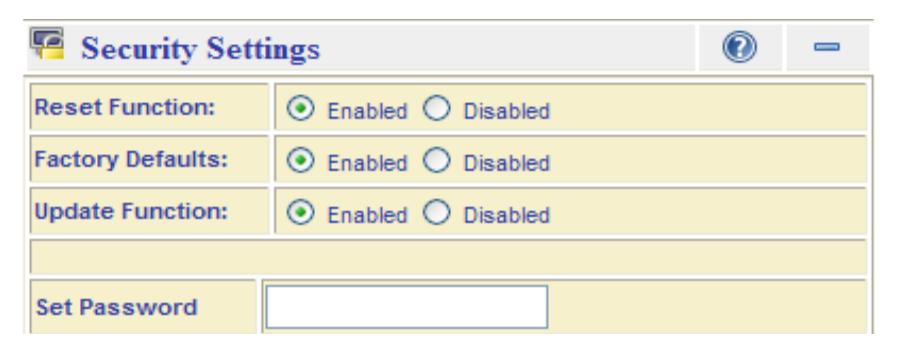
Note: If Factory Defaults is 'Disabled' and the IPW-1A becomes inoperable due to misconfiguration, the only way to revert the device to Factory Default settings will be <u>via a direct physical connection to the IPW-1A's RS-232 serial port.</u>
Note: The Set Password field is only visible if a password has not yet been assigned.
Security Settings
- Reset Function: Enables or disables the functionality of the IPW-1A's Reset button (Default = 'Enabled').
- Factory Defaults: Allows (or disallows) the IPW-1A to be reset to Factory Default settings (Default = 'Enabled').
- Update Function: Controls the ability to enter the Bootloader mode of the IPW-1A, for the purpose of updating the firmware (Default = 'Enabled').
- Set Password: Assigns a password to prevent unauthorized access to the IPW-1A web interface, as well as changing any settings of the IPW-1A from the Master interface (Default is NO PASSWORD).
- Old Password/New Password: When a password is already assigned, these fields are used to change the IPW-1A password.
Note: The 'Old Password' field <u>must match the currently assigned password</u> for the 'New Password' to be applied. These fields are not visible if a password has not yet been assigned.
Appendix A. Understanding Broadcast Mode and Direct Mode Connection
A.1 Broadcast Mode (the default mode)
- o Broadcast Mode allows multiple master PC"s running CommuniCenter and by default every master can communicate to any substation. Broadcast Mode is named for its method of communication, UDP broadcasts. An example single Local Area Network involving a switch and a DHCP server should not require any changes to the default configuration of the IPW-1A adaptor. When the adaptor powers on it seeks an IP address and when it gets one, it will begin broadcasting using UDP (default port 1724) to the entire broadcast domain.
- o A broadcast domain is typically every device sharing a common hub or switch but nothing beyond a router or gateway. If the network involves a Wide Area Network (more than 1 router) one option is to use a bridged Virtual Private Network so that broadcasts are repeated between networks. IT professionals may be able to provide additional methods.
A.2 Direct Mode
- o Configuring the IPW-1A in Direct Mode allows the system to function when traversing multiple networks. Direct Mode allows an intercom to communicate over a WAN or over networks not bridged without additional VPN equipment. When working in Direct Mode, the intercom will only be able to work with a single designated PC. Over a WAN, you must set each router to allow UDP traffic on (default) port 1724, and then forward traffic to the appropriate destination PC running CommuniCenter.
- o Other CommuniCenter PC"s in the either LAN will not communicate with any intercoms set up in direct mode. If multiple PC"s are required to communicate with a intercom over a WAN, then you will need to set up a VPN or other bridged connection between the networks and use the default Broadcast Mode.
A.3 What does the network administrator need to know?
- o For Broadcast Mode: The adaptors and the computers running CommuniCenter must be in the same broadcast domain. Use this mode for full functionality, including multiple master PC's.
- o For Direct Mode: The gateways and firewalls connecting the adaptor(s) and the computer running CommuniCenter must have a port open (UDP 1724 by default) and if necessary, forwarding rules in place. Use this mode if extending the broadcast domain is not an option.
-
o Transport Bandwidth:
- ≈128Kbps per active session (normal mode)
- ≈64Kbps per active session (low bandwidth mode)
A.4 What functions are available in each mode?
| Feature | Description | Broadcast | Direct | |
|---|---|---|---|---|
| o |
Multiple
PC"s |
Multiple
master PC"s communicating to each substation |
Yes |
No,
single master only |
| o |
Call
in |
Call
in from the substation or to the substation |
Yes | Yes |
| o | Monitor |
Listen
to the substation |
Yes | Yes |
| o | Talk |
Speak
(and listen) to the substation |
Yes | Yes |
| o | Relay |
Relay
functions, door release or release on |
||
|
calling,
connecting or incoming audio |
Yes | Yes | ||
| o |
All
Call |
Speak
one-way to all substations at the same time |
Yes | No |
| o |
Group
Call |
Speak
one-way to selected substations |
Yes | No |
| o | Messages |
Play
.wav file to selected substations |
Yes |
One
station at a time |
B.1 Bandwidth settings
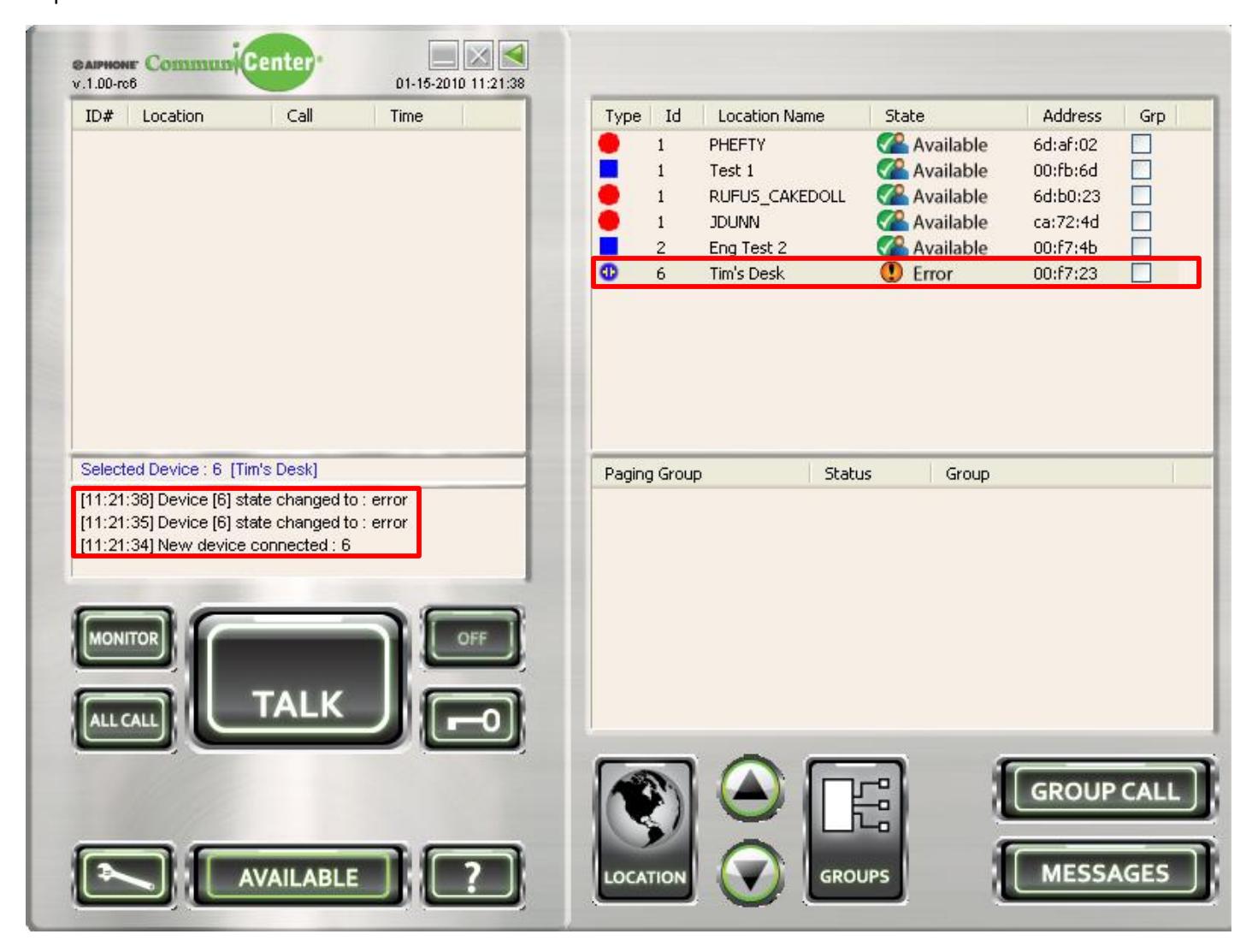
o The adaptor can report an Error state in the event that an intercom and the software have mismatched Bandwidth settings. Check the settings for the adaptor and the CommuniCenter program and make sure they match. See the picture below.
o Some routers and gateways are configured for what is commonly called "Broadcast storm protection" which has a limit for bandwidth of a broadcast from any source. The primary benefit of such a feature is to prevent a Denial of Service attack on the network. Once the limit is exceeded, the router will stop the broadcast. This might occur during an All Call or Group Call event. If you suspect a limit is shutting down the All Call or Group Call, set the bandwidth for the IPW-1A and the CommuniCenter software to the Low setting and verify that each IPW-1A has its own unique ID # and try All Call or Group Call again. If the broadcast is still getting blocked, find out what is blocking it using a packet analyzer tool.