Aiphone GT System Entrance Guard Operation Manual
Open the original PDF document
View PDFGT SYSTEM
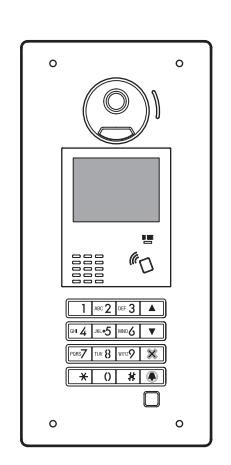
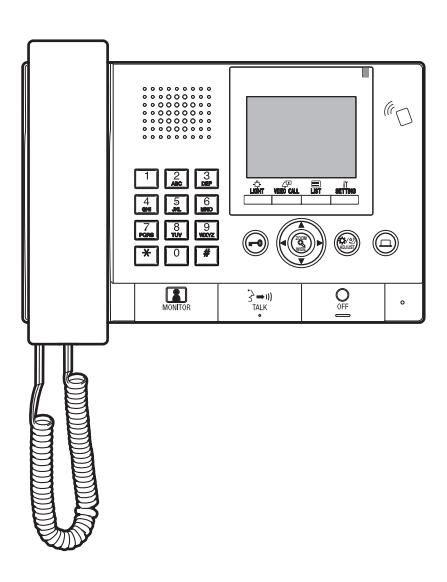
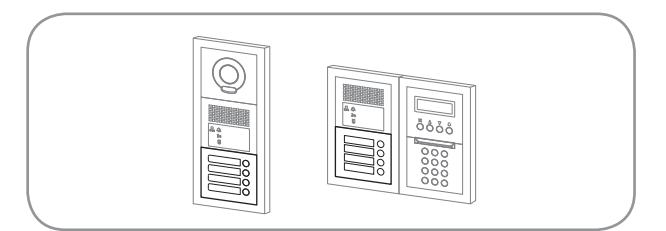
Entrance station (modular type) Entrance station (all-in-one type) Guard station
OPERATION MANUAL
Entrance station
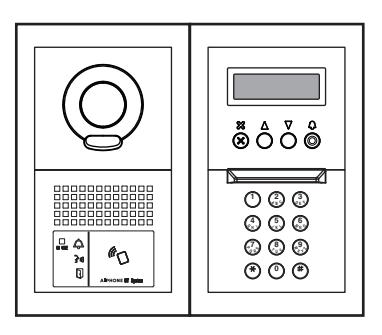
(modular type) Guard station Entrance station (all-in-one type)
Thank you for selecting Aiphone for your communication needs. Please read this manual carefully before installation, and keep this in a safe place for future reference.
PRECAUTIONS


Prohibited Do not dismantle unit Keep unit away from water Be sure to follow the instruction

WARNING
(Negligence could result in death or serious injury.)
- 1. Do not dismantle or alter the unit. Fire or electric shock could result.
- 2. Do not put any metal and fl ammable material into the unit through the openings. Fire, electric shock, or unit trouble could result.
- 3. Keep the unit away from water or any other liquid. Fire or electric shock could result.
- 4. During an electrical storm, do not touch the unit. Electric shock could result.
- 5. If there is any smoke, unusual odor, or abnormal sound, or if you drop or damage the unit, turn off the system power breaker immediately. Fire or electric shock could result.
- 6. Do not use power supply with a voltage other than specifi ed. Fire or electric shock could result
-
7. Do not use the unit in/under following locations/conditions. If not observed, it may result in noises or malfunctions.
- Where use of the unit is prohibited, such as in a hospital
- Near an electric medical equipment (e.g. operating rooms, ICU, or CCU)
- Near automatic control equipment such as auto doors or fi re-alarm boxes
- In the area within 15cm from a cardiac pacemaker
CAUTION
(Negligence could result in injury to people or damage to property.)
- 1. Do not put anything on or cover the unit with cloth, etc. Fire or unit trouble could result.
- 2. Do not apply high pressure on the screen. If fractured, injury could result.
- 3. If the LCD is punctured, do not touch the liquid crystal inside. Infl ammation could result. If contact should occur, fl ush or rinse area with water thoroughly and consult your doctor.
- 4. Be sure to perform a call test with the handset on the hook. If you operate the hook switch with the handset on your ear, a sudden call etc. may arrive causing damage to your ear.
- 5. Do not place your ear near the speaker during use. An unexpected loud sound could cause hearing damage.
- 6. When cleaning the wall with a high-pressure water sprayer, be careful not to spray on the entrance station. If not observed, it may result in fi re or electric shock.
General Precautions
- 1. Keep the unit more than 1 m (3.3') away from radio or TV set.
- 2. Keep more than 20 cm (7-7/8") away from other radio equipment, for example fl oor heating controller, wireless router or cordless telephone, etc. It may cause unwanted noise and video distortion.
- 3. Talk within 30 cm (12'') from this unit. If you are too far away, it may be diffi cult to hear audio.
- 4. When installing and using this unit, protect subject's privacy, portrait rights, etc. on your own responsibility.
- 5. As to other manufacturer's devices (such as sensor, detectors, door releases) used with this system, comply with the Specifi cations and Warranty conditions that the manufacturers or venders present.
- 6. Avoid using this unit in places under direct sunlight. If it is unavoidable, block out light during use.
- 7. When putting a hearing aid into T-mode and approaching the unit, the intercom system may be affected by radio frequency interference etc., depending on the installation environment.
- 8. Please receive and retain all confi guration data from the supplier. If you lose the confi guration data, there are cases where maintenance and after-sales service calls may incur additional setup fees.
- 9. The area to be monitored by the sensor should be free of obstacles such as ornamental plants.
Notice
- We will under no conditions be liable for any damages or losses resulting from this product's contents or specifi cations.
- We will under no conditions be liable for damage occurring due to the inability to communicate due to malfunctions, problems, or operational errors in this product.
- The unit is inoperative during power failure.
- This system is not intended for life support or crime prevention. It is just a supplementary means of conveying information. Aiphone will under no conditions be liable for loss of life or property which occurs while the system is being operated.
- In areas where broadcasting station antennas are close by, this system may be affected by radio frequency interference.
- Please note the LCD panel, though manufactured with very high precision techniques, inevitably will have a very small portion of its image elements always lit or not lit at all. This is not considered a unit malfunction.
- The unit may get slightly warm, but this is not a malfunction.
- During communication, if you speak before the other person has fi nished talking, your voice may not come through clearly. Conversation will proceed smoothly if you speak when the other person has fi nished talking.
- The entrance station is intended to be mounted on a wall only. It cannot be used on a desktop.
- Available functions and services are limited according to the specifi cations of the installed system.
- If you speak in a fi xed tone, the noise-cut function may judge it to be a noise and cut the transmission, but this is not a malfunction.
- Using a mobile phone or professional-use radio equipment such as walkietalkie close to the system may cause a malfunction.
- Warm-color lighting shining on the camera may change the tint of the image on the screen.
- The outline of video images displayed may differ from that of the actual person(s) or background, but this is not a malfunction.
- When the unit's screen is illuminated with strong light, the image looks white or silhouetted. But this is not a unit trouble.
- When outside temperature lowers sharply after rainfall, etc., the inside of the camera may fog up slightly, causing a blurry images, but this is not a malfunction. Normal operation will be restored when moisture evaporates.
- When using a fl uorescent light that shines around the camera, the screen colors may variously change (color rolling), but it is not a malfunction.
- If the entrance station freezes during winter time, the picture may become diffi cult to see or the buttons of the entrance station may not operate.
Table of Contents
| PRECAUTIONS 2 | |||
|---|---|---|---|
| READ THIS BEFORE USING THE STATIONS | |||
| 1 SYSTEM CONFIGURATION 4 | |||
| 2 NOTES ABOUT USING THIS MANUAL 5 | |||
| ENTRANCE STATION | |||
| 1 PART NAMES AND FUNCTIONS 6 | |||
| 1-1 Entrance station (modular type) 6 | |||
| 1-2 Entrance station (all-in-one type) 7 | |||
| 1-3 Indicators 8 | |||
| 2 OPERATIONS 9 | |||
| 2-1 Calling a resident/tenant or guard station 9 | |||
| Calling with the call switch module 9 | |||
| Calling with the name scrolling module 9 | |||
| Calling with the 10 key module 10 | |||
| Calling with the all-in-one type entrance station | |||
| (GT-DMB-LVN/GT-DMB-N) 12 | |||
| 2-2 Door release 16 | |||
| 2-3 Other 16 | |||
| GUARD STATION | |||
| 1 PART NAMES AND FUNCTIONS 17 | |||
| 1-1 Operation panel 17 | |||
| 1-2 Indicators 18 | |||
| 1-3 LCD (display) 19 | |||
| 1-4 Button operations 20 | |||
| 2 RECEIVING A CALL 22 | |||
| 2-1 Receiving a call 22 | |||
| 3 CALLING (from a tenant building) 23 | |||
| 3-1 How to search for a unit to call | |||
| (from a tenant building) 23 | |||
| 3-2 Calling a unit (residential/tenant station) | |||
| or guard station 24 | |||
| 3-3 Calling an entrance station 29 | |||
| 4 CALLING (from a main building) 31 | |||
| 4-1 How to select a unit to call | |||
| (from a main building) 31 | |||
| 4-2 Calling a room (residential/tenant station) | |||
| or guard station 32 | |||
| 4-3 Calling an entrance station 37 | |||
| 5 OPERATIONS DURING COMMUNICATION 39 | |||
| 5-1 Transferring a call 39 | |||
| 5-2 Door release 39 | |||
| 5-3 Operating an optional device 40 | |||
| 5-4 Viewing and adjusting video at an entrance | |||
| station 41 | |||
| 6 MONITORING 43 | |||
| 7 OTHER OPERATIONS 45 | |
|---|---|
| 7-1 Checking for missed calls and calling back 45 | |
| 7-2 Receiving an emergency call 46 | |
| 8 SETTING 48 | |
| 8-1 Adjusting display brightness and volumes 48 | |
| 8-2 Switching to reception mode 50 | |
| 8-3 Switching to program mode 51 | |
| 9 UPDATING RESIDENT INFORMATION 52 | |
| FOR PROPER USE OF THIS STATION | |
| 1 TECHNICAL PRECAUTIONS 53 | |
| 2 SPECIFICATIONS 54 | |
| 3 SOFTWARE LICENSE 56 | |
| 4 REGULATIONS 57 | |
| 5 WARRANTY 58 |
READ THIS BEFORE USING THE STATIONS
SYSTEM CONFIGURATION
The GT system consists of up to 8 main buildings and 24 tenant buildings.
Main building:
A control section that functions as a main entrance, guard station, security center, administration office, etc. A main building includes no residential/tenant stations. You can call up all of the residential/tenant stations and guard stations from an entrance station or guard station in the same system (site).
- * A station that is not programmed cannot be called.
- * Modular type entrance stations cannot be installed in a main building. Only all-in-one type can be used.
Tenant building:
A section of collective housing. A tenant building includes residential/tenant stations, entrance stations and guard stations. You can call up all of the residential/tenant stations and guard stations from an entrance station in the same tenant building. However, you cannot call stations in another tenant building.
Example: A system (site) consisting of 1 main and 3 tenant buildings
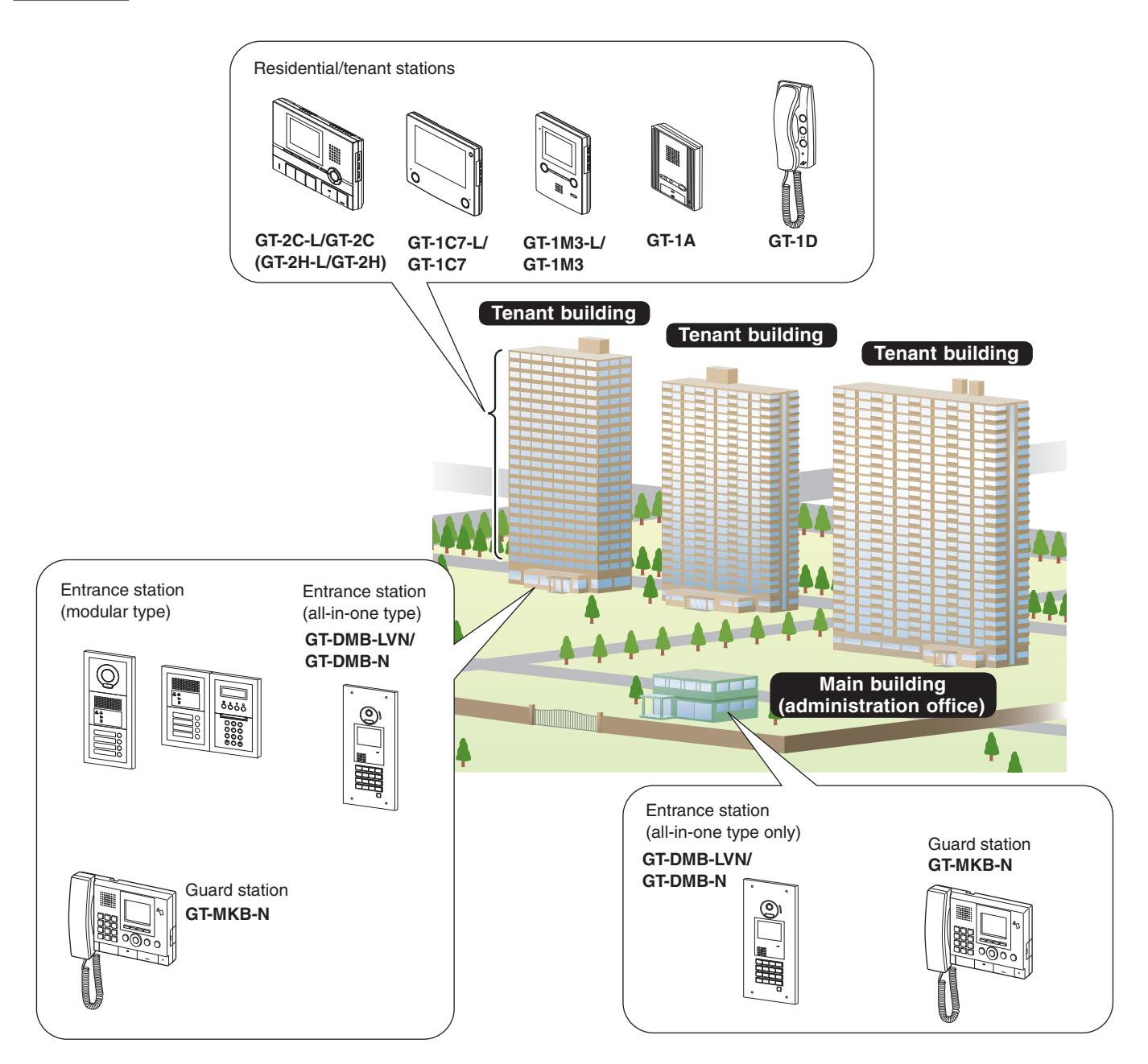
Coverage of calling, communication and monitoring
The following table shows the coverage of calling, communication, and monitoring from a tenant building and a main building.
NOTE: Performance depends on the settings. If you cannot call even when ✓ is indicated, its setting is not configured.
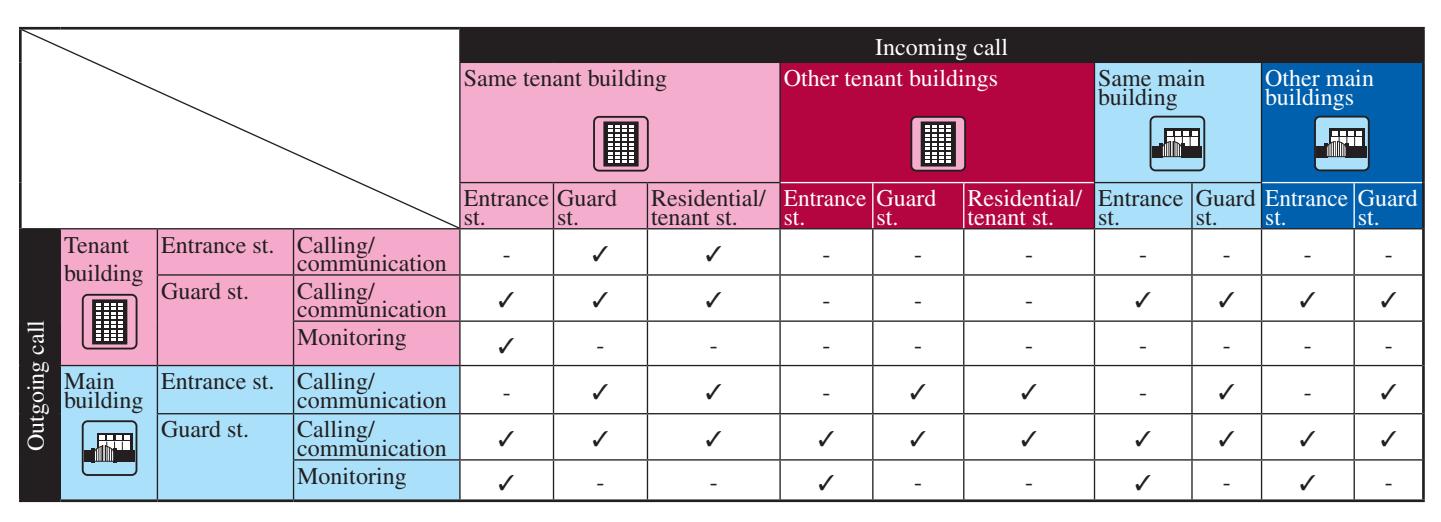
✓ : Possible — : Impossible
About the term "building" and "section":
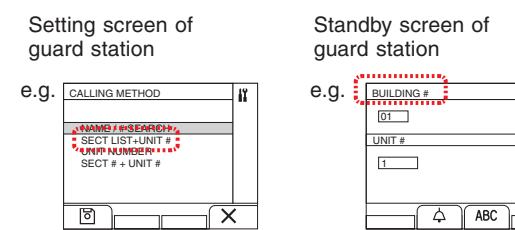
The term "section" is used on the setting screens of entrance stations and guard stations instead of "building".
"Section" and "building" have the same meaning in this manual.
2 NOTES ABOUT USING THIS MANUAL
This manual describes how to use the entrance stations and guard stations. The use of them differs depending on the building/section (main or tenant) where they belong. This manual uses the following icons to separate descriptions for the main and tenant buildings.
| Icon | Meaning |
|---|---|
| Main building/section | |
| Tenant building/section |
1 PART NAMES AND FUNCTIONS
1-1 Entrance station (modular type)
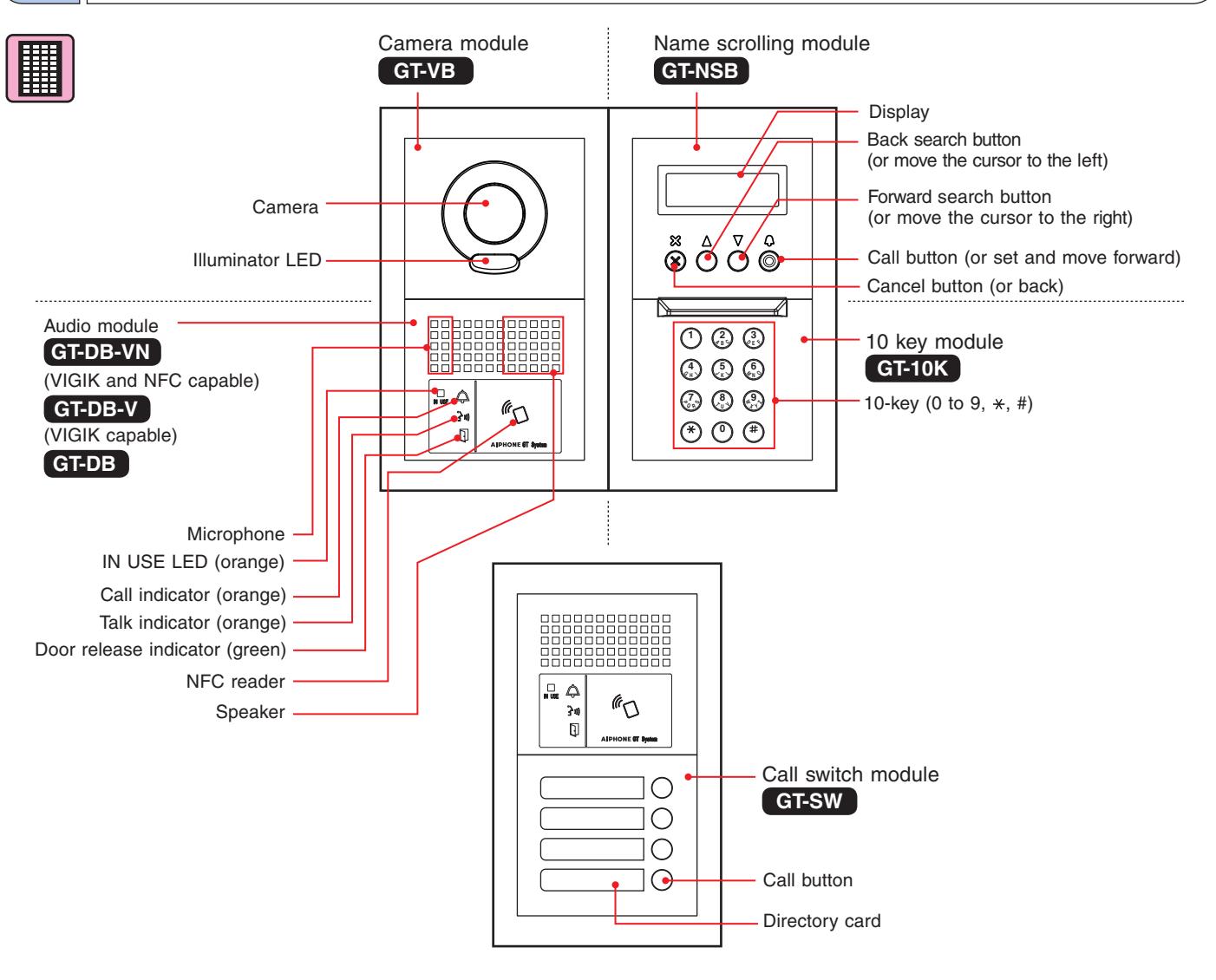
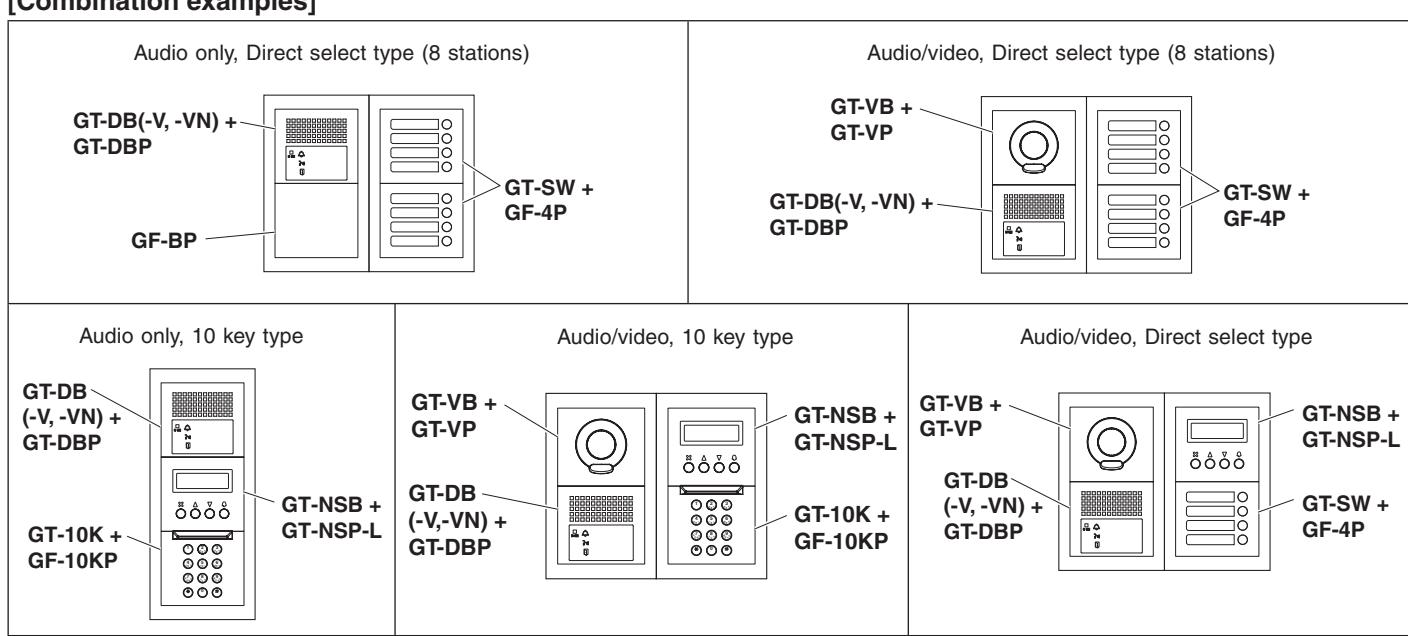
[Combination examples]
1-2 Entrance station (all-in-one type)
All-in-one entrance station
GT-DMB-N
(NFC capable)
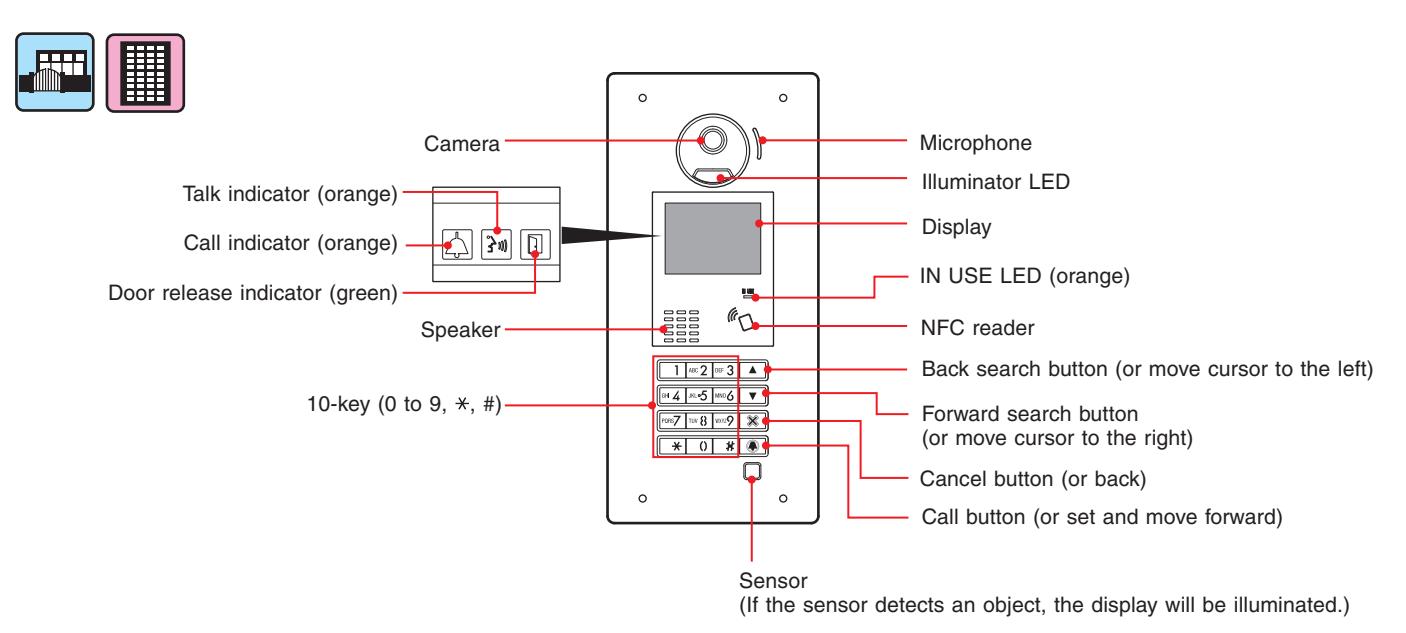
All-in-one entrance station
GT-DMB-LVN
(VIGIK and NFC capable, Hearing aid compatible)
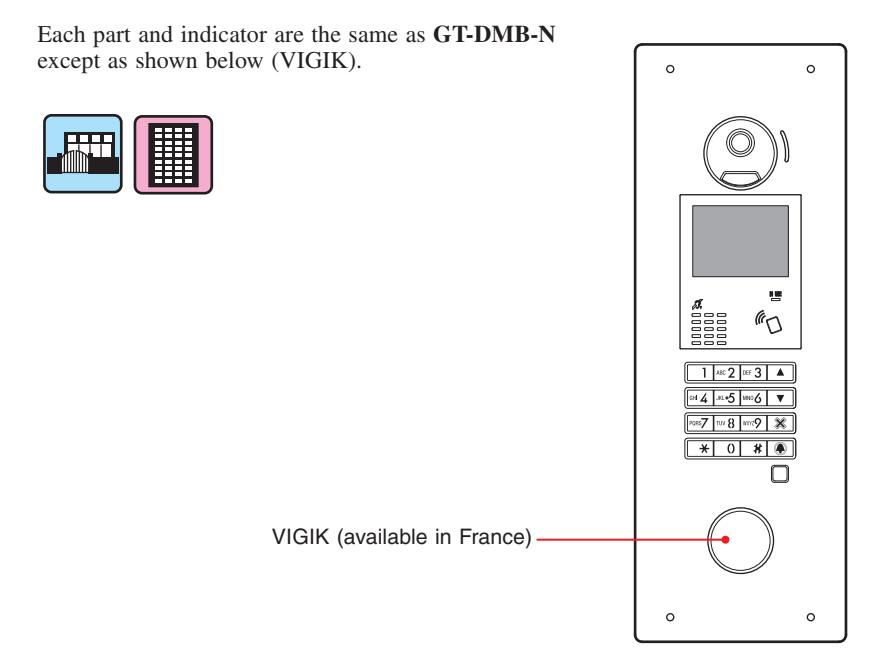
1-3 Indicators
Entrance station (modular type) Entrance station (all-in-one type)
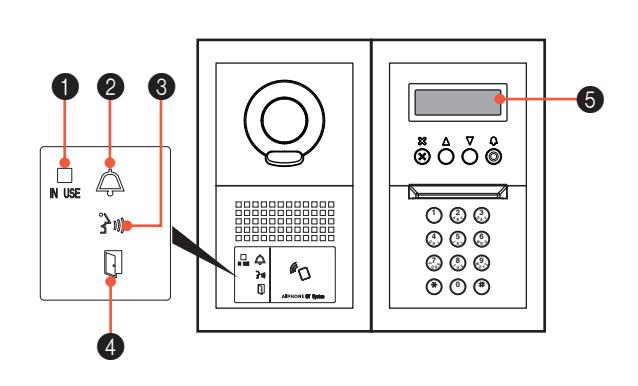
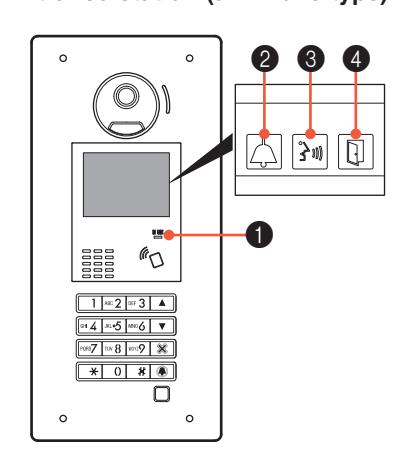
Indication patterns
|
Indicator
Status |
1 IN USE LED
(orange) |
2 Call
indicator |
3 Talk
indicator |
4 Door
release indicator |
5 Display |
|---|---|---|---|---|---|
| Standby | Off | Off | Off | Off |
(*3)
W E L C O M E |
| System in use | Lit | Off | Off | Off | I N U S E |
| Call | Off | Lit | Off | Off (*1) |
(*3)
C A L L I N G S M I T H |
| Communication | Off | Off | Lit | Off (*2) | I N C O M M U N I C A T I O N |
| Releasing a door | Off | Off (*1) | Off (*2) | Lit | D O O R O P E N |
| Monitoring | Off | Off | Off | Off | W E L C O M E |
| Communication is on hold | Lit | Off | Off | Off | O N H O L D |
- (*1): Lit when door release is activated during call.
- (*2): Lit when door release is activated during communication.
- (*3): The display differs depending on the settings.
2 OPERATIONS


: Main building/section : Tenant building/section
2-1 Calling a resident/tenant or guard station
Calling with the call switch module

1 Press the call button for the unit to be called.
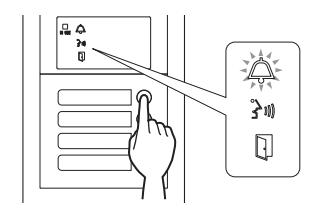
The call indicator will light up and you will hear a call tone.

* Audio guidance will be heard depending on the settings.
When the call is answered

Communication starts and the talk indicator lights up.
* Audio guidance will be heard depending on the settings.
When the door is released

The door release indicator lights up.
* Audio guidance will be heard depending on the settings.
Calling with the name scrolling module
- ■ Searching for a unit by scrolling the list
- 1 In standby mode, press and to display the target unit # and resident name.
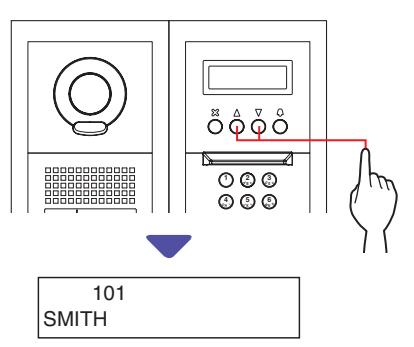
- * Depending on the settings, only the resident name may be displayed.
- * The list is displayed in order of either unit # or resident name.
2 Press .
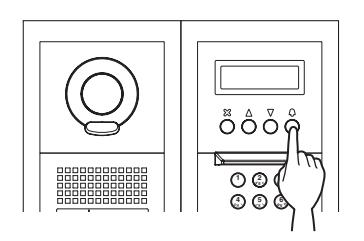
The call indicator will light up and you will hear a call tone.

* Audio guidance will be heard depending on the settings.
When the call is answered
Communication starts and the talk indicator lights up.

* Audio guidance will be heard depending on the settings.
When the door is released

The door release indicator lights up.
* Audio guidance will be heard depending on the settings.
Calling with the 10 key module

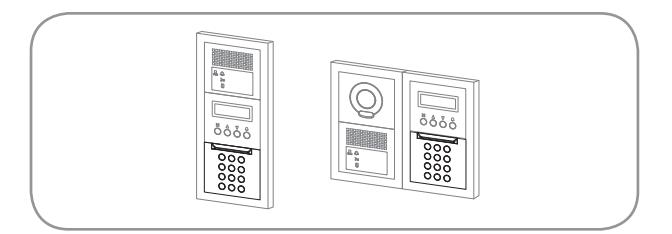
- ■ Searching for a unit by entering the unit #
- 1 In standby mode, enter the numbers using [0] to [9] on the 10-key to display the target unit # and resident name.
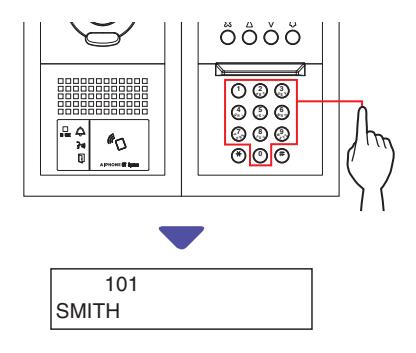
2 When the target unit # and resident name is displayed, press .
The call indicator will light up and you will hear a call tone.

- * Audio guidance will be heard depending on the settings.
- * If there is no relevant unit #, "NO ENTRY" is displayed.
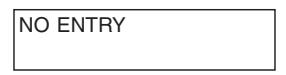
* When the residential/tenant station that has been called is in use, the IN USE LED lights up to indicate that the residential/ tenant station cannot be called.
(In an expanded system, there may be a case that a residential/ tenant station cannot be called even if the IN USE LED is off.)
When the call is answered

Communication starts and the talk indicator lights up.
* Audio guidance will be heard depending on the settings.
When the door is released

The door release indicator lights up.
* Audio guidance will be heard depending on the settings.
■ Searching for a unit by entering resident name
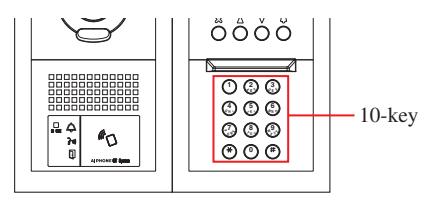
- 1 In standby mode, press on the 10-key.
- 2 When "ENTER A LETTER" is displayed, enter a letter using the 10-key to display the target unit # and resident name.
The number and resident name for the unit whose initial corresponds to the entered letter will be displayed.
(e.g.) Enter "S".
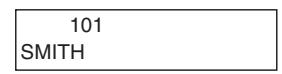
- * Pressing or searches for the next unit # and resident name.
- * Depending on the settings, only the resident name may be displayed.
- * When the unit # is set to not be displayed, a letter can be entered without pressing .
- * If there is no relevant resident name, "NO ENTRY" is displayed.
| NO ENTRY: | S |
|---|---|
- Pressing or for approximately 2 seconds will display resident names in succession.
- If both unit # 111 and 1111 exist, the resident name for unit 111 will be displayed when 1, 1, 1 is entered, and the resident name for unit 1111 will be displayed if 1 is entered one more time.
- Stations can be set to display in order by unit #. (The order starts with the lowest digit from 0 to 9 and then the order goes by letter.) In cases where unit # such as A101, A201, A901, A1001, and B101 exist, the order starts with the lowest digit and goes in the order A101, A201, A901, B101, A1001.
3 When the target unit # or resident name is displayed, press .
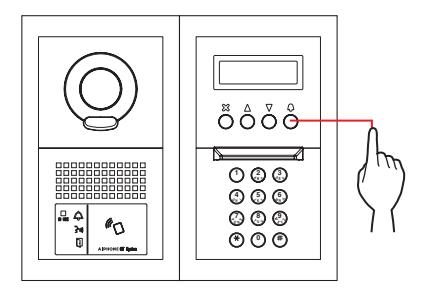
The call indicator will light up and you will hear a call tone.

* Audio guidance will be heard depending on the settings.
When the call is answered


* Audio guidance will be heard depending on the settings.
When the door is released

The door release indicator lights up.
* Audio guidance will be heard depending on the settings.
Calling with the all-in-one type entrance station GT-DMB-LVN/GT-DMB-N
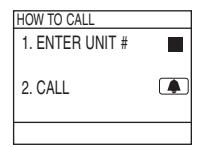
The following diagram shows the screen transitions starting from the standby screen. One of the standby screens shown below is preset to this station. Find the standby screen of this station from A to E below and confi rm the transition from it, and refer to the designated page for the calling operation.
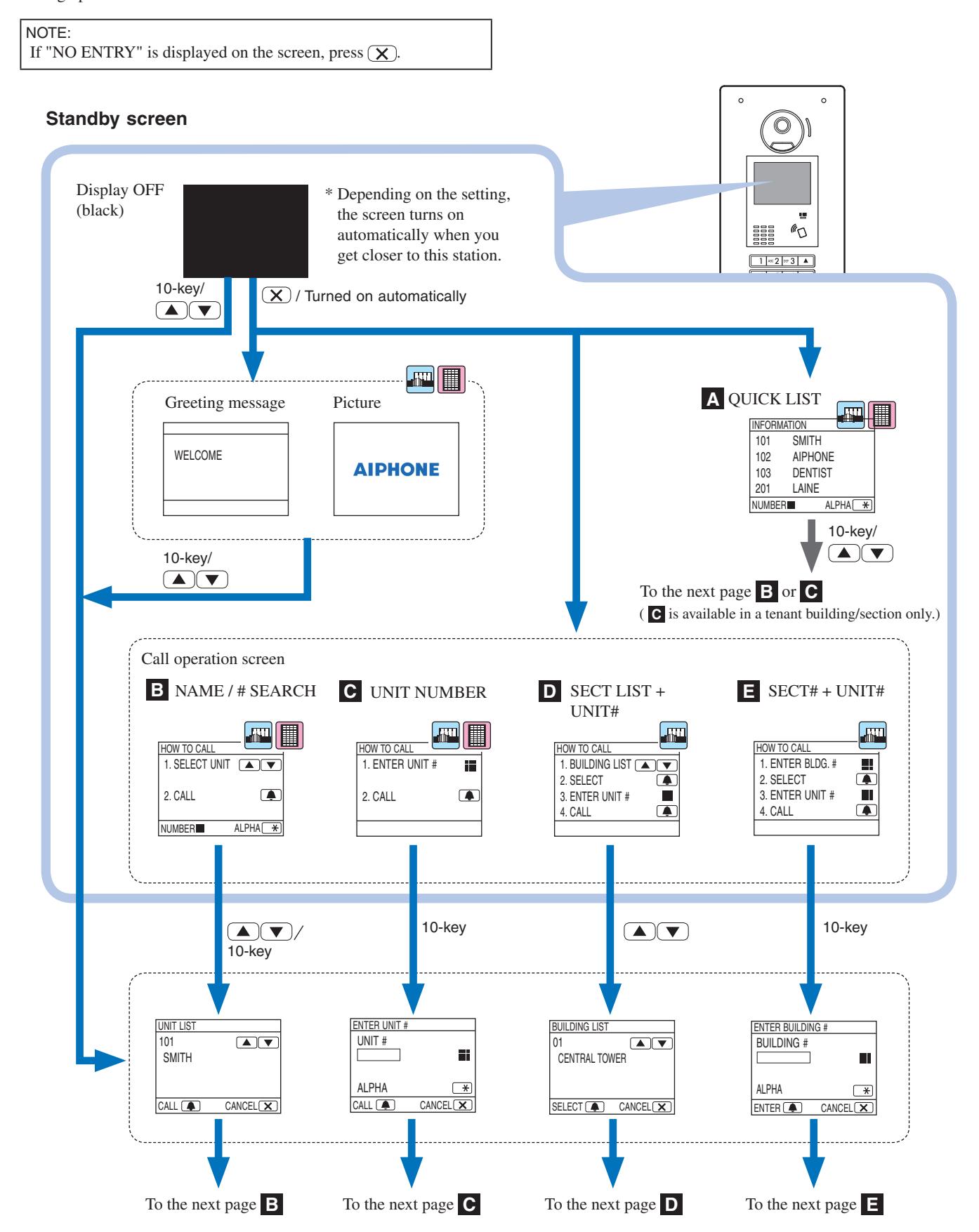
A Confi rming the target unit in the quick list

Unit # and resident names frequently called are preset to be displayed in the quick list.
* Up to 4 units can be displayed.
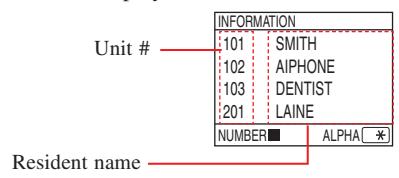
1 In standby mode, press and to display the target unit, or 10-key to change the standby screen.
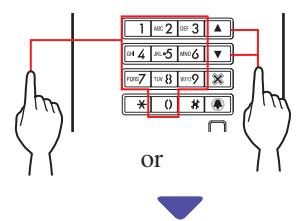
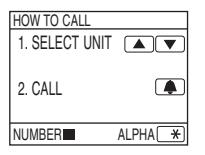
The "UNIT LIST" screen B or "ENTER UNIT #" screen C is displayed.
-
2 Follow the operating procedure of either B or C depending on the displayed screen.
- * C is available in a tenant building/section only.
B Searching for a unit in the unit list

1 In standby mode, press and or 10-key to display the target unit # and resident name.
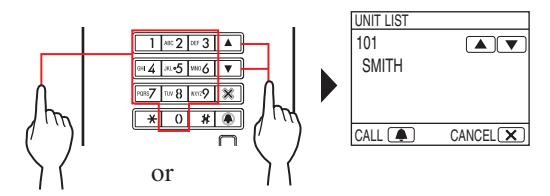
The 10-key can be used to enter unit #, or by pressing , then the 10-key can be used to enter letters (resident name).
- * Depending on the settings, only the resident name may be displayed.
- * The list is displayed in order of either unit # or resident name.
- * If you have entered a wrong number, press to return to standby mode.
2 When the target unit is displayed, press .
The target unit is called.
* Refer to " When the target unit is successfully called " at the end of 2-1 for details.
C Entering unit #

NOTE: Entering unit # can only be performed on this screen. Entering resident name is not possible.
- When the target unit number is numerals only
-
1 In standby mode, enter numbers using [0] to [9] on the 10-key to display the target unit #.
- * The 10-key can be used even after pressing or .
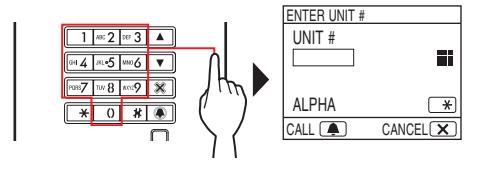
- * Depending on the system, only the resident name may be displayed.
- * If you have entered a wrong number, press to return to standby mode.
- 2 When the target unit # is displayed, press .
The target unit is called.
- * Refer to " When the target unit is successfully called " at the end of 2-1 for details.
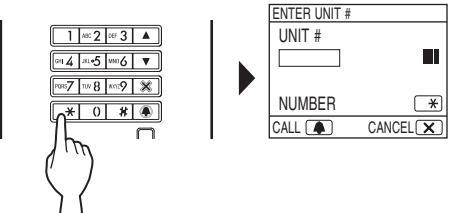
- When the target unit number is alphanumeric
-
1 In standby mode, press on the 10-key.
- * The 10-key can be used even after pressing or .
-
2 Enter letters using the 10-key to display the target unit #.
- * Refer to the next page for how to enter letters.
- 3 When the target unit # is displayed, press .
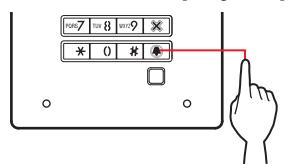
The target unit is called.
* Refer to " When the target unit is successfully called " at the end of 2-1 for details.
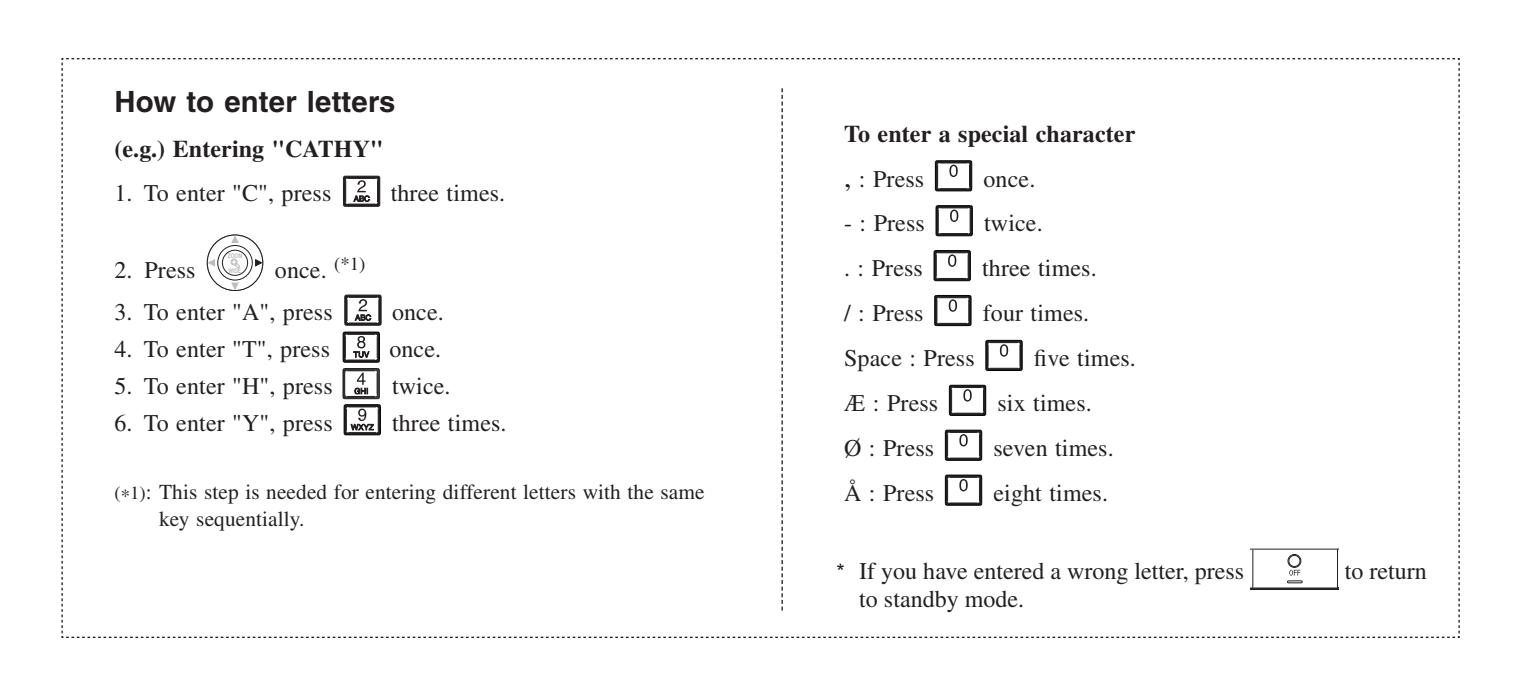
How to enter letters
(e.g.) Entering "CATHY"
- 1. To enter "C", press three times.
- 2. Press once. (*1)
- 3. To enter "A", press once.
- 4. To enter "T", press once.
- 5. To enter "H", press twice.
- 6. To enter "Y", press three times.
- (*1): This step is needed for entering different letters with the same key sequentially.
To enter a special character
- , : Press once.
- : Press twice.
- . : Press three times.
- / : Press four times.
Space : Press fi ve times.
Æ : Press six times.
Ø : Press seven times.
Å : Press eight times.
* If you have entered a wrong letter, press to return to standby mode.
D Searching for a building in the building list and entering unit #
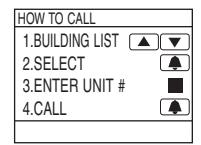
1 In standby mode, press and to display the target building number and name.
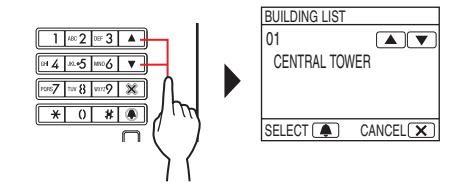
- 2 When the target building is displayed, press .
-
3 Enter numbers or letters using the 10-key to display the target unit #.
-
* For entering numbers or letters, follow steps
1
and
2
of
- C " When the target unit number is numerals only "
- or " When the target unit number is alphanumeric ".
-
* For entering numbers or letters, follow steps
1
and
2
of
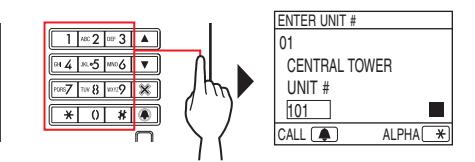
4 When the target unit # is displayed, press .
The target unit is called.
* Refer to " When the target unit is successfully called " at the end of 2-1 for details.
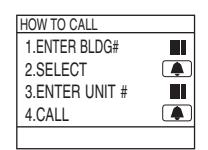
E Entering a building # and unit #

-
1 In standby mode, enter numbers or letters using the 10-key to display the target building.
- * For entering numbers or letters, follow steps 1 and 2 of C - " When the target unit number is numerals only " or " When the target unit number is alphanumeric ".
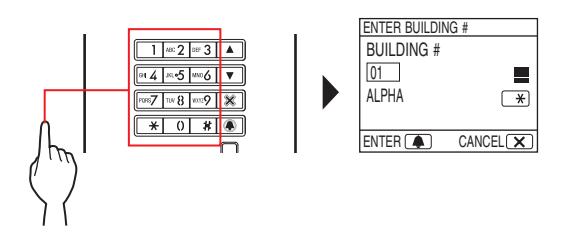
- 2 When the target building number is displayed, press .
-
3 Enter numbers or letters using the 10-key to display the target unit #.
- * For entering numbers or letters, follow steps 1 and 2 of C - " When the target unit number is numerals only " or " When the target unit number is alphanumeric ".
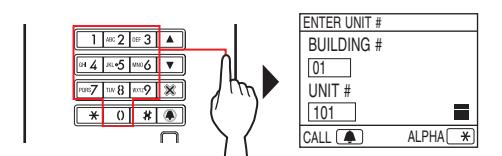
4 When the target unit # is displayed, press .
The target unit is called.
* Refer to " When the target unit is successfully called " at the end of 2-1 for details.
When the target unit is successfully called
The call indicator will light up and you will hear a call tone.

* Audio guidance will be heard depending on the settings.
When the call is answered

Communication starts and the talk indicator lights up.
* Audio guidance will be heard depending on the settings.
When the door is released

The door release indicator lights up.
* Audio guidance will be heard depending on the settings.
- If "DENIED" is displayed or returns to standby mode, the entered unit #/resident name is not registered.
- Enter the target unit # exactly. Otherwise, "DENIED" is displayed or returns to standby mode.
- If both unit # 111 and 1111 exist, the resident name for unit 111 will be displayed when 1, 1, 1 is entered, and the resident name for unit 1111 will be displayed if 1 is entered one more time.
- Stations can be set to be displayed in order by unit #. (The order starts with the lowest digit from 0 to 9 and then the order goes by letter.) In cases where unit # such as A101, A201, A901, A1001, and B101 exist, the order starts with the lowest digit and goes in the order A101, A201, A901, B101, A1001.
2-2 Door release
■ Door release by using the access code
- * The access code is preset by the system installer or administrator.
- 1 In standby mode, enter [#] and then the access code (4 to 6 digits) using [0] to [9] on the 10-key.
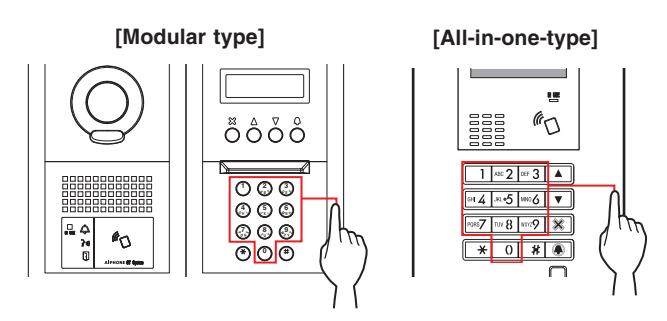
(e.g.) When the access code is "4567", enter "#", "4", "5", "6", "7".

The door is released.
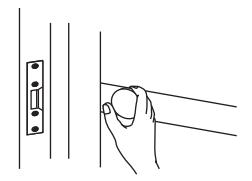
- The door release indicator lights up.
- Audio guidance will be heard depending on the settings.

- * If there is no relevant number, "DENIED" is displayed.
- * Door release is enabled even while the IN USE LED is lit.
■ Door release by an NFC-compliant IC card, etc.
A card incorporated with an NFC tag can be used to release a door. To use, the ID of the NFC tag must be registered as a door release code.
1 Pass an NFC-compliant IC card over the NFC reader.
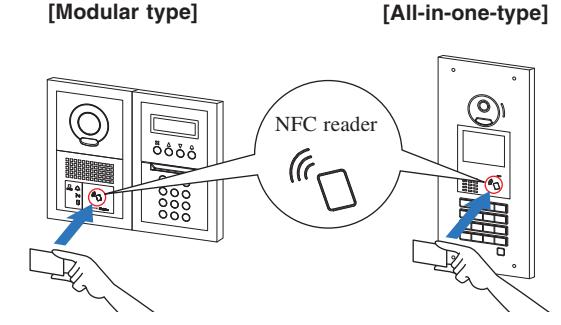
* Put the card within 10 mm of the NFC reader. Otherwise, the code may not be read correctly.

The door is released.
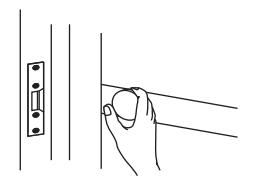
- The door release indicator lights up.
- Audio guidance will be heard depending on the settings.

* Door release is enabled even while the IN USE LED is lit.
NOTE: Do not overlap IC cards when passing them over the NFC reader. The code may not be read correctly.
2-3 Other
* Calling from an entrance station is disabled while the IN USE LED is lit. Wait until the IN USE LED turns off.
NOTE: For a multi building system with lift control, if you unlock from a room and terminate call at the same time, the entrance station may not unlock properly.
GUARD STATION
1 PART NAMES AND FUNCTIONS
1-1 Operation panel


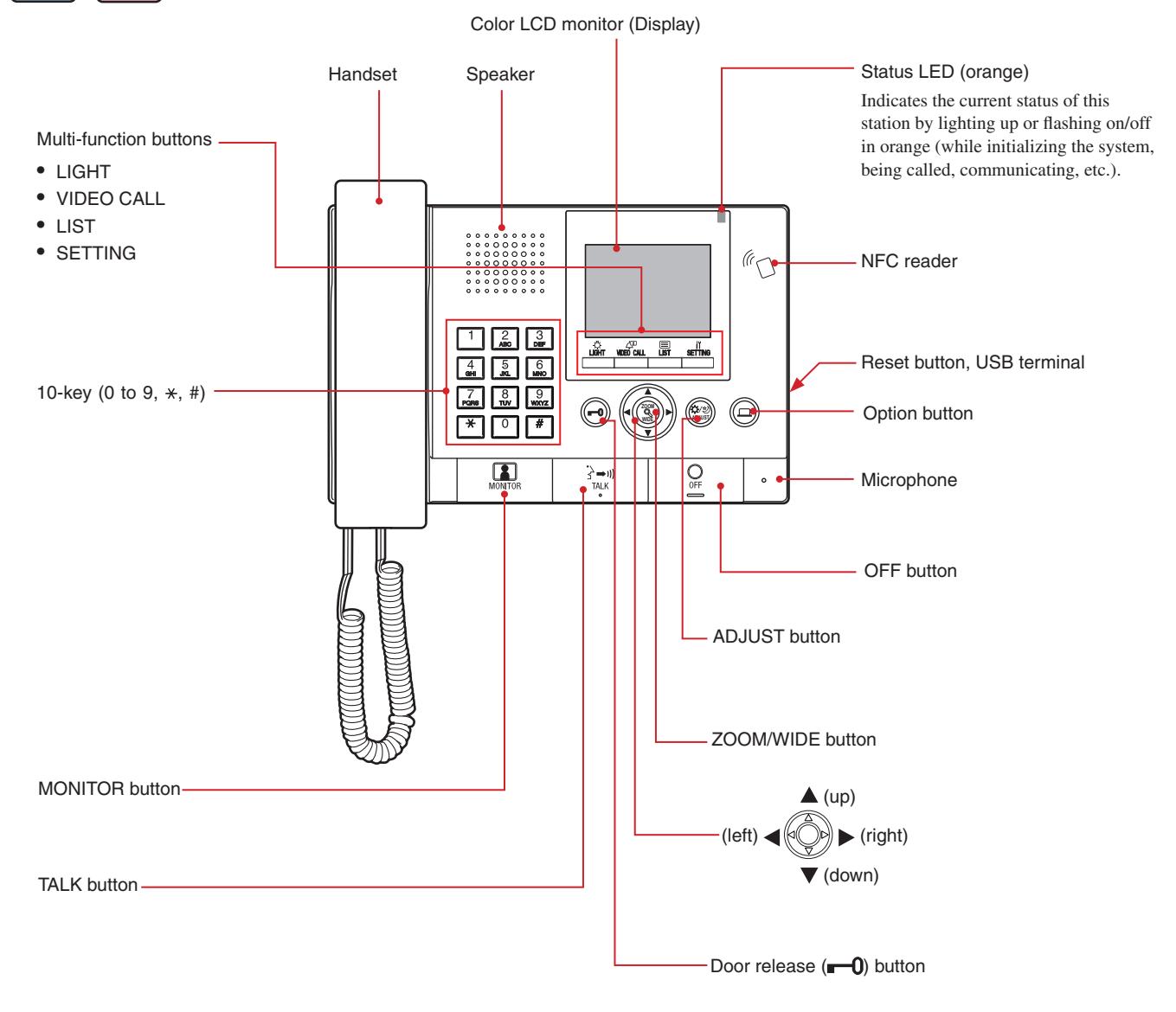
1-2 Indicators
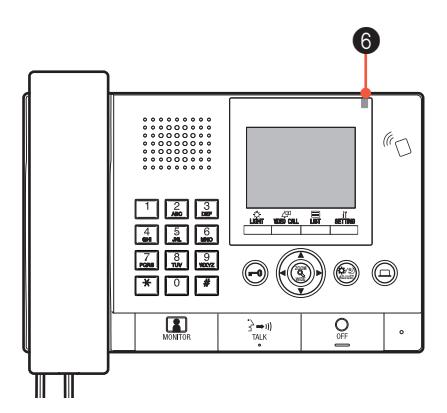
Indication patterns
|
Indicator
Status |
6 Status LED (orange) |
|---|---|
| Standby | Off |
|
Standby
(Call tone volume: off) |
Long interval flashing
(5.5 sec.) (0.5 sec.) |
|
Standby
(Reception mode: on) |
Slow flashing
(2.5 sec.) (0.5 sec.) |
|
This station is in use by another station
(this station is inoperable) |
Off |
| Being called by an entrance station |
Fast flashing
(0.5 sec.) (0.5 sec.) |
| Being called by a door station |
Normal flashing
(1 sec.) (1 sec.) |
| Being called by a door bell |
Fast flashing
(1 sec.) (0.5 sec.) |
| Monitoring an entrance station | Lit |
| Communicating with an entrance station | Lit |
|
Calling another guard station or residential/tenant station
(including in reception mode) |
Fast flashing
(0.5 sec.) (0.5 sec.) |
| Sounding an emergency alarm |
Fast flashing
(0.5 sec.) (0.5 sec.) |
|
A new list of missed calls from residential/tenant stations
has arrived |
Slow flashing
(2.5 sec.) (0.5 sec.) |
| Error indication |
Off
(An error message is displayed.) |
| Communication is on hold | Off |
1-3 LCD (display)
The following are samples of typical screens and icons.
In standby mode
* When nothing is displayed (black) on the screen, the screen below can be displayed by pressing any key other than , 0-9, , or lifting the handset.
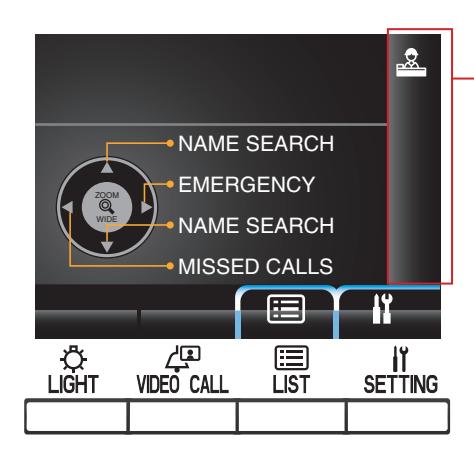
NAME SEARCH screen
The screen for searching for a unit by its name.
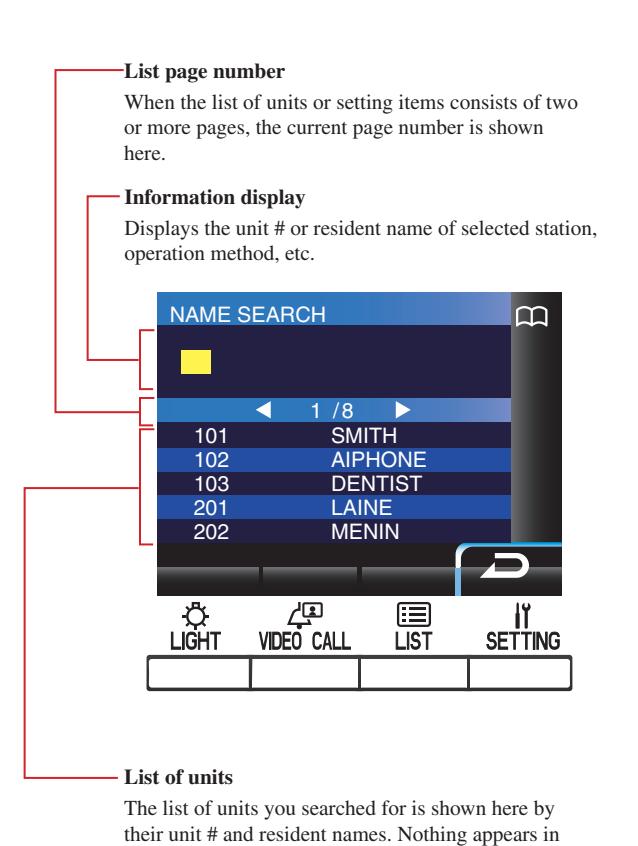
Status display icons
The following icons are displayed here depending on the status of this station.
| Icon | The status when the icon appears |
|---|---|
| Appears when this station is in reception mode. | |
| Appears while searching for a unit. | |
|
Appears while the number or letter entry screen is
displayed. |
|
| Appears while receiving a call. | |
| Appears when a record of missed calls is displayed. | |
| Appears while in communication. | |
| Appears while transferring. | |
|
Appears while this station is in communication with a
residential/tenant station after transferring a call from an entrance station to the residential/tenant station. |
|
| Appears when a record of emergency calls is displayed. | |
| Appears while monitoring. | |
|
Appears while a wide video at the entrance or a video at
the door station is displayed. |
|
|
Appears while a zoom video at the entrance station is
displayed. |
|
| Appears when the setting screen is displayed. |
NOTE: The above display example may differ from the actual one.
the list when no corresponding unit is detected.
1-4 Button operations
■ Multi-function buttons and icons
The functions to be performed by the multi-function buttons are displayed by icons just above the buttons.
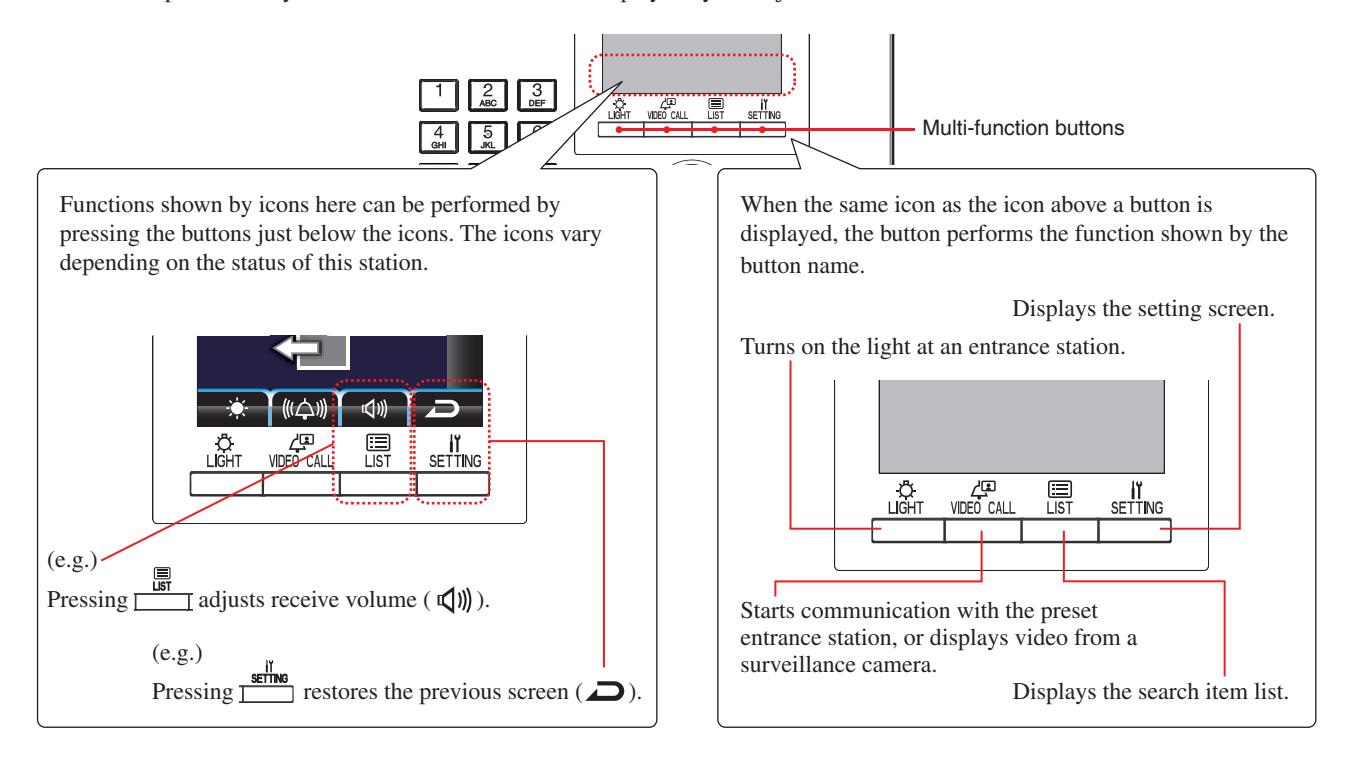
Icons and their functions
Icons and their functions for each multi-function button are as follows.
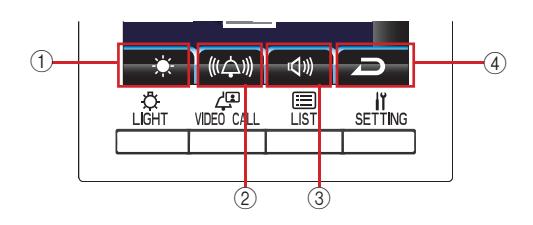
| Icon | Function | |
|---|---|---|
| 1 | Determines the choice. | |
|
Turns the entrance light on (when light is installed in
common area). |
||
| Adjusts brightness. | ||
| Turns off the emergency alarm. | ||
| 2 | Calls the selected unit. | |
|
Transfers a call from entrance station to residential/tenant
station. |
||
| Adjusts call tone volume. | ||
| Turns off overlay. | ||
| Calls the preset entrance station directly. | ||
| Deletes the selected item. |
| Icon | Function | ||
|---|---|---|---|
| 3 | Changes the 10-key to the letter entry mode. | ||
| Changes the 10-key to the number entry mode. | |||
| Displays the search item list. | |||
| Adjusts receive volume. | |||
| 4 | Restores the previous screen. | ||
| Displays the setting screen. | |||
| Cancels the choice. | |||
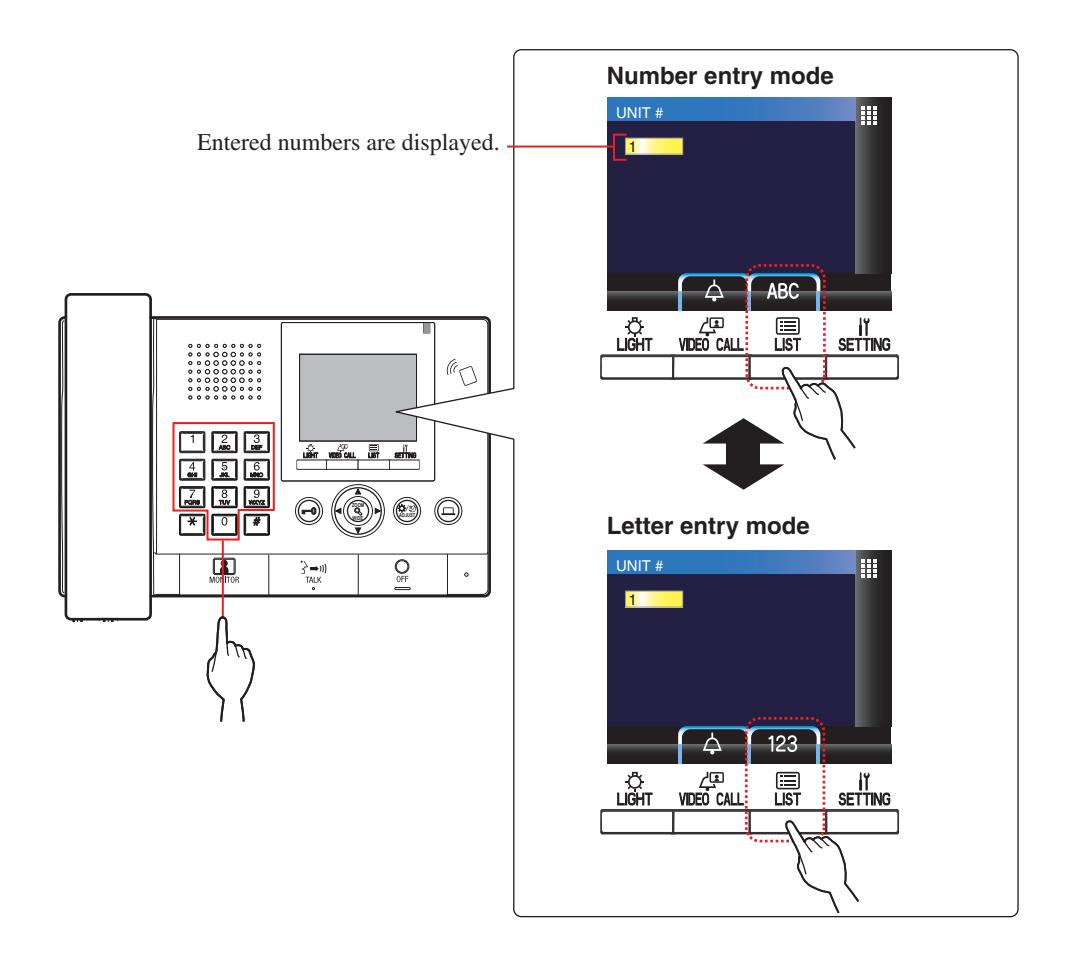
■ How to enter numbers and letters by using the 10-key (0 to 9, , #)
Use the 10-key in the number or letter entry mode.
The number and letter entry modes can be switched by pressing ( / ).
2 RECEIVING A CALL


: Main building/section : Tenant building/section
2-1 Receiving a call
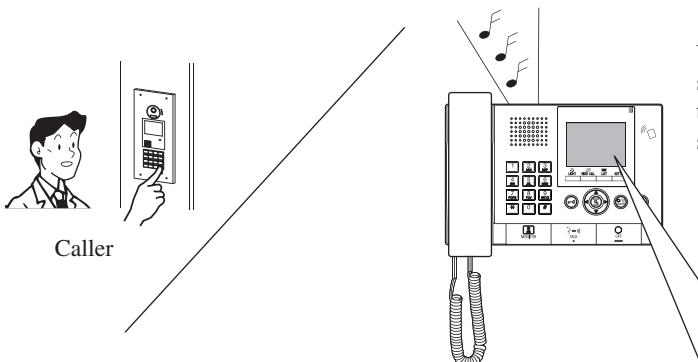
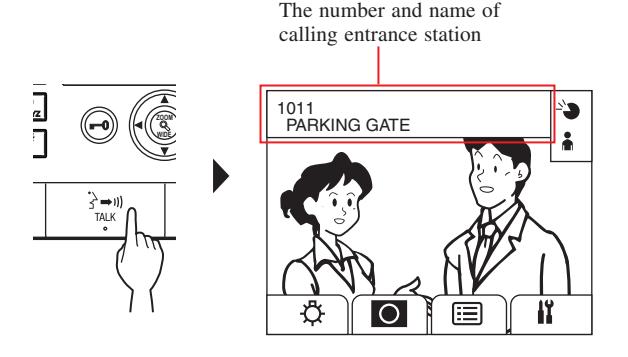
When receiving a call, the call tone sounds and the number and name of the caller (station) are displayed in the screen.
The caller can be confi rmed on the display.
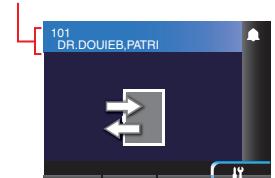
A call from a residential/ tenant station or another guard station
The unit # and station name
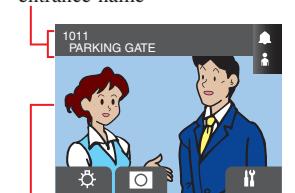
A call from an entrance station with a camera
The number and entrance name
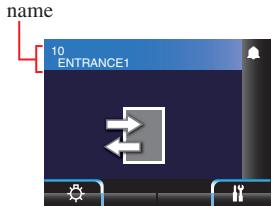
A call from an entrance station without a camera
The number and entrance
A call from a door station
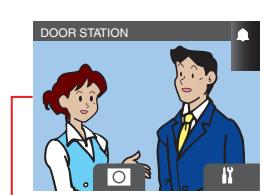
The video at the entrance The video at the door station
NOTE: When receiving a call from a door bell, nothing is displayed on the screen and answering is not possible.
Answering a call
To answer a call
1 Press or lift handset.
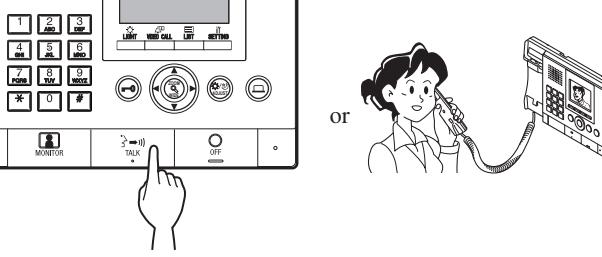
-
2 Begin communication with the caller.
- * Lift handset at any time for privacy.
* While communicating with the caller, unlock the door or use the other features by pressing the following buttons.
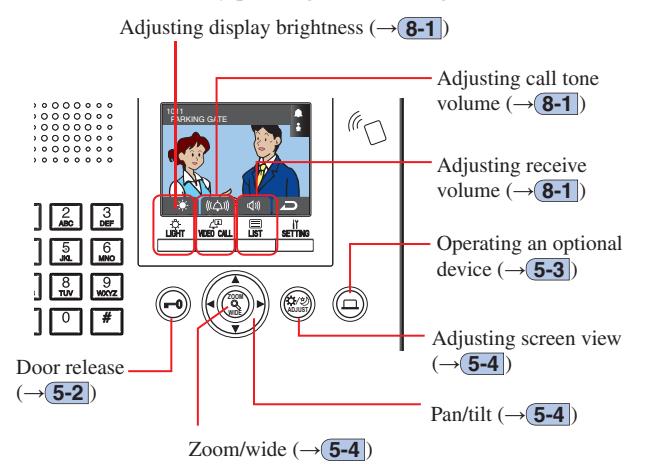
To end communication
Press or hang up handset.
Communication ends automatically after 3 minutes.
* Communication with a residential/tenant station in hands-free mode ends automatically after 1 minute in hands-free mode.
3 CALLING (from a tenant building)

3-1 How to search for a unit to call (from a tenant building)
The following methods are available in standby mode to search for a unit (residential/tenant station) or guard station to call.
- A Searching by number
- B Searching by name
- C Using the search item list
- * When nothing is displayed (black) on the screen, press any key other than , 0-9, , or lift handset to enter standby mode.
- * An entrance station can be searched for by using method C only.
Standby mode
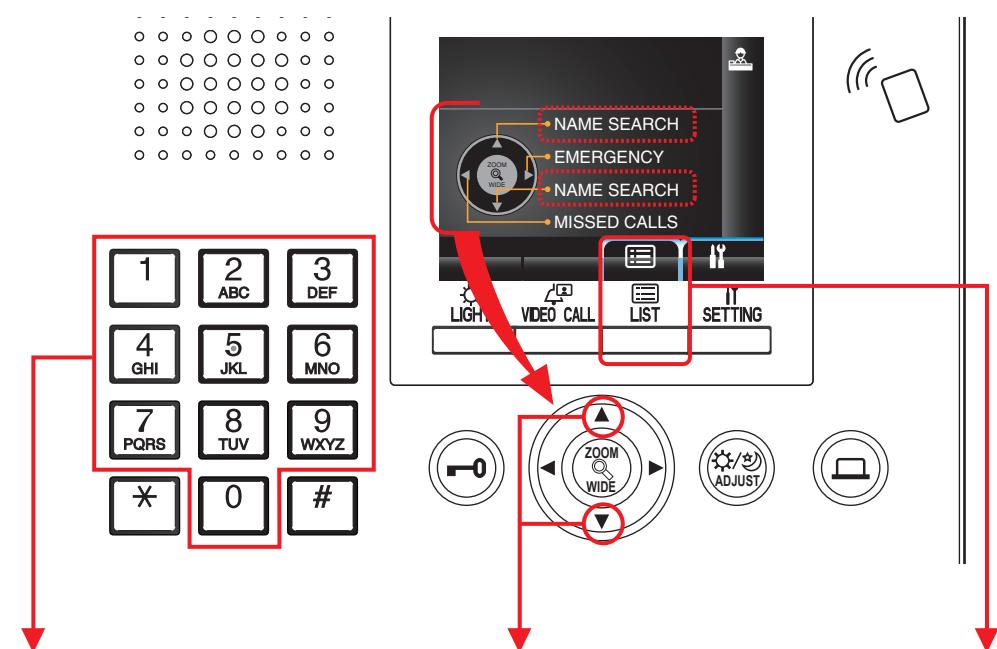
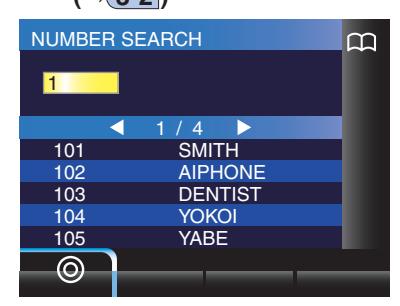
A Searching by number (→ 3-2 )
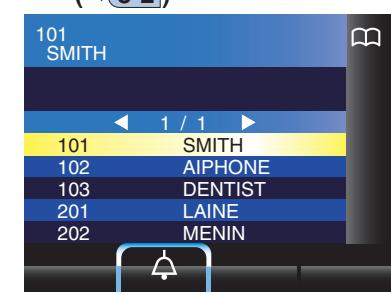
B Searching by name (→ 3-2 )
C Using the search item list (→ 3-2 )
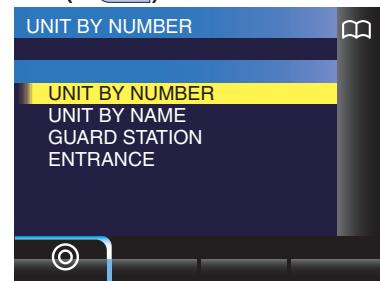
- Searching by number ( UNIT BY NUMBER ) ( → 3-2 )
- Searching by name ( UNIT BY NAME ) ( → 3-2 )
- Searching a guard station from the guard station list ( GUARD STATION ) ( → 3-2 )
- Searching an entrance station from the entrance station list ( ENTRANCE ) (→ 3-3 )
Coverage of calling from a guard station in a tenant building
NOTE: Performance depends on the settings. If you cannot call even when ✓ is indicated, its setting is not confi gured.
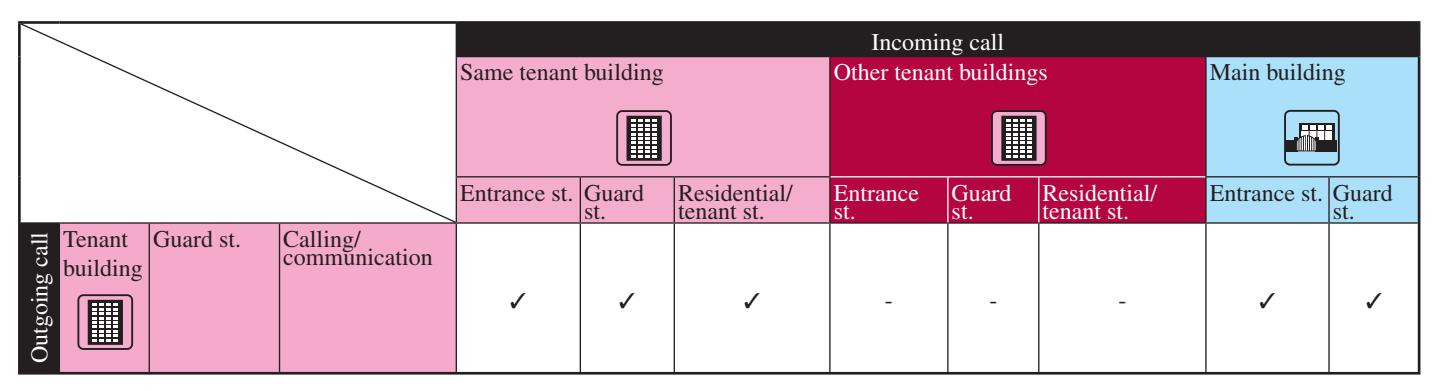
✓ : Possible — : Impossible
3-2 Calling a unit (residential/tenant station) or guard station
A Searching for a unit by number
1 In standby mode, enter numbers using [0] to [9] on the 10-key to display the target unit # and resident name.
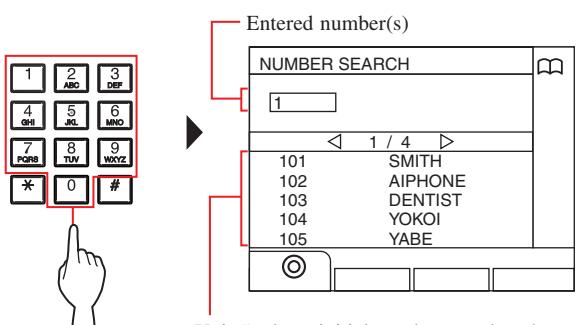
Unit # whose initial number matches the entered number are displayed in the list.
- * The list is displayed in order of unit #.
- * This station is not displayed.
2 Select the target unit by pressing
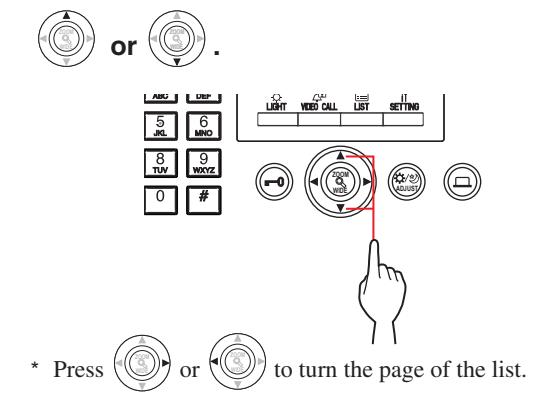
3 Press ( ), or lift handset.
When the call is answered
Communication starts and " " is displayed.
4 To end communication, press or hang up handset.
- Communication will end automatically after approximately 3 minutes. Communication with a residential/tenant station in hands-free mode ends automatically after 1 minute in hands-free mode.
- If both unit # 111 and 1111 exist, the resident name for unit 111 will be displayed when 1, 1, 1 is entered, and the resident name for unit 1111 will be displayed if 1 is entered one more time.
- Stations can be set to be displayed in order by unit #. (The order starts with the lowest digit from 0 to 9 and then the order goes by letter.) In cases where unit # such as A101, A201, A901, A1001, and B101 exist, the order starts with the lowest digit and goes in the order A101, A201, A901, B101, A1001.
B Searching for a unit by name
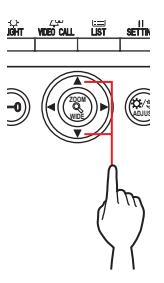
1 In standby mode, press WIDE or WIDE
The search screen is displayed.
2 Select the target unit by pressing WIDE or WIDE .
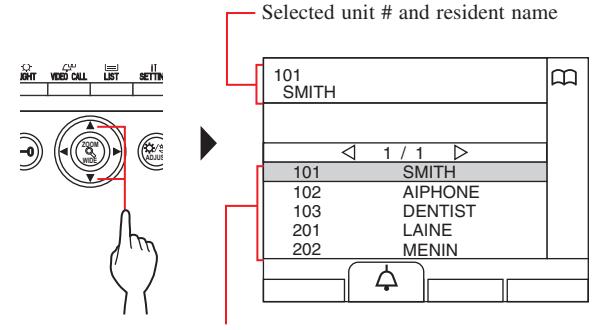
Unit # and resident names are displayed in alphabetical or numerical order.
* The arranging method differs depending on the setting.
.
- * Press WIDE or WIDE to turn the page of the list.
- * The list is displayed in order of either unit # or name.
- * This station is not displayed.

When the call is answered
Communication starts and " " is displayed.
4 To end communication, press or hang up handset.
- Communication will end automatically after approximately 3 minutes. Communication with a residential/tenant station in hands-free mode ends automatically after 1 minute in hands-free mode.
- Stations can be set to be displayed in order by unit #. (The order starts with the lowest digit from 0 to 9 and then the order goes by letter.) In cases where unit # such as A101, A201, A901, A1001, and B101 exist, the order starts with the lowest digit and goes in the order A101, A201, A901, B101, A1001.
C Searching for a unit by using the search item list
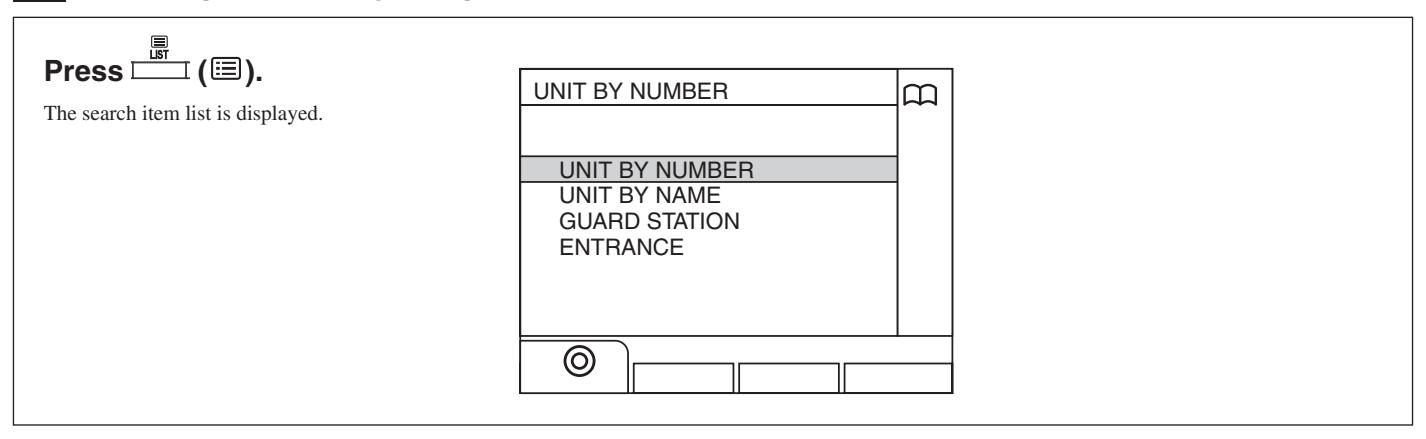
- Searching for a unit by unit #
- 1 Select "UNIT BY NUMBER" by pressing WIDE

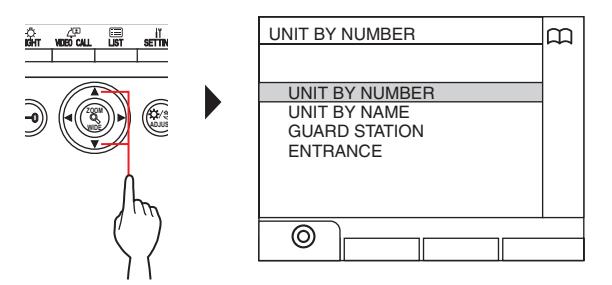
2 Press ( ) or WIDE .
The "NUMBER SEARCH" screen is displayed.
3 Enter numbers using [0] to [9] on the 10-key to display the target unit # and resident name.
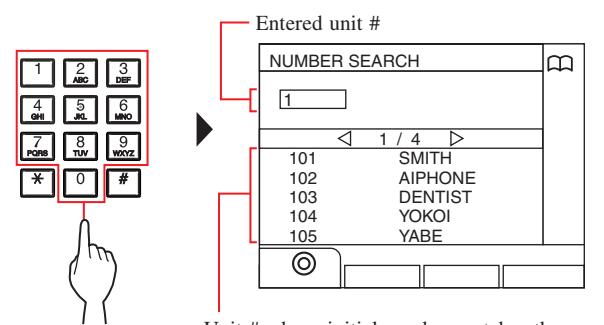
Unit # whose initial number matches the entered number are displayed in the list.
- * The list is displayed in order of unit #.
- * This station is not displayed.
- 4 Select the target unit by pressing
* Press WIDE or WIDE to turn the page of the list.
5 Press ( ), or lift handset.
When the call is answered
Communication starts and " " is displayed.
6 To end communication, press or hang up handset.
- Searching for a unit by resident name
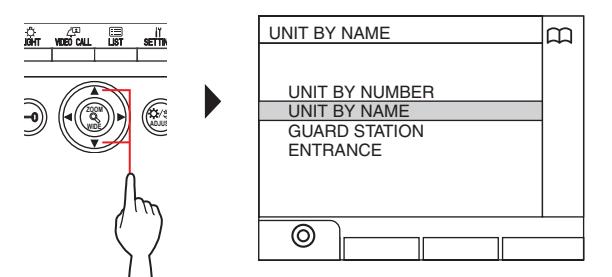
- 1 Select "UNIT BY NAME" by pressing WIDE
.
The "NAME SEARCH" screen is displayed.
3 Enter an alphabetical character using [0] to [9] on the 10-key to display the target resident name.
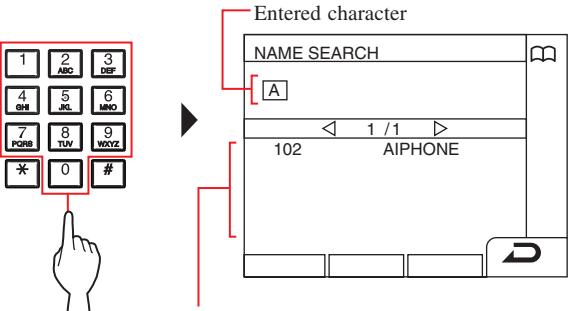
The unit # and resident names whose initial letter matches the entered letter are displayed in the list. (e.g.) When "A" is entered, 301A, 1003ABC,
ABC, etc. are displayed in the list.
- * The arranging method differs depending on the setting.
- * The list is displayed in order of name.
- * This station is not displayed.
4 Select the target unit by pressing WIDE

* Press WIDE or WIDE to turn the page of the list.
5 Press ( ), or lift handset.
When the call is answered
Communication starts and " " is displayed.
6 To end communication, press or hang up handset.
- Searching for a guard station from the guard station list
- 1 Select "GUARD STATION" by pressing WIDE

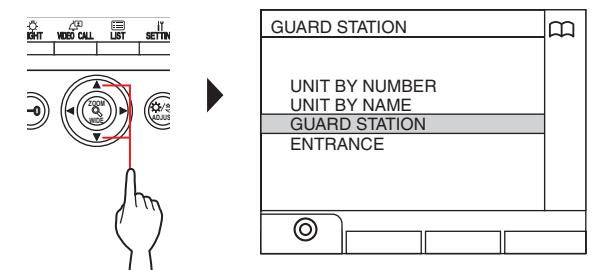
2 Press ( ) or WIDE .
The guard station list is displayed.
3 Select the target guard station by pressing WIDE

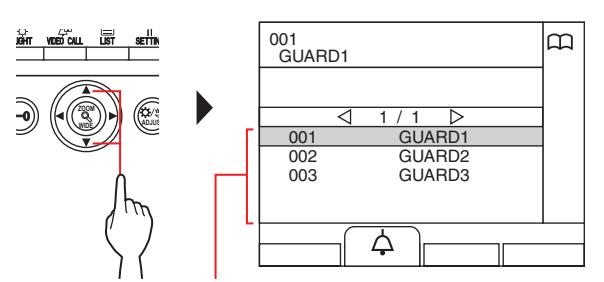
Guard station numbers and names are displayed in alphabetical or numerical order. * The arranging method differs depending on the setting.
- * Press WIDE or WIDE to turn the page of the list.
- * The list is displayed in order of either station number or name.
- * This station is not displayed.
4 Press ( ), or lift handset.
When the call is answered
Communication starts and " " is displayed.
5 To end communication, press or hang up handset.
Searching for an entrance station

- Communication will end automatically after approximately 3 minutes. Communication with a residential/tenant station in hands-free mode ends automatically after 1 minute in hands-free mode.
- If both unit # 111 and 1111 exist, the resident name for unit 111 will be displayed when 1, 1, 1 is entered, and the resident name for unit 1111 will be displayed if 1 is entered one more time.
- Stations can be set to be displayed in order by unit #. (The order starts with the lowest digit from 0 to 9 and then the order goes by letter.) In cases where unit # such as A101, A201, A901, A1001, and B101 exist, the order starts with the lowest digit and goes in the order A101, A201, A901, B101, A1001.
3-3 Calling an entrance station
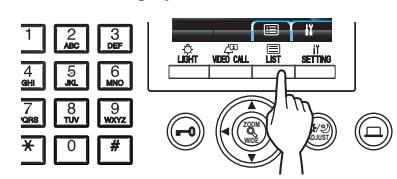
1 Press ( ).
The search item list is displayed.
2 Select "ENTRANCE" by pressing WIDE or WIDE
.
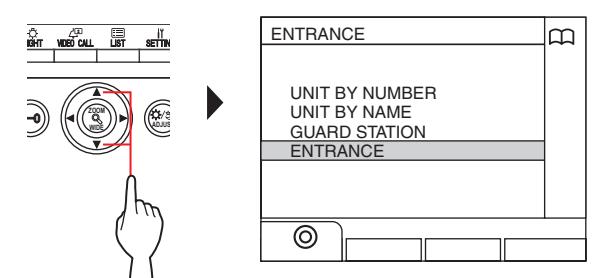
3 Press ( ) or WIDE .
The entrance station list is displayed.
4 Select the target entrance station by pressing
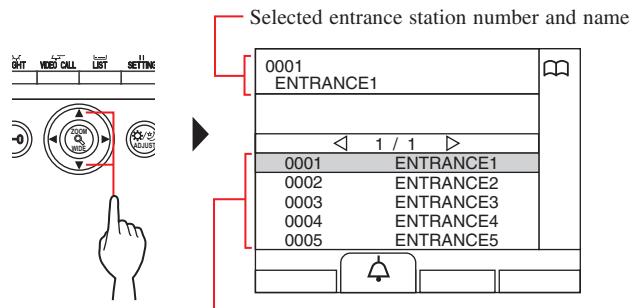
Entrance station numbers and names are displayed in alphabetical or numerical order. * The arranging method differs depending on
* Press WIDE or WIDE to turn the page of the list.
the setting.
- * The list is displayed in order of either station number or name.
- 5 Press ( ), or lift handset.
Communication starts and " " is displayed.
6 To end communication, press or hang up handset.
NOTE: Communication will end automatically after approximately 3 minutes.
- Direct calling an entrance station (only when is displayed in standby mode)
- 1 When is displayed, press ( ).
The preset entrance station is called, and then communication is enabled.
- 2 Talk hands-free or lift the handset.
- 3 To end communication, press or hang up handset.
| Transferring video image taken by an | ||
|---|---|---|
| entrance station camera or surveillance | ||
| camera to a residential/tenant station | ||
|
(only when
is displayed in standby |
||
| mode) | ||
- 1 Press ( ).
-
2 Select a residential/tenant station by one of the following methods A - C .
- A Press ( ) and then WIDE or WIDE to select the target residential/tenant station.
-
B
1
Enter a number by using the 10-key to display the list of residential/tenant stations that include the number.
- 2 Press WIDE or WIDE to select the target residential/tenant station.
- 3 Press ( ) or WIDE .
-
C
1
Press and enter a letter by using the 10-key to display the list of residential/ tenant stations that include the letter.
- 2 Press WIDE or WIDE to select the target residential/tenant station.
- 3 Press ( ) or WIDE ZOOM .
- 3 Press ( ).
- 4 When the resident/tenant station answers and accepts the visitor, press or hang up handset.
* Step 2 differs depending on the settings.
4 CALLING (from a main building)

4-1 How to select a unit to call (from a main building)
The following methods are available in standby mode to select a room (residential/tenant station) or guard station to call.
- A Searching by number
-
B
1
Searching for a unit in the list
- 2 Entering unit #
- 3 Searching for a building in the list + entering unit #
- 4 Entering a building # + unit #
* Any of 1 to 4 are available by default.
C Using the search item list
- * When nothing is displayed (black) on the screen, press any key other than , 0-9, , or lift handset to enter standby mode.
- * To return to the standby screen, press .
- * An entrance station can be searched for by using the method C only.
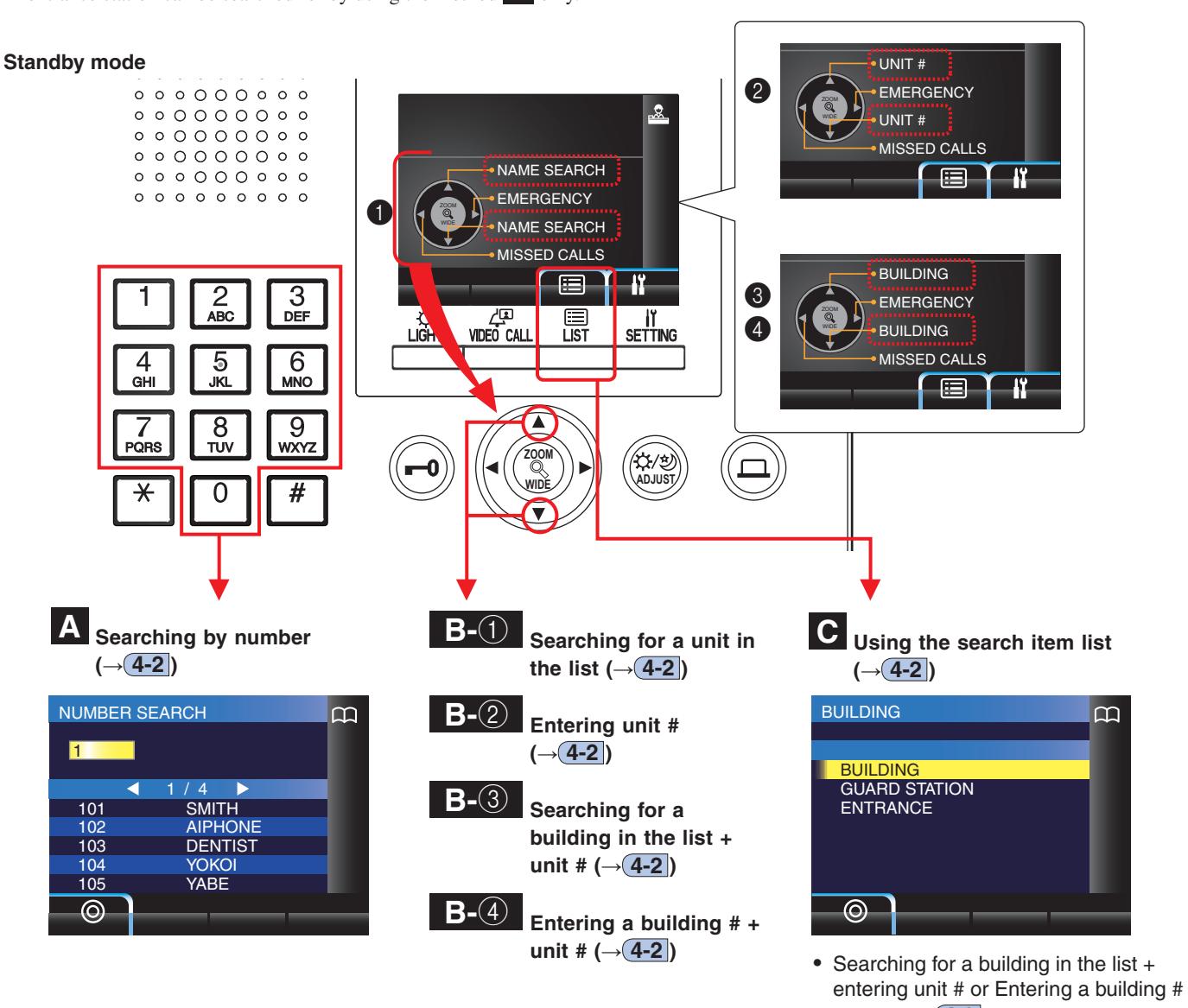
-
+ unit # (
→ 4-2
)
- Searching a guard station from the guard station list ( GUARD STATION ) ( → 4-2 )
- Searching an entrance station from the entrance station list ( ENTRANCE ) ( → 4-3 )
Coverage of calling from a guard station in a main building
NOTE: Performance depends on the settings. If you cannot call even when ✓ is indicated, its setting is not configured.
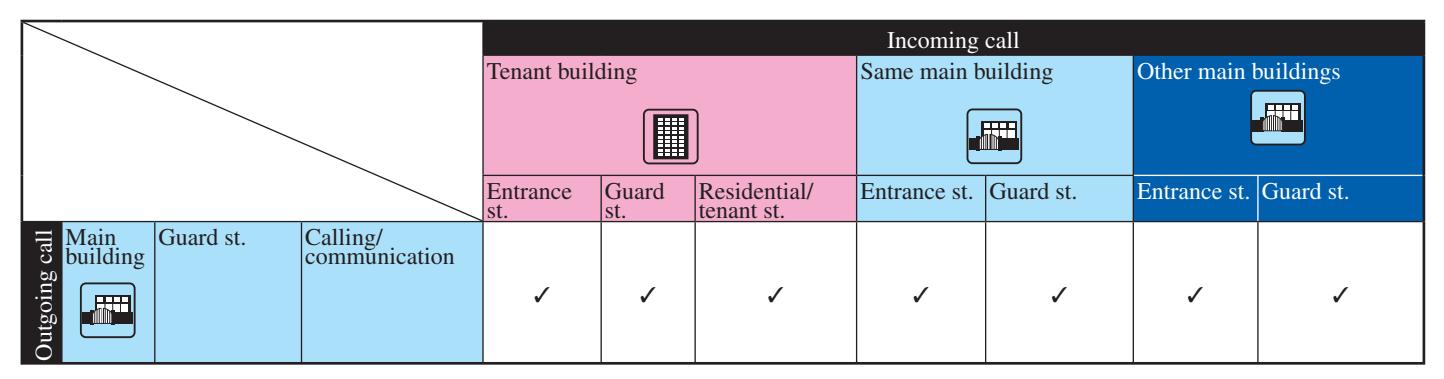
✓ : Possible
4-2 Calling a room (residential/tenant station) or guard station
A Searching for a unit by number
1 In standby mode, enter numbers using [0] to [9] on the 10-key to display the target unit # and name.
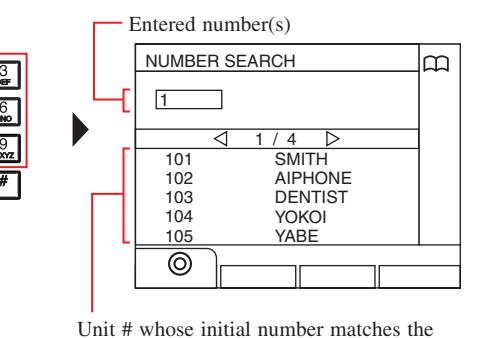
- entered number are displayed in the list.
- * The list is displayed in order of unit #.
- * This station is not displayed.

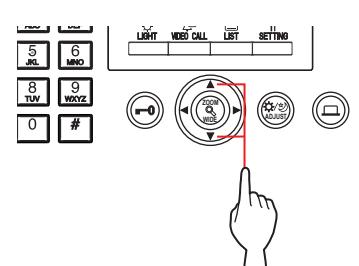
* Press or to turn the page of the list.

When the call is answered
Communication starts and "-> " is displayed.
4 To end communication, press or hang up handset.
- Communication will end automatically after approximately 3 minutes. Communication with a residential/tenant station in hands-free mode ends automatically after 1 minute in hands-free mode.
- If both unit # 111 and 1111 exist, the resident name for unit 111 will be displayed when 1, 1, 1 is entered, and the resident name for unit 1111 will be displayed if 1 is entered one more time.
- Stations can be set to display in order by unit #. (The order starts with the lowest digit from 0 to 9 and then the order goes by letter.) In cases where unit # such as A101, A201, A901, A1001, and B101 exist, the order starts with the lowest digit and goes in the order A101, A201, A901, B101, A1001.
B- 1 Searching for a unit in the list
1 In standby mode, press WIDE or WIDE
The unit list is displayed.
2 Select the target unit, by pressing WIDE

.
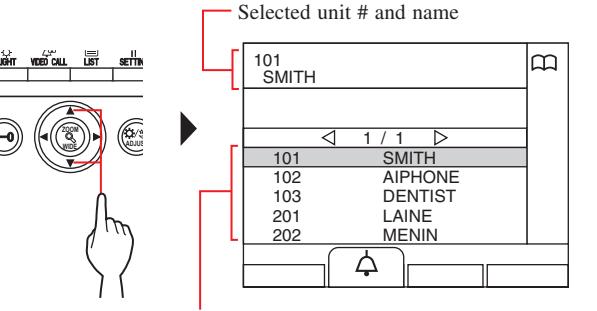
Unit # and names are displayed in alphabetical or numerical order.
* The arranging method differs depending on the setting.
- * Press WIDE or WIDE to turn the page of the list.
- * The list is displayed in order of either unit # or name.
- * This station is not displayed.
3 Press ( ), or lift handset.
When the call is answered
Communication starts and " " is displayed.
- * Audio guidance will be heard depending on the settings.
- 4 To end communication, press or hang up handset.
NOTE: Communication will end automatically after approximately 3 minutes. Communication with a residential/tenant station in hands-free mode ends automatically after 1 minute in hands-free mode.
B- 2 Entering unit #
1 In standby mode, press WIDE


.
"UNIT #" screen is displayed.
2 [When the target unit number is numerals only] Enter the unit # using [0] to [9] on the 10-key.
[When the target unit number is alphanumeric]
- 1 Press ( ).
-
2
Enter the resident name using [0] to [9] on the 10-key.
- * How to enter letters (→P. 21).
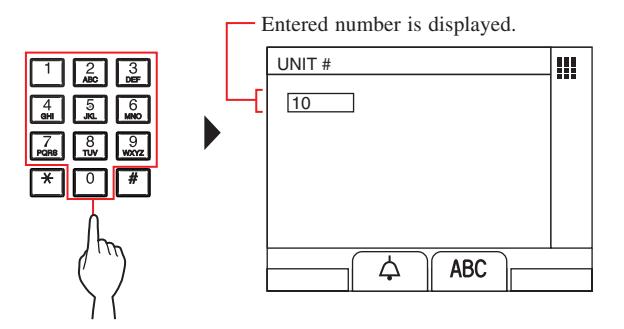
3 Press ( ), or lift handset.
When the call is answered
Communication starts and " " is displayed.
4 To end communication, press or hang up handset.
- Communication will end automatically after approximately 3 minutes. Communication with a residential/tenant station in hands-free mode ends automatically after 1 minute in hands-free mode.
- If both unit # 111 and 1111 exist, the resident name for unit 111 will be displayed when 1, 1, 1 is entered, and the resident name for unit 1111 will be displayed if 1 is entered one more time.
- Stations can be set to display in order by unit #. (The order starts with the lowest digit from 0 to 9 and then the order goes by letter.) In cases where unit # such as A101, A201, A901, A1001, and B101 exist, the order starts with the lowest digit and goes in the order A101, A201, A901, B101, A1001.
The building list is displayed.
B- 3 Searching for a building in the list + entering unit #
1 In standby mode, press WIDE or WIDE .
2 Select the target building by pressing WIDE

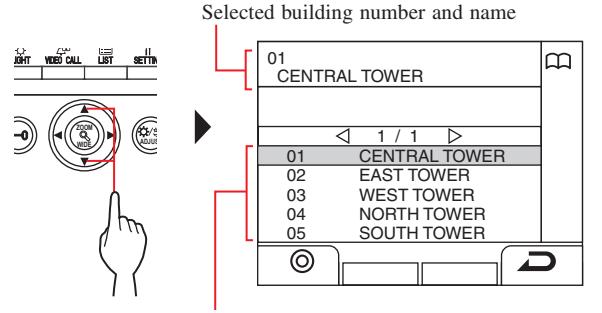
Building numbers and names are displayed in alphabetical or numerical order.
- * The arranging method differs depending on the setting.
- * Press WIDE or WIDE to turn the page of the list.
- * The list is displayed in order of either building number or name.
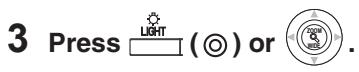
"UNIT #" is displayed.
4 [When the target unit number is numerals only] Enter the unit # using [0] to [9] on the 10-key.
[When the target unit number is alphanumeric]
- 1 Press ( ).
-
2
Enter the resident name using [0] to [9] on the 10-key.
- * How to enter letters (→P. 21).
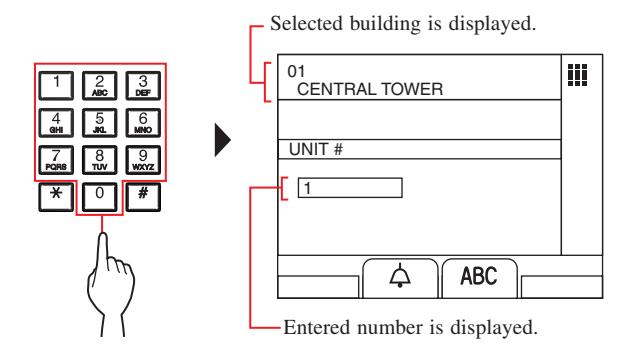
5 Press ( ), or lift handset.
When the call is answered
Communication starts and " " is displayed.
6 To end communication, press or hang up handset.
- B- 4 Entering a building # + unit #
- 1 In standby mode, press WIDE or WIDE . "BUILDING #" screen is displayed.
- 2 [When the target building number is numerals only]
Enter the building number using [0] to [9] on the 10-key.
[When the target building number is alphanumeric]
- 1 Press ( ).
-
2
Enter the building name using [0] to [9] on the 10-key.
- * How to enter letters (→P. 21).
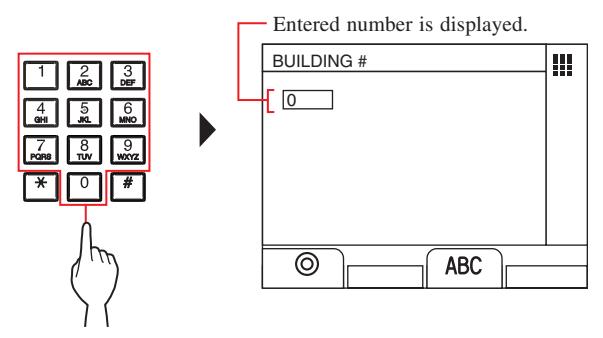
3 Press ( ) or WIDE ZOOM . "UNIT #" is displayed.
4 [When the target unit number is numerals only] Enter the unit # using [0] to [9] on the 10-key.
[When the target unit number is alphanumeric]
- 1 Press ( ).
-
2
Enter the resident name using [0] to [9] on the 10-key.
- * How to enter letters (→P. 21).
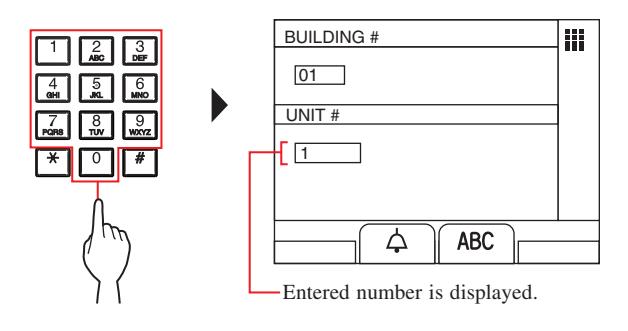
5 Press ( ), or lift handset.
When the call is answered
Communication starts and " " is displayed.
6 To end communication, press or hang up handset.
- C Searching for a unit by using the search item list
- Searching for a building in the list + entering unit #
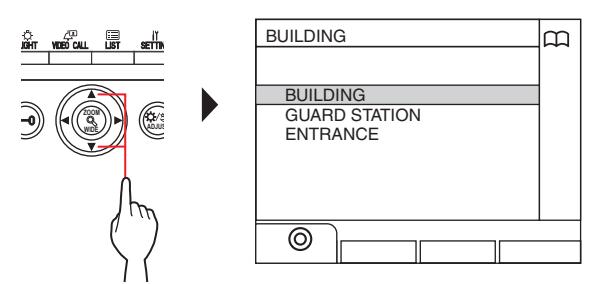
- 1 Press ( ).
The search item list is displayed.
2 Select "BUILDING" by pressing WIDE or WIDE
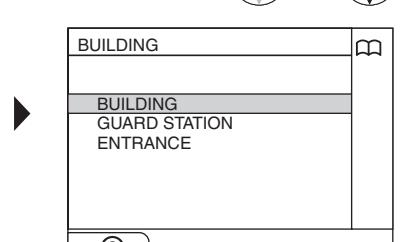
3 Press ( ) or WIDE .
The building list is displayed.
WIDE ADJUS
4 Follow steps 2 to 6 of B- 3 .
- Entering a building # + unit #
- 1 Press ( ).
The search item list is displayed.
2 Select "BUILDING" by pressing WIDE
or WIDE
.
3 Press ( ) or WIDE . "BUILDING #" screen is displayed.
4 Follow steps 2 to 6 of B- 4 .
NOTES:
.
- Communication will end automatically after approximately 3 minutes. Communication with a residential/tenant station in hands-free mode ends automatically after 1 minute in hands-free mode.
- If both unit # 111 and 1111 exist, the resident name for unit 111 will be displayed when 1, 1, 1 is entered, and the resident name for unit 1111 will be displayed if 1 is entered one more time.
- Stations can be set to display in order by unit #. (The order starts with the lowest digit from 0 to 9 and then the order goes by letter.) In cases where unit # such as A101, A201, A901, A1001, and B101 exist, the order starts with the lowest digit and goes in the order A101, A201, A901, B101, A1001.
- Searching for a guard station from the guard station list
- 1 Press ( ).
The search item list is displayed.
2 Select "GUARD STATION" by pressing WIDE


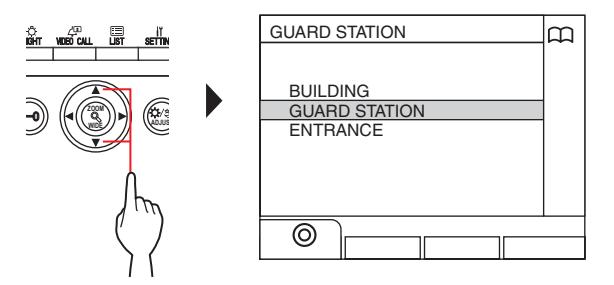
3 Press ( ) or WIDE ZOOM .
The building list is displayed.
4 Select the target building by pressing WIDE

Selected building number and name
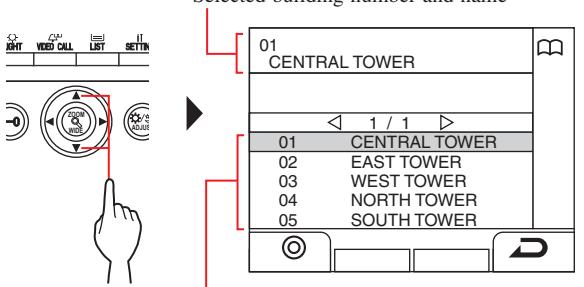
Building numbers and names are displayed in alphabetical or numerical order.
- * The arranging method differs depending on the setting.
- * Press WIDE or WIDE to turn the page of the list.
- * The list is displayed in order of either building number or name.
5 Press ( ) or WIDE .
The guard station list is displayed.
6 Select the target guard station by pressing WIDE

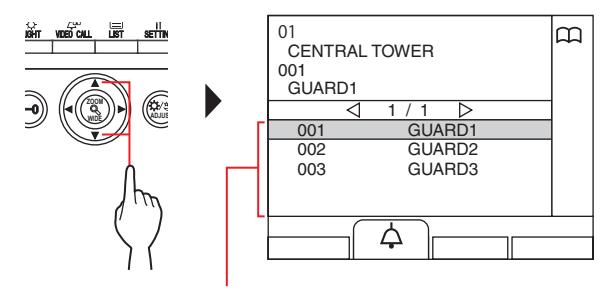
Guard station numbers and names are displayed in alphabetical or numerical order. * The arranging method differs depending on the setting.
- * Press WIDE or WIDE to turn the page of the list.
- * The list is displayed in order of either station number or name.
- * This station is not displayed.

When the call is answered
Communication starts and " " is displayed.
8 To end communication, press or hang up handset.
- Communication will end automatically after approximately 3 minutes. Communication with a residential/tenant station in hands-free mode ends automatically after 1 minute in hands-free mode.
- If both unit # 111 and 1111 exist, the resident name for unit 111 will be displayed when 1, 1, 1 is entered, and the resident name for unit 1111 will be displayed if 1 is entered one more time.
- Stations can be set to display in order by unit #. (The order starts with the lowest digit from 0 to 9 and then the order goes by letter.) In cases where unit # such as A101, A201, A901, A1001, and B101 exist, the order starts with the lowest digit and goes in the order A101, A201, A901, B101, A1001.
4-3 Calling an entrance station
1 Press ( ).
The search item list is displayed.
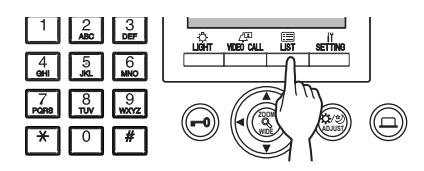
2 Select "ENTRANCE" by pressing WIDE
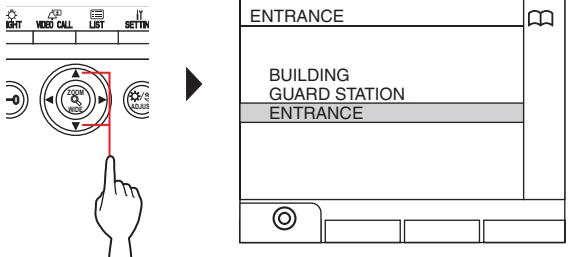
3 Press ( ) or WIDE .
The building list is displayed.
4 Select the target building by pressing WIDE

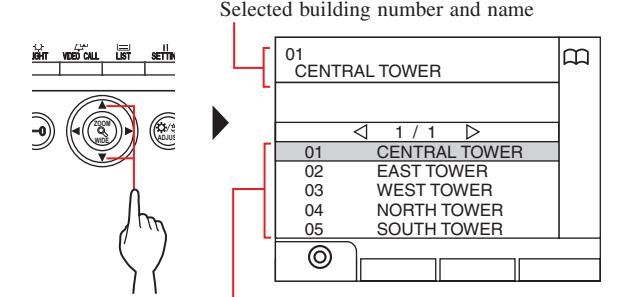
Building numbers and names are displayed in alphabetical or numerical order.
- * The arranging method differs depending on the setting.
- * Press WIDE or WIDE to turn the page of the list.
- * The list is displayed in order of either building number or name.
5 Press ( ) or WIDE .
The entrance station list is displayed.
6 Select the target entrance station.
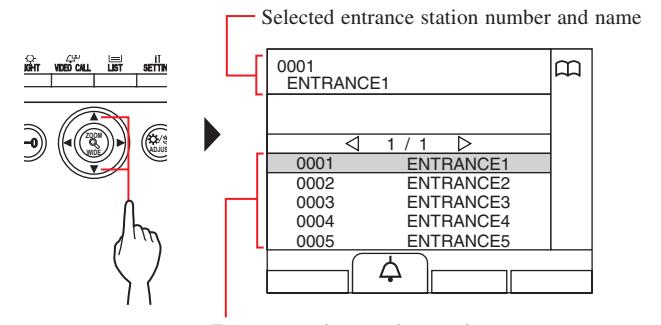
Entrance station numbers and names are displayed in alphabetical or numerical order. * The arranging method differs depending on the setting.
- * Press WIDE or WIDE to turn the page of the list.
- * The list is displayed in order of either station number or name.
- 7 Press ( ), or lift handset.
When the call is answered
Communication starts and " " is displayed.
- * Audio guidance will be heard depending on the settings.
- 8 To end communication, press or hang up handset.
NOTE: Communication will end automatically after approximately 3 minutes.
| Direct calling an entrance station | |||
|---|---|---|---|
|
(only when
is displayed in standby |
|||
| mode) | |||
| 1 When | is displayed, press |
(
). |
|---|
The preset entrance station is called, and then communication is enabled.
- 2 Talk hands-free or lift the handset.
- 3 To end communication, press or hang up handset.
- Transferring video image taken by an entrance station camera or surveillance camera to a residential/tenant station (only when is displayed in standby mode)
- 1 Press ( ).
-
2 Select a residential/tenant station by one of the following methods A - C .
- A Press ( ) and then WIDE or WIDE to select the target residential/tenant station.
-
B
1
Enter a number by using the 10-key to display the list of residential/tenant stations that include the number.
- 2 Press WIDE or WIDE to select the target residential/tenant station.
- 3 Press ( ) or WIDE .
-
C
1
Press and enter a letter by using the 10-key to display the list of residential/ tenant stations that include the letter.
- 2 Press WIDE or WIDE to select the target residential/tenant station.
- 3 Press ( ) or WIDE .
- 3 Press ( ).
- 4 When the resident/tenant station answers and accepts the visitor, press or hang up handset.
* Step 2 differs depending on the settings.
5 OPERATIONS DURING COMMUNICATION


5-1 Transferring a call 5-2 Door release
A call from an entrance station can be transferred to a residential/ tenant station via a guard station
1 After the guard station is called from an entrance
station, press or lift handset to answer the call.
2 Press ( ) or enter the unit # by using [0] to [9] on the 10-key.
The list of residential/tenant stations is displayed.
3 Select the target residential/tenant station, then press ( ).
The call is transferred to the residential/tenant station.
- * "ON HOLD" is displayed on the entrance station and no sound is heard at the entrance station.
- 4 When the residential/tenant station answers and
accepts the visitor, press or hang up handset to establish communication between the entrance station and the residential/tenant station.
| * When there is no answer from the residential/tenant station, | |||
|---|---|---|---|
|
hang up handset and pick it up again, or press
and |
|||
| then | to communicate with the entrance station. | ||
* Step 2 differs depending on the settings.
Reference:
Reception mode (→ 8-2 )
When there is a call from an entrance station to a residential/tenant station, it is fi rst transferred to the guard station, so a call tone sounds and the video at the entrance station is displayed on the guard station.
1 While receiving a call or communicating with an entrance station, press .
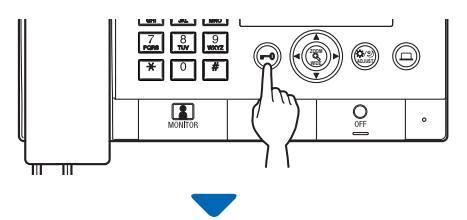
Door release is activated at the entrance station.
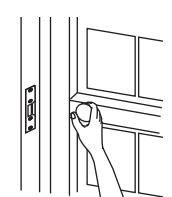
* Audio guidance will be heard depending on the settings.
NOTES:
• For an all-in-one type entrance station:
The door lock is released for the preset time. If the preset release time is "0", it can be released while the button is pressed and held.
For a modular type entrance station:
If the VR1 dial (inside the cover) is set to "M (Momentary)", it can be released while the button is pressed and held.
• Depending on the electric door release system that you use, door release may be active only while the door release button is pressed.
CAUTION :
Be sure to confi rm the visitor securely before releasing the door if the entrance station has no camera.
Operating an optional device 5-3
You can operate an optional device such as a light on this station.
1 Press .
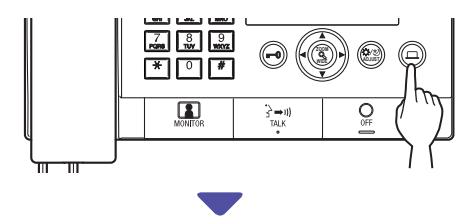
The optional device turns on.
- A signal is sent to the device installed in the site. Please refer to the specifi cations of the device.
- If no optional device is installed, nothing happens when the button is pressed.
5-4 Viewing and adjusting video at an entrance station
You can view video at the target station when receiving a call from or communicating with an entrance station with a camera, or monitoring it. The video can be adjusted as desired by using the following functions.
* These functions are not available for a door station.
Switching Zoom/Wide
The display mode can be switched between zoom and wide by each press of WIDE .
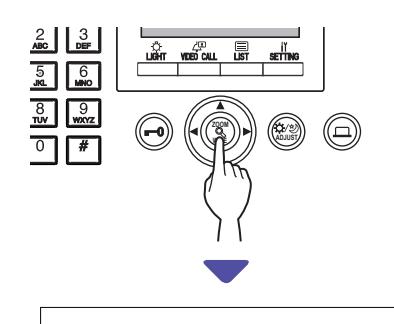

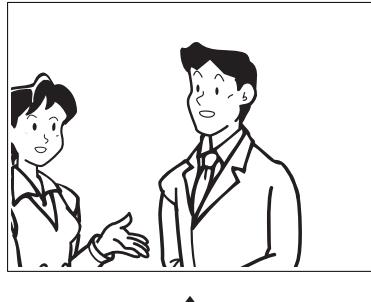


NOTES:
- The preset position of zoom image depends on the setting.
- When the display mode switches from wide to zoom, the zoom image is displayed at the preset position.
- Depending on the properties of the camera, the wide image may appear more distorted than the zoom image but this is not a malfunction.
- The image range of the zoom mode and wide mode differs. The edge of wide image will not be displayed with the zoom mode.
Pan & Tilt
When a zoom image is displayed, pressing WIDE


, moves the image as shown below.
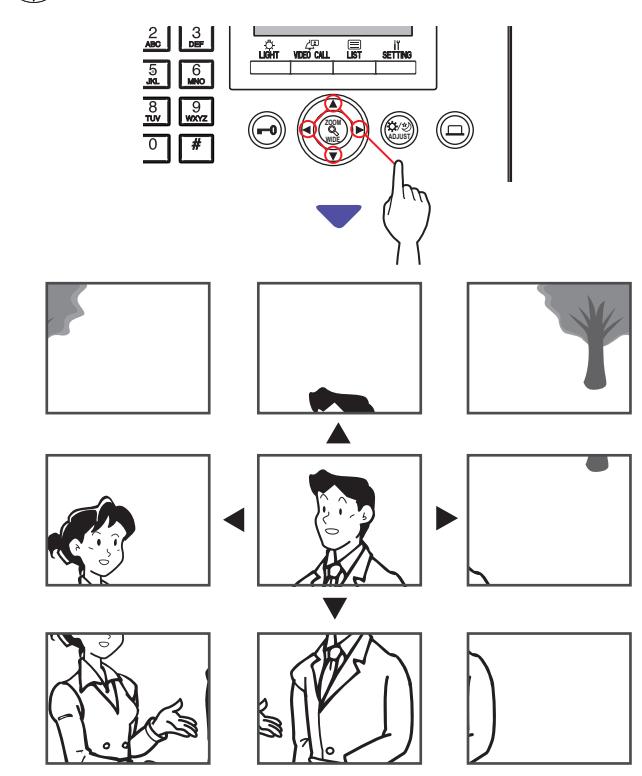
- At night, the object image may be blurred and less-visible when moving the image from right to left or up and down because illumination to the object is reduced. The same applies to a moving object.
- The pan & tilt function is not available for a video door station (JO-DV) .
Adjusting screen view
If the video on the screen is diffi cult to see, you can adjust the screen view.
1 Press ADJUST when the video is diffi cult to see.
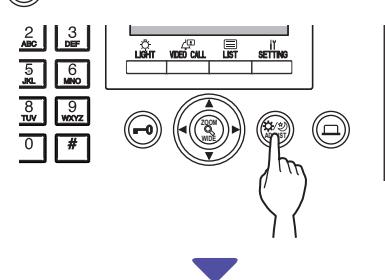
The backlight or night sensitivity is automatically adjusted.
- * The discrimination between day and night is performed automatically by this station.
- * The adjustment result may vary depending on the setting.


[Before adjustment]

[Before adjustment]




[After adjustment] [After adjustment]
To restore the screen view before adjustment
Press ADJUST again.
The icon is cleared and the screen view before adjustment is restored.
- Pressing ADJUST at night may make visitors' faces easier to see, but may also make moving objects more diffi cult to see.
- The screen view adjusting function is not available for a video door station (JO-DV).
6 MONITORING
You can monitor an entrance station or door station.
- * When monitoring an entrance station or door station with a camera, you can view the video at the station and hear the sound.
- * The monitoring function is not available for an entrance station or door station without a camera.
Monitoring from a tenant building

- * For monitoring a door station, start from step 5 .
- 1 In standby mode, press ( ).
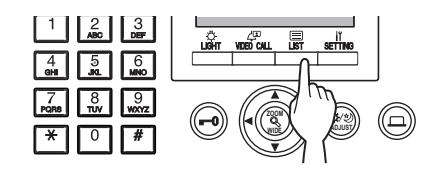
The search item list is displayed.
2 Select "ENTRANCE" by pressing WIDE
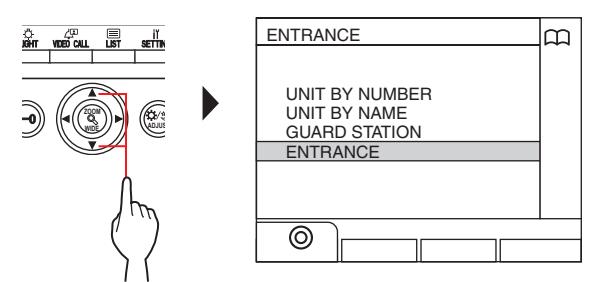
3 Press ( ) or WIDE .
The entrance station list is displayed.
4 Select the target entrance station by pressing
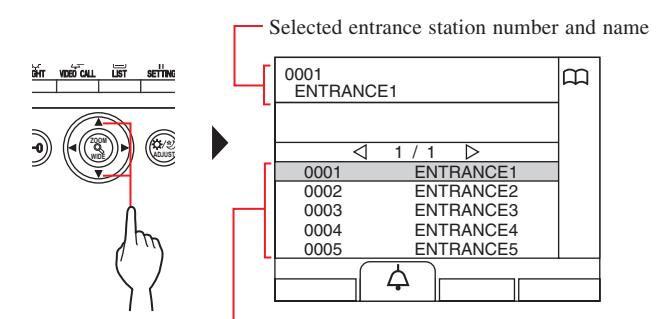
Entrance station numbers and names are displayed in alphabetical or numerical order.
* The arranging method differs depending on the setting.
* Press WIDE or WIDE to turn the page of the list.
* The list is displayed in order of either station number or name.
5 Press .
The sound at the station is heard, and the video is displayed on the screen.
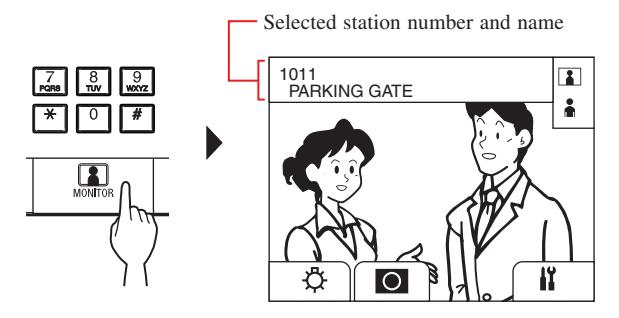
* While monitoring, you can switch zoom/wide, pan & tilt, and adjust the screen view. ( → 5-4 )
6 [To communicate with the station]

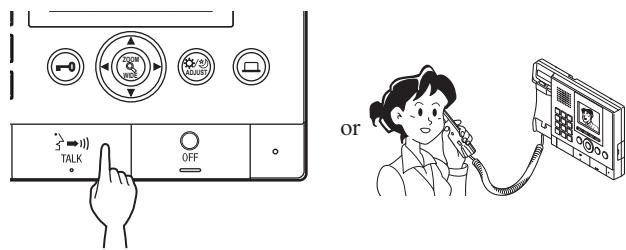
Communication with the station starts and " " is displayed.
* Until this step, the monitored stations cannot hear any sound from the guard station.
7 To end monitoring or communication,
Press or hang up handset.
- Monitoring ends automatically after about 30 seconds.
- Only entrance stations that can be selected by the guard station can be monitored.
- When no door station is installed, pressing has no effect on the display.
Monitoring from a main building

* For monitoring a door station, start from step 7 .
1 In standby mode, press ( ).
The search item list is displayed.
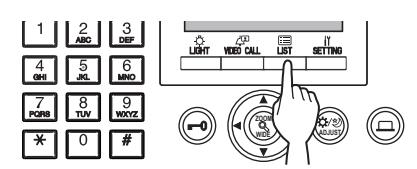
2 Select "ENTRANCE" by pressing WIDE
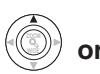

.
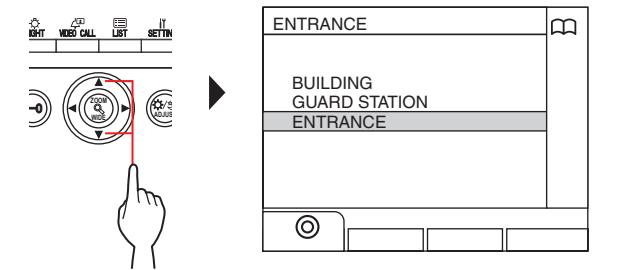
3 Press ( ) or WIDE .
The building list is displayed.
4 Select the target building.
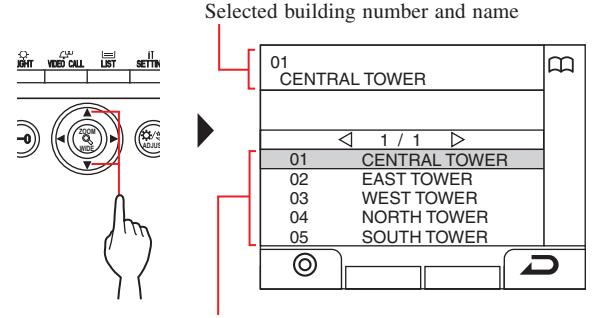
Building numbers and names are displayed in alphabetical or numerical order.
- * The arranging method differs depending on the setting.
- * Press WIDE or WIDE to turn the page of the list.
- * The list is displayed in order of either building number or name.
5 Press ( ) or WIDE .
The entrance station list is displayed.
6 Select the target entrance station.
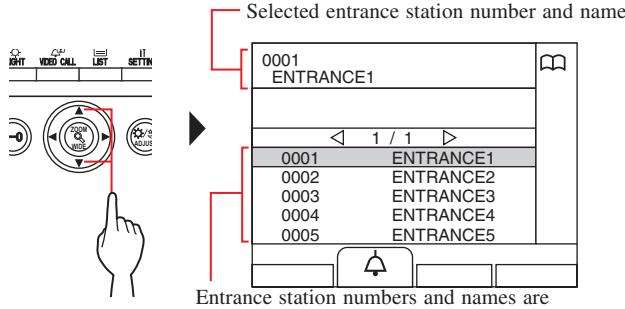
displayed in alphabetical or numerical order. * The arranging method differs depending on the setting.
- * Press WIDE or WIDE to turn the page of the list.
- * The list is displayed in order of either station number or name.
7 Press .
The sound at the station is heard, and the video is displayed on the screen.
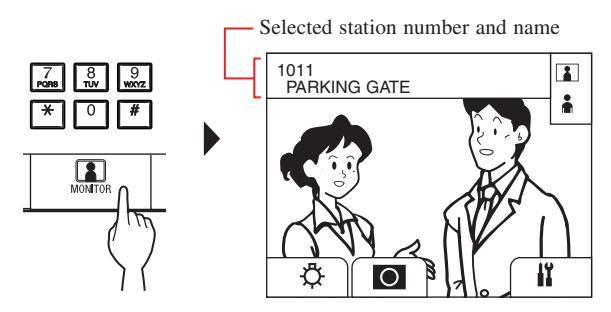
* While monitoring, you can switch zoom/wide, pan & tilt, and adjust the screen view. ( → 5-4 )
8 [To communicate with the station]
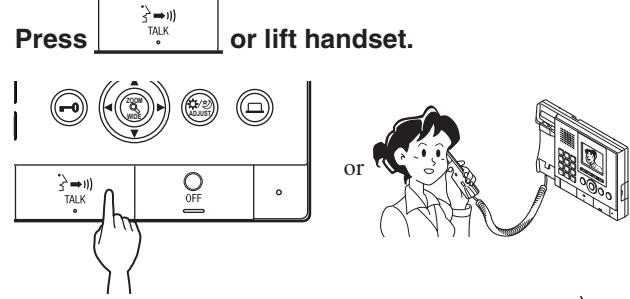
Communication with the entrance station side starts and " " is displayed.
* Until this step, the monitored stations cannot hear any sound from the guard station.
9 To end monitoring or communication,
Press or hang up handset.
- Monitoring ends automatically after about 30 seconds.
- Only entrance stations that can be selected by the guard station can be monitored.
- When no door station is installed, pressing has no effect on the display.
7 OTHER OPERATIONS


7-1 Checking for missed calls and calling back
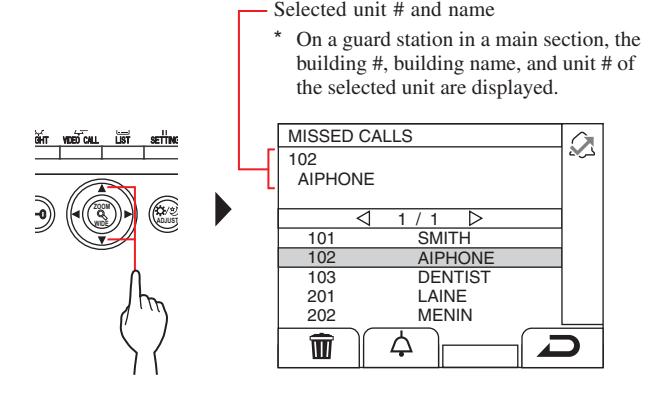
If this station fails to respond to a call from a residential/tenant station, "MISSED CALLS" fl ashes continuously on the display in standby mode, and the status LED on the unit fl ashes. Check the missed calls and call back if necessary.
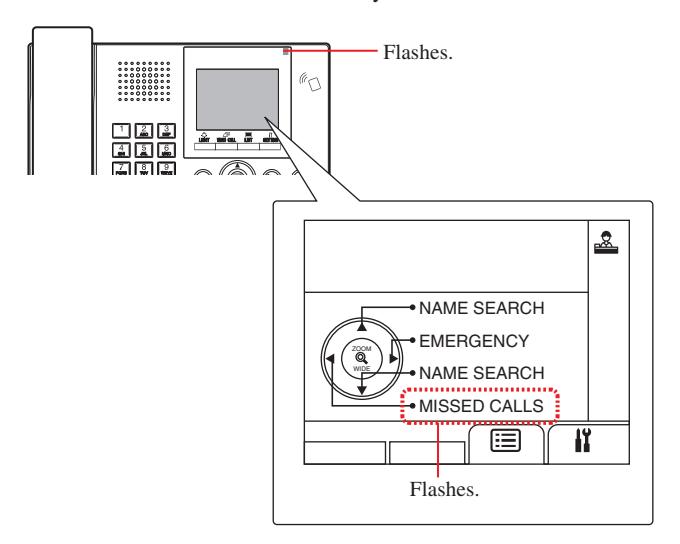
1 To check for missed calls, press WIDE in standby mode.
A record of missed calls is displayed.
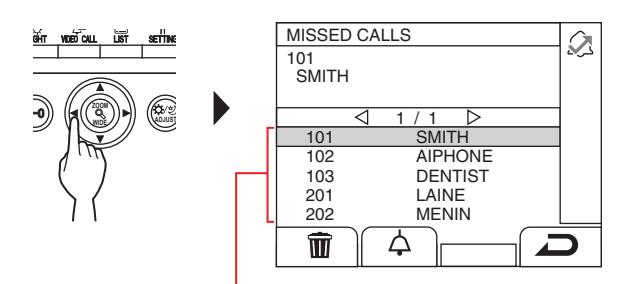
When there are two or more missed calls, they are listed in reverse chronological order.
* On a guard station in a main section, building #, building names, and unit # are displayed.
2 To call back, select the target unit by pressing
- * Press WIDE or WIDE to turn the page of the list.
- * Depending on the settings, only the unit # may be displayed.

When the call is answered
Communication starts and " " is displayed.
4 To end communication,
press or hang up handset.
- The guard station can hold up to 20 missed calls.
- A record of answered calls is not kept.
- While a record of missed calls are displayed, this station cannot enter program mode.
7-2 Receiving an emergency call
When an emergency alarm switch is locked (or when a wire disconnection occurs), an alarm sounds and an "EMERGENCY" screen is displayed on this station. Check for the unit that sent the emergency call, and take the necessary action.
The unit # and name of the unit that sent the emergency call
* On a guard station in a main section, the building #, building name, and unit # are displayed.
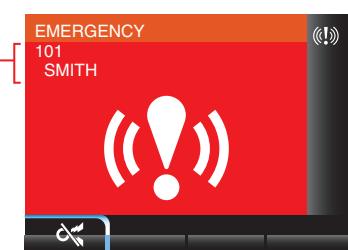
1 To stop the alarm sound, press ( ).
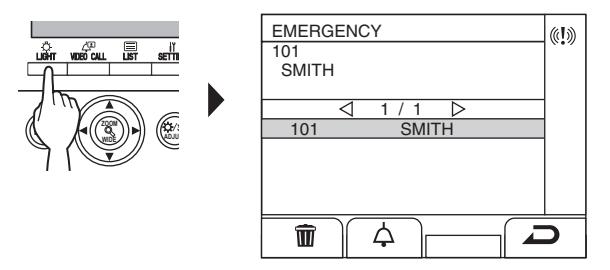
The alarm stops and a record of emergency calls is displayed.
- * On a guard station in a main section, building #, building names, and unit # are displayed.
- * When linked with multiple guard stations, stopping the alarm on any guard station will stop the alarm of all the guard stations.
2 To communicate with the unit, press ( ),
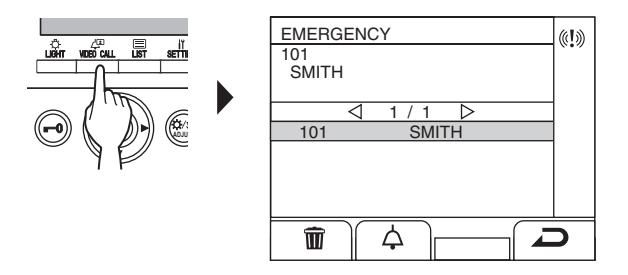
* When there are two or more emergency calls, select one by

- * Press WIDE or WIDE to turn the page of the list.
- * The list is displayed in chronological order.
When the call is answered
Communication starts and " " is displayed.
3 To end communication, press or hang up handset.
To delete an emergency call from the list.
Select the target call by pressing WIDE or WIDE , then press ( ) .
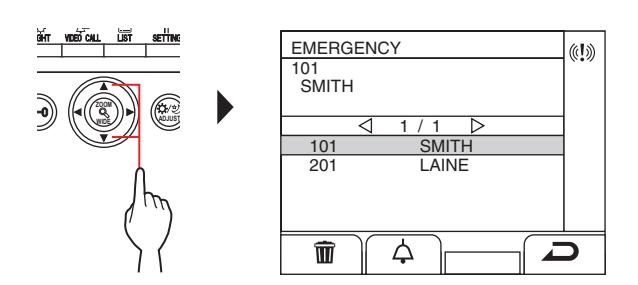
NOTE: While a record of emergency calls are displayed, this station cannot enter program mode.
To display a record of emergency calls
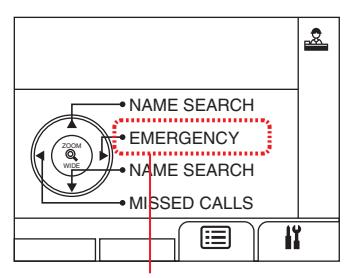
Flashes when there is one or more unchecked emergency calls.
1 Press WIDE ZOOM In standby mode. A record of emergency calls is displayed.
To call a room that sent the emergency call
Select the target record by pressing WIDE or WIDE , and then press ( ), or lift handset.
NOTE: The emergency alarm keeps fl ashing until the target record is deleted from the list. To delete it, select it on the list and then press ( ).
The residential/tenant station keeps sounding the alarm until the emergency alarm switch is restored at the room. In such case, the record of emergency calls cannot be deleted with the guard station. Unless the alarm is restored at the room, no call can be made from the guard station to the room.
Please make sure the alarm is restored at the room.
- If an emergency call is already active on this station and this station is in communication, another guard station cannot interrupt. (An in-use tone will be heard from handset or speaker of the guard station.)
- The emergency alarm is given priority even when the system is in use. (Alarms can be activated at the same time for up to 5 units. This excludes GT-2C-L and GT-2C.)
- Emergency calls can be made while the system is in use.
- With the GT-2C-L and GT-2C, it is possible to transfer to a guard station even when there is a security alarm, depending on the settings.
- Even when the call tone volume is set to mute on the guard station, an alarm goes off at the maximum volume.
8 SETTING


.
8-1 Adjusting display brightness and volumes
Adjusting brightness of the display
1 In standby mode, press .
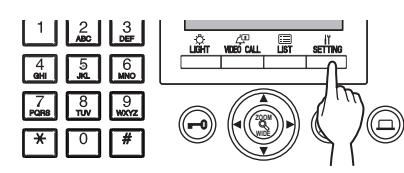
The SETTINGS screen is displayed.
2 Select "BRIGHTNESS" by pressing WIDE
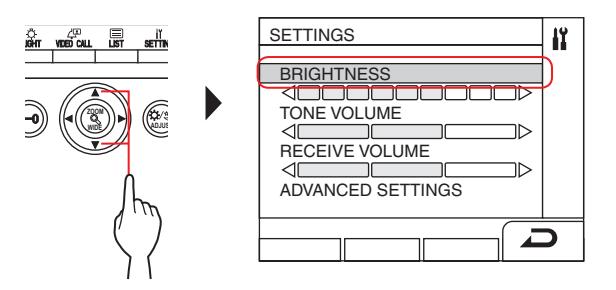
3 Adjust the brightness by pressing WIDE
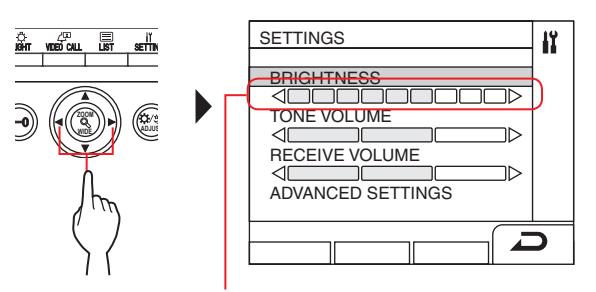
Adjustment can be made in 10 levels.
To return to the previous screen
Press ( ).
- To adjust brightness of the display while being called or in communication
- 1 While being called or in communication, press .
- 2 Press ( ).
- 3 Adjust the brightness by pressing WIDE
Adjusting the call tone volume
You can adjust the call tone volume at this station.
- 1 In standby mode, press . The SETTINGS screen is displayed.
- 2 Select "TONE VOLUME" by pressing WIDE or .
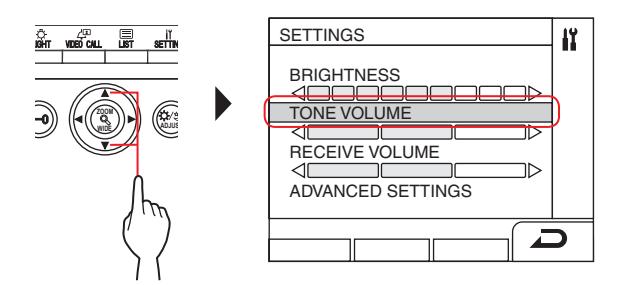
3 Adjust the volume by pressing WIDE or WIDE
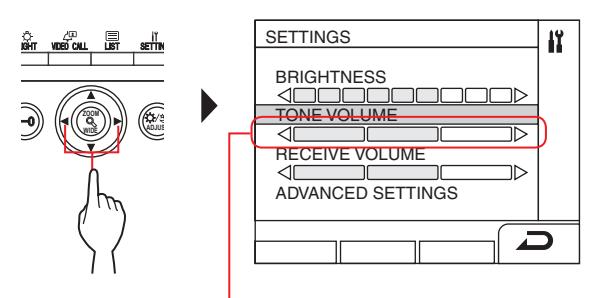
Adjustment can be made in 4 levels. ("Mute" is available.)
* If set to "mute", the status LED will fl ash with long intervals. ( → 1-2 )
To return to the previous screen
Press ( ).
- To adjust the call tone volume while being called or in communication
- 1 While being called or in communication, press .
- 2 Press .
- 3 Adjust the volume by pressing WIDE

Adjusting the receive volume
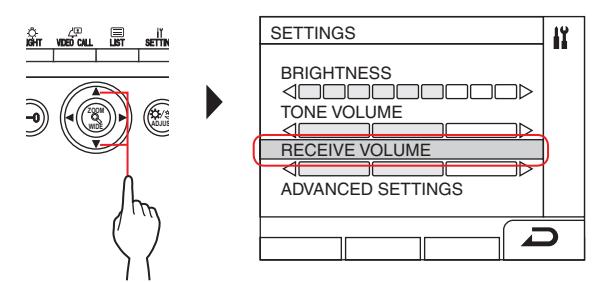
You can adjust the speaker volume of this station.
1 In standby mode, press .
The SETTINGS screen is displayed.
2 Select "RECEIVE VOLUME" by pressing WIDE
.

3 Adjust the volume by pressing WIDE or WIDE
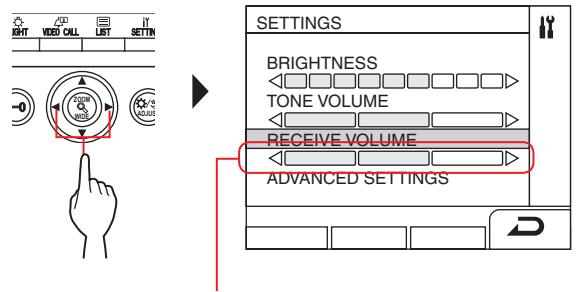
Adjustment can be made in 3 levels.
To return to the previous screen
Press ( ).
- To adjust the receive volume while being called or in communication
- 1 While being called or in communication, press .
- 2 Press ( ).
- 3 Adjust the volume by pressing WIDE or WIDE .
8-2 Switching to reception mode
* This section describes the reception mode and how to confi gure it. Refer to steps 2 to 3 of " 5-1 Transferring a call " for the operating procedure.
What is reception mode?
In reception mode, all of the calls from entrance stations to residential/tenant stations are fi rst transferred to guard stations. You can transfer the calls to residential/tenant stations after confi rming they are not unwanted calls to the target residents.
[Normal mode]
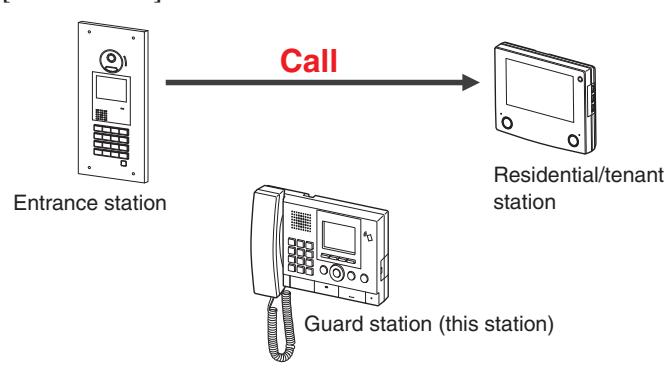
[Reception mode]
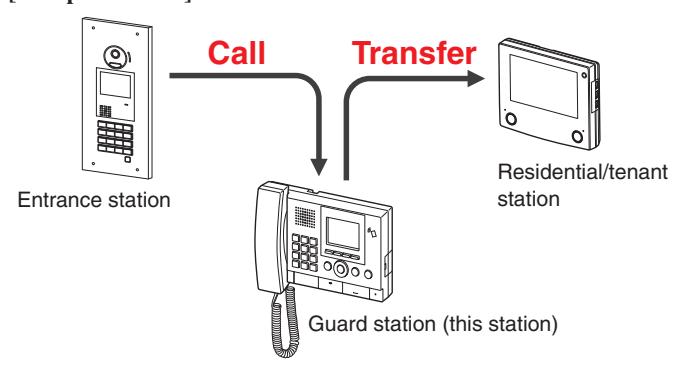
NOTES:
• In a main building:
Calls from an entrance station are transferred to all guard stations in the building. The call tone sounds on all guard stations at the same time.
In a tenant building:
Calls from an entrance station are transferred to all guard stations in the tenant building that are linked to the corresponding residential/tenant station. The call tone sounds on all guard stations at the same time.
• A call to a residential/tenant station that is not linked to a guard station will result in a call to the residential/tenant station directly.
- Switching this station between normal mode and reception mode
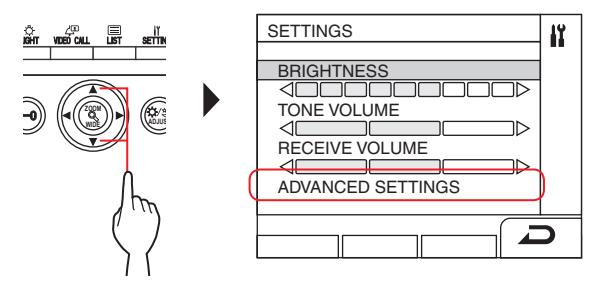
- 1 In standby mode, press . The SETTINGS screen is displayed.
- 2 Select "ADVANCED SETTINGS"
by pressing WIDE or WIDE .
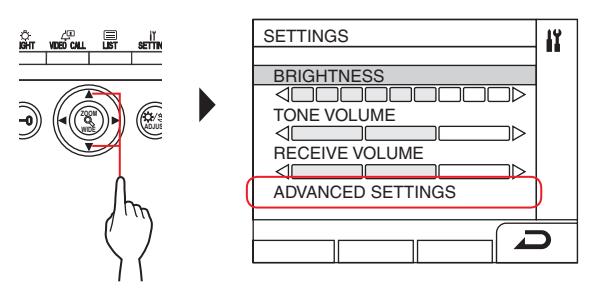
3 Select "RECEPTION MODE"
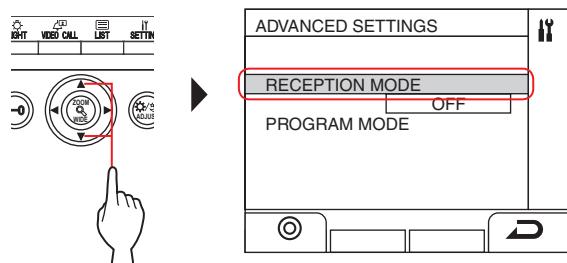
- 4 Press ( ) or WIDE ZOOM .
- 5 Change reception mode to "ON" or "OFF" by pressing WIDE or WIDE .
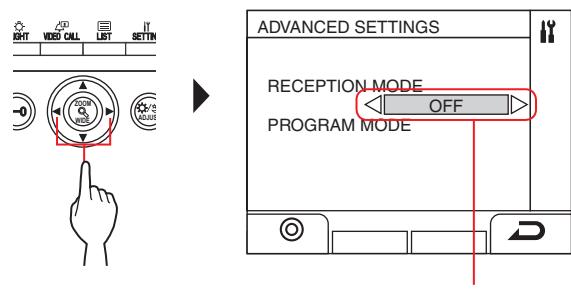
ON: Reception mode is active. OFF: Normal mode is active.
-
6 Press ( ) or WIDE .
- * When this station is in reception mode, the status LED will fl ash slowly. ( → 1-2 )
To return to the previous screen
Press ( ).
8-3 Switching to program mode
* This operation is for Administrators and Managers only
Entering a passcord is needed to switch this station into program mode. Ask the system installer for the passcord.
- * A registered NFC-compliant IC card can be used instead of a passcord.
- 1 In standby mode, press (or pass an registered NFC-compliant IC card over the NFC reader).
The SETTINGS screen is displayed.
2 Select "ADVANCED SETTINGS"

3 Select "PROGRAM MODE"
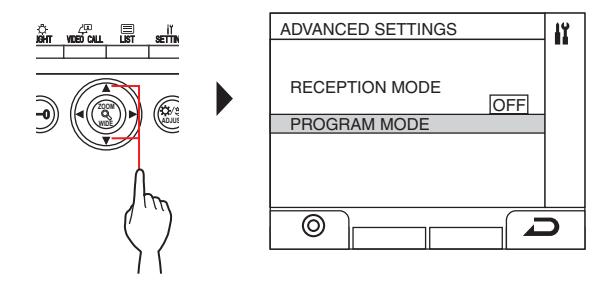
4 Press ( ) or WIDE .
The passcord entry screen is displayed.
- 5 Enter the passcord.
- * Refer to the GT SYSTEM SETTING MANUAL/Standard & Expanded System for details about the settings.
NOTE: An NFC card can be used with either "Admin" or "Manager" authority. (→ GT SYSTEM SETTING MANUAL/Standard & Expanded System )
9 UPDATING RESIDENT INFORMATION
Refer to the GT SYSTEM/SETTING MANUAL .
- For single building system ( → GT SYSTEM SETTING MANUAL/Standard & Expanded System)
- For multi building system ( → GT SYSTEM SETTING MANUAL/Multi Building System)
When using an Android device ( → GT SYSTEM SETTING MANUAL/Aiphone GT Setup Tool for Android )
Android is a trademark of Google Inc. in the United States and/or other countries.
FOR PROPER USE OF THIS STATION
1 TECHNICAL PRECAUTIONS
[For guard station only]
- The video image may distort when door release is activated. This is not a station malfunction.
- If a zoom/wide, pan/tilt, door release operation or brightness adjustment is performed during communication with the entrance station, noise will be produced at the entrance station. This is not a malfunction.
[General]
• If there is a system malfunction, contact a qualifi ed technician for service.
• Cleaning:
Clean the units with a soft cloth dampened with a neutral household cleanser. Do not use any abrasive cleaner or cloth. CAUTION : Do not use chemicals such as thinner or benzine. In addition, do not use a scrub brush, sandpaper, etc. Otherwise the unit surface could be damaged or discolored.
2 SPECIFICATIONS
Entrance station (modular type)
Camera module (GT-VB)
| Power source | Supplied from GT-VBC |
|---|---|
| Ambient temperature | - 10°C - +60°C (+14°F - +140°F) |
| Material | Self-extinguishing PC+ABS resin |
| 108 (W) x 93 (H) x 55 (D) mm | |
| Dimensions | 4-1/4" (W) x 3-11/16" (H) x 2-3/16" (D) |
| Mass | Approx. 130g (0.29 lbs.) |
Camera module panel (GT-VP)
| Material | Zinc die cast |
|---|---|
| Color | Metallic beige |
| Dimensions |
110 (W) x 95 (H) x 8 (D) mm
4-5/16" (W) x 3-3/4" (H) x 5/16" (D) |
| Mass | Approx. 150g (0.34 lbs.) |
Audio module (GT-DB/GT-DB-V/GT-DB-VN)
| Power source | Supplied from GT-BC |
|---|---|
| Ambient temperature | - 10°C - +60°C (+14°F - +140°F) |
| Material | Self-extinguishing ABS resin |
| Dimensions | 108 (W) x 93 (H) x 53.4 (D) mm |
| 4-1/4" (W) x 3-11/16" (H) x 2-1/8" (D) | |
| Mass | GT-DB, GT-DB-V: Approx. 210g (0.47 lbs) |
| GT-DB-VN: Approx. 220g (0.49 lbs) |
Audio panel (GT-DBP)
| Material | Zinc die cast |
|---|---|
| Color | Metallic beige |
| Dimensions |
109.7 (W) x 94.9 (H) x 7.9 (D) mm
4-5/16" (W) x 3-3/4" (H) x 5/16" (D) |
| Mass | Approx. 95g (0.21 lbs) |
Name scrolling module (GT-NSB)
| Power source |
DC 24V supplied from a power supply unit
(PS-2420 etc.) |
|---|---|
| Ambient temperature | - 10°C - +60°C (+14°F - +140°F) |
| Material | Self-extinguishing ABS resin |
| Dimensions | 104.6 (W) x 88.3 (H) x 49.1 (D) mm |
| 4-1/8" (W) x 3-1/2" (H) x 1-15/16" (D) | |
| Mass | Approx. 140g (0.31 lbs) |
Name scrolling module panel (GT-NSP-L)
| Material | Panel: Zinc die cast |
|---|---|
| Window: Polycarbonate | |
| Bottom: Chrome plated zinc die cast | |
| Color | Metallic beige |
| Dimensions | 110 (W) x 96 (H) x 31.2 (D) mm |
| 4-5/16" (W) x 3-3/4" (H) x 1-3/4" (D) | |
| Mass | Approx. 200g (0.49 lbs.) |
Call switch module (GT-SW)
| Power source | Supplied from GT-DB/GT-DB-V/GT-DB-VN |
|---|---|
| Ambient temperature | - 10°C - +60°C (+14°F - +140°F) |
| Material | Self-extinguishing ABS plastic |
| Dimensions | 90.5 (W) x 106 (H) x 42.5 (D) mm |
| 3-9/16" (W) x 4-3/16" (H) x 1-11/16" (D) | |
| Mass | Approx. 90g (0.199 lbs.) |
1-call button panel (GF-1P)/2-call button panel (GF-2P)/ 3-call button panel (GF-3P)/4-call button panel (GF-4P)
| Panel: Zinc die cast | |
|---|---|
| Material | Window: Polycarbonate |
| Bottom: Chrome plated zinc die cast | |
| Color | Metallic beige |
| Dimensions | 110 (W) x 95.2 (H) x 15.8 (D) mm |
| 4-5/16" (W) x 3-3/4" (H) x 5/8" (D) | |
| Mass | GF-1P: Approx. 180g (0.40 lbs.) |
| GF-2P: Approx. 190g (0.42 lbs.) | |
| GF-3P: Approx. 190g (0.42 lbs.) | |
| GF-4P: Approx. 200g (0.45 lbs.) |
10-key module panel (GF-10KP)
| Material |
Panel: Zinc die cast
Box: Chrome plated steel |
|---|---|
| Color | Metallic beige |
| Dimensions |
110 (W) x 96.1 (H) x 38.2 (D) mm
4-5/16" (W) x 3-13/16" (H) x 15/16" (D) |
| Mass | Approx. 310g (0.69 lbs.) |
Address module (GF-AD)
| Power source | Supplied from GT-DB/GT-DB-V/GT-DB-VN |
|---|---|
| Ambient temperature | - 10°C - +60°C (+14°F - +140°F) |
| Material | Self-extinguishing ABS plastic |
| Dimensions | 105.6 (W) x 88.3 (H) x 42.5 (D) mm |
| 4-3/16" (W) x 3-1/2" (H) x1-11/16" (D) | |
| Mass | Approx. 90g (0.199 lbs.) |
Address module panel (GF-AP)
| Material | Panel: Zinc die cast |
|---|---|
| Window: Polycarbonate | |
| Color | Metallic beige |
| Dimensions | 110 (W) x 95.2 (H) x 14.3 (D) mm |
| 4-5/16" (W) x 3-3/4" (H) x 9/16" (D) | |
| Mass | Approx. 150g (0.34 lbs.) |
Blank panel (GF-BP)
| Material | Zinc die cast |
|---|---|
| Color | Metallic beige |
| Dimensions |
110 (W) x 95.2 (H) x 14.3 (D) mm
4-5/16" (W) x 3-3/4" (H) x 9/16" (D) |
| Mass | Approx. 190g (0.42 lbs.) |
4-module front frame (GF-4F)/3-module front frame (GF-3F)/2-module front frame (GF-2F)
| Front frame: Zinc die cast | |
|---|---|
| Material | Mounting bracket: Stainless steel |
| Color | Metallic beige |
| GF-2F: 135 (W) x 225 (H) x 16 (D) mm | |
| 5-5/16" (W) x 8-7/8" (H) x 5/8" (D) | |
| GF-3F: 135 (W) x 320 (H) x 16 (D) mm | |
| Dimensions | 5-5/16" (W) x 12-5/8" (H) x 5/8" (D) |
| GF-4F: 135 (W) x 425 (H) x 16 (D) mm | |
| 5-5/16" (W) x 16-3/4" (H) x 5/8" (D) | |
| GF-2F: | |
| Front frame: Approx. 400g (0.89 lbs.) | |
| Mounting bracket: Approx. 200g (0.45 lbs.) | |
| GF-3F: | |
| Mass | Front frame: Approx. 490g (1.09 lbs.) |
| Mounting bracket: Approx. 250g (0.56 lbs.) | |
| GF-4F: | |
| Front frame: Approx. 660g (1.46 lbs.) | |
| Mounting bracket: Approx. 290g (0.64 lbs.) |
Entrance station (all-in-one type)
All-in-one entrance station (GT-DMB-N/GT-DMB-LVN)
| Power source | DC 24V supplied from a power supply unit (PS-2420 |
|---|---|
| etc.) | |
| Ambient temperature | - 10°C - +60°C (+14°F - +140°F) |
| Panel: Stainless steel | |
| Material | Case: Self-extinguishing ABS resin |
| Panel: Stainless steel with hairline fi nishing | |
| Color | Case: Black |
| Dimensions | GT-DMB-N: 150 (W) x 320 (H) x 38.2 (D) mm |
| 5-7/8" (W) x 12-5/8" (H) x 1-1/2" (D) | |
| GT-DMB-LVN: 150 (W) x 425 (H) x 38.2 (D) mm | |
| 5-7/8" (W) x 16-3/4" (H) x 1-1/2" (D) | |
| Mass | GT-DMB-N: Approx. 1,200g (2.70 lbs) |
| GT-DMB-LVN: Approx. 1,500g (3.3 lbs) |
Guard station
Guard station (GT-MKB-N)
| Power source | DC 24V supplied from a power supply unit |
|---|---|
| (PS-2420 etc.) | |
| Open voice: Voice-actuated | |
| Handset: Voice-actuated/Full-duplex (only when | |
| Communication | the other side is talking using the handset of |
| GT-MKB-N or GT-1D) | |
| Ambient temperature | 0 - 40°C (+32°F - +104°F) |
| Monitor | 3.5 inch TFT color LCD |
| Desktop use (with desktop stand) or surface | |
| Mounting | wall-mount |
| Material | Self-extinguishing ABS resin |
| Color | Black |
| Dimensions | 250 (W) x 189 (H) x 59 (D) mm |
| 9-13/16" (W) x 7-7/16" (H) x 2-5/16" (D) | |
| Mass | Approx. 820g (1.81 lbs) |
| When used with desk stand: | |
| Approx. 1,200g (2.70 lbs) |
Door station
Vandal-resistant video door station (surface-mount) (JO-DV)
| Power source | Supplied from guard station |
|---|---|
| Communication | Open voice hands-free communication |
| Ambient temperature | - 20°C - +60°C (- 4°F - +140°F) |
| Material | Front panel: Zinc die cast |
| Main unit: Self-extinguishing | |
| Color | Front panel: Silver |
| Dimensions | 98 (W) x 173 (H) x 27 (D) mm |
| 3-7/8" (W) x 6-13/16" (H) x 1-1/16" (D) | |
| Mass | Approx. 650g (1.44 lbs.) |
| Remarks | IP54, IK08 |
3 SOFTWARE LICENSE
Notice regarding software
Use of the software installed on this product has received direct or indirect authorization from third parties.
(1) GPL/LGPL
This product includes software components subject to the GPL/LGPL.
Customers can obtain, modify, and re-distribute the source code of the software components according to the GPL/LGPL.
Hereafter referred to as the link
Open source code
This product includes software components subject to the GPL/LGPL, and customers can obtain, modify, and re-distribute the source code of the software components according to the GPL/LGPL. In addition, you can fi nd details on the GPL/LGPL through the following links.
http://www.gnu.org/licenses/gpl.html
http://www.gnu.org/licenses/lgpl.html
Please confi rm the following contents when downloading.
<<Please confi rm>>
- ■ According to GPL/LGPL, the source code of the software components is not guaranteed, including warranty on "merchantability" or "suitability for a particular purpose."
- ■ The source code of the software components are according to the "status quo," and are provided based on the GPL/LGPL.
- ■ Please understand that we cannot answer questions regarding the content of the source code of the software components.
BSD License
Copyright (c) 2017, AIPHONE CO.,LTD All rights reserved.
Redistribution and use in source and binary forms, with or without modifi cation, are permitted provided that the following conditions are met:
- 1. Redistributions of source code must retain the above copyright notice, this list of conditions and the following disclaimer.
- 2. Redistributions in binary form must reproduce the above copyright notice, this list of conditions and the following disclaimer in the documentation and/or other materials provided with the distribution.
THIS SOFTWARE IS PROVIDED BY THE COPYRIGHT HOLDERS AND CONTRIBUTORS "AS IS" AND ANY EXPRESS OR IMPLIED WARRANTIES, INCLUDING, BUT NOT LIMITED TO, THE IMPLIED WARRANTIES OF MERCHANTABILITY AND FITNESS FOR A PARTICULAR PURPOSE ARE DISCLAIMED. IN NO EVENT SHALL THE COPYRIGHT OWNER OR CONTRIBUTORS BE LIABLE FOR ANY DIRECT, INDIRECT, INCIDENTAL, SPECIAL, EXEMPLARY, OR CONSEQUENTIAL DAMAGES (INCLUDING, BUT NOT LIMITED TO, PROCUREMENT OF SUBSTITUTE GOODS OR SERVICES; LOSS OF USE, DATA, OR PROFITS; OR BUSINESS INTERRUPTION) HOWEVER CAUSED AND ON ANY THEORY OF LIABILITY, WHETHER IN CONTRACT, STRICT LIABILITY, OR TORT (INCLUDING NEGLIGENCE OR OTHERWISE) ARISING IN ANY WAY OUT OF THE USE OF THIS SOFTWARE, EVEN IF ADVISED OF THE POSSIBILITY OF SUCH DAMAGE.
The views and conclusions contained in the software and documentation are those of the authors and should not be interpreted as representing offi cial policies, either expressed or implied, of the FreeBSD Project.
4 REGULATIONS
FCC
This device complies with part 15 of the FCC Rules. Operation is subject to the following two conditions: (1) This device may not cause harmful interference, and (2) this device must accept any interference received, including interference that may cause undesired operation.
Changes or modifi cations not expressly approved by the party responsible for compliance could void the user's authority to operate the equipment.
NOTE: This equipment has been tested and found to comply with the limits for a Class B digital device, pursuant to part 15 of the FCC Rules. These limits are designed to provide reasonable protection against harmful interference in a residential installation. This equipment generates, uses and can radiate radio frequency energy and, if not installed and used in accordance with the instructions, may cause harmful interference to radio communications. However, there is no guarantee that interference will not occur in a particular installation. If this equipment does cause harmful interference to radio or television reception, which can be determined by turning the equipment off and on, the user is encouraged to try to correct the interference by one or more of the following measures:
- Reorient or relocate the receiving antenna.
- Increase the separation between the equipment and receiver.
- Connect the equipment into an outlet on a circuit different from that to which the receiver is connected.
- Consult the dealer or an experienced radio/TV technician for help.
INDUSTRY CANADA
CAN ICES-3 (B)/NMB-3(B)
This device complies with Industry Canada's licence-exempt RSSs. Operation is subject to the following two conditions: (1) This device may not cause interference; and (2) This device must accept any interference, including interference that may cause undesired operation of the device.
RED
Hereby, Aiphone Co., Ltd. declares that the radio equipment type [GT-DB-VN, GT-DMB-N, GT-DMB-LVN, GT-MKB-N, GT-BCXB-N] is in compliance with Directive 2014/53/EU. The full text of the EU declaration of conformity is available at the following internet address: http://www.aiphone.net/
GT-MKB-N: 13.56MHz / Max. 20.0 dBm GT-DMB-N: 13.56MHz / Max. 20.0 dBm GT-DMB-LVN: 13.56MHz / Max. 20.0 dBm GT-DB-VN: 13.56MHz / Max. 20.0 dBm GT-BCXB-N: 13.56MHz / Max. 20.0 dBm
NCC
電信法第48條
低功率電波輻射性電機管理辦法
第十二條
經型式認證合格之低功率射頻電機,非經許可,公司、商號或 使用者均不得擅自變更頻率、加大功率或變更原設計之特性及 功能。
第十四條
低功率射頻電機之使用不得影響飛航安全及干擾合法通信;經 發現有干擾現象時,應立即停用,並改善至無干擾時方得繼續 使用。
前項合法通信,指依電信法規定作業之無線電通信。
低功率射頻電機須忍受合法通信或工業、科學及醫療用電波輻 射性電機設備之干擾。
WEEE
The object area of is the EU.
5 WARRANTY
Aiphone warrants its products to be free from defects of material and workmanship under normal use and service for a period of 2 years after delivery to the ultimate user and will repair free of charge or replace at no charge, should it become defective upon which examination shall disclose to be defective and under warranty. Aiphone reserves unto itself the sole right to make the fi nal decision whether there is a defect in materials and/or workmanship; and whether or not the product is within the warranty. This warranty shall not apply to any Aiphone product which has been subject to misuse, neglect, accident, power surge, or to use in violation of instructions furnished, nor extended to units which have been repaired or altered outside of the factory. This warranty does not cover batteries or damage caused by batteries used in connection with the unit. This warranty covers bench repairs only, and any repairs must be made at the shop or place designated in writing by Aiphone. This warranty is limited to the standard specifi cations listed in the operation manual. This warranty does not cover any supplementary function of a third party product that is added by users or suppliers. Please note that any damage or other issues caused by failure of function or interconnection with Aiphone products is also not covered by this warranty. Aiphone will not be responsible for any costs incurred involving on site service calls. Aiphone will not provide compensation for any loss or damage incurred by the breakdown or malfunction of its products during use, or for any consequent inconvenience or losses that may result.

Issue Date: Jun. 2017