Aiphone GT Series Legacy Quik Start Installation Guide
Open the original PDF document
View PDF

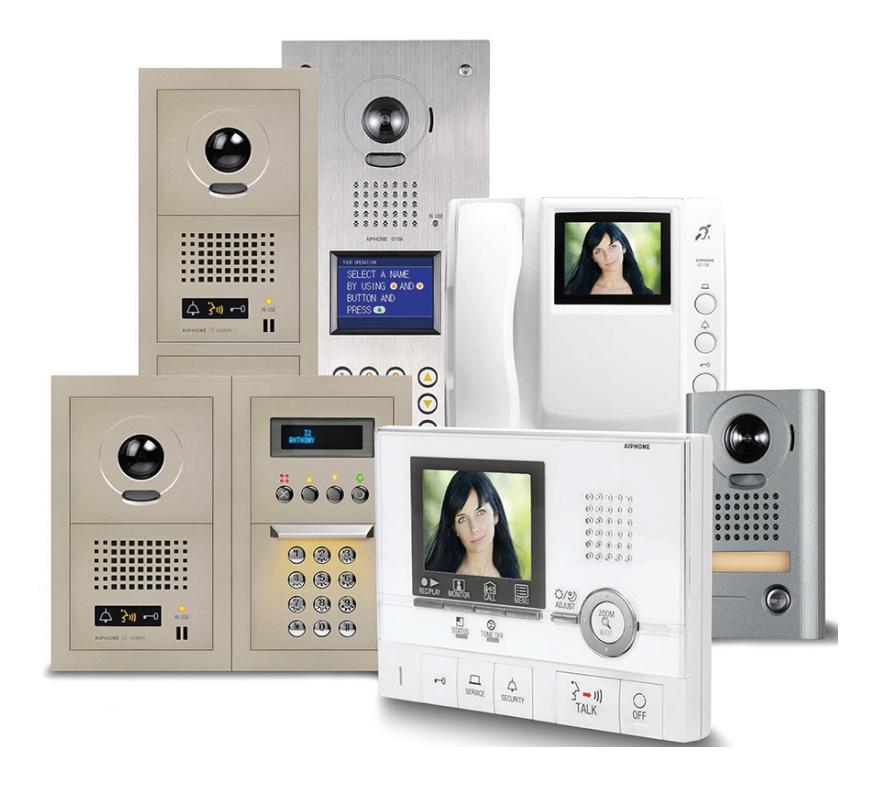
GT SERIES
Multi-Tenant Entry Security
QuikStart Installation Guide
Installation Videos

ATTENTION:
This is an abbreviated Installation Manual, addressing wiring and programming of the GT Series. The complete GT Series Installation Manual is located on the CD supplied with the GT-BC Bus Control Unit. Access the PDF file from the CD and print the entire manual if a hard copy is needed. If installing a digital entry system, the program for loading names and numbers for each tenant is also located on the CD.
SYSTEM WIRING: AUDIO ONLY DIRECT SELECT & DIGITAL DISPLAY ENTRANCE STATIONS
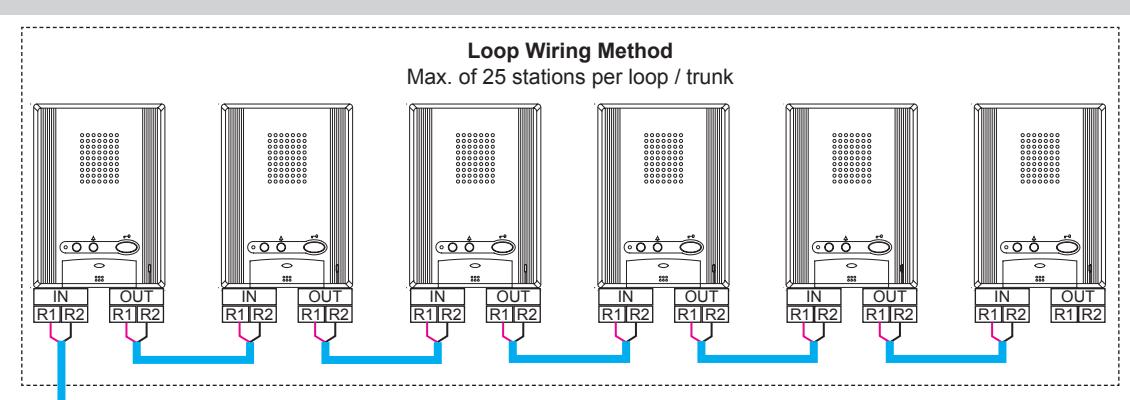
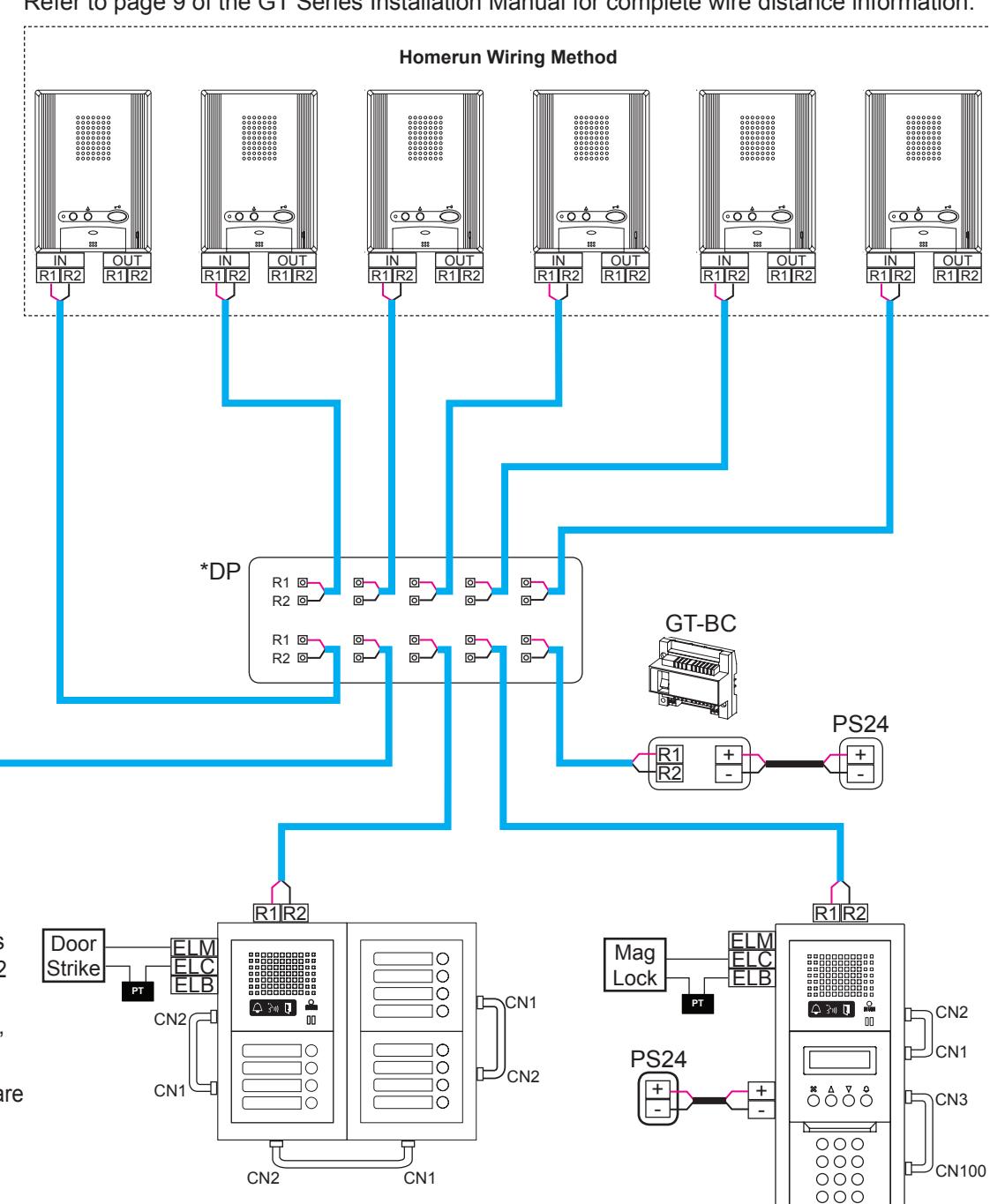
Max. wire distance from distribution point to any tenant is 980'.
Max. cumulative wire distance is 8200'.
Refer to page 9 of the GT Series Installation Manual for complete wire distance information.
WIRE TYPE
872002 20AWG 2 Cond. Solid Non Shielded PE Insulated
871802 18AWG 2 Cond. Solid Non Shielded PE Insulated
POWER
PS24
PS-2420UL
PT
Power Transformer (Use proper power for the Strike or Mag Lock being used).
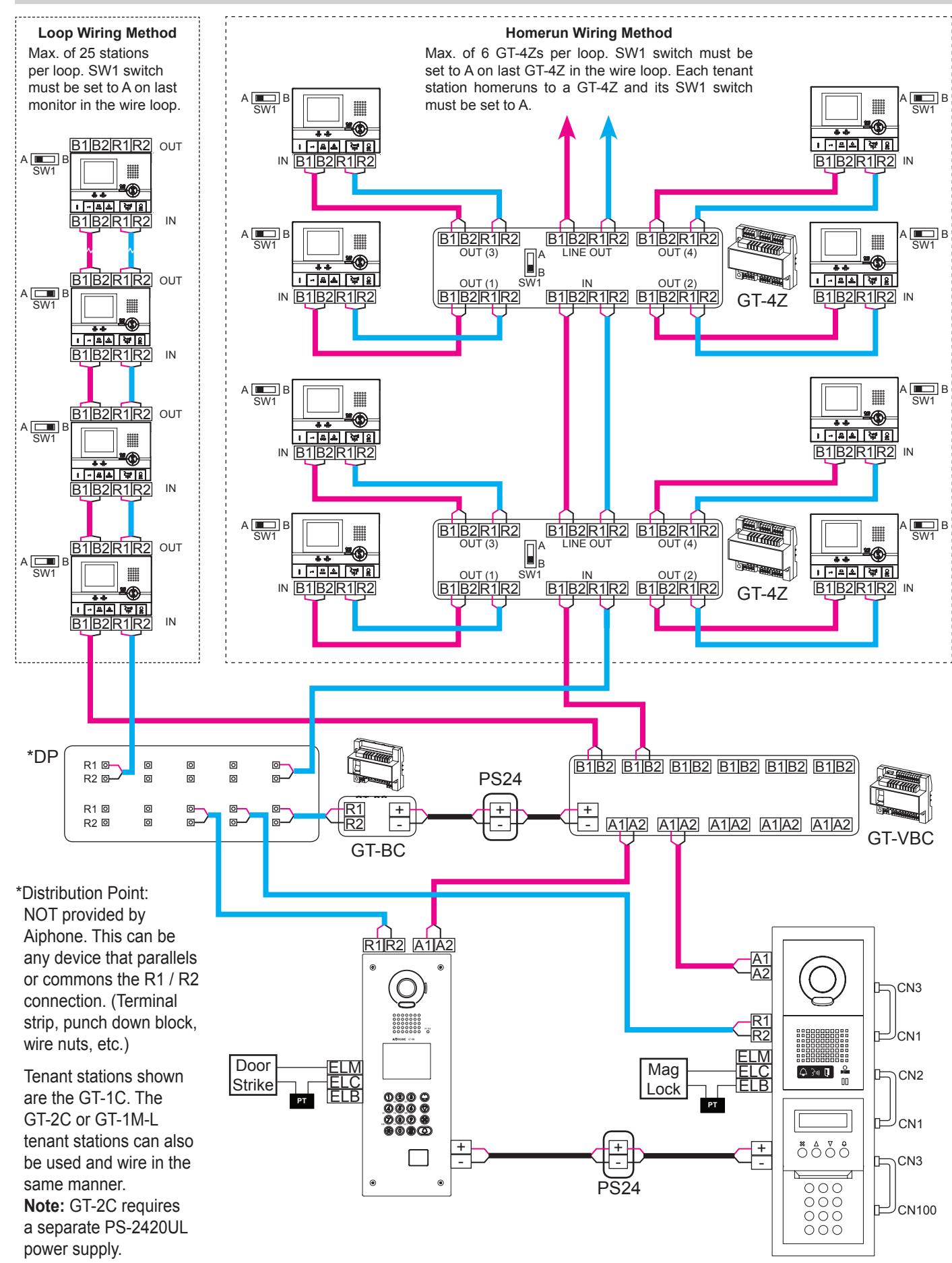
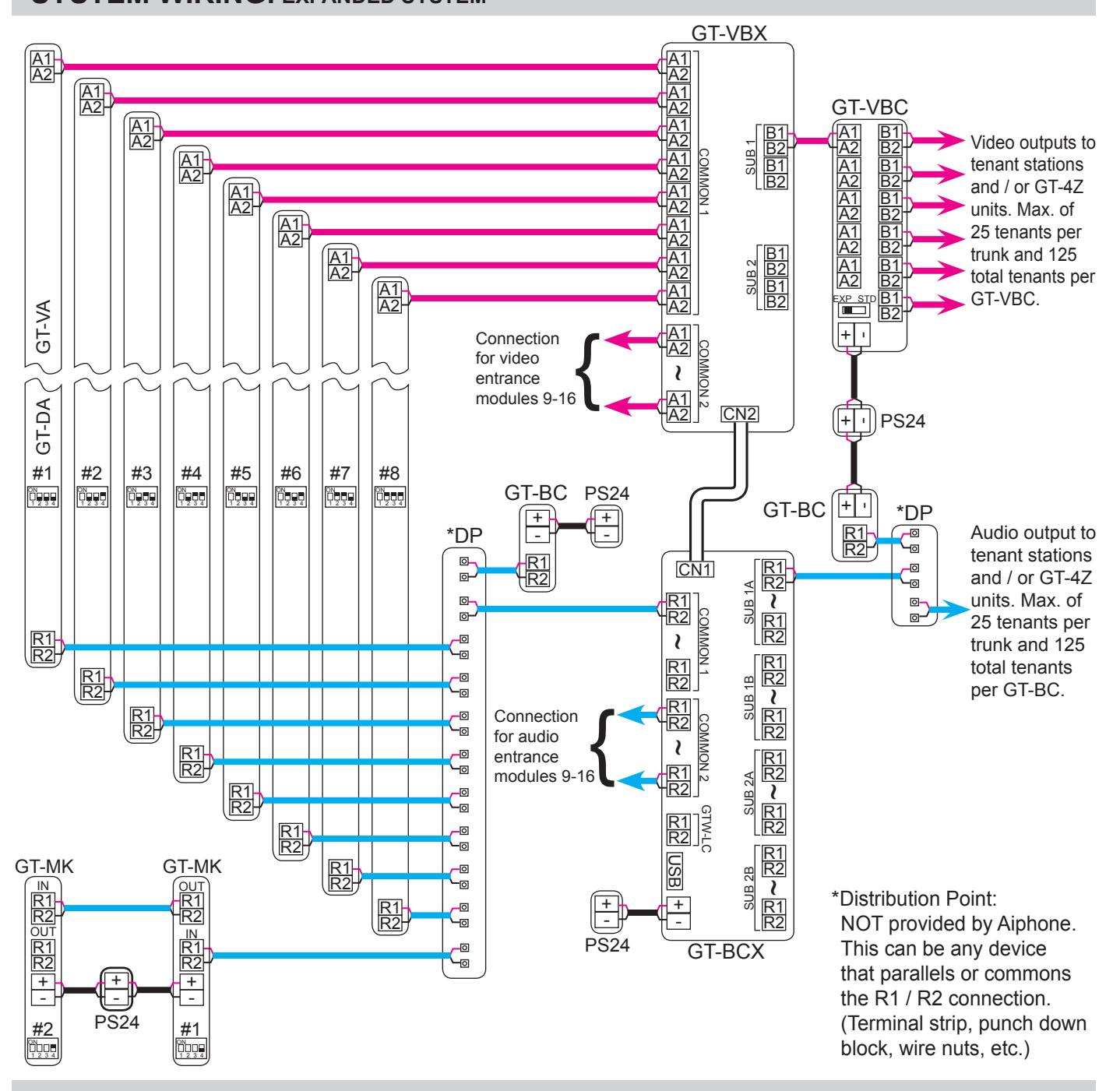
*Distribution Point: NOT provided by Aiphone. This can be any device that parallels or commons the R1 / R2 connection. (Terminal strip, punch down block, wire nuts, etc.)
Tenant stations shown are the GT-1A. The GT-1D tenant stations can also be used and wire in the same manner.
SYSTEM WIRING: AUDIO / VIDEO ALL-IN-ONE & DIGITAL ENTRANCE STATIONS
SYSTEM WIRING: EXPANDED SYSTEM
OPTION CONNECTOR: TENANT STATIONS

Option connector DC (Mow) DC (Oange) Doctor call (Automatic entry) RY (Mile) RY (Mile) SW (Gay) Option contact output
Only the option connectors for the GT-2C, GT-1C, and GT-1A are shown here. For information on other tenant station option connectors and for technical specifications for each connection, refer to pages 30-31 of the GT Series Installation Manual.
DIP SWITCH SETTINGS: ENTRANCE STATION (REQUIRED)
Entrance ID Setting:
Use SW2 on the GT-DA-L module or SW1 on the GT-DM entrance station to set the ID settings for each entry panel. Only switches 2, 3, & 4 are used for this setting.

DIP SWITCH SETTINGS: ENTRANCE STATION (OPTIONAL)
NOTE:
When using the GT-DM, the settings listed below will be done via the keypad / display while in programming mode. Refer to the GT Series Installation Manual (pages 43 - 49) for set-up instructions.
Guidance Language Setting:
The guidance is set to off (No Guidance) when shipped. Use SW3 on the GT-DA-L module to set the appropriate language. Only switches 2, 3, & 4 are used for this setting.


ON 1 2 3 4
Entrance Monitoring:
Use switch 1 of SW2 on the GT-DA-L module to enable / disable entrance monitoring. Default is "Monitoring not possible." Enabling will allow tenants (video tenants only) to 'call up' the entrance station and monitor the door area.

Room Number Display:
Use switch 2 of SW1 on the GT-NS module to choose between displaying only resident name or displaying resident name and number. Default is "Display resident name and number."

Message Setting:
Use switch 3 of SW1 on the GT-NS module to select between greeting message or operation message on the display. Default is "Greeting Message."

Camera View:
Use switches 3 & 4 of SW1 on the GT-VA module to set the camera view. The default setting is Zoom.
Zoom 3s>>Wide: Image starts zoomed and after 3 seconds goes wide.
Wide 3s>>Zoom: Image starts wide and after 3 seconds zooms.

PROGRAMMING: INPUT RESIDENT INFORMATION
NOTE:
The GT digital panel, GT-DM, and GT-MK must be programmed with the resident information before tenant stations can be addressed. The resident information can be entered using the keypad or by using the software supplied on the CD.
Entering Resident Info Using Keypad
- Step 1: On the keypad, enter # plus the ID code (*1111). Re-enter ID code.
- Step 2: Scroll to RESIDENT INFO. and press Bell button .
- Step 3: ROOM # will display on the screen. Enter the desired room number (ie: 101, 102, 103, etc.) and press Bell button .
- Step 4: The room number entered will appear on screen along with a space for the Resident Name . Use the Keypad and Arrow buttons to key in the resident name (if desired) and press Bell button when finished.
- Step 5: Repeat steps 3 & 4 for remaining residents.
- Step 6: Press " X " to return to main menu. Scroll to QUIT and press " X " again to exit programming.
Entering Resident Info Using Software
- Step 1: Using the CD supplied with the GT-BC, install the GT software and USB cable driver on a PC running Windows® XP, Windows Vista®, or Windows® 7.
- Step 2: Open GT software, click GT System Mode .
- Step 3: Select Resident tab.
- Step 4: Enter a Room # and Name (if desired) for each resident.
- Step 5: Connect the USB cable to the PC and to the GT device being programmed. Ensure that the GT device being programmed is powered.
- Step 6: Refer to the PC's device manager to determine which COM Port is being used for the cable driver.
- Step 7: Select Connection COM Port from the menu bar to see the available COM Ports on the PC. Select the COM Port that was verified in Step 6 .
- Step 8: Select Connection Export from the menu bar. (Export sends data to the entrance station. Import pulls data from the entrance station.)
- Step 9: A new window will open asking, " Do you want to overwrite the information? " Select Yes .
- Step 10: Enter ID code (default is *1111) and click OK . Data will be transferred.
PROGRAMMING: ADDRESSING TENANTS VIA HAND-SHAKE METHOD
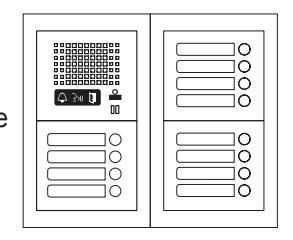
Direct Select / Push Button Entrance Station Addressing
- Step 1: Remove front cover from entrance station.
- Step 2: To enter programming mode, use a small screwdriver to push and release button under the rubber cap on front of speaker module (GT-DA-L). The amber LED will begin flashing, then remain lit. Once lit, the entry panel is in programming mode.
- Step 3: At tenant station, push and release the TALK button or pick up the handset to establish communication with the entrance station in programming mode.
- Step 4: Push and release the desired Call Button on the entrance station to assign the button to the tenant station that is active. A blip tone will be heard.
Do not press and hold the Call Button as doing so will clear the memory for this button.
- Step 5: Turn off or hang up tenant station (GT-1A: Push TALK again, GT-1C / GT-2C: Push OFF ).
- Step 6: Repeat steps 3-5 for remaining tenant stations.
- Step 7: To exit programming, push the button under the rubber cap on the GT-DA-L module again and the amber LED will turn off. The system is now ready for use.
How-To
Video Link
PROGRAMMING: ADDRESSING TENANTS VIA HAND-SHAKE METHOD (continued)
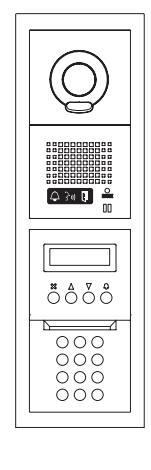
GT Digital Display Entrance Station Addressing
- Step 1: Remove front cover from entrance station.
- Step 2: To enter programming, use a small screwdriver to push and release button under the rubber cap on front of speaker module (GT-DA-L). The amber LED will begin flashing, then remain lit. Once lit, the entrance station is in programming mode. The LCD will show "CONNECTING" while in programming mode.
- Step 3: At tenant station, push and release the TALK button or pick up the handset to establish communication with the entrance station in programming mode.
- Step 4: Scroll to the station number to be programmed or manually dial the number. When the tenant station number is displayed, push and release the Bell button to assign the address to the tenant station that is active. A blip tone will be heard.
Do not press and hold the Bell button as doing so will clear the memory for this address.
- Step 5: Turn off or hang up tenant station (GT-1A: Press TALK again, GT-1C / GT-2C: Press OFF ).
- Step 6: Repeat steps 3-5 for remaining tenant stations.
- Step 7: To exit programming, push the button under the rubber cap on the GT-DA-L module again and the amber LED will turn off. The system is now ready for use.
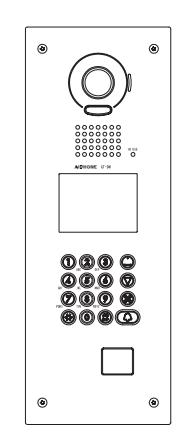
GT-DM Entrance Station Addressing
- Step 1: While in standby mode, enter # plus ID code (default is *1111). Re-enter ID code.
- Step 2: Use the up / down arrows and scroll to PROGRAMMING . Push the Bell button to enter programming mode. The amber LED will begin flashing, then remain lit. Once lit, the entry panel is in programming mode. The LCD will show "CONNECTING" while in programming mode.
- Step 3: At tenant station, push and release the TALK button or pick up the handset to establish communication with the entrance station in programming mode.
- Step 4: Scroll to the station number to be programmed or manually dial the number. When the tenant station number is displayed, push and release the Bell button to assign the address to the tenant station that is active. A blip tone will be heard.
Do not press and hold the Bell button as doing so will clear the memory for this address.
- Step 5: Turn off or hang up tenant station (GT-1A: Press TALK again, GT-1C / GT-2C: Press OFF ).
- Step 6: Repeat steps 3-5 for the remaining tenant stations.
- Step 7: To exit programming, press the "X" button on the panel to return to the main menu (the amber LED will turn off). Scroll to QUIT and press the "X" button again. The system is now ready for use.
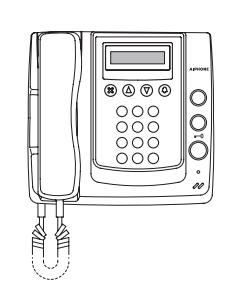
GT-MK Concierge Station Addressing
- Step 1: While in standby mode, enter # plus ID code (default is *1111). Re-enter ID code.
- Step 2: Use the up / down arrows and scroll to PROGRAMMING . Press the Bell button to enter programming mode. The LCD will show "CONNECTING" while in programming mode.
- Step 3: Pick up the handset on the GT-MK and leave off hook.
- Step 4: At tenant station, push and release the TALK button or pick up the handset to establish communication with the GT-MK in programming mode.
- Step 5: Scroll to the station number to be programmed or manually dial the number. When the tenant station number is displayed, push and release the Bell button to assign the address to the tenant station that is active. A blip tone will be heard from the GT-MK handset.
Do not press and hold the Bell button as doing so will clear the memory for this address.
- Step 6: Turn off or hang up tenant station (GT-1A: Press TALK again, GT-1C / GT-2C: Press OFF ).
- Step 7: Repeat steps 4-6 for the remaining tenant stations.
- Step 8: To exit programming, press the " X " button on the GT-MK to return to the main menu. Scroll to QUIT and press the " X " button again. The system is now ready for use.
Transferring Data Between Entrance Stations
The tenant / entrance station hand-shake information can be transferred between entrance stations and / or concierge stations. The above hand-shake procedure must be done at one entrance station before the transfer can occur. Refer to page 40 of the GT Series Installation Manual for this procedure.
Never do a transfer from an entrance station or concierge station that has not been addressed with tenant stations.
PROGRAMMING: ADDRESSING TENANTS VIA DIP SWITCH METHOD
Step 1: Set dip switches for all GT-1C and GT-2C stations using the chart example to the right.
(The full GT Dip Switch Setting Worksheet can be found on the CD included with the GT-BC.)
Step 2: Apply power to system.
Step 3: Install the GT software and USB cable driver on a computer running Windows® XP, Windows Vista®, or Windows® 7. (Refer to page 6 for COM Port selection steps.)
Step 4: Open the GT software, select [ GT System Mode ].
Step 5: Select the Resident tab.
Step 6: Enter a Room # and Name for each tenant to be programmed.
Step 7: Select View Room ID # Setting from the menu bar (see Figure 1).
Figure 1

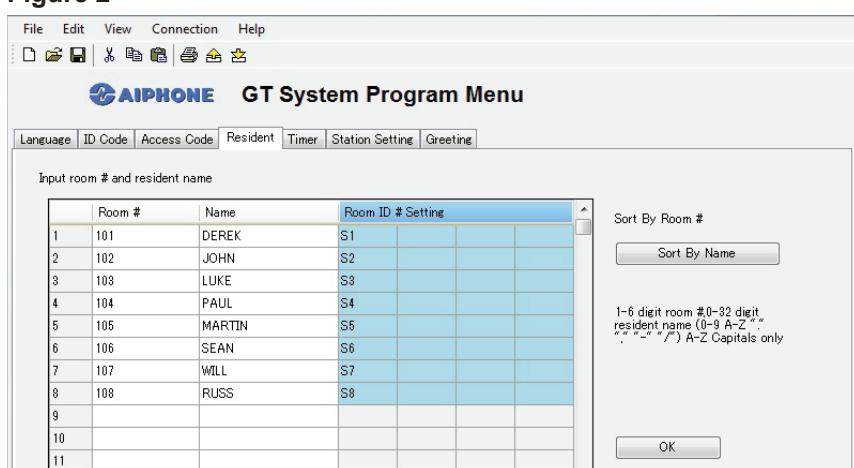
Step 8: For each Binary Dip Switch setting made in Step 1, enter the appropriate ID into the Room ID # Setting field. Ensure that the correct correlation is kept between tenant name and actual unit (see Figure 2).
Figure 2
Step 9: Select Connection Export from the menu bar (see Figure 3). (Export sends data to the entrance station. Import pulls data from the entrance station.)
Figure 3

Step 10: Check the LinkData box and select Yes (see Figure 4).
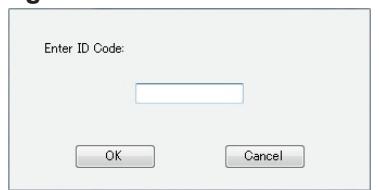
Step 11: Enter ID code (default is *1111) and click OK (see Figure 5). Data will be transferred.
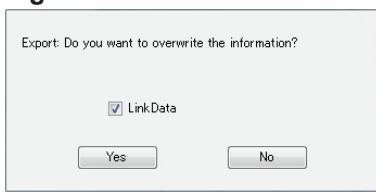
Figure 4 Figure 5
Room ID # Setting:
Use S# for standard system stations 1-48. Use A# for expanded system stations 1-250. Use B# for expanded system stations 251-500.
For tenant stations 251-500, the dip switch assignment is the same as 1-250. Tenant stations 1-250 wire to Sub 1A and Sub 1B of the GT-BCX while tenants 251-500 wire to Sub 2A and Sub 2B (see page 4).
Note: 8 binary digits allows for 255 unique numbers. Only numbers 1-250 are used by the GT system.
Visit our website for complete information and literature on the GT Series Multi-Tenant Entry Security System. www.aiphone.com/home
Aiphone Corporation
1700 130th Ave. NE Bellevue, WA 98005 Ph: (800) 692-0200 Fax: (425) 455-0071 www.aiphone.com tech@aiphone.com