ASSA ABLOY DSR Support Tool Installation Guide_SWMN23B
Open the original PDF document
View PDF

DSR Support Tool
Installation Guide
Table of Contents
| 1. | Introduction1 | |
|---|---|---|
|
Pre-Installation Checklist
|
1 | |
|
DSR Requirements
|
1 | |
|
Software System Requirements
|
1 | |
| Hardware Requirements (minimum) | 2 | |
| 2. | Installation3 | |
| Run Installer | 3 | |
| Introduction | 3 | |
| License Agreement | 4 | |
|
Choose Installation Folder
|
4 | |
| Choose PostgreSQL Installation Location | 4 | |
| PostgreSQL Server Configuration | 5 | |
|
DSR Support Tool Configuration
|
6 | |
| DSR Server Configuration | 7 | |
|
Pre-Installation Summary
|
8 | |
| Installing DSR | 8 | |
Revision History
Document Date Software Version
12/23 8.0.26.0
1. Introduction
This installation manual provides information on performing a basic installation of the Door Service Router (DSR) software version 8.0.26.0 and higher.
IMPORTANT: Be sure to verify all hardware for compatibility with Windows® operating system. See the Microsoft® website (www.microsoft.com) for more information.
Pre-Installation Checklist
Before installing the DSR software, verify the following:
- Dedicated server (physical or virtual machine (VM)) with a static IP.
- Appropriate Windows operating system installed and configured.
- Appropriate Windows OS service packs installed.
- Network is currently operational.
- Link to current DSR install file.
DSR Requirements
Software System Requirements
-
Operating System: Windows 10 or Windows 11 Pro; Windows OS Server 64 bit 2016, 2019, or 2022
- NOTE: Before installing the DSR software on a Windows 2019 server, confirm .NET 3.5 framework is installed.
- Java® Runtime Environment: 1.8.0 (installed with DSR)
- Apache Tomcat® : 9.0.0.M20 (installed with DSR)
- PostgreSQL 13 (installed with DSR)
- Browser Compatibility and Default: Microsoft Edge, Mozilla Firefox, Google Chrome
IMPORTANT: The server installation location, along with the username and password is required for DSR installation. If this is a previous installation, those details need to be available.
DSR Support Tool Installation Guide

Hardware Requirements (minimum)
NOTE: Minimum requirements apply per DSR.
Up to 128 locks:
- Desktop/laptop
- Four (4) CPU cores
- Eight (8) Gb RAM
- 75 Gb free HD space
- Windows 10 Pro, Windows 11 Pro, Windows Server 64 bit 2016, 2019, or 2022
Up to 1024 locks:
- Desktop/laptop
- Four (4) CPU cores
- Eight (8) Gb RAM
- 75 Gb free HD space
- Windows 10 Pro, Windows 11 Pro, Windows Server 64 bit 2016, 2019, or 2022
Up to 2048 locks:
- Desktop/laptop
- Eight (8) CPU cores
- 16 Gb RAM
- 100 Gb free HD space
- Windows 10 Pro, Windows 11 Pro, Windows Server 64 bit 2016, 2019, or 2022

2. Installation
Do the following to install the DSR software:
- 1. Log in to the computer where DSR is being installed with a domain account with local Administrator privileges. (If a domain is not present, use an Administrator account.)
- 2. Close any open applications and disable virus-checking software.
- 3. Go to the access control software provider's website location designated for DSR installer download.*
- 4. Download the DSR installation package.
- 5. Select and run the installer. Follow the instructions contained in the installation screens (see details below).
*User account registration may be required at the OEMs website to ensure the EAC application is compatible with the DSR version posted and available for download.
Some of the installation screens are different when installing an update versus a new installation. Update screens are noted in the process that follows.
Run Installer
Ensure the .net framework is installed.
Run the DSR Setup Wizard and follow the onscreen directions.
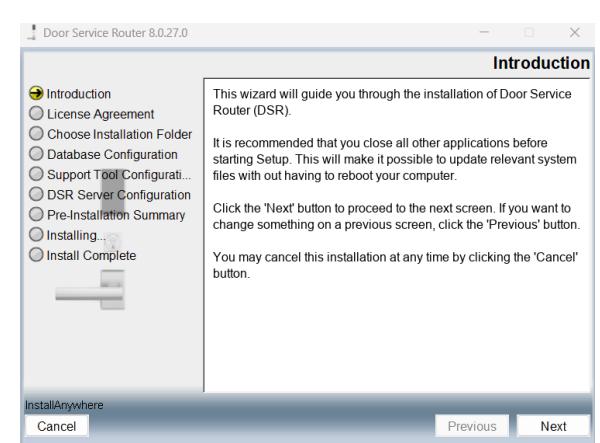
Introduction
This Setup screen guides the user through the installation process.
Click the Next button to continue.

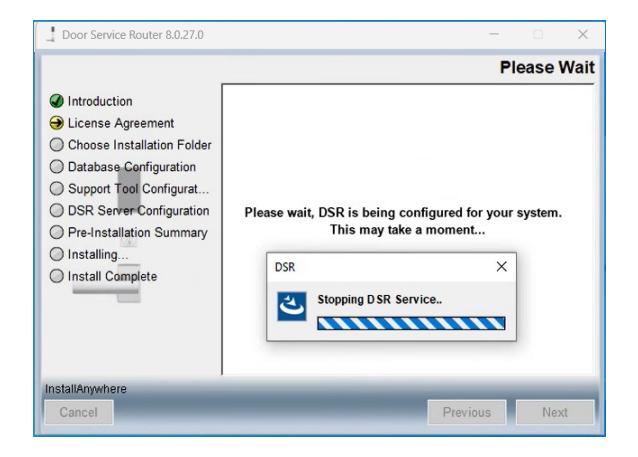
Stopping DSR Service
This screen only appears when installing an update. The existing DSR Service must be stopped before the new version of the software can be installed.
License Agreement
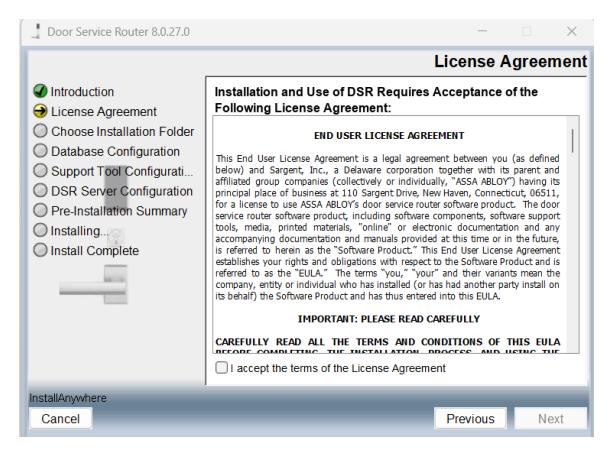
The DSR End User License Agreement (EULA) must be accepted for the DSR installation to continue.
Click the I accept the terms of the License Agreement check box.
Click the Next button to continue.
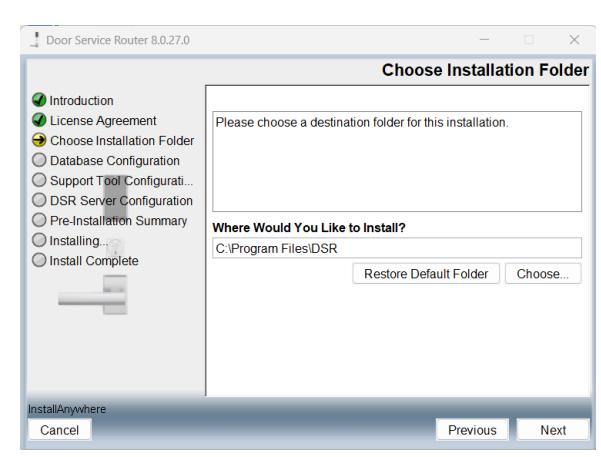
Choose Installation Folder
Select the destination folder for the installation. Default location is C:\ProgramFiles\DSR .
Click the Next button to continue.

Choose PostgreSQL Installation Location
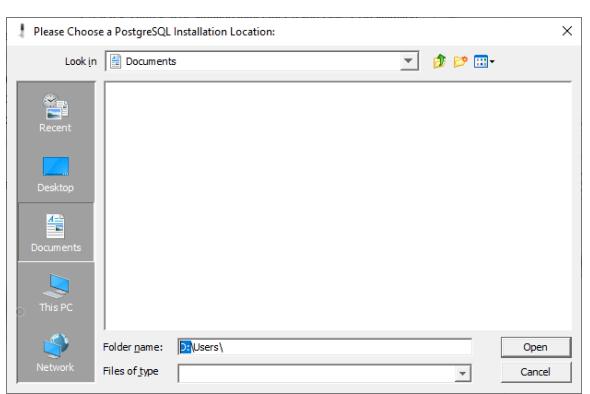
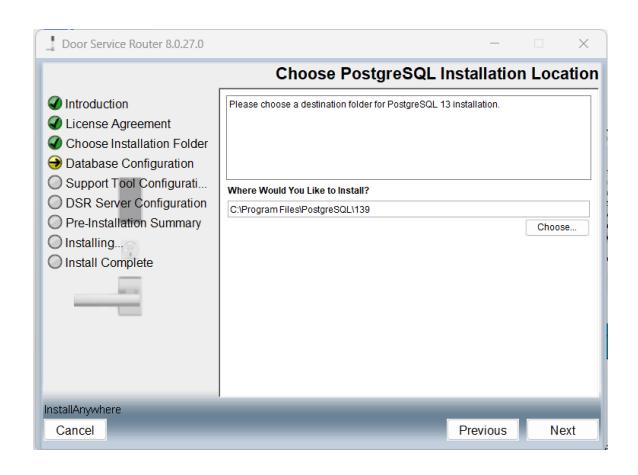
Select the destination folder for the PostgreSQL installation. It is a common option to host the DSR database on its own environment on the local server. Note that the PostgreSQL can be installed on a different drive, preferably a local drive. For example D:\ .
Click the Next button to continue.
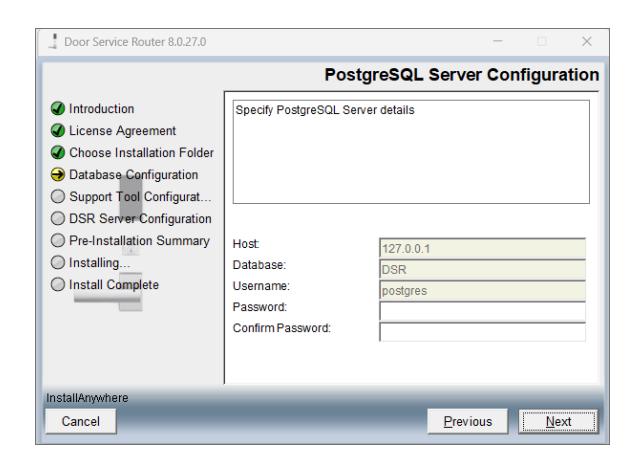
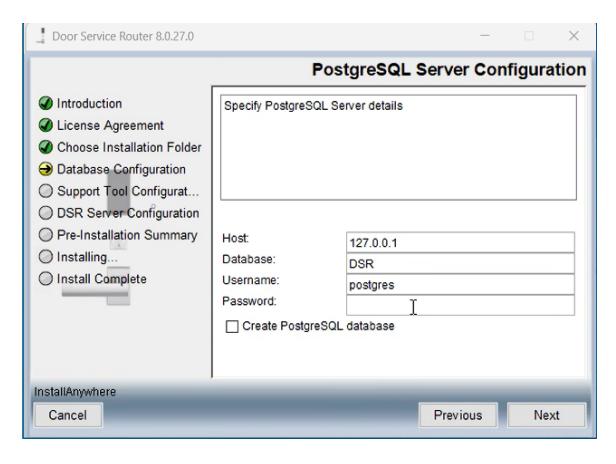
PostgreSQL Server Configuration
The PostgreSQL database server will be secured by a user-determined password. Remember this password.
NOTE: There is no set minimum length. Empty password is not allowed. Password must contain at least one uppercase character and one lowercase character. Special characters not allowed in the password are: /, $$, or space. One dollar sign ($) is allowed. Using space and quote (") will generate an error message advising a PostgreSQL corrupt error.
Enter a password in the Password field.
Enter the same password in the Confirm Password field. If the passwords do not match an error message is displayed.
If installing an update, enter the existing password for the PostgreSQL database.
Click the Next button to continue.
NOTE: The access control software provider and ASSA ABLOY may be unable to provide support without proper access to the DSR database.

DSR Support Tool Configuration
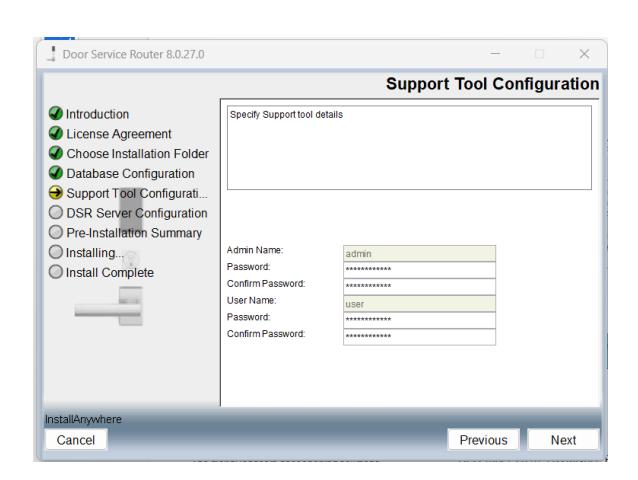
The DSR offers a web-based support tool for advanced configuration and troubleshooting. This web service is protected by an administrative password that is specified at the time of installation.
Roles: The Admin role has full access to the DSR application. The User role has read-only access to the Facility View and Reports tab in the application.
Enter an Admin Name and Password . Enter the same password in the Confirm Password field. If the passwords do not match an error message is displayed.
Enter a User Name and Password . Enter the same password in the Confirm Password field. If the passwords do not match an error message is displayed.
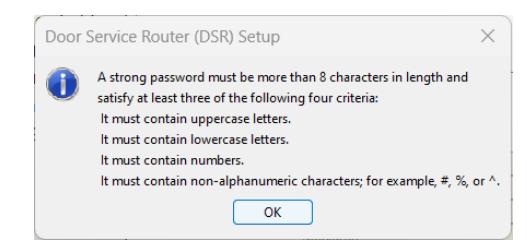
Password Requirements:
A strong password must be more than eight (8) characters in length and must satisfy all of the following criteria:
- It must contain uppercase letters
- It must contain lowercase letters
- It must contain numbers
- It must contain non-alphanumeric characters, i.e., #, %, ^ Click the Next button to continue.
NOTE: The access control software provider and ASSA ABLOY may be unable to provide support without proper access to the DSR Support Tool as an Administrator and postgreSQL database.

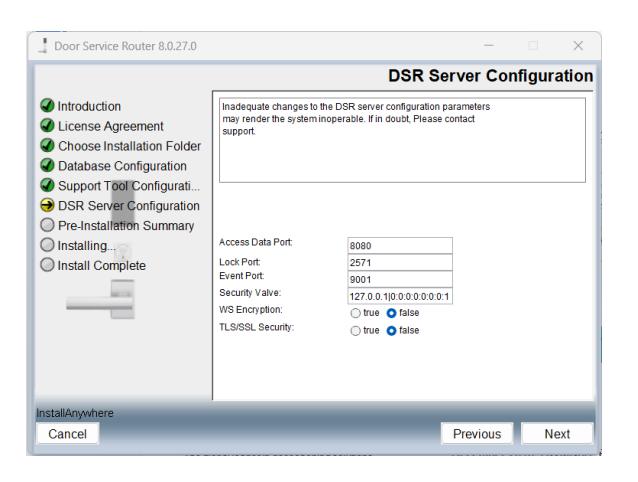
DSR Server Configuration
Specify the DSR Access Data port, Lock port, Event port and Security valve. Enable or disable WS-security and TSL/SSL security (https) based on the OEM requirements.
NOTE: Refer to the access control provider's integration manual for recommended settings. Incorrect settings may render the system inoperable.
- Access Data Port this is the port where DSR exposes its web service, which is consumed by EAC. Default values are 8080 for http and 8443 for https.
- Lock Port this port is opened in DSR for communication with a lock, example: 2571.
- Event Port this port (9001) is opened in DSR for communication with Lenel OG only. This field does not appear if integration is not being done with Lenel OG.
-
Security Valve
this is a list of IP Addresses to provide remote access to other workstations to use the DSR.
- To add a new IP address, use | before the IP address in case of multiple IP addresses. DO NOT MODIFY the following data string or values (127.0.0.1|0:0:0:0:0:0:1) Example: 127.0.0.1|0:0:0:0:0:0:1 |10.57.10.46|192.168.1.20
- Enable WS-Security (true/false) WS-Encryption is used to encrypt the web-service data. EAC application will mandate which setting is appropriate. Consult with your EAC application provider.
- TLS/SSL Security (https) (true/false) SSL-Encryption to enable HTTPS communication, default port is 8443. EAC application will mandate which setting is appropriate. Consult with your EAC application provider.
Click the Next button to continue.

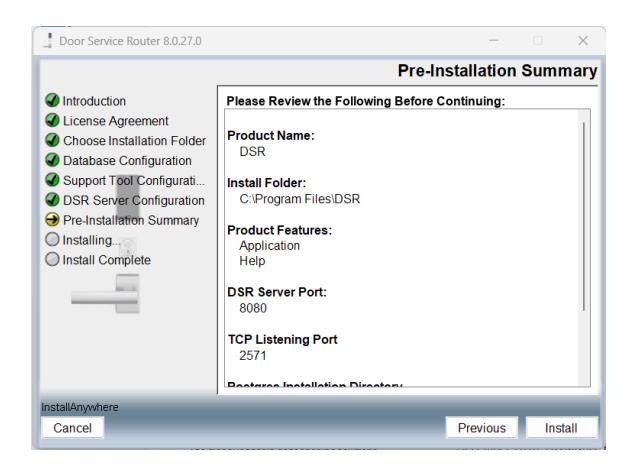
Pre-Installation Summary
Review the installation details. If any information is incorrect, click the Previous button to go back and change it.
Click the Install button to begin the installation.
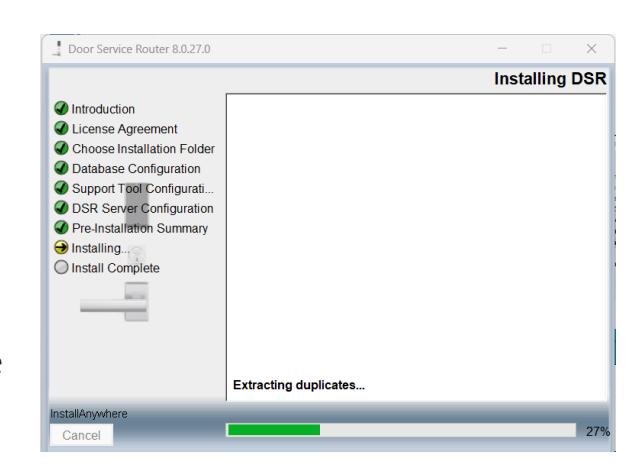
Installing DSR
A progress screen is displayed while the DSR software is being installed.
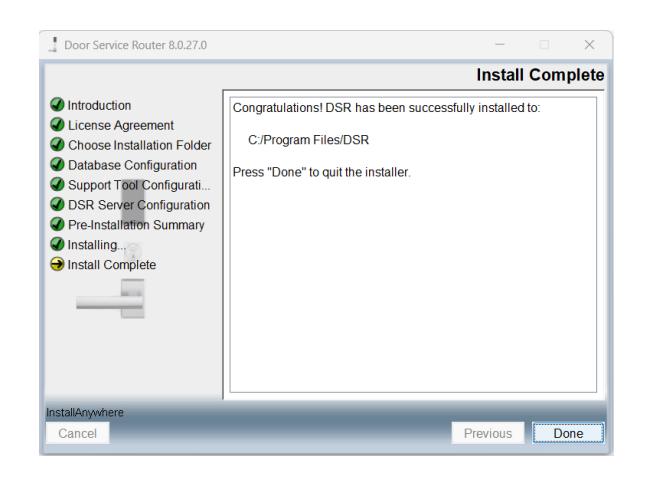
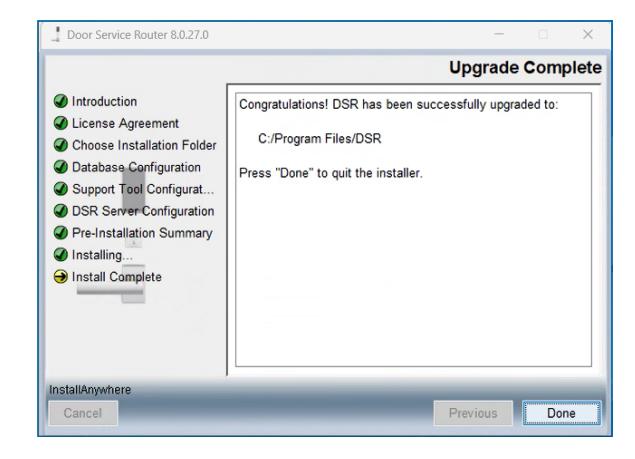
A success message is displayed when the installation/ upgrade has successfully completed. Click the Done button to quit the installer.
It is recommended to reboot the computer to complete the installation.
NOTE: If the installation fails, contact Technical Support at 800-810-9473 for assistance.
The ASSA ABLOY Group is the global leader in access solutions. Every day, we help billions of people experience a more open world.
ASSA ABLOY Opening Solutions leads the development within door openings and products for access solutions in homes, businesses and institutions. Our offering includes doors, frames, door and window hardware, mechanical and smart locks, access control and service.
Copyright © 1996-2016, The PostgreSQL Global Development Group
Microsoft and Windows are trademarks of the Microsoft Corporation in the U.S. and/or other countries.
Intel Core is a trademark of Intel Corporation in the U.S. and/or other countries.
Oracle and Java are registered trademarks of Oracle and/or its affiliates.
Apache Tomcat is a trademark of Apache Software Foundation.
ASSA ABLOY Americas 110 Sargent Drive New Haven, CT 06511 USA www.assaabloy.com