ASSA ABLOY ACCENTRA Accentra Resident Managed Access Getting Started Guide_80-8150-0062-999
Open the original PDF document
View PDFResident Managed Access™ - What it is and How to use it
1. What is Resident Managed Access™?
This is a feature of the ASSA ABLOY ACCENTRA™ Multi-Family Management System that allows you to remotely unlock doors; view access logs for you and your guests; and issue mobile access credentials to your guests/visitors using your mobile device or a computer. Guests can be given access for specified periods of time, so if you go on vacation your house sitter, or pet sitter can have access to your residence.
Depending on the level of access your facility manager provides, you may not see some of the functions described here.
2. Setting up Resident Managed Access™
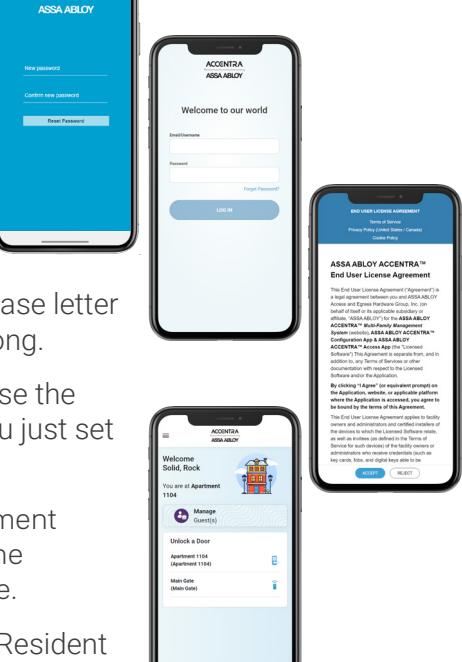
When your facility manager enables access, you will get an email that contains a link that brings you to the system Set a Password site. Once you set your password, you will have access to the system.
- 1. From the email, tap the link to navigate to the system Set Password page.
- 2. Set the password. Make sure to use at least one number, one special character, one uppercase letter, one lowercase letter and at least 12 characters long.
- 3. The login screen appears. Use the username and password you just set to login to the system.
- 4. An End User License Agreement appears. Read and accept the agreement to use the feature.
The Home screen appears and Resident Managed Access is ready to use.
3. Inviting Guests
Inviting Guests is simple, follow these steps:
- 1. From the Home Screen, tap Manage Guest . The Guest screen appears.
- 2. In the Guest Screen, tap Invite Guest . An information screen appears.
- 3. Add the Guest information (last name, first name, email), and the To and From dates you want to give the guest access.

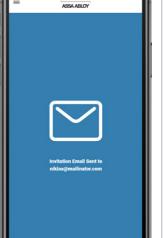
5. Tap Send Invite . An Invitation Sent screen appears.
An email is sent to your guest. They need to download the ASSA ABLOY ACCENTRA Multi-Family Management System access app and follow the instructions in the email to complete the process.
Resident Managed Access™ - What it is and How to use it
4. Unlocking a Door
Remotely unlocking a door is a handy feature, especially when a guest or family member forgot
Unlocking a door is simple, follow these steps:
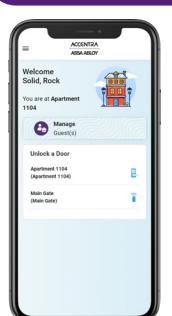
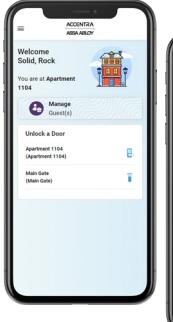
- 1. From the Home Screen, in the Unlock a Door section, scroll to the name of the door you want to unlock. If you don't see the door, tap View More for the complete list of doors.
-
2. Tap on the name of the door to be unlocked. If the door has this icon: a confirmation screen appears. Tap
Confirm
and the door is automatically unlocked.
- If the door has this icon: a One-Time PIN code is displayed. Give that code to the person needing access. Tell them to enter the code and then press the check mark button on the lock.

If you want to know when your guests have come in, use the Access Activity feature.
Viewing Access Activity is simple, follow these steps:
5. Viewing Access Activity
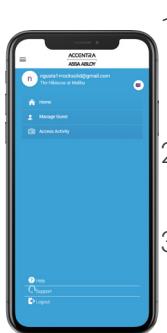
- 1. From the Home Screen, tap the Menu icon in the upper left corner of the screen. The menu appears.
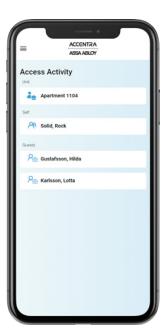
- 2. Tap Access Activity . The Access Activity screen appears.
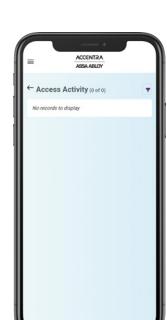
- 3. Tap the name of the individual you want to see the access details for. The Access Details screen appears.

- 1. From the Home Screen, tap Manage Guest . The Guest screen appears.
- 2. Tap the name of the Guest you want to see access details for. The Guest Details screen appears.
- 3. Tap the Access Activity icon in the upper right corner of the screen. The Access Details screen appears.
6. Other Useful Information
If you need help, tap the Menu icon in the upper left corner of the Home screen. Tap on Help for answers to common problems. Tap on Support to get the contact information for your facility support person.